


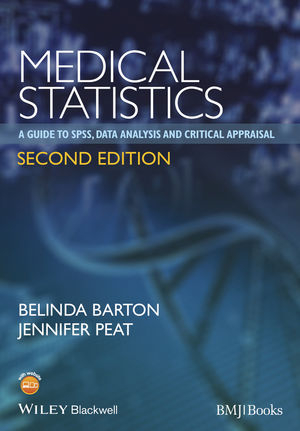
Medical Statistics (eBook)
John Wiley & Sons (Verlag)
978-1-118-58992-2 (ISBN)
Medical Statistics provides the necessary statistical tools to enable researchers to undertake and understand evidence-based clinical research,
It is a practical guide to conducting statistical research and interpreting statistics in the context of how the participants were recruited, how the study was designed, what types of variables were used, what effect size was found, and what the P values mean, It guides researchers through the process of selecting the correct statistics and show how to best report results for presentation and publication,
Clear and concise explanations, combined with plenty of examples and tabulated explanations are based on the authors' popular medical statistics courses,
The table of contents is divided into sections according to whether data are continuous or categorical in nature as this distinction is fundamental to selecting the correct statistics, Each chapter provides a clear step-by-step guide to each statistical test with practical instructions on how to generate and interpret the numbers, and present the results as scientific tables or graphs, The chapters conclude with critical appraisal guidelines to help researchers review the reporting of results from each type of statistical test,
This new edition includes a new chapter on repeated measures and mixed models and a helpful glossary of terms provides an easy reference that applies to all chapters,
Belinda Barton, Head and Psychologist, Children's Hospital Education Research Institute (CHERI), Conjoint Senior Lecturer, Sydney Medical School, University of Sydney, NSW Australia,
Jennifer Peat, Associate Professor, Department of Paediatrics and Child Health and Senior Hospital Statistician, Clinical Epidemiology Unit, Children's Hospital, Westmead, NSW Australia,
Medical Statistics provides the necessary statistical tools to enable researchers to undertake and understand evidence-based clinical research. It is a practical guide to conducting statistical research and interpreting statistics in the context of how the participants were recruited, how the study was designed, what types of variables were used, what effect size was found, and what the P values mean. It guides researchers through the process of selecting the correct statistics and show how to best report results for presentation and publication. Clear and concise explanations, combined with plenty of examples and tabulated explanations are based on the authors popular medical statistics courses. The table of contents is divided into sections according to whether data are continuous or categorical in nature as this distinction is fundamental to selecting the correct statistics. Each chapter provides a clear step-by-step guide to each statistical test with practical instructions on how to generate and interpret the numbers, and present the results as scientific tables or graphs. The chapters conclude with critical appraisal guidelines to help researchers review the reporting of results from each type of statistical test. This new edition includes a new chapter on repeated measures and mixed models and a helpful glossary of terms provides an easy reference that applies to all chapters.
Belinda Barton, Head and Psychologist, Children's Hospital Education Research Institute (CHERI), Conjoint Senior Lecturer, Sydney Medical School, University of Sydney, NSW Australia. Jennifer Peat, Associate Professor, Department of Paediatrics and Child Health and Senior Hospital Statistician, Clinical Epidemiology Unit, Children's Hospital, Westmead, NSW Australia.
Chapter 1
Creating an SPSS data file and preparing to analyse the data
There are two kinds of statistics, the kind you look up and the kind you make up.
REX STOUT
Objectives
The objectives of this chapter are to explain how to:
- create an SPSS data file that will facilitate straightforward statistical analyses
- ensure data quality
- manage missing data points
- move data and output between electronic spreadsheets
- manipulate data files and variables
- devise a data management plan
- select the correct statistical test
- critically appraise the quality of reported data analyses
1.1 Creating an SPSS data file
Creating a data file in SPSS and entering the data is a relatively simple process. In the SPSS window located on the top left-hand side of the screen is a menu bar with headings and drop-down options. A new file can be opened using the File → New → Data commands located on the top left-hand side of the screen. The SPSS IBM Statistics Data Editor has two different screens called the ‘Data View’ and ‘Variable View’. You can easily move between the two views by clicking on the tabs located at the bottom left-hand side of the screen.
1.1.1 Variable View screen
Before entering data in Data View, the features or attributes of each variable need to be defined in Variable View. In this screen, details of the variable names, variable types and labels are stored. Each row in Variable View represents a new variable and each column represents a feature of the variable such as type (e.g. numeric, dot, string, etc.) and measure (scale, ordinal or nominal). To enter a variable name, simply type the name into the first field and default settings will appear for almost all of the remaining fields, except for Label and Measure.
The Tab, arrow keys or mouse can be used to move across the fields and change the default settings. In Variable View, the settings can be changed by a single click on the cell and then pulling down the drop box option that appears when you double click on the domino on the right-hand side of the cell. The first variable in a data set is usually a unique identification code or a number for each participant. This variable is invaluable for selecting or tracking particular participants during the data analysis process.
Unlike data in Excel spreadsheets, it is not possible to hide rows or columns in either Variable View or Data View in SPSS and therefore, the order of variables in the spreadsheet should be considered before the data are entered. The default setting for the lists of variables in the drop-down boxes that are used when running the statistical analyses are in the same order as the spreadsheet. It can be more efficient to place variables that are likely to be used most often at the beginning of the spreadsheet and variables that are going to be used less often at the end.
Variable names
Each variable name must be unique and must begin with an alphabetic character. Variable names are entered in the column titled Name displayed in Variable View. The names of variables may be up to 64 characters long and may contain letters, numbers and some non-punctuation symbols but should not end in an underscore or a full stop. Variable names cannot contain spaces although words can be separated with an underscore. Some symbols such as @, # or $ can be used in variable names but other symbols such as %, > and punctuation marks are not accepted. SPSS is case sensitive so capital and lower case letters can be used.
Variable type
In medical statistics, the most common types of data are numeric and string. Numeric refers to variables that are recorded as numbers, for example, 1, 115, 2013 and is the default setting in Variable View. String refers to variables that are recorded as a combination of letters and numbers, or just letters such as ‘male’ and ‘female’. However, where possible, variables that are a string type and contain important information that will be used in the data analyses should be coded as categorical variables, for example, by using 1= male and 2 = female. For some analyses in SPSS, only numeric variables can be used so it is best to avoid using string variables where possible.
Other data types are comma or dot. These are used for large numeric variables which are displayed with commas or periods delimiting every three places. Other options for variable type are scientific notation, date, dollar, custom currency and restricted numeric.
Width and decimals
The width of a variable is the number of characters to be entered for the variable. If the variable is numeric with decimal places, the total number of characters needs to include the numbers, the decimal point and all decimal places. The default setting is 8 characters which is sufficient for numbers up to 100,000 with 2 decimal places.
Decimals refers to the number of decimal places that will be displayed for a numeric variable. The default setting is two decimal places, that is, 51.25. For categorical variables, no decimal places are required. For continuous variables, the number of decimal places must be the same as the number that the measurement was collected in. The decimal setting does not affect the statistical calculations but does influence the number of decimal places displayed in the output.
Labels
Labels can be used to name, describe or identify a variable and any character can be used in creating a label. Labels may assist in remembering information about a variable that is not included in the variable name. When selecting variables for analysis, variables will be listed by their variable label with the variable name in brackets in the dialogue boxes. Also, output from SPSS will list the variable label. Therefore, it is important to keep the length of the variable label short where possible. For example, question one of a questionnaire is ‘How many hours of sleep did you have last night?’. The variable name could be entered as q1 (representing question 1) and the label to describe the variable q1 could be ‘hrs sleep’. If many questions begin with the same phrase, it is helpful to include the question number in the variable label, for example, ‘q1: hrs sleep’.
Values
Values can be used to assign labels to a variable, which makes interpreting the output from SPSS easier. Value labels are most commonly used when the variable is categorical or nominal. For example, a label could be used to code ‘Gender’ with the label ‘male’ coded to a value of 1 and the label ‘female’ coded to a value of 2. The SPSS dialogue box Value Labels can be obtained by single clicking on the Values box, then clicking on the grey domino on the right-hand side of the box. Within this box, the buttons Add, Change and Remove can be used to customize and edit the value labels.
Missing
Missing can be used to assign user system missing values for data that are not available for a participant. For example, a participant who did not attend a scheduled clinical appointment would have data values that had not been measured and which are called missing values. Missing values are not included in the data analyses and can sometimes create pervasive problems. The seriousness of the problem depends largely on the pattern of missing data, how much is missing and why it is missing.1
For a full stop to be recognized as a system missing value, the variable type must be entered as numeric rather than a string variable. Other approaches to dealing with missing data will be discussed later in this chapter.
Columns and align
Columns can be used to define the width of the column in which the variable is displayed in the Data View screen. The default setting is 8 and this is generally sufficient to view the name in the Variable View and Data View screens. Align can be used to specify the alignment of the data information in Data View as either right, left or centre justified within cells.
Measure
In SPSS, the measurement level of the variable can be classified as nominal, ordinal or scale under the Measure option. The measurement scales used which are described below determine each of these classifications.
Nominal variables
Nominal scales have no order and are generally categories with labels that have been assigned to classify items or information. For example, variables with categories such as male or female, religious status or place of birth are nominal scales. Nominal scales can be string (alphanumeric) values or numeric values that have been assigned to represent categories, for example 1 = male and 2 = female.
Ordinal variables
Values on an ordinal scale have a logical or ordered relationship across the values and it is possible to measure some degree of difference between categories. However, it is usually not possible to measure a specific amount of difference between categories. For example, participants may be asked to rate their overall level of stress on a five-point scale that ranges from no stress, mild, moderate, severe or extreme stress. Using this scale, participants with severe stress will have a more serious condition than participants with mild stress, although recognizing that self-reported perception of stress may be subjective and is unlikely to be standardized between participants....
| Erscheint lt. Verlag | 6.8.2014 |
|---|---|
| Sprache | englisch |
| Themenwelt | Medizin / Pharmazie ► Allgemeines / Lexika |
| Medizin / Pharmazie ► Gesundheitswesen | |
| Studium ► Querschnittsbereiche ► Epidemiologie / Med. Biometrie | |
| Schlagworte | best report • Book • clinical research • effect • Essential • evidencebased • Guide • Interpretation • invaluable • Knowledge • Medical • medical education • Medical Professional Development • Medical Science • Medical Statistics & Epidemiology • Medizin • Medizinische Statistik u. Epidemiologie • Medizinstudium • Perspektiven in medizinischen Berufen • provides • Range • Researchers • research studies • Sample • Skills • Statistical • Statistics • stepbystep • study design • wide |
| ISBN-10 | 1-118-58992-0 / 1118589920 |
| ISBN-13 | 978-1-118-58992-2 / 9781118589922 |
| Informationen gemäß Produktsicherheitsverordnung (GPSR) | |
| Haben Sie eine Frage zum Produkt? |
 EPUB (Adobe DRM)
Kopierschutz: Adobe-DRM
Adobe-DRM ist ein Kopierschutz, der das eBook vor Mißbrauch schützen soll. Dabei wird das eBook bereits beim Download auf Ihre persönliche Adobe-ID autorisiert. Lesen können Sie das eBook dann nur auf den Geräten, welche ebenfalls auf Ihre Adobe-ID registriert sind.
Details zum Adobe-DRM
Dateiformat: EPUB (Electronic Publication)
EPUB ist ein offener Standard für eBooks und eignet sich besonders zur Darstellung von Belletristik und Sachbüchern. Der Fließtext wird dynamisch an die Display- und Schriftgröße angepasst. Auch für mobile Lesegeräte ist EPUB daher gut geeignet.
Systemvoraussetzungen:
PC/Mac: Mit einem PC oder Mac können Sie dieses eBook lesen. Sie benötigen eine
eReader: Dieses eBook kann mit (fast) allen eBook-Readern gelesen werden. Mit dem amazon-Kindle ist es aber nicht kompatibel.
Smartphone/Tablet: Egal ob Apple oder Android, dieses eBook können Sie lesen. Sie benötigen eine
Geräteliste und zusätzliche Hinweise
Buying eBooks from abroad
For tax law reasons we can sell eBooks just within Germany and Switzerland. Regrettably we cannot fulfill eBook-orders from other countries.


