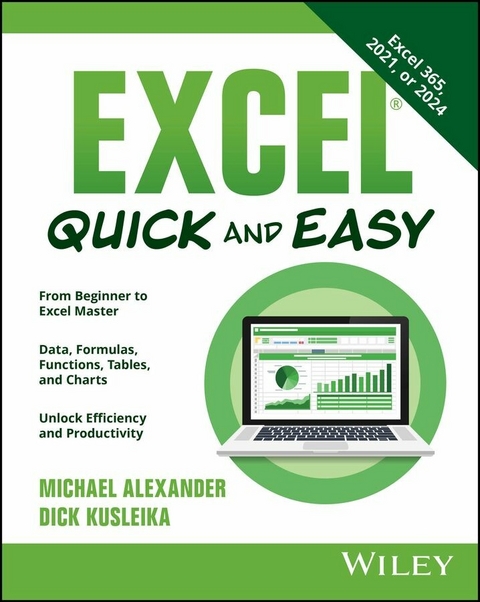
Excel Quick and Easy (eBook)
387 Seiten
Wiley (Verlag)
978-1-394-34527-4 (ISBN)
A fast, up-to-date, and convenient desk reference for Excel users of any skill level
Drawn from the most important tasks in the latest bestselling Excel Bible , Excel Quick and Easy is your ticket to data mastery. Excel veterans Michael Alexander and Dick Kusleika distil the most essential and useful tasks you need to understand about the world's most popular spreadsheet program, from functions to charts, graphs, formulas and more.
Prepare for a whirlwind tour of Excel, packed with simple and step-by-step guides to common and lesser-known Excel features. This book shows you how to:
- Create new spreadsheets and workbooks by entering and editing worksheet data
- Simplify working with large amounts of data by naming and moving ranges
- Make calculations and draw conclusions from your data by using formulas
- Visualize and present your data by creating functional charts
The secret weapon in your productivity arsenal
Being great at Excel is quickly becoming a standard expectation for a ton of employers and organizations, in all sorts of industries. Sharpening your skills can boost your workplace performance and make it easier to land promotions or find new roles. Excel Quick and Easy makes it a breeze to develop the proficiencies that help you stand out from your peers.
Unique features of this book
- Step-by-step guides to the most commonly used and productive Excel tasks, from basic worksheet operations to formatting spreadsheets for hardcopy printing
- Intuitive explanations for making your data tell a compelling story with visualizations, including charts, graphs, and tables
- Advanced number-crunching techniques, including formulas and functions, that help you unlock fresh insights and new conclusions from your data
Excel Quick and Easy is the perfect reference for brand-new Excel users trying to get up-to-speed quickly and confidently. It's also a must-read for anyone migrating from another spreadsheet program, like Google Sheets, or more experienced Excel users who need to solidify and improve their skills.
If you're tired of stumbling through your spreadsheets and just 'surviving' in Excel, grab a copy of Excel Quick and Easy and supercharge your productivity. You'll refine your understanding of the basics, learn brand-new skills and features, and become the Excel expert that every office desperately needs.
MICHAEL ALEXANDER is a senior consultant at Slalom Consulting with more than 15 years' experience in data management and reporting. He is the author of more than a dozen books on business analysis using Microsoft Excel and has been named Microsoft Excel MVP for his contributions to the Excel community.
DICK KUSLEIKA has been working with Microsoft Office for more than 20 years. He was formerly a Microsoft MVP, having been awarded 12 consecutive years. Dick has written several books about Excel and Access.
CHAPTER 1
Introducing Excel
IN THIS CHAPTER
- Understanding what Excel is used for
- Learning the parts of an Excel window
- Moving around a worksheet
This chapter is an introductory overview of Excel 365. Excel 365 runs on Windows, macOS, the web, iOS, iPadOS, and Android, though not all functions are available outside of Windows and macOS. If you're already familiar with a previous version of Excel, reading (or at least skimming) this chapter is still a good idea.
Understanding What Excel Is Used For
Excel is the world's most widely used spreadsheet software and is part of the Microsoft Office suite. Other spreadsheet software is available, but Excel is by far the most popular and has been the world standard for many years.
Much of the appeal of Excel is its versatility. Excel's forte, of course, is performing numerical calculations, but Excel is also useful for nonnumeric applications. Here are just a few uses for Excel:
- Crunching numbers: Create budgets, tabulate expenses, analyze survey results, and perform just about any type of financial analysis you can think of.
- Creating charts: Create a variety of highly customizable charts.
- Organizing lists: Use the row-and-column layout to store lists efficiently.
- Manipulating text: Clean up and standardize text-based data.
- Accessing other data: Import data from a variety of sources such as databases, text files, web pages, and many others.
- Creating graphical dashboards: Summarize a large amount of business information in a concise format.
- Creating graphics and diagrams: Use shapes and illustrations to create professional-looking diagrams.
- Automating complex tasks: Perform a tedious task with a single mouse click with Excel's macro capabilities.
Understanding Workbooks and Worksheets
An Excel file is called a workbook. You can have as many workbooks open as you need, and each one appears in its own window. By default, Excel workbooks use an .xlsx file extension.
NOTE
In old versions of Excel, every workbook opened in a single Excel window. Beginning with Excel 2013, each workbook opens in its own window. This change makes Excel work more like other Office applications and gives you the opportunity to put different workbooks on different monitors more easily.
The tabs in a workbook are called worksheets. Each workbook contains one or more worksheets, and each worksheet consists of individual cells. Each cell can contain a number, a formula, or text. A worksheet also has an invisible drawing layer, which holds charts, images, and diagrams. Objects on the drawing layer sit over the top of the cells, but they are not in the cells like a number or formula. You switch to a different worksheet by clicking its tab at the bottom of the workbook window. In addition, a workbook can store chart sheets; a chart sheet displays a single chart and is accessible by clicking a tab.
Don't be intimidated by all the different elements that appear within Excel's window. You don't need to know what all of them mean to use Excel effectively. And after you become familiar with the various parts, it all starts to make sense and you'll feel right at home.
Figure 1.1 shows you the more important bits and pieces of Excel. As you look at the figure, refer to Table 1.1 for a brief explanation of the items shown.
TABLE 1.1 Parts of the Excel screen that you need to know
| Name | Description |
|---|
| Column letters | Letters range from A to XFD—one for each of the 16,384 columns in the worksheet. You can click a column heading to select an entire column or click between the column letters and drag to change the column width. |
| File button | Click this button to open Backstage view, which contains many options for working with your document (including printing) and setting Excel options. |
| Formula bar | When you enter information or formulas into a cell, it appears in this bar. |
| Horizontal scrollbar | Use this tool to scroll the sheet horizontally. |
| Macro recorder indicator | Click to start recording a Visual Basic for Applications (VBA) macro. The icon changes while your actions are being recorded. Click again to stop recording. |
| Name box | This box displays the active cell address or the name of the selected cell, range, or object. |
| New Sheet button | Add a new worksheet by clicking the New Sheet button (which is displayed after the last sheet tab). |
| Page view buttons | Click these buttons to change the way the worksheet is displayed. |
| Quick Access Toolbar | This customizable toolbar holds commonly used commands. The Quick Access Toolbar is always visible, regardless of which tab is selected. |
| Ribbon | This is the main location for Excel commands. Clicking an item in the tab list changes the Ribbon that is displayed. |
| Ribbon Display Options | A drop-down control that offers three options related to displaying the Ribbon. |
| Row numbers | Numbers range from 1 to 1,048,576—one for each row in the worksheet. You can click a row number to select an entire row or click between the row numbers and drag to change the row height. |
| Search box | Use this control to find commands or have Excel issue a command automatically. Alt+Q is the shortcut to access the Search box. |
| Selected cell indicator | This dark outline indicates the currently selected cell or range of cells. (There are 17,179,869,184 cells on each worksheet.) |
| Sheet tabs | Each of these notebook-like tabs represents a different sheet in the workbook. A workbook can have any number of sheets, and each sheet has its name displayed in a sheet tab. |
| Sheet tab controls | Use these buttons to scroll the sheet tabs to display tabs that aren't visible. You can also right-click to get a list of sheets. |
| Status bar | This bar displays various messages as well as summary information about the range of cells selected. Right-click the status bar to change which messages are displayed. |
| Tab list | Use these commands to display a different Ribbon. |
| Title bar | This displays the name of the program and the name of the current workbook. It also holds the Quick Access Toolbar (on the left), the Search box, and some control buttons that you can use to modify the window (on the right). |
| Vertical scrollbar | Use this tool to scroll the sheet vertically. |
| Window controls | There are three controls for minimizing the current window, maximizing or restoring the current window, and closing the current window, which are common to virtually all Windows applications. |
| Zoom control | Use this to zoom your worksheet in and out. |
Moving Around a Worksheet
This section describes various ways to navigate the cells in a worksheet.
Every worksheet consists of rows (numbered 1 through 1,048,576) and columns (labeled A through XFD). Column labeling works like this: After column Z comes column AA, which is followed by AB, AC, and so on. After column AZ comes BA, BB, and so on. After column ZZ is AAA, AAB, and so on.
FIGURE 1.1 The Excel screen has many useful elements that you will use often.
The intersection of a row and a column is a single cell, and each cell has a unique address made up of its column letter and row number. For example, the address of the upper-left cell is A1. The address of the cell at the lower right of a worksheet is XFD1048576.
At any given time, one cell is the active cell. The active cell is the cell that accepts keyboard input, and its contents can be edited. You can identify the active cell by its darker border, as shown in Figure 1.2. If more than one cell is selected, the dark border surrounds the entire selection, and the active cell is the light-colored cell within the border. Its address appears in the Name box. Depending on the technique you use to navigate through a workbook, you may or may not change the active cell when you navigate.
The row and column headings of the active cell appear in a different color to make it easier to identify the row and column of the active cell.
FIGURE 1.2 The active cell is the one with the dark border—in this case, cell C11.
NOTE
Excel is also available for devices that use a touch interface. This book assumes you have a traditional keyboard and mouse, so it doesn't cover the touch-related commands. Note that the drop-down control in the Quick Access Toolbar has a Touch/Mouse...
| Erscheint lt. Verlag | 29.4.2025 |
|---|---|
| Sprache | englisch |
| Themenwelt | Informatik ► Office Programme ► Excel |
| Informatik ► Office Programme ► Outlook | |
| Schlagworte | excel charts • excel formatting • excel formulas • Excel functions • Excel Guide • excel reference • excel tables • Excel tips • printing excel spreadsheets • printing spreadsheets • spreadsheet guide • spreadsheet printing tips • spreadsheet tips |
| ISBN-10 | 1-394-34527-5 / 1394345275 |
| ISBN-13 | 978-1-394-34527-4 / 9781394345274 |
| Informationen gemäß Produktsicherheitsverordnung (GPSR) | |
| Haben Sie eine Frage zum Produkt? |
 EPUB (Adobe DRM)
Kopierschutz: Adobe-DRM
Adobe-DRM ist ein Kopierschutz, der das eBook vor Mißbrauch schützen soll. Dabei wird das eBook bereits beim Download auf Ihre persönliche Adobe-ID autorisiert. Lesen können Sie das eBook dann nur auf den Geräten, welche ebenfalls auf Ihre Adobe-ID registriert sind.
Details zum Adobe-DRM
Dateiformat: EPUB (Electronic Publication)
EPUB ist ein offener Standard für eBooks und eignet sich besonders zur Darstellung von Belletristik und Sachbüchern. Der Fließtext wird dynamisch an die Display- und Schriftgröße angepasst. Auch für mobile Lesegeräte ist EPUB daher gut geeignet.
Systemvoraussetzungen:
PC/Mac: Mit einem PC oder Mac können Sie dieses eBook lesen. Sie benötigen eine
eReader: Dieses eBook kann mit (fast) allen eBook-Readern gelesen werden. Mit dem amazon-Kindle ist es aber nicht kompatibel.
Smartphone/Tablet: Egal ob Apple oder Android, dieses eBook können Sie lesen. Sie benötigen eine
Geräteliste und zusätzliche Hinweise
Buying eBooks from abroad
For tax law reasons we can sell eBooks just within Germany and Switzerland. Regrettably we cannot fulfill eBook-orders from other countries.
aus dem Bereich