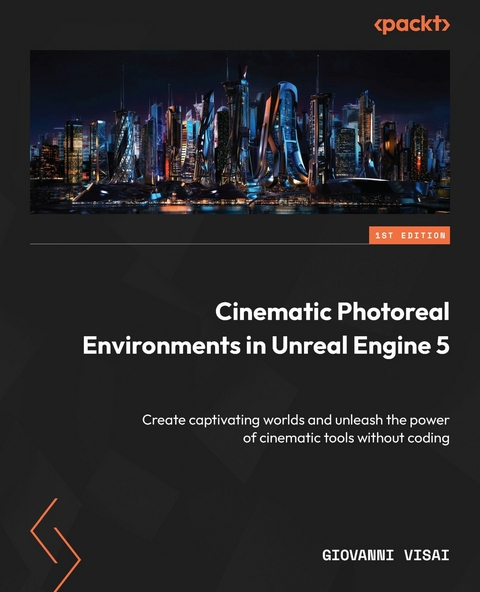
Cinematic Photoreal Environments in Unreal Engine 5 (eBook)
548 Seiten
Packt Publishing Limited (Verlag)
978-1-80323-688-9 (ISBN)

As Unreal Engine 5 continues to conquer all industries thanks to its real-time technology, UE skills are becoming more sought after than ever. This three-part book covers all the processes behind the creation of a stunning environment in UE 5.
Starting with the steps for installing the game engine and learning about its potential, you'll quickly progress toward generating a variety of different upwards scaling outputs, each bigger than the previous one. After completing the first part and getting realistic shots of a single object, you'll delve into the world of landscapes, procedural material and foliage, the Landmass plugin, and water tools by creating an environment using Megascan assets. At this point, you'll know everything you need to create a fascinating and realistic environment. The final part of this book will teach you how to craft cinematic shots by working with cinematic tools, post processing, and framing tools, and by rendering a photorealistic shot in the last chapter.
By the end of this Unreal Engine book, you'll be able to create outstanding and realistic environments using the powerful tools provided by UE as well as have an understanding of the importance of filming and composition in world building.
No detailed description available for "e;Cinematic Photoreal Environments in Unreal Engine 5"e;.
1
Creating Your First Project in Unreal Engine 5
Welcome to this fantastic journey that will allow you to discover how to create photorealistic environments for cinematics in Unreal Engine 5. In this chapter, we will start from the very beginning of the process by installing the Epic Games Launcher and Unreal Engine 5. We will learn the potential of the Epics Game Launcher and how to use its features such as Marketplace and Samples.
We will cover the following topics:
- Downloading and installing the Engine
- Epic Games Launcher – not just a launcher
- Creating your first project
- Choosing the perfect template
By the end of this chapter, you will be able to create a new project and know how to use project templates.
Technical requirements
In this chapter, you will take your first steps into the Unreal Engine world. To do that, you only need a workstation that achieves the Engine system requirement. You can check Unreal Engine system requirements for Windows, Mac, and Linux at the following link: https://docs.unrealengine.com/5.0/en-US/hardware-and-software-specifications-for-unreal-engine/.
Downloading and installing the Engine
In this section, we will see how to download and install Unreal Engine 5. But first, we will need to install the Epics Game Launcher:
- Go to www.unrealengine.com.
- Create an Epic Games account by clicking on the SIGN IN option at the top right of the page:
Figure 1.1 – Unreal Engine 5’s official web page with the SIGN IN link in the top-right corner
- Once you create an Epic Games account, click on the DOWNLOAD option at the top right of the page.
Figure 1.2 – Unreal Engine 5’s official web page with the DOWNLOAD link in the top-right corner
- Click on DOWNLOAD LAUNCHER and install it.
Figure 1.3 – The Epic Games Launcher download page
At the end of this page, you can also find System requirements for Windows, macOS, and Linux:
Figure 1.4 – Unreal Engine 5 System requirements – click on View Full system requirements to see the full list
Once you have installed Epic Game Launcher, you can launch it and log in with your Epic Games account.
Next, it’s time to install the Engine with the following steps:
- Open Epic Games Launcher and click on the Unreal Engine tab on the left-hand side.
- Click on Library at the top of the screen.
- To install the Engine, click on the plus (+) icon.
A rectangular thumbnail with a number and an Install button will appear. If you click on the number inside the thumbnail, you can choose the version of the Engine you want to install. In this book, we will use version 5.3.1. You can use later versions of the Engine as well.
Figure 1.5 – This is how you will find the Library tab for the first time
- Click on Install. Alternatively, you can also click on the Install Engine button on the top right of the windows. This button will install the latest version of the Engine. It will take a while to end the process.
Figure 1.6 – The Library tab will be shown in this way if you don’t have any version of the Engine installed
- Once you have installed the Engine, the install button becomes the Launch button. Click on the Launch button, and the Engine will be launched.
Figure 1.7 – This is how the Library tab will look when you’ve installed the Engine for the first time
If you click on the row near the Launch button, you can choose from different options:
Figure 1.8 – Engine versions scroll-down menu
Let’s understand what these options are:
- Options: Here, you can change the installation options. You can save a lot of space on your local hard drive by deselecting some components that will be useless for our work such as Android, iOS, and Linux. This will take several minutes.
Figure 1.9 – Engine version installation options menu
- Set Current: Set this Engine version as the current version. This means that any time you launch the Engine from the Epic Games Launcher, it will be in the version selected by you. This also changes the version in the general Launch button on the top-right corner of the Epic Games Launcher.
- Create Shortcut: A shortcut of this specific Engine version will be automatically created on your desktop.
- Remove: This will delete a specific Engine version.
- Verify: This option will repeat the verifying process of the Engine installation. It can correct some Engine errors. This can help in case of some malfunction of the Engine. This process takes several minutes but can be lifesaving during projects.
Now that we have downloaded and installed the Epic Games Launcher and Engine, let’s move on to the next section, where we will learn more about the Epic Games launcher.
Epic Games Launcher – not just a launcher
The Epic Games Launcher isn’t only the tool with which you can download and install the Engine. It’s a powerful tool where you can find any kind of resources you will need to create your projects.
In this section, we will discover how to manage projects with the Epic Games Launcher, how to get content from the Marketplace, and where to find learning content inside the Epic Games Launcher.
Library
This is the place where you can install the Engine and manage all your projects and contents. The Library tab is divided into three different parts, which are described in the following subsections.
ENGINE VERSIONS
As we saw before, we can choose which Engine version we want to install by clicking on the + icon. We can delete a specific Engine version by clicking on the X icon in the top-left corner of the Engine version thumbnail. (X appears by leaving the mouse over the Engine version thumbnail.)
The version name of the Engine is composed of three numbers.
Figure 1.10 – Engine version thumbnail – the Engine version name is composed of three different values
Let’s see what these numbers represent:
- The first is the main version of the Engine, which, in our case, is 5.
- The second is the major update version, which, in our case, is 2. A major update usually apports significant updates such as new features or bug fixes.
- The last one is the minor update version. A minor update usually fixes bugs.
The Epic Games Launcher will let you know when a new version, a new major update, or a new minor update will be available to download. When a new version or update is available, an orange circle will appear on the Library tab and near the Unreal Engine link on the left side of the Epic Games Launcher. An orange circle with i inside will appear near ENGINE VERSIONS. If you are working with multiple versions, the version that receives an update will have the Update button instead of the Launch button:
Figure 1.11 – New update or version notifications
What should you do when a new update is coming? Well, it depends. A minor update is usually safe, and you can update the Engine. A major update can be more problematic. It usually adds some new features or replaces old features with a new one. This can change important Engine files that could compromise your ongoing projects. So, be careful! In general, if you are working on a project, it is safer that you finish working on your project first and then update the Engine and the project to the new version. Usually, a major update is preceded by a preview version of...
| Erscheint lt. Verlag | 31.5.2024 |
|---|---|
| Sprache | englisch |
| Themenwelt | Mathematik / Informatik ► Informatik ► Grafik / Design |
| Mathematik / Informatik ► Informatik ► Programmiersprachen / -werkzeuge | |
| Informatik ► Software Entwicklung ► Spieleprogrammierung | |
| ISBN-10 | 1-80323-688-4 / 1803236884 |
| ISBN-13 | 978-1-80323-688-9 / 9781803236889 |
| Informationen gemäß Produktsicherheitsverordnung (GPSR) | |
| Haben Sie eine Frage zum Produkt? |
 EPUB (Ohne DRM)
Digital Rights Management: ohne DRM
Dieses eBook enthält kein DRM oder Kopierschutz. Eine Weitergabe an Dritte ist jedoch rechtlich nicht zulässig, weil Sie beim Kauf nur die Rechte an der persönlichen Nutzung erwerben.
Dateiformat: EPUB (Electronic Publication)
EPUB ist ein offener Standard für eBooks und eignet sich besonders zur Darstellung von Belletristik und Sachbüchern. Der Fließtext wird dynamisch an die Display- und Schriftgröße angepasst. Auch für mobile Lesegeräte ist EPUB daher gut geeignet.
Systemvoraussetzungen:
PC/Mac: Mit einem PC oder Mac können Sie dieses eBook lesen. Sie benötigen dafür die kostenlose Software Adobe Digital Editions.
eReader: Dieses eBook kann mit (fast) allen eBook-Readern gelesen werden. Mit dem amazon-Kindle ist es aber nicht kompatibel.
Smartphone/Tablet: Egal ob Apple oder Android, dieses eBook können Sie lesen. Sie benötigen dafür eine kostenlose App.
Geräteliste und zusätzliche Hinweise
Buying eBooks from abroad
For tax law reasons we can sell eBooks just within Germany and Switzerland. Regrettably we cannot fulfill eBook-orders from other countries.
aus dem Bereich