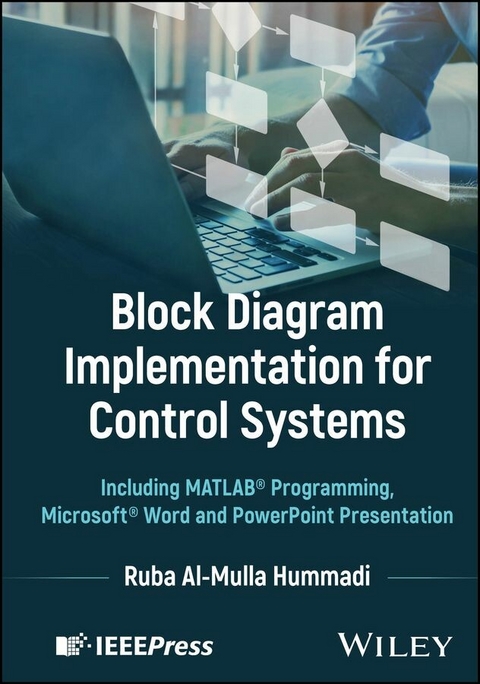
Block Diagram Implementation for Control Systems (eBook)
326 Seiten
Wiley-IEEE Press (Verlag)
978-1-394-37605-6 (ISBN)
An essential review of techniques for creating block diagrams, intended to complement standard control systems engineering texts on block diagram reduction stages.
Written as a two-semester course accompaniment for intermediate learners in Control System Engineering, Block Diagram Implementation for Control Systems combines the frequently used technologies of MATLAB, Word, and PowerPoint for the creation of block diagrams to deliver guidance on the widest set of programming options.
Each chapter features learning objectives, and examples are followed by activities to help readers enhance their understanding of concepts. The book contains illustrated tables, annotated figures, and MATLAB script files with executions after each step. The book also features display screens (what you get on your screen), shown in chapters four and five as print screen photos with annotations, and includes review questions after selected chapters.
Written by a highly qualified author, Block Diagram Implementation for Control Systems discusses topics including:
- Creating a new M-file, writing a script, saving, executing, or running a file, detecting errors, and writing pseudocode in MATLAB
- Creating a block diagram using the canvas or blank page methods and following either the manual or the options alignment methods in MS Word
- Organizing slides and creating expressions to turn to another slide in MS PowerPoint
- Understanding signal flow graphs, covering terminology, algebra, Mason's gain formula, and examples
Block Diagram Implementation for Control Systems is an essential learning resource for undergraduate courses on Control Systems and System Modeling and Simulation.
Ruba Al-Mulla Hummadi is an Assistant Professor from Sacramento, CA, USA. She obtained her MSc from Baghdad University, Iraq, in 2001 and worked at the same institution until 2018 in various roles teaching Electrical and Mechanical Engineering students Electrical Circuit Fundamentals, Electrical Machines, and Logic Circuits. From 2020, she worked as a tutor at American River College, Sacramento, USA.
2
MATLAB®
2.1 Introduction
MATLAB® is software from MATHWORKS. It offers a platform used to program and analyze engineering designs. It is used for many purposes such as analyzing data, developing algorithms, and creating models and applications.
MATLAB is the abbreviation of Matrix Laboratory. This means that every entered data into the MATLAB environment must be in a matrix form. To start working on MATLAB, the user should create a new M-file and use either inbuilt functions or create ones. Inbuilt functions are functions that are already defined in MATLAB such as series, parallel, and Cloop. Other functions that are created by the user are user-defined functions. For more information on MATLAB, read Palm III [5] and Gilat [6] or, watch a video on YouTube.
This chapter focuses on how to reduce a block diagram in MATLAB. How to create a new M-file and add more work on an existing file. What commands should be used in the reduction process and how.
Learning Objectives:
- To learn how to work on MATLAB.
- To learn how to apply the appropriate MATLAB command on each block diagram reduction stage or step.
- To learn how to write a MATLAB script for a block diagram reduction step.
- To learn how to write a pseudocode.
- To learn how to convert a pseudocode into a MATLAB code.
2.2 To Start with MATLAB®
- Install MATLAB® software on your computer and get the MATLAB icon on your desktop.
- Double-click on this icon to enter the MATLAB® program as shown in Fig. 2.1. The MATLAB window is divided into three parts in default format: the command window, the workspace area, and the current folder area.
- The command window is the most important area because it is a multifunctional area. First, it can be used to execute any script or any MATLAB command. Next, it can be used to ask for MATLAB help. Finally, it can be used as a scientific calculator.
- The workspace area displays the data and the results.
- The current folder area shows the position of the M- file on a PC.
Figure 2.1 The MATLAB screen.
- The editor window is the window where the programmer can write his script. It is highly recommended to open a new window for this editor so that the programmer can have a large area to work on as shown in Fig. 2.2. For more info, see Chapter 1 [6].
Figure 2.2 The MATLAB screen with the editor window.
2.3 M-File Definition
M-file(s) is/are the program(s) that be created by the user(s) or the programmer(s) and written in the editor window.
2.4 Create a New M-File (New Script)
To create or open a new M-file or script; open MATLAB and click on the HOME tab, then on the FILE group go to New and open its menu, then select and click Script as shown in Figs. 2.3 and 2.4.
Another Way to Open a New M-file
Go to FILE group, and click New Script, then an Editor Window will pop up on the screen as shown in Fig. 2.5.
Figure 2.3 Click Script from the New menu.
Figure 2.4 Editor window.
Figure 2.5 New Script and editor window.
2.5 Write a MATLAB® Script
After opening the Editor window, follow the three-step process of writing a MATLAB script as shown in Fig. 2.6.
Figure 2.6 How to write a MATLAB script file.
Write "clear" and "clc" before starting any program to delete any previous execution and clean the screen.
- 1- Input data:
Input all G's and H's block transfer functions. For example, G = 1/(s + 1), use either way to enter the transfer function.
- Defining numerator and denominator:
Use either "
num"or "n"to define the numerator and use either"den"or "d"to define the denominator of each block.numG=[1]; denG=[1 1];ornG=[1]; dG=[1 1]; - Use
tfcommand:s=tf('s');G=1/(s+1);
- Defining numerator and denominator:
- 2- Reduction process commands:
- Reduce or simplify the block diagram stage-by-stage using the appropriate MATLAB commands.
- Use Table 2.1 to apply the appropriate MATLAB command for the reduction process.
Table 2.1 MATLAB commands that used in the reduction process.
1- Command SeriesFigure Rule [n,d]=series(nG1,dG1,nG2,dG2)Description [output numerator, output denominator] =MATLAB command (numerator of G1, denominator of G1, numerator of G2, denominator of G2) If G & H are transfer functions use
GT=series(G1,G2)2- Command ParallelFigure Rule [n,d]=parallel(nG1,dG1,nG2,dG2)Description [output numerator, output denominator] = MATLAB command (numerator of G1, denominator of G1, numerator of G2, denominator of G2) If G & H are transfer functions use
GT=parallel(G1,G2)3- Command feedbackFigure Rule [n,d]=feedback(nG,dG,nH,dH,±1)Description [output numerator, output denominator] = MATLAB command (numerator of G, denominator of G, numerator of the feedback H, denominator of H, feedback sign)
The negative feedback is the MATLAB default.
Use[n,d]=feedback(nG,dG,nH,dH)or[n,d]=feedback(nG,dG,nH,dH,-1)for negative feedback
Use[n,d]=feedback(nG,dG,nH,dH,+1)for positive feedbackIf G & H are transfer functions use
G1=feedback(G,H)for negative feedback
G1=feedback(G,H,+1)for positive feedback4- Command cloop
Cloop means closed loop. In other words, there is no block in the feedback loop (H = 1).Figure Rule [n,d]=cloop(nG,dG,±1)Description [output numerator, output denominator] = MATLAB command (numerator of G, denominator of G, close loop sign) If G & H are transfer functions, use
GT=cloop(G,±1)5- Command PrintsysFigure Rule printsys(n,d)Description MATLAB command (numerator of the system transfer function, denominator of the system transfer function) 6- Command convFigure Rule n=conv(nH2,dG4), d=conv(dH2,nG4)
printsys(n,d)Description When you have two transfer functions divided on each other like Eq. (2.1), use the convcommand to get the result as numerator and denominator. Then useprintsyscommand to write the result as a transfer function.
(2.1)7- Command dispRule disp(‘output transfer function’)Description MATLAB command (‘text’) - 3- Output results:
- To display the results, follow either way:
- Don't put a semicolon (;) at the end of your script file line.
- Use
"printsys"command to display what you want.
- To display the results, follow either way:
After writing the program, save it under a chosen name, then execute it. To detect errors easily, it is highly recommended to execute the program after each step. The entered Data into MATLAB should be in matrix form. Matrix is explained in Section 2.6.
MATLAB can assist you when you need help understanding a command or when you don't know how to use a command. Write help followed by the command name in the Command Window, then press enter. A full explanation about the command will appear on...
| Erscheint lt. Verlag | 2.12.2025 |
|---|---|
| Sprache | englisch |
| Themenwelt | Technik ► Elektrotechnik / Energietechnik |
| Schlagworte | Control system engineering block diagram • Control system MATLAB commands • Control system signal flow graph • Microsoft Word • MS Powerpoint • MS Word |
| ISBN-10 | 1-394-37605-7 / 1394376057 |
| ISBN-13 | 978-1-394-37605-6 / 9781394376056 |
| Informationen gemäß Produktsicherheitsverordnung (GPSR) | |
| Haben Sie eine Frage zum Produkt? |
 EPUB (Adobe DRM)
Kopierschutz: Adobe-DRM
Adobe-DRM ist ein Kopierschutz, der das eBook vor Mißbrauch schützen soll. Dabei wird das eBook bereits beim Download auf Ihre persönliche Adobe-ID autorisiert. Lesen können Sie das eBook dann nur auf den Geräten, welche ebenfalls auf Ihre Adobe-ID registriert sind.
Details zum Adobe-DRM
Dateiformat: EPUB (Electronic Publication)
EPUB ist ein offener Standard für eBooks und eignet sich besonders zur Darstellung von Belletristik und Sachbüchern. Der Fließtext wird dynamisch an die Display- und Schriftgröße angepasst. Auch für mobile Lesegeräte ist EPUB daher gut geeignet.
Systemvoraussetzungen:
PC/Mac: Mit einem PC oder Mac können Sie dieses eBook lesen. Sie benötigen eine
eReader: Dieses eBook kann mit (fast) allen eBook-Readern gelesen werden. Mit dem amazon-Kindle ist es aber nicht kompatibel.
Smartphone/Tablet: Egal ob Apple oder Android, dieses eBook können Sie lesen. Sie benötigen eine
Geräteliste und zusätzliche Hinweise
Buying eBooks from abroad
For tax law reasons we can sell eBooks just within Germany and Switzerland. Regrettably we cannot fulfill eBook-orders from other countries.
aus dem Bereich