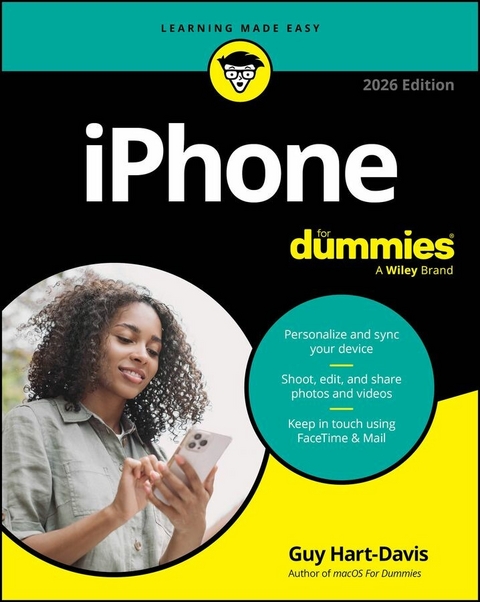
iPhone For Dummies, 2026 Edition (eBook)
566 Seiten
For Dummies (Verlag)
978-1-394-37396-3 (ISBN)
Discover the features that make iPhones so popular!
From day one setting up your Apple smartphone to utilizing it for everyday purposes, iPhone For Dummies breaks down the latest happenings with your device. Experienced Apple expert and tech educator Guy Hart-Davis walks you through how to make phone and FaceTime calls; send texts, messages, and emails; get online; and browse the web. Once connected, you can use your device for work or for play. Whether you need to create documents and edit spreadsheets, shoot video or take photos, or simply enjoy social networking and playing games, your Apple smartphone has you covered.
Learn how to exploit the power of Apple Intelligence and customize your phone's settings to suit your work, life, and accessibility needs. You can also discover how to adjust your phone's privacy settings, app permissions, and security settings so you can better protect your info and data. Then, test out the new Liquid Glass interface, transfer data from your old phone (Apple or Android) to a new one, and make the most of the capabilities and features added by the latest iPhone models.
iPhone For Dummies shows you how to:
- Navigate the iOS 2026 interface with ease and access the functionality you need when you need it
- Connect with friends, family, and colleagues using apps like Phone, FaceTime, Maps, and more
- Organize your life and get work done with Calendar, Contacts, Reminders, and Journal
- Find games and have fun with the latest apps available on the App Store
Looking for the latest tips and tricks to get the most out of your smartphone? iPhone For Dummies is your step-by-step guide to these fan-favorite phones.
Guy Hart-Davis is the author of more than 100 technical books, including several books in the For Dummies and Teach Yourself Visually series.
Discover the features that make iPhones so popular! From day one setting up your Apple smartphone to utilizing it for everyday purposes, iPhone For Dummies breaks down the latest happenings with your device. Experienced Apple expert and tech educator Guy Hart-Davis walks you through how to make phone and FaceTime calls; send texts, messages, and emails; get online; and browse the web. Once connected, you can use your device for work or for play. Whether you need to create documents and edit spreadsheets, shoot video or take photos, or simply enjoy social networking and playing games, your Apple smartphone has you covered. Learn how to exploit the power of Apple Intelligence and customize your phone s settings to suit your work, life, and accessibility needs. You can also discover how to adjust your phone s privacy settings, app permissions, and security settings so you can better protect your info and data. Then, test out the new Liquid Glass interface, transfer data from your old phone (Apple or Android) to a new one, and make the most of the capabilities and features added by the latest iPhone models. iPhone For Dummies shows you how to: Navigate the iOS 2026 interface with ease and access the functionality you need when you need it Connect with friends, family, and colleagues using apps like Phone, FaceTime, Maps, and more Organize your life and get work done with Calendar, Contacts, Reminders, and Journal Find games and have fun with the latest apps available on the App Store Looking for the latest tips and tricks to get the most out of your smartphone? iPhone For Dummies is your step-by-step guide to these fan-favorite phones.
Chapter 1
Setting Up and Navigating Your iPhone
IN THIS CHAPTER
Meeting your iPhone’s hardware
Setting up and activating your iPhone
Starting to use your iPhone
Locking and unlocking your iPhone
Powering down your iPhone
Getting to grips with Apple Intelligence
Congratulations on getting an iPhone! You’ve made a great choice.
In addition to being a first-rate cellular telephone, the iPhone is an excellent music player, a gorgeous widescreen video player, and a fantastic camera and camcorder system, not to mention a powerful internet communications device.
This chapter starts by making sure you know your way around your iPhone’s hardware. It then shows you how to activate the iPhone and set it up either manually or by picking up settings from your current iPhone or your iPad. You then learn to navigate the iPhone’s Home screen pages and dock, lock the iPhone when you’re not using it, and power it down for those rare occasions you don’t need to keep it running.
At the end of this chapter, you learn about Apple Intelligence, Apple's new strategic direction that incorporates artificial intelligence (AI) into its products, and where to turn in the book for coverage of Apple Intelligence on your iPhone.
Meeting Your iPhone’s Hardware
On the outside, the iPhone’s hardware is sleek and simple. This section explains what you find on the front, the back, the sides, and the bottom.
On the front
On the front of your iPhone, you find the following (labeled in Figure 1-1):
- Camera: The camera on the front of the iPhone is tuned for selfies and FaceTime video calling, so it has just the right field of view and focal length to focus on your face at arm’s length, which presents you in the best possible light.
-
Receiver/front microphone: The iPhone uses the receiver (speaker) and front mic for telephone calls. The receiver naturally sits close to your ear when you hold your iPhone in the “talking on the phone” position; the mic is used for noise canceling and FaceTime calls.
If you require privacy during phone calls, use a compatible Apple or third-party headset — wired or wireless.
- Status bar: The status bar displays important information, as you discover later in this chapter.
- Touchscreen: The touchscreen dominates the front of the iPhone, enabling you to control the iPhone by gesturing with your fingers and thumbs.
- Home button and Touch ID sensor (Touch ID models only): No matter what you’re doing, you can press the Home button at any time to display the Home screen, which is the screen shown in Figure 1-1. The iPhone’s Touch ID sensor uses your fingerprint to unlock the phone and to authenticate you (see Chapter 2).
- App icons: Each icon on the Home screen launches an app, such as the Weather app or the Files app.
- Widgets: A widget is a sort of mini-app that displays information or enables you to access features. For example, the Music widget in Figure 1-1 shows you current and upcoming songs.
Photo courtesy of Apple, Inc.
FIGURE 1-1: Touch ID iPhone models (left) have a Home button, whereas Face ID iPhone models do not.
On the back
On the back of your iPhone are one to three camera lenses that look like little circles or ovals in the top-left corner. The iPhone also has one or more little LEDs next to the camera lens for use as a flash for still photos, as a floodlight for videos, and as a flashlight that you can turn on or off via Control Center. For more on using the camera and shooting videos, see Chapters 14 and 15, respectively; for more on the flashlight and Control Center, see Chapter 4.
On the sides
Here’s what you’ll find on the sides on your iPhone (see Figure 1-2):
- Side button: This physical button on the right side of the iPhone enables you to take several actions, including powering on your iPhone; putting it to sleep and waking it; and summoning Siri, the virtual assistant.
- Camera control: All iPhone 16 and iPhone 17 models and the iPhone Air include this physical control surface for opening the Camera app; taking a photo or starting video capture; and adjusting zoom, exposure, depth of field, and other settings.
-
SIM card tray: If your iPhone model uses a physical SIM card, open this tray, insert the card in it, and then replace the tray. iPhone 14, iPhone 15, iPhone 16, and iPhone 17 models sold in the US use an e-SIM (a virtual SIM) rather than a physical card. The iPhone Air uses an e-SIM in every market. The SIM card tray may be on either the right side or the left side, depending on the iPhone model.
A SIM (Subscriber Identity Module) card is a removable smart card used to identify mobile phones. When you switch phones, you can move the SIM card from your old phone to the new phone, provided the phones use the same SIM card size. Current iPhone models that use a SIM card use the nano-SIM format.
- Action button: The iPhone 15 Pro, all iPhone 16, and all iPhone 17 models have the action button at the top of the left side, as does the iPhone Air. You can customize this button in the Settings app to take your preferred action, such as recording a voice memo or turning on the flashlight. The action button’s default action is to toggle between ring mode and silent mode; long-press the action button until you feel haptic feedback confirming the mode change.
FIGURE 1-2: Here’s what you’ll find on the sides of your iPhone.
-
Ring/silent switch: In place of the action button, the iPhone 15 (non-Pro models), iPhone SE, and earlier iPhone models have this switch at the top of the left side, which lets you quickly toggle between ring mode and silent mode. When the switch is set to ring mode — with the switch toward the iPhone’s screen — your iPhone plays all sounds through the speaker on the bottom. When the switch is set to silent mode — with the switch toward the iPhone’s back — your iPhone makes no sound when you receive a call or when an alert pops up on the screen.
Silent mode is overridden by alarms you set in the iPhone’s Clock app; by music, audiobooks, and other audio you play; and by you auditioning sounds such as ringtones and alert sounds in the Settings app. Also, when you configure a focus, such as Do Not Disturb, you can permit specific apps to interrupt it.
If your phone is set to ring mode and you want to silence it quickly when it starts ringing, press the side button or either of the volume buttons.
- Volume up/down buttons: Two volume buttons are just below the action button or the ring/silent switch. The upper button increases the volume; the lower one decreases it. You use the volume buttons to raise or lower the loudness of the ringer, alerts, sound effects, songs, and movies. During phone calls, the buttons adjust the voice loudness of the person you’re speaking with, regardless of whether you’re listening through the receiver, the speakerphone, or a headset.
The iPhone 14 Pro models and all iPhone 15, iPhone 16, and iPhone 17 models plus the iPhone Air have a feature called Dynamic Island, a display element that appears near the top of the screen to provide context-sensitive controls and information, such as playback controls for music, telephony controls for phone calls and FaceTime calls, or map directions for your current journey. Dynamic Island adjusts its size automatically to present information visually to you. Tap an icon in Dynamic Island to go straight to the app for the feature that icon represents.
These models also have a feature called Always-On Display that lets you show key information, such as notifications and upcoming events, on the Lock screen. On iPhone models without Always-On Display, locking the phone turns the screen off completely.
On the bottom
On the bottom of your iPhone, you find microphones, the USB-C port or Lightning port, and stereo speakers, as shown in Figure 1-3:
-
Microphones: The built-in microphones let callers hear your voice when you’re not using a headset.
The iPhone sports three or more microphones — the main ones are on the bottom — which work together to suppress unwanted and distracting background sounds on phone calls using dual-mic noise suppression plus beam-forming technology that makes the microphones listen in the right direction.
- USB-C port or Lightning port: The USB-C port or Lightning port has several purposes:
- Recharge your iPhone’s battery. Connect one end of the included charge cable to the iPhone and the other end to a USB power adapter, a USB port on your computer, or a port on a powered USB hub.
- Sync your iPhone. Connect one end of the cable to the port on your iPhone and the other end to a USB port on your Mac or PC.
- Connect your iPhone to other devices. Connect a camera, a television, or an external drive easily. For an iPhone Air, iPhone 15, iPhone 16, or iPhone 17 model, use a USB-C cable. For an iPhone SE or an earlier iPhone model, use a Lightning adapter such as the camera connection kit or one of...
| Erscheint lt. Verlag | 27.10.2025 |
|---|---|
| Sprache | englisch |
| Themenwelt | Sachbuch/Ratgeber ► Natur / Technik |
| Mathematik / Informatik ► Informatik | |
| Technik ► Elektrotechnik / Energietechnik | |
| Schlagworte | are iphones complicated? • are iphones easy to use? • are iphones hard? • how do I use iphones? • ios18 guide • iphone accessibility • iPhone Apps • iPhone book • iPhone Features • iphone for beginners • iPhone guide • iphone handbook • iPhone Tips |
| ISBN-10 | 1-394-37396-1 / 1394373961 |
| ISBN-13 | 978-1-394-37396-3 / 9781394373963 |
| Informationen gemäß Produktsicherheitsverordnung (GPSR) | |
| Haben Sie eine Frage zum Produkt? |
 EPUB (Adobe DRM)
Kopierschutz: Adobe-DRM
Adobe-DRM ist ein Kopierschutz, der das eBook vor Mißbrauch schützen soll. Dabei wird das eBook bereits beim Download auf Ihre persönliche Adobe-ID autorisiert. Lesen können Sie das eBook dann nur auf den Geräten, welche ebenfalls auf Ihre Adobe-ID registriert sind.
Details zum Adobe-DRM
Dateiformat: EPUB (Electronic Publication)
EPUB ist ein offener Standard für eBooks und eignet sich besonders zur Darstellung von Belletristik und Sachbüchern. Der Fließtext wird dynamisch an die Display- und Schriftgröße angepasst. Auch für mobile Lesegeräte ist EPUB daher gut geeignet.
Systemvoraussetzungen:
PC/Mac: Mit einem PC oder Mac können Sie dieses eBook lesen. Sie benötigen eine
eReader: Dieses eBook kann mit (fast) allen eBook-Readern gelesen werden. Mit dem amazon-Kindle ist es aber nicht kompatibel.
Smartphone/Tablet: Egal ob Apple oder Android, dieses eBook können Sie lesen. Sie benötigen eine
Geräteliste und zusätzliche Hinweise
Buying eBooks from abroad
For tax law reasons we can sell eBooks just within Germany and Switzerland. Regrettably we cannot fulfill eBook-orders from other countries.
aus dem Bereich