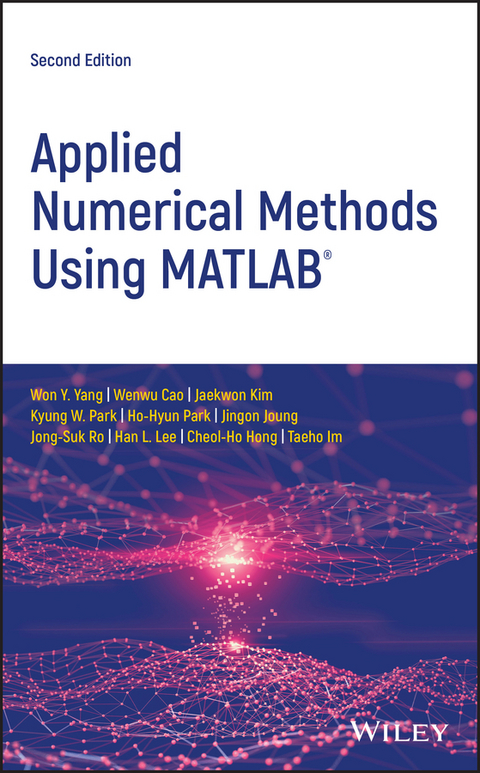
Applied Numerical Methods Using MATLAB (eBook)
John Wiley & Sons (Verlag)
978-1-119-62682-4 (ISBN)
This new edition provides an updated approach for students, engineers, and researchers to apply numerical methods for solving problems using MATLAB®
This accessible book makes use of MATLAB® software to teach the fundamental concepts for applying numerical methods to solve practical engineering and/or science problems. It presents programs in a complete form so that readers can run them instantly with no programming skill, allowing them to focus on understanding the mathematical manipulation process and making interpretations of the results.
Applied Numerical Methods Using MATLAB®, Second Edition begins with an introduction to MATLAB usage and computational errors, covering everything from input/output of data, to various kinds of computing errors, and on to parameter sharing and passing, and more. The system of linear equations is covered next, followed by a chapter on the interpolation by Lagrange polynomial. The next sections look at interpolation and curve fitting, nonlinear equations, numerical differentiation/integration, ordinary differential equations, and optimization. Numerous methods such as the Simpson, Euler, Heun, Runge-kutta, Golden Search, Nelder-Mead, and more are all covered in those chapters. The eighth chapter provides readers with matrices and Eigenvalues and Eigenvectors. The book finishes with a complete overview of differential equations.
- Provides examples and problems of solving electronic circuits and neural networks
- Includes new sections on adaptive filters, recursive least-squares estimation, Bairstow's method for a polynomial equation, and more
- Explains Mixed Integer Linear Programing (MILP) and DOA (Direction of Arrival) estimation with eigenvectors
- Aimed at students who do not like and/or do not have time to derive and prove mathematical results
Applied Numerical Methods Using MATLAB®, Second Edition is an excellent text for students who wish to develop their problem-solving capability without being involved in details about the MATLAB codes. It will also be useful to those who want to delve deeper into understanding underlying algorithms and equations.
Won Y. Yang, PhD, is a Professor in the Department of Electrical Engineering at Chung-Ang University in Seoul, Korea.
Wenwu Cao, PhD, is a Professor in the Department of Materials Science and Engineering at Penn State University in University Park, Pennsylvania.
Jaekwon Kim, PhD, is a Professor in the Department of Electrical Engineering at Yongsei University in Wonju, Korea.
Kyung W. Park, PhD, is a Professor in the Department of Electrical Engineering at Yonsei University, Wonju, Korea.
Ho-Hyun Park, PhD, is a Professor in the School of Electrical and Electronics Engineering at Chung-Ang University in Seoul, Korea.
Jingon Joung, PhD, is a Professor in the Department of Electrical Engineering at Chung-Ang University in Seoul, Korea.
Jong-Suk Ro is Creative Research Engineer Development at Brain Korea 21 Plus, Seoul National University in Seoul, Korea.
Han L. Lee, PhD, is a Professor in the Department of Electrical Engineering at Chung-Ang University in Seoul, Korea.
Cheol-Ho Hong is Assistant Professor in the School of Electrical and Electronics Engineering at Chung-Ang University in Seoul, Korea.
Taeho Im, PhD, is a Professor in Oceanic IT Engineering at Hoseo University in Asan, Korea.
This new edition provides an updated approach for students, engineers, and researchers to apply numerical methods for solving problems using MATLAB This accessible book makes use of MATLAB software to teach the fundamental concepts for applying numerical methods to solve practical engineering and/or science problems. It presents programs in a complete form so that readers can run them instantly with no programming skill, allowing them to focus on understanding the mathematical manipulation process and making interpretations of the results. Applied Numerical Methods Using MATLAB , Second Edition begins with an introduction to MATLAB usage and computational errors, covering everything from input/output of data, to various kinds of computing errors, and on to parameter sharing and passing, and more. The system of linear equations is covered next, followed by a chapter on the interpolation by Lagrange polynomial. The next sections look at interpolation and curve fitting, nonlinear equations, numerical differentiation/integration, ordinary differential equations, and optimization. Numerous methods such as the Simpson, Euler, Heun, Runge-kutta, Golden Search, Nelder-Mead, and more are all covered in those chapters. The eighth chapter provides readers with matrices and Eigenvalues and Eigenvectors. The book finishes with a complete overview of differential equations. Provides examples and problems of solving electronic circuits and neural networks Includes new sections on adaptive filters, recursive least-squares estimation, Bairstow's method for a polynomial equation, and more Explains Mixed Integer Linear Programing (MILP) and DOA (Direction of Arrival) estimation with eigenvectors Aimed at students who do not like and/or do not have time to derive and prove mathematical results Applied Numerical Methods Using MATLAB , Second Edition is an excellent text for students who wish to develop their problem-solving capability without being involved in details about the MATLAB codes. It will also be useful to those who want to delve deeper into understanding underlying algorithms and equations.
Won Y. Yang, PhD, is a Professor in the Department of Electrical Engineering at Chung-Ang University in Seoul, Korea. Wenwu Cao, PhD, is a Professor in the Department of Materials Science and Engineering at Penn State University in University Park, Pennsylvania. Jaekwon Kim, PhD, is a Professor in the Department of Electrical Engineering at Yongsei University in Wonju, Korea. Kyung W. Park, PhD, is a Professor in the Department of Electrical Engineering at Yonsei University, Wonju, Korea. Ho-Hyun Park, PhD, is a Professor in the School of Electrical and Electronics Engineering at Chung-Ang University in Seoul, Korea. Jingon Joung, PhD, is a Professor in the Department of Electrical Engineering at Chung-Ang University in Seoul, Korea. Jong-Suk Ro is Creative Research Engineer Development at Brain Korea 21 Plus, Seoul National University in Seoul, Korea. Han L. Lee, PhD, is a Professor in the Department of Electrical Engineering at Chung-Ang University in Seoul, Korea. Cheol-Ho Hong is Assistant Professor in the School of Electrical and Electronics Engineering at Chung-Ang University in Seoul, Korea. Taeho Im, PhD, is a Professor in Oceanic IT Engineering at Hoseo University in Asan, Korea.
1
MATLAB Usage and Computational Errors
Chapter Outline
- 1.1 Basic Operations of MATLAB
- 1.1.1 Input/Output of Data from MATLAB Command Window
- 1.1.2 Input/Output of Data Through Files
- 1.1.3 Input/Output of Data Using Keyboard
- 1.1.4 Two‐Dimensional (2D) Graphic Input/Output
- 1.1.5 Three Dimensional (3D) Graphic Output
- 1.1.6 Mathematical Functions
- 1.1.7 Operations on Vectors and Matrices
- 1.1.8 Random Number Generators
- 1.1.9 Flow Control
- 1.2 Computer Errors vs. Human Mistakes
- 1.3 Toward Good Program
1.1 Basic Operations of MATLAB
MATLAB is a high‐level software package with many built‐in functions that make the learning of numerical methods much easier and more interesting. In this section, we will introduce some basic operations that will enable you to learn the software and build your own programs for problem solving. In the workstation environment, you type “matlab” to start the program, while in the PC environment, you simply double‐click the MATLAB icon.
Once you start the MATLAB program, a Command window will open with the MATLAB prompt ≫. On the command line, you can type MATLAB commands, functions together with their input/output arguments, the names of script files containing a block of statements to be executed at a time or functions defined by users. The MATLAB program files must have the extension name ***.m to be executed in the MATLAB environment. If you want to create a new M‐file or edit an existing file, you click File/New/M‐file or File/Open in the top left corner of the main menu, find/select/load the file by double‐clicking it, and then begin editing it in the Editor window. If the path of the file you want to run is not listed in the MATLAB search path, the file name will not be recognized by MATLAB. In such cases, you need to add the path to the MATLAB‐path list by clicking the menu ‘Set_Path’ in the Command window, clicking the ‘Add_Folder’ button, browsing/clicking the folder name and finally clicking the SAVE button and the Close button. The lookfor command is available to help you find the MATLAB commands/functions that are related with a job you want to be done. The help command helps you know the usage of a particular command/function. You may type directly in the Command window
>lookfor repeat or >help for to find the MATLAB commands in connection with ‘repeat’ or to find information about the ‘for loop’
1.1.1 Input/Output of Data from MATLAB Command Window
MATLAB remembers all input data in a session (anything entered through direct keyboard input or running a script file) until the command ‘ clear()’ is given or you exit MATLAB.
One of the many features of MATLAB is that it enables us to deal with the vectors/matrices in the same way as scalars. For instance, to input the matrices/vectors,
type the following statements in the MATLAB Command window:
>A=[1 2 3;4 5 6] A= 1 2 3 4 5 6 >B=[3;-2;1]; %put the semicolon at the end of the statement to suppress the result printout onto the screen >C=[1 -2 3 -4] At the end of the statement, press <Enter> key if you want to check the result of executing the statement immediately. Otherwise, type a semicolon ‘;’ before pressing <Enter> key so that the Command window will not be overloaded by a long display of results.
1.1.2 Input/Output of Data Through Files
MATLAB can handle two types of data files. One is the binary format mat‐files named ***.mat. This kind of files can preserve the values of more than one variable, but will be handled only in the MATLAB environment and cannot be shared with other programming environments. The other is the ASCII dat‐files named ***.txt, which can be shared with other programming environments, but preserve the values of only one variable.
Beneath are a few sample statements for storing some data into a mat‐file in the current directory and reading the data back from the mat‐file.
>save ABC A B C %store the values of A,B,C into the file 'ABC.mat' >clear A C %clear the memory of MATLAB about A,C >A %what is the value of A? Undefined function or variable 'A' >load ABC A C %read the values of A,C from the file 'ABC.mat' >A % the value of A A= 1 2 3 4 5 6 If you want to store the data into an ASCII dat‐file (in the current directory), make the filename the same as the name of the data and type ‘ ‐ascii’ at the end of the save statement.
>save B.txt B -ascii However, with the save/load commands into/from a dat‐file, the value of only one variable having the lowercase name can be saved/loaded, a scalar or a vector/matrix. Besides, nonnumeric data cannot be handled by using a dat‐file. If you save a string data into a dat‐file, its ASCII code will be saved. If a dat‐file is constructed to have a data matrix in other environments than MATLAB, every line (row) of the file must have the same number of columns. If you want to read the data from the dat‐file in MATLAB, just type the (lowercase) filename ***.txt after ‘ load’, which will also be recognized as the name of the data contained in the dat‐file.
>load b.txt %read the value of variable b from the ascii file 'b.txt' At the MATLAB prompt, you can type ‘nm112’ (the filename excluding the extension name part “.m”) and <Enter> key to run the following M‐file “nm112.m” consisting of several file input(save)/output(load) statements. Then you will see the effects of the individual statements from the running results appearing on the screen.
%nm112.m clear A=[1 2 3;4 5 6] B=[3;-2;1]; C(2)=2; C(4)=4 disp('Press any key to see the input/output through Files') save ABC A B C %save A,B & C as a MAT-file named 'ABC.mat' clear('A','C') %remove the memory about A and C load ABC A C %read MAT-file to recollect the memory about A and C save B.txt B -ascii %save B as an ASCII-file file named 'b.txt' clear B load b.txt %read ASCII-file to recollect the memory about b b x=input('Enter x:') format short e x format rat, x format long, x format short, x 1.1.3 Input/Output of Data Using Keyboard
The command ‘input’ enables the user to input some data via the keyboard. For example,
>x=input('Enter x: ') Enter x: 1/3 x= 0.3333 Note that the fraction 1/3 is a nonterminating decimal number, but only four digits after the decimal point is displayed as the result of executing the above command. This is a choice of formatting in MATLAB. One may choose to display more decimal places by using the command ‘ format’, which can make a fraction show up as a fraction, as a decimal number with more digits, or even in an exponential form of a normalized number times 10 to the power of some integer. For instance:
>format rat % as a rational number >x x= 1/3 >format long % as a decimal number with 14 digits >x x= 0.33333333333333 >format long e % as a long exponential form >x x= 3.333333333333333e-001 >format hex % as a hexadecimal form as represented/stored in memory >x x= 3fd5555555555555 >format short e % as a short exponential form >x x= 3.3333e-001 >format short % back to a short form(default) >x x= 0.3333 Note that the number of displayed digits is not the actual number of significant digits of the value stored in computer memory. This point will be made clear in Section 1.2.1.
There are other ways of displaying the value of a variable and a string on the screen than typing the name of the...
| Erscheint lt. Verlag | 16.4.2020 |
|---|---|
| Sprache | englisch |
| Themenwelt | Mathematik / Informatik ► Informatik |
| Mathematik / Informatik ► Mathematik ► Analysis | |
| Technik ► Elektrotechnik / Energietechnik | |
| Schlagworte | Applied Mathematics in Science • Data • Differential Equations • Engineering • Linear equations • <p>applied numerical methods • math applications • Mathematical Analysis • Mathematics • Mathematik • Mathematik in den Naturwissenschaften • MATLAB • Numerical analysis • Numerical Methods • numerische Methoden • Probability & Mathematical Statistics • problem solving</p> • Science • Software • Statistics • Statistik • telecommunications • Wahrscheinlichkeitsrechnung u. mathematische Statistik |
| ISBN-10 | 1-119-62682-X / 111962682X |
| ISBN-13 | 978-1-119-62682-4 / 9781119626824 |
| Informationen gemäß Produktsicherheitsverordnung (GPSR) | |
| Haben Sie eine Frage zum Produkt? |
 EPUB (Adobe DRM)
Kopierschutz: Adobe-DRM
Adobe-DRM ist ein Kopierschutz, der das eBook vor Mißbrauch schützen soll. Dabei wird das eBook bereits beim Download auf Ihre persönliche Adobe-ID autorisiert. Lesen können Sie das eBook dann nur auf den Geräten, welche ebenfalls auf Ihre Adobe-ID registriert sind.
Details zum Adobe-DRM
Dateiformat: EPUB (Electronic Publication)
EPUB ist ein offener Standard für eBooks und eignet sich besonders zur Darstellung von Belletristik und Sachbüchern. Der Fließtext wird dynamisch an die Display- und Schriftgröße angepasst. Auch für mobile Lesegeräte ist EPUB daher gut geeignet.
Systemvoraussetzungen:
PC/Mac: Mit einem PC oder Mac können Sie dieses eBook lesen. Sie benötigen eine
eReader: Dieses eBook kann mit (fast) allen eBook-Readern gelesen werden. Mit dem amazon-Kindle ist es aber nicht kompatibel.
Smartphone/Tablet: Egal ob Apple oder Android, dieses eBook können Sie lesen. Sie benötigen eine
Geräteliste und zusätzliche Hinweise
Buying eBooks from abroad
For tax law reasons we can sell eBooks just within Germany and Switzerland. Regrettably we cannot fulfill eBook-orders from other countries.
aus dem Bereich