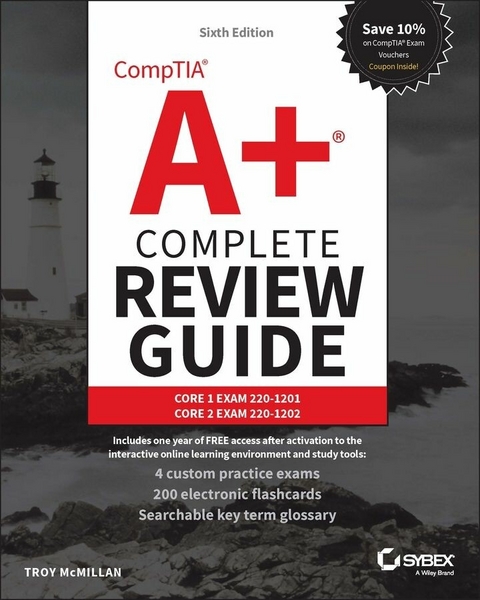
CompTIA A+ Complete Review Guide (eBook)
1165 Seiten
Sybex (Verlag)
978-1-394-33079-9 (ISBN)
Prepare for the new A+ certification exams with this updated companion resource to the CompTIA A+ Complete Study Guide
In the sixth edition of CompTIA A+ Complete Review Guide: Core 1 Exam 220-1201 and Core 2 Exam 220-1202, A+ certified tech educator Troy McMillan offers a must-have companion resource to the CompTIA A+ Complete Study Guide. This book includes practical examples and insights drawn from the real-world experience of PC and hardware technicians, as well as A+ certification exam highlights and concise end-of-chapter reviews.
This Review Guide gets you up-to-speed on mobile devices, networking, hardware, virtualization and cloud computing, and hardware and network troubleshooting. It also prepares you for the certification exam questions covering operating systems, security, software troubleshooting, and operational procedures.
Using the explanations, practice questions (with included answers), and examples, you'll quickly and efficiently prepare for both the Core 1 and Core 2 A+ certification exams.
Also inside:
- Accurate updates to each topic consistent with the latest version of the exams
- Additional coverage of each of the objectives tested by the Core 1 and Core 2 A+ exams that expands on the material contained in the CompTIA A+ Complete Study Guide
- Complimentary access to the Sybex interactive online learning environment, with practice questions, digital flashcards, and a searchable PDF glossary of key terminology
CompTIA A+ Complete Review Guide, sixth edition, is perfect for everyone preparing for the new A+ Core 1 and Core 2 certification exams (220-1201 and 220-1202). It's also an essential resource for IT professionals who want to upgrade or improve their skills.
ABOUT THE AUTHOR
TROY MCMILLAN holds more than 30 IT certifications, including A+ and Network+. He is a Product Developer and Technical Editor for N2K.com and a full-time trainer, teaching Cisco, Microsoft, CompTIA, and Wireless classes.
Prepare for the new A+ certification exams with this updated companion resource to the CompTIA A+ Complete Study Guide In the sixth edition of CompTIA A+ Complete Review Guide: Core 1 Exam 220-1201 and Core 2 Exam 220-1202, A+ certified tech educator Troy McMillan offers a must-have companion resource to the CompTIA A+ Complete Study Guide. This book includes practical examples and insights drawn from the real-world experience of PC and hardware technicians, as well as A+ certification exam highlights and concise end-of-chapter reviews. This Review Guide gets you up-to-speed on mobile devices, networking, hardware, virtualization and cloud computing, and hardware and network troubleshooting. It also prepares you for the certification exam questions covering operating systems, security, software troubleshooting, and operational procedures. Using the explanations, practice questions (with included answers), and examples, you'll quickly and efficiently prepare for both the Core 1 and Core 2 A+ certification exams. Also inside: Accurate updates to each topic consistent with the latest version of the exams Additional coverage of each of the objectives tested by the Core 1 and Core 2 A+ exams that expands on the material contained in the CompTIA A+ Complete Study Guide Complimentary access to the Sybex interactive online learning environment, with practice questions, digital flashcards, and a searchable PDF glossary of key terminology CompTIA A+ Complete Review Guide, sixth edition, is perfect for everyone preparing for the new A+ Core 1 and Core 2 certification exams (220-1201 and 220-1202). It's also an essential resource for IT professionals who want to upgrade or improve their skills.
Chapter 1
Mobile Devices
COMPTIA A+ 220-1201 EXAM OBJECTIVES COVERED IN THIS CHAPTER:
✔ 1.1 Given a scenario, monitor mobile device hardware and use appropriate replacement techniques
- Battery
- Keyboard/keys
- Random-access memory (RAM)
- Hard disk drive (HDD)/solid-state drive (SSD)
- Wireless cards
- Physical privacy and security components
- Wi-Fi antenna connector/placement
- Camera/webcam
- Microphone
- Exam essentials
✔ 1.2 Compare and contrast accessories and connectivity options for mobile devices
- Connection methods
- Accessories
- Docking station
- Port replicator
- Trackpad/drawing pad/track points
- Exam essentials
✔ 1.3 Given a scenario, configure basic mobile device network connectivity and provide application support
- Wireless/cellular data network (enable/disable)
- Bluetooth
- Location services
- Mobile device management (MDM)
- Mobile device synchronization
- Exam essentials
This chapter will focus on the exam topics related to mobile devices. It will follow the structure of the CompTIA A+ 220-1201 exam blueprint, Objective 1, and cover the three subobjectives that you will need to master before taking the exam. The mobile devices domain represents 13% of the total exam.
1.1 Given a scenario, monitor mobile device hardware and use appropriate replacement techniques
In today’s environment, laptops and tablets (those names will be used interchangeably) share many of the same types of components. In this section, I’ll discuss how to monitor the performance of some of the basic components and how to replace them when appropriate.
The following topics are addressed in Exam Objective 1.1:
- Battery
- Keyboard/keys
- Random-access memory (RAM)
- Hard disk drive (HDD)/solid-state drive (SSD)
- Wireless cards
- Physical privacy and security components
- Wi-Fi antenna connector/placement
- Camera/webcam
- Microphone
Battery
Monitoring and maintaining the battery in a mobile device is very important. After all, you don’t want your notebook to die just as you are about to advance to the next level of your favorite video game! In addition to watching the battery-power level, you can manage several items that control how your battery consumes power. In a Windows machine, type Power & Battery in the search bar, which will bring you to the corresponding systems control screen, as shown in Figure 1.1. Here you can adjust the power and battery settings to get the most usefulness when you’re running on battery power.
Figure 1.1 Power and battery settings
If you find yourself needing to replace your laptop battery, check out the following steps.
Replacing a laptop battery is simply a matter of removing the battery storage bay, removing the old battery from the bay, inserting the new battery into the bay, and replacing the bay. Determining the battery type for the replacement will probably take longer than the replacement procedure. In fact, many users carry extra batteries for situations where they know they will need to use the laptop for longer than the battery life (such as a long plane trip) and change the battery as needed.
With all of this said, if the laptop or mobile device does not have an externally accessible battery, opening the case to replace the battery will void the warranty.
Keyboard/keys
Keyboards on laptops are not replaced very often, considering that it is often easier to use an external keyboard. However, if you spill something on your keyboard or the keys break or wear down, you might find yourself in need of a replacement keyboard. While these steps work on most laptops, it’s always a good idea to refer to the manufacturer’s website for model-specific instructions.
When replacing the keyboard, one of the main things you want to keep in mind is not to damage the data cable connector to the system board. Follow these steps for a smooth replacement:
- With the laptop fully powered off and unplugged from the electricity source, remove the battery. Examine the screws on the back of the laptop. Ideally, icons indicating which screws are attached to the keyboard will be available on the back of the laptop. If not, look up the model online and determine which of the screws are attached to the keyboard.
- Remove the screws with a T8 or Phillips-head screwdriver. With the laptop turned back over, open it. If the keyboard is tucked under any plastic pieces, determine whether those pieces must have screws removed to get them out of the way; if so, remove the screws and those plastic pieces. In some cases, there may simply be clamps that can easily be removed.
- With any plastic covers out of the way, remove any screws at the top and then remove the keyboard itself from top to bottom. There should be a thin but wide data cable to the system board at the bottom. This is the piece to be careful with because it can be easily damaged!
- Take a pick and lift the plastic connectors holding this data cable in place. Remove the data cable. Take the new keyboard and slip the data cable back in between the plastic connectors on the system board. Ensure it’s all the way in.
- Put the plastic connector back into place and ensure it’s holding the data cable in. Position the keyboard into place and refasten the keyboard in place at the top, replacing any screws that were there previously.
- Replace any plastic pieces that were covering the keyboard, turn the laptop over, and replace all of the keyboard screws. When you replace the battery and turn the laptop back on, check functionality. If the keyboard doesn’t work, the main component to check is the data connector.
Random-access memory (RAM)
You can monitor your RAM usage a couple of different ways. In Windows, the Task Manager is a great place to start. Hit Ctrl-Alt-Del simultaneously, and in the menu screen, select Task Manager. What you should see is the Task Manager, as shown in Figure 1.2.
Figure 1.2 Task Manager
The Processes tab will show you some key metrics, including Memory (RAM) usage by application. As shown in Figure 1.2, Google Chrome is consuming a considerable amount of RAM. Time to shut down some browser tabs!
With that said, installing more RAM in your computer is usually one of the best upgrades to perform.
There should be a panel used for access to the memory modules. If the panels are not marked (as many are not), refer to your laptop instruction manual to locate the bottom panel. Follow these steps to perform a memory upgrade:
- Remove any screws holding the panel in place, then remove the panel from the laptop and set it aside. If you’re removing an existing memory module, remove it by undoing the module clamps, gently lift the edge of the module to a 45-degree angle, and then pull the module out of the slot.
- Align the notch of the new module with that of the memory slot and gently insert the module into the slot at a 45-degree angle. With all pins in the slot, gently rotate the module down flat until the clamps lock the module into place.
- Replace the memory access panel, replace any screws, and power up the system. When the computer is powered back up, it may be necessary to go into the computer BIOS to let the system properly detect the new RAM that has been installed in the computer. Please refer to the computer system’s user manual for any additional information.
Hard disk drive (HDD)/solid-state drive (SSD)
The Task Manager also allows you to monitor your disk performance, whether it is an HDD or SSD. Figure 1.3 shows the Performance tab, indicating disk usage.
Figure 1.3 The Performance tab
You can also right-click on the Windows logo and select Disk Management from the menu, as shown in Figure 1.4, which will show you the drive status.
Figure 1.4 Disk Management
HDD/SSD replacement
Before changing a hard drive, you should back up the old hard drive if the data is needed. Then to change the hard drive, follow these steps:
- Turn the laptop upside down and look for a removable panel or a hard drive release mechanism. Laptop drives are usually accessible from the bottom or side of the chassis. Release the drive by flicking a lock/unlock button and/or removing a screw that holds the drive in its place.
- You might be required to remove the drive from a caddy or detach mounting rails from its sides. Attach the rails or caddy to the new drive using the same screws and washers. If required, remove the connector attached to the old drive’s signal pins and attach it to the new drive, ensuring it is right side up. Do not force it into place. Damaging the signal pins may render the drive useless.
- Reverse your steps to place the drive (and caddy if present) into the case. Replace the screws and start the laptop. The system should recognize the drive. If you or the user created a bootable backup disk or a complete image disk (before the drive failed, by the way), place it in the optical drive and follow the instructions for restoring the data.
SSDs
Although many devices still use a magnetic disk...
| Erscheint lt. Verlag | 22.7.2025 |
|---|---|
| Reihe/Serie | Sybex Study Guide |
| Sprache | englisch |
| Themenwelt | Mathematik / Informatik ► Informatik |
| Sozialwissenschaften ► Pädagogik | |
| Schlagworte | 220-1201 practice • 220-1201 practice questions • 220-1202 practice • 220-1202 prep • a+ exam answers • a+ exam practice • a+ exam practice answers • a+ exam practice questions • a+ exam prep • a+ exam preparation • a+ exam questions • A+ exam review |
| ISBN-10 | 1-394-33079-0 / 1394330790 |
| ISBN-13 | 978-1-394-33079-9 / 9781394330799 |
| Informationen gemäß Produktsicherheitsverordnung (GPSR) | |
| Haben Sie eine Frage zum Produkt? |
 EPUB (Adobe DRM)
Kopierschutz: Adobe-DRM
Adobe-DRM ist ein Kopierschutz, der das eBook vor Mißbrauch schützen soll. Dabei wird das eBook bereits beim Download auf Ihre persönliche Adobe-ID autorisiert. Lesen können Sie das eBook dann nur auf den Geräten, welche ebenfalls auf Ihre Adobe-ID registriert sind.
Details zum Adobe-DRM
Dateiformat: EPUB (Electronic Publication)
EPUB ist ein offener Standard für eBooks und eignet sich besonders zur Darstellung von Belletristik und Sachbüchern. Der Fließtext wird dynamisch an die Display- und Schriftgröße angepasst. Auch für mobile Lesegeräte ist EPUB daher gut geeignet.
Systemvoraussetzungen:
PC/Mac: Mit einem PC oder Mac können Sie dieses eBook lesen. Sie benötigen eine
eReader: Dieses eBook kann mit (fast) allen eBook-Readern gelesen werden. Mit dem amazon-Kindle ist es aber nicht kompatibel.
Smartphone/Tablet: Egal ob Apple oder Android, dieses eBook können Sie lesen. Sie benötigen eine
Geräteliste und zusätzliche Hinweise
Buying eBooks from abroad
For tax law reasons we can sell eBooks just within Germany and Switzerland. Regrettably we cannot fulfill eBook-orders from other countries.
aus dem Bereich