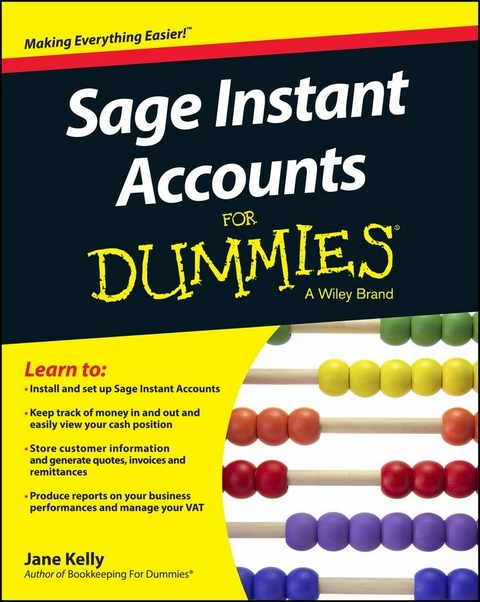
Sage Instant Accounts For Dummies (eBook)
John Wiley & Sons (Verlag)
978-1-118-84793-0 (ISBN)
Get to grips with Sage Instant Accounts in simple steps,
This comprehensive guide walks you through every aspect of setting up and using Sage Instant Accounts, from downloading and installing the software to customizing it to your needs, Packed with handy step-by-step instructions (and fully illustrated with screenshots), this book is the easiest way to get the most from Sage Instant Accounts and take control of your business finances,
Learn to:
- Keep track of money in and out and easily view your cash position
- Produce reports on your business performance and profitability
- Store customer information and easily generate quotes, invoices and remittances
- Record and accurately manage your VAT - and submit your VAT return to HMRC online
- Prepare for business audits and your financial year-end
Jane Kelly is a Chartered Management Accountant and Sage trainer, She runs a training company offering support for businesses using Sage accounting packages and is the author of Sage 50 Accounts For Dummies and Bookkeeping For Dummies, UK edition,
Get to grips with Sage Instant Accounts in simple steps. This comprehensive guide walks you through every aspect of setting up and using Sage Instant Accounts, from downloading and installing the software to customizing it to your needs. Packed with handy step by step instructions (and fully illustrated with screenshots), this book is the easiest way to get the most from Sage Instant Accounts and take control of your business finances. Learn to: Keep track of money in and out and easily view your cash position Produce reports on your business performance and profitability Store customer information and easily generate quotes, invoices and remittances Record and accurately manage your VAT - and submit your VAT return to HMRC online Prepare for business audits and your financial year-end
Jane Kelly is a Chartered Management Accountant and Sage trainer. She runs a training company offering support for businesses using Sage accounting packages and is the author of Sage 50 Accounts For Dummies and Bookkeeping For Dummies, UK edition.
Introduction 1
Part I: Getting Started with Sage Instant Accounts 5
Chapter 1: Introducing Sage Instant Accounts 7
Chapter 2: Creating Your Chart of Accounts and Assigning Nominal Codes 35
Chapter 3: Setting Up Records 55
Chapter 4: Recording Your Opening Balances 75
Part II: Looking into Day-to-Day Functions 93
Chapter 5: Processing Your Customer Paper work 95
Chapter 6: Invoicing Your Customers 107
Chapter 7: Dealing with Paperwork from Your Suppliers 117
Chapter 8: Recording Your Bank Entries 127
Chapter 9: Maintaining and Correcting Entries 143
Chapter 10: Keeping Track of Your Products 153
Part III: Running Monthly, Quarterly and Annual Routines 163
Chapter 11: Reconciling Your Bank Accounts 165
Chapter 12: Running Your Monthly and Yearly Routines 177
Chapter 13: Running Your VAT Return 191
Part IV: Using Reports 205
Chapter 14: Running Monthly Reports 207
Chapter 15: Tackling the Complicated Stuff 221
Chapter 16: Running Key Reports 235
Part V: The Part of Tens 251
Chapter 17: Ten (Okay, Eleven) Funky Functions 253
Chapter 18: (Not Quite) Ten Wizards to Conjure 257
Appendix: Glossary 263
Index 267
Chapter 1
Introducing Sage Instant Accounts
In This Chapter
Introducing the Sage software range
Considering SageCover
Installing the software
Getting help from the wizard
Navigating around Sage
In this chapter, I introduce you to Sage Instant Accounts. I show you how easily you can install the software and give you a guided tour, so that you can get up and running quickly – essential for busy people!
Sage works on the principle that the less time you spend doing your accounts, the more time you can spend on your business, so makes each process as simple as possible.
I also discuss SageCover, an optional technical support package, which is an addition worth considering. If you experience software problems, SageCover can help. For small businesses, this support is like having an IT department at the end of a phone.
Looking at Two Sage Instant Options
Sage offers two versions of Instant Accounts:
- Sage Instant Accounts: The entry-level program. Sage Instant Accounts provides all the features you require to successfully manage your accounts. You can professionally handle your customers and suppliers, manage your bank reconciliations and VAT returns and provide simple reports, including monthly and year-end requirements. This basic version is suitable for small businesses with a simple structure.
- Sage Instant Accounts Plus: Contains all the features of the entry model, but in addition includes a simple stock system and also the ability to have up to two users.
I recommend that you install Sage Instant on a Windows operating system. Windows 8 or 7, Windows Vista, Windows XP, Windows Server 2008, Small Business Server 2011 or Server 2003 are all recommended by Sage.
Deciding on SageCover
You can purchase SageCover at the same time as the software. SageCover provides you with technical support in case you have any problems using Sage. It may seem an additional cost burden to begin with, but is well worth the money if you’ve a software problem. Sage does currently offer 45 days of free telephone support, along with free online learning and access to guides and video tutorials.
Most people who use accounting packages know something about accounting, but don’t necessarily know much about computer software. When the screen pops up with an error message that you simply don’t understand, a quick phone call to your SageCover support line soon solves the problem.
For Sage Instant Accounts, you can choose between two different types of cover:
- SageCover: Provides telephone support during normal office hours, as well as email and online question and answer support. You also have access to a data repair service, where a member of the Sage in-house team will retrieve and repair your data if it becomes lost or corrupt. There’s also a free subscription to Sage’s business magazine Solutions.
- SageCover Extra: Includes all the benefits of SageCover, plus software upgrades, so you always have access to the latest version. You also gain the benefit of an Express data repair service rather than just the standard service. You’re given priority telephone support with Sagecover Extra, including a call-back option and also have additional Remote Support, which means that, with your permission, Sage technicians can remotely access your PC to help you solve your queries.
Having someone on the end of a phone to talk you through a problem is a real bonus. Sometimes the Help button just doesn’t answer your question. The technical support team can help you solve the most awkward problems that would otherwise have you throwing your laptop out of the window in pure frustration!
Installing the Software
In this section, I take you step by step through the installation process, showing you the screens as they appear on your computer and ensuring that you load up the software correctly. I also let you know about any problems that may crop up while loading, so that you can deal with them effectively.
Anyway, onwards and upwards!
Getting what you need before you get started
Your Sage software package contains a CD, a ‘Getting Started with Sage Instant Accounts’ guide and, more importantly, a serial number and activation key. Without these last two pieces of information, you can’t successfully load the software. But don’t worry, if you purchased a genuine copy of Sage software, you have the necessary activation information.
You also need a few details about your company:
- When your company’s financial year begins: If you’re not sure of the date, consult your accountant.
- Whether and what type of VAT scheme you use: Again, your accountant can tell you whether you operate the VAT cash accounting scheme or the standard VAT scheme. If you’ve a VAT registration number, keep it handy.
Moving to the installation itself
The following steps assume that you’re loading Sage for the first time for a single company and single user. For those of you loading multiple-user programs, check the instructions provided with your software.
- Insert your CD into the disk drive.
If your CD doesn’t immediately start, you may need to click Run.
- Follow the options on your screen to run the CD.
A Sage Instant Accounts opening screen appears. Click the Install button to continue as shown in Figure 1-1
For Vista users, the User Account Control window appears, asking you for permission to continue installing Sage; click Continue to proceed.
The Sage system checker highlights any problems with loading your software, such as hardware speed and so on as shown in Figure 1-2. Click Install to continue.
Figure 1-1: The initial screen prior to installing the software.
Figure 1-2: System checker.
- The Accounts Installshield wizard starts up when you click Install and this is followed by the Licence agreement as shown in Figure 1-3
Be warned, the licence seems to go on forever, if you choose to read it! (Have a quick look through the software licence agreement though, just to see what you’re signing up for!) Click Yes to accept the licence.
Figure 1-3: Accepting the software licence agreement.
- Select the installation type and destination folder and follow the prompts.
You’ve a choice between a Standard install and a Custom install, as shown in Figure 1-4. The choice you make is important.
Figure 1-4: Choosing Standard or Custom install.
Standard install is recommended for most users; it copies the files to C:/Sage/Accounts.
Choose Custom install only if you want to control the destination of the programs being installed; for example, if you want to keep different versions of Sage separately on your computer.
Check with Sage (the company, not the program!) if you aren’t sure whether to use the Custom install or not.
If you want to use Custom install and choose a different destination folder, follow these steps:
- Click the Custom install option.
The destination folder at the bottom of the screen automatically defaults to C:/Sage/Accounts 2011.
- Click Browse. With the help of the Browse button you can change the destination folder, as shown in Figure 1-5. I have changed it to C:/Sage/Instant Accounts 2013. Click OK. The destination path has now changed to the new one that you’ve designated. Click Next to continue.
Select your Program folder – this window allows you to change the program folder to your preferred destination, as shown in Figure 1-6 you can now click Next to continue.
Sage now confirms the destination folders for the program as shown in Figure 1-7. Click Next to continue.
Figure 1-5: Click the browse button to find an alternative destination for the Sage program.
Figure 1-6: Having amended to Sage Instant 2013 directory.
Figure 1-7: Sage confirms the destination folders for Instant Accounts.
The system then whirrs into action and starts the installation process. It takes several minutes, so you probably have time to make a quick cup of tea!
- Click the Custom install option.
- Click Finish when Sage tells you that the installation is complete.
That’s it! You’ve successfully installed your Sage software. This is the message you should see, shown in Figure 1-8. You should see a Sage Instant Accounts icon on your desktop – now you’re ready to rock and roll!
Figure 1-8: Confirmation of a successful installation!
Be sure to remove the CD and keep it in a safe place!
Setting Up with the Active Set-Up Wizard
Of course, you’re champing at the bit and want to get going with Sage, so double-click the new Sage icon on your desktop to get started. You may get an RSS feeds message (see Figure 1-9) and you can decide whether you want to receive these or not by clicking on the tick box. Click OK to continue.
Figure 1-9: Checking your RSS...
| Erscheint lt. Verlag | 15.4.2014 |
|---|---|
| Sprache | englisch |
| Themenwelt | Sachbuch/Ratgeber ► Beruf / Finanzen / Recht / Wirtschaft ► Wirtschaft |
| Recht / Steuern ► Wirtschaftsrecht | |
| Wirtschaft ► Betriebswirtschaft / Management ► Rechnungswesen / Bilanzen | |
| Schlagworte | Accounting • Accounting Technology • accounts • Activities • books • business • Business & Management • Cash • Guide • Handson • Instant • invoices • Klein- u. mittelständische Unternehmen u. Existenzgründung • Klein- u. mittelständische Unternehmen u. Existenzgründung • MONEY • Numbers • Order • Performances • Position • Prepare • Produce • Rechnungswesen • Rechnungswesen / Technologie • Remittances • Reports • Sage • Small Business & Entrepreneurship • Track • Wirtschaft u. Management |
| ISBN-10 | 1-118-84793-8 / 1118847938 |
| ISBN-13 | 978-1-118-84793-0 / 9781118847930 |
| Informationen gemäß Produktsicherheitsverordnung (GPSR) | |
| Haben Sie eine Frage zum Produkt? |
 PDF (Adobe DRM)
Größe: 15,0 MB
Kopierschutz: Adobe-DRM
Adobe-DRM ist ein Kopierschutz, der das eBook vor Mißbrauch schützen soll. Dabei wird das eBook bereits beim Download auf Ihre persönliche Adobe-ID autorisiert. Lesen können Sie das eBook dann nur auf den Geräten, welche ebenfalls auf Ihre Adobe-ID registriert sind.
Details zum Adobe-DRM
Dateiformat: PDF (Portable Document Format)
Mit einem festen Seitenlayout eignet sich die PDF besonders für Fachbücher mit Spalten, Tabellen und Abbildungen. Eine PDF kann auf fast allen Geräten angezeigt werden, ist aber für kleine Displays (Smartphone, eReader) nur eingeschränkt geeignet.
Systemvoraussetzungen:
PC/Mac: Mit einem PC oder Mac können Sie dieses eBook lesen. Sie benötigen eine
eReader: Dieses eBook kann mit (fast) allen eBook-Readern gelesen werden. Mit dem amazon-Kindle ist es aber nicht kompatibel.
Smartphone/Tablet: Egal ob Apple oder Android, dieses eBook können Sie lesen. Sie benötigen eine
Geräteliste und zusätzliche Hinweise
Zusätzliches Feature: Online Lesen
Dieses eBook können Sie zusätzlich zum Download auch online im Webbrowser lesen.
Buying eBooks from abroad
For tax law reasons we can sell eBooks just within Germany and Switzerland. Regrettably we cannot fulfill eBook-orders from other countries.
 EPUB (Adobe DRM)
Kopierschutz: Adobe-DRM
Adobe-DRM ist ein Kopierschutz, der das eBook vor Mißbrauch schützen soll. Dabei wird das eBook bereits beim Download auf Ihre persönliche Adobe-ID autorisiert. Lesen können Sie das eBook dann nur auf den Geräten, welche ebenfalls auf Ihre Adobe-ID registriert sind.
Details zum Adobe-DRM
Dateiformat: EPUB (Electronic Publication)
EPUB ist ein offener Standard für eBooks und eignet sich besonders zur Darstellung von Belletristik und Sachbüchern. Der Fließtext wird dynamisch an die Display- und Schriftgröße angepasst. Auch für mobile Lesegeräte ist EPUB daher gut geeignet.
Systemvoraussetzungen:
PC/Mac: Mit einem PC oder Mac können Sie dieses eBook lesen. Sie benötigen eine
eReader: Dieses eBook kann mit (fast) allen eBook-Readern gelesen werden. Mit dem amazon-Kindle ist es aber nicht kompatibel.
Smartphone/Tablet: Egal ob Apple oder Android, dieses eBook können Sie lesen. Sie benötigen eine
Geräteliste und zusätzliche Hinweise
Buying eBooks from abroad
For tax law reasons we can sell eBooks just within Germany and Switzerland. Regrettably we cannot fulfill eBook-orders from other countries.
aus dem Bereich