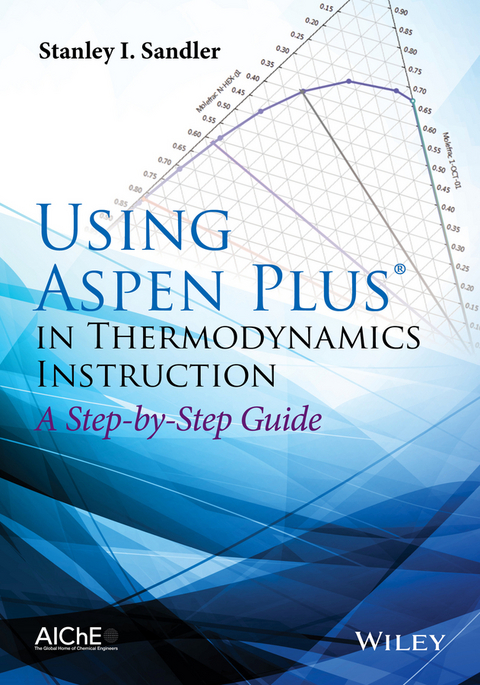
Using Aspen Plus in Thermodynamics Instruction (eBook)
John Wiley & Sons (Verlag)
978-1-118-99700-0 (ISBN)
A step-by-step guide for students (and faculty) on the use of Aspen in teaching thermodynamics
• Easily-accessible modern computational techniques opening up new vistas in teaching thermodynamics
A range of applications of Aspen Plus in the prediction and calculation of thermodynamic properties and phase behavior using the state-of-the art methods
• Encourages students to develop engineering insight by doing repetitive calculations with changes in parameters and/or models
• Calculations and application examples in a step-by-step manner designed for out-of-classroom self-study
• Makes it possible to easily integrate Aspen Plus into thermodynamics courses without using in-class time
• Stresses the application of thermodynamics to real problems
Stanley I. Sandler is the H. B. du Pont Professor of Chemical Engineering, Department of Chemical and Biomolecular Engineering University of Delaware. He is also the founding director of its Center for Molecular and Engineering Thermodynamics. He is the author of approximately 400 refereed papers, mostly on thermodynamics and several on education. He is the sole author of the popular textbook 'Chemical and Engineering Thermodynamics' (first three editions) and now 'Chemical, Biochemical and Engineering Thermodynamics' (4th edition), as well as the author or editor of 7 other books. He is the former editor of the AIChE Journal, a member of the U.S. National Academy of Engineering, and a fellow of the AIChE and the IChemE. In addition, he has received the Professional Progress, Warren K. Lewis, and Founders Awards from the AIChE and a number of international awards.
Stanley I. Sandler is the H. B. du Pont Professor of Chemical Engineering, Department of Chemical and Biomolecular Engineering University of Delaware. He is also the founding director of its Center for Molecular and Engineering Thermodynamics. He is the author of approximately 400 refereed papers, mostly on thermodynamics and several on education. He is the sole author of the popular textbook "Chemical and Engineering Thermodynamics" (first three editions) and now "Chemical, Biochemical and Engineering Thermodynamics" (4th edition), as well as the author or editor of 7 other books. He is the former editor of the AIChE Journal, a member of the U.S. National Academy of Engineering, and a fellow of the AIChE and the IChemE. In addition, he has received the Professional Progress, Warren K. Lewis, and Founders Awards from the AIChE and a number of international awards.
Preface vii
An Introduction for Students ix
1. Getting Started with Aspen Plus¯® 1
Problems 9
2. Two Simple Simulations 10
Problems 34
3. Pure Component Property Analysis 36
Problems 55
4. The NIST ThermoData Engine (TDE) 56
Problems 64
5. Vapor-Liquid Equilibrium Calculations Using Activity Coefficient Models 66
5.1 Property Analysis Method 69
5.2 The Simulation Method 80
5.3 Regression of Binary VLE Data with Activity Coefficient Models 89
Problems 115
6. Vapor-Liquid Equilibrium Calculations Using an Equation of State 119
6.1 The Property Analysis Method 120
6.2 The Simulation Method 122
6.3 Regression of Binary VLE Data with an Equation of State 129
Problems 142
7. Regression of Liquid-Liquid Equilibrium (LLE) Data and Vapor-Liquid-Liquid Equilibrium (VLLE) and Predictions 144
7.1 Liquid-Liquid Data Regression 144
7.2 The Prediction of Liquid-Liquid and Vapor-Liquid-Liquid Equilibrium 158
7.3 High Pressure Vapor-Liquid-Liquid Equilibrium 167
Problems 173
8. The Property Methods Assistant and Property Estimation 175
8.1 The Property Methods Assistant 175
8.2 Property Estimation 182
8.3 Regressing Infinite Dilution Activity Coefficient Data 188
Problems 201
9. Chemical Reaction Equilibrium in Aspen Plus¯® 203
Problems 229
10. Shortcut Distillation Calculations 233
Problems 250
11. A Rigorous Distillation Calculation: RadFrac 252
Problems 271
12. Liquid-Liquid Extraction 272
Problems 286
13. Sensitivity Analysis: A Tool for Repetitive Calculations 287
Problems 304
14. Electrolyte Solutions 305
Problems 337
Index 339
Chapter 1
Getting Started With Aspen Plus®
Aspen Plus® is a process simulation program that can also be used for many types of thermodynamic calculations, or to retrieve and/or correlate thermodynamic and transport data. In this book it will largely be used for thermodynamic calculations, such as computing phase equilibria and regressing parameters in thermodynamic models, and also for some very simple process simulations, merely to introduce the concept.
To start, open the Aspen Plus V8.x, which you may have to locate depending on the setup of your computer. [It may be on your desktop or you may have to follow the path All Programs>Aspen Tech>Process Modeling V8.x>Aspen Plus>Aspen Plus V8.x. In doing this you will also see paths to the large collection of specialized Aspen Plus modules that will not be considered here.] The interface is somewhat different for Aspen Plus V8.0 and Aspen Plus V8.2 and higher. For Aspen Plus V8.0 continue here, while for Aspen V8.2 (or higher) go to Fig. 1-2a.
Figure 1-1a Aspen Plus V8.0 Start-up
Figure 1-1b Aspen Plus V8.0 Start-up
Figure 1-2a Aspen Plus V8.2 Start-up
[The screen images shown below and throughout this book were produced using Aspen Plus®. These screen images of Aspen Plus® are reprinted with permission of Aspen Technology, Inc. AspenTech®, aspenONE®, Aspen Plus®, and the AspenTech leaf logo are trademarks of Aspen Technology, Inc. All rights reserved.]
When you open Aspen Plus V8.0, you will briefly see the Aspen logo in Fig. 1-1a. There is then a slight delay while the program connects to the server, and then the Getting Started page shown in Fig. 1-1b appears. There you will see a list of Product News items (that changes as it updates on a regular basis). From this window you will be able to start a new Simulation or open one of your previous simulations that will appear (in the future) in the list under Recent Cases.
To proceed, click on New.., which brings up the window in Fig. 1-3.
When you open Aspen Plus V8.2, you will briefly see the Aspen logo in Fig. 1-2a. There is then a slight delay while the program connects to the server, and then the Exchange window shown in Fig. 1-2b appears.
This window contains flow sheets and information about a number of processes, training information, pre-prepared models for specialized unit operations, and other items. These will be ignored here as the emphasis is on thermodynamic modeling. Click on the Start Page tab as shown by the arrow in Fig. 1-2b, which will bring up the Start Page shown in Fig. 1-2c. There you will see a list of Product News items (that changes as it updates on a regular basis). From this window you will be able to start a new Simulation or open one of your previous simulations that will appear (in the future) in the list under Recent Cases.
To proceed, click on New.., which brings up the window in Fig. 1-3. Continuation for all versions of Aspen Plus V8.0 and higher.
Click on Blank Simulation and then Create. This will bring up Fig. 1-4.
On the lower-left-hand corner of this window, there are three choices. The first, which Aspen Plus opens with, is Properties; the drop-down menu under Components>Specifications is used to specify the component or components for the calculation, and the drop-down menu under Methods is used to specify the thermodynamic models and parameters that will be used in the calculation. The second general area is Simulation that will take you to a flow sheet window, to be discussed later, and the third is Energy Analysis that will not be considered here. The default is to start with Properties.
We will proceed by entering the component propane. There are two ways to enter component names. The simplest and most reliable to ensure that you will get the correct component and its properties from the Aspen Plus database is to click on the Find box that brings up the Find Compounds window and then enter the component name by typing in propane and then clicking on Find Now, which produces the window in Fig. 1-5.
A long list of 176 compounds in Fig. 1-5 is generated because the default Contains was used in the Find Compounds window; as a result every compound in the database that contains propane either in its compound name (e.g., propane, but also cyclopropane) or in its alternate name (e.g., isobutane is also known as 2-methyl propane) appears in the list. The compound we are interested in happens to be first on the list here, but that will not always be the case. Therefore, a better way to proceed in the Find Compounds window is to click Equals instead of the default Contains, and then click Find Now, which produces instead a list containing only propane (Fig. 1-6).
[Note that Aspen Plus has a large number of data banks of pure component and mixture thermodynamic and transport properties data. Generally these are called up automatically by the program. Here the pure component names and properties were obtained as shown from the data bank APV80.PURE.x, where 80 indicates the version number of Aspen Plus (here 8.0) and PURE.x is version x of the pure component properties data bank. Other data banks will be encountered later in this book.]
Click on PROPANE and then Add selected compounds, and for this example, then click on Close. In cases considered later, several compounds will be sequentially added following this procedure with the exception of not clicking on Close after each compound. [Note that the window of Fig. 1-6 provides information on the Aspen Plus data bank used to obtain the data for propane (APV80.PUR here), the molecular weight, boiling point, etc.] You will then see the following (Fig. 1-7):
[Another alternative is to type in all or part of the name directly in the Components-Specification window and see whether Aspen Plus finds the correct name.] Note that propane has now been added to the Select components list and that both Components and Specifications now have check marks indicating that sufficient information has been provided to proceed to the next step. However, this may not be sufficient information for the problem of interest to the user. If the problem to be solved involves a mixture, one or more additional components may be added following the procedure described above except that the Close button in the Find Compounds window is used only after all the components have been added.
The next step is to go to Methods by clicking on it. The window in Fig. 1-8 appears and here a number of thermodynamic models can be used. For a simple hydrocarbon system at the pressures here, a simple cubic equation of state can be used, for example, the Peng–Robinson or Soave–Redlich–Kwong equation. Here, and frequently throughout this book, the Peng–Robinson (indicated by PENG-ROB in Aspen Plus) will be used, though any other equation of state for which parameters are available can be used. Generally, simple equations of state, such as the Peng–Robinson and other cubic equations of state produce results that are not of great accuracy, but they provide adequate descriptions of both the vapor and liquid states, and are adequate for thermodynamic calculations for pure fluids and mixtures that are nonpolar and do not hydrogen bond. The Peng–Robinson equation has been chosen from the drop-down Base method menu to calculate the thermodynamic properties of this nonpolar alkane. [Note that if you need help in choosing a thermodynamic model, you can click on Methods Assistant … for help. The Methods Assistant will be discussed in Chapter 8.] After accepting the Peng–Robinson equation by pressing Enter, Methods on the left-hand side of Fig. 1-8 will also have a check.
Clicking on Simulation brings up the Main Flowsheet window of Fig. 1-9 together with the Model Palette at the bottom of the window.
It is in this window that a process flow sheet, or even a single process unit such as a vapor–liquid separator or a chemical reactor, will be entered as we will see starting in the next chapter.
However, before ending this chapter, it is useful to note that when doing calculations involving mixtures, the default in Streams and Reports is mass flow rates and molar flow rates. Sometimes the user may also want to see mole fractions. To ensure that mole fractions appear in the results for the process flow streams in...
| Erscheint lt. Verlag | 18.3.2015 |
|---|---|
| Sprache | englisch |
| Themenwelt | Naturwissenschaften ► Chemie ► Physikalische Chemie |
| Naturwissenschaften ► Physik / Astronomie ► Thermodynamik | |
| Technik ► Maschinenbau | |
| Schlagworte | Aspen Plus • chemical thermodynamics • Chemie • Chemische Thermodynamik • Chemistry • instruction • Maschinenbau • mechanical engineering • Phase Behavior • Physical Chemistry • Physikalische Chemie • Process Simulation • Self-study • thermodynamics • Thermodynamik |
| ISBN-10 | 1-118-99700-X / 111899700X |
| ISBN-13 | 978-1-118-99700-0 / 9781118997000 |
| Informationen gemäß Produktsicherheitsverordnung (GPSR) | |
| Haben Sie eine Frage zum Produkt? |
 EPUB (Adobe DRM)
Kopierschutz: Adobe-DRM
Adobe-DRM ist ein Kopierschutz, der das eBook vor Mißbrauch schützen soll. Dabei wird das eBook bereits beim Download auf Ihre persönliche Adobe-ID autorisiert. Lesen können Sie das eBook dann nur auf den Geräten, welche ebenfalls auf Ihre Adobe-ID registriert sind.
Details zum Adobe-DRM
Dateiformat: EPUB (Electronic Publication)
EPUB ist ein offener Standard für eBooks und eignet sich besonders zur Darstellung von Belletristik und Sachbüchern. Der Fließtext wird dynamisch an die Display- und Schriftgröße angepasst. Auch für mobile Lesegeräte ist EPUB daher gut geeignet.
Systemvoraussetzungen:
PC/Mac: Mit einem PC oder Mac können Sie dieses eBook lesen. Sie benötigen eine
eReader: Dieses eBook kann mit (fast) allen eBook-Readern gelesen werden. Mit dem amazon-Kindle ist es aber nicht kompatibel.
Smartphone/Tablet: Egal ob Apple oder Android, dieses eBook können Sie lesen. Sie benötigen eine
Geräteliste und zusätzliche Hinweise
Buying eBooks from abroad
For tax law reasons we can sell eBooks just within Germany and Switzerland. Regrettably we cannot fulfill eBook-orders from other countries.
aus dem Bereich