


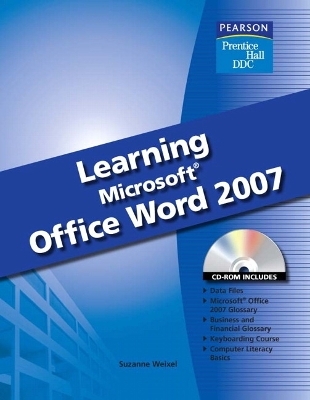
Learning Microsoft Word 2007 Student Edition
Pearson
978-0-13-504500-8 (ISBN)
- Titel ist leider vergriffen;
keine Neuauflage - Artikel merken
Introduction
Lesson 1
Microsoft Office Word 2007
Basics
Exercise 1
Evaluate Word Processing Software
About Microsoft Office Word 2007
Conventions Used in This Book
Use the Mouse
Use the Keyboard
Start and Exit Word 2007
Identify Common Screen Elements
Exercise 2
About Commands
About the Ribbon
Use the Ribbon
Use Access Keys
Use the Office Button
Use the Quick Access Toolbar
Use a Mini Toolbar
Use Shortcut Menus
Use Dialog Box Options
Use Task Panes
Exercise 3
Use Window Controls
Zoom
Scroll
Exercise 4
About Word Options
Customize the Quick Access Toolbar
Set a Default Save Location
Personalize Your User Name and Initials
Exercise 5
Use the Help Program
Search for Help
Use the Help Table of Contents
Recover a File
Computer Ethics
Exercise 6: Critical Thinking
Exercise 7: Curriculum Integration
Lesson 2
Getting Started with
Word 2007
Exercise 8
Start Word
The Word Window
Change the Word Window
Type in a Document
Correct Errors
Use Undo, Redo, and Repeat
Save a New Document
Close a Document
Types of Business Documents
Exit Word
Exercise 9
Create a New Document
Work with Show/Hide Marks
Move the Insertion Point in a Document
Use Click and Type
Save Changes
Print
Preview an Open Document
About Press Releases
Exercise 10
Correct Spelling as You Type
Correct Grammar as You Type
Check Spelling and Grammar
Use the Thesaurus
Exercise 11
Use AutoCorrect
Select Text in a Document
Replace Selected Text
Align Text Horizontally
Align a Document Vertically
Line Spacing
Paragraph Spacing
About Memos
Exercise 12
Format a Business Letter
Insert the Date and Time
Use Uppercase Mode
Change Case
Create an Envelope
Exercise 13
Set Tabs
Format a Modified-Block Business Letter
Shrink One Page
Exercise 14
Format a Personal Business Letter
About Fonts
Change the Font
Change Font Size
Apply Font Styles
Apply Underlines
Create Labels
Exercise 15: Critical Thinking
Exercise 16: Curriculum Integration
Lesson 3
Basic Editing Skills
Exercise 17
Use Proofreaders’ Marks
Open a Saved Document
Insert and Edit Text
Use Overtype Mode
Save a Document with a New Name
Exercise 18
Use Split Screen View
Open Multiple Documents at the Same Time
Arrange Documents On-Screen
Compare Documents Side by Side
Exercise 19
Move Text
Use Cut and Paste
Use the Clipboard Task Pane
Use Drag-and-Drop Editing
Select Paste Formatting Options
Move a Paragraph
Exercise 20
Use Copy and Paste
Use Drag-and-Drop Editing to Copy
Exercise 21
Open a Document as Read-Only
Open a Document from Windows
Document Properties
About File Types
Exercise 22
Preview a Closed Document
Print a Closed Document
Exercise 23: Critical Thinking
Exercise 24: Curriculum Integration
Lesson 4
Formatting Basics
Exercise 25
Apply Font Effects
Font Color
Highlight Text
Format Painter
Exercise 26
Use Symbols
Exercise 27
Indent Text
Exercise 28
Bulleted Lists
Numbered Lists
Sort
Exercise 29
About Styles
Apply Styles
Create a Style
Edit a Style
Reapply Direct Formatting
Clear Formatting
Exercise 30
About Document Production
Set Margins
Set Page Orientation
Format a One-Page Report
Exercise 31
Use Themes
Use AutoFormat As You Type
Exercise 32: Critical Thinking
Exercise 33: Curriculum Integration
Lesson 5
Word and the World
Wide Web
Exercise 34
About the World Wide Web
Create a Web Page Document in Word
Use Web Layout View
View a Web Page Document in a Browser
Exercise 35
Open a Web Page Document in Word
Use Web Page Titles
Apply a Background
Exercise 36
Create Hyperlinks
Exercise 37
Send a Document as an E-mail Attachment
Exercise 38: Critical Thinking
Exercise 39: Curriculum Integration
Lesson 6
Working with Tables
Exercise 40
Create a Table
Enter Data in a Table
Select in a Table
Change Table Structure
Format a Table
Exercise 41
Set Alignments within Table Cells
Set Cell Margins
Align Table on the Page
Column Width and Row Height
Exercise 42
Draw a Table
Move and Resize Tables
Merge and Split Cells
Rotate Text
Wrap Text
Exercise 43
Calculations in a Table
Number Formats
Sort Rows
Cell Borders and Shading
Exercise 44: Critical Thinking
Exercise 45: Curriculum Integration
Lesson 7
Creating Documents with
Merge
Exercise 46
Mail Merge Basics
Use Mail Merge
Create a New Address List
Use Merge Fields
Exercise 47
Merge with an Existing Address List
Edit an Address List
Customize Merge Fields
Merge Envelopes and Labels
Create Envelopes
Create Labels
Exercise 48
Sort Recipients in an Address List
Select Specific Recipients
Create a Directory with Mail Merge
Exercise 49
Filter Recipients
Merge to an E-mail Message
Exercise 50: Critical Thinking
Exercise 51: Curriculum Integration
Lesson 8
Creating and Editing Long
Documents
Exercise 52
Create an Outline
Edit an Outline
Collapse and Expand Outlines
Number an Outline
Exercise 53
Set Margins for Multiple Page Documents
Insert Page Breaks
Insert Section Breaks
Insert Headers and Footers
Insert Page Numbers
View the Word Count
Exercise 54
Footnotes and Endnotes
Find and Replace
Insert Bookmarks
Select Browse Object
Exercise 55
Use Full Screen Reading View
Use Document Map
Use Thumbnails
Preview Multiple Pages
Copy or Move Text from One Page to Another
Print Specific Pages
Exercise 56
Insert Comments
Track Changes
Customize Revision Marks
Compare and Combine Documents
Accept/Reject Changes
Exercise 57
Insert a Cross-reference
Insert a Caption
Create an Index
Modify an Index
Exercise 58
Create a Table of Contents
Create a Table of Figures
Create a Bibliography
Manage Sources
Create a Table of Authorities
Update a Table
Exercise 59: Critical Thinking
Exercise 60: Curriculum Integration
Lesson 9
Desktop Publishing and
Automation
Exercise 61
About Desktop Publishing
Create Newsletter Columns
Set Column Width
Insert Column Breaks
Balance Columns
About Layout and Design
Exercise 62
Use Dropped Capitals
Enhance a Document with Borders and Shading
Exercise 63
Set Paper Size
Adjust Character Spacing
Control Text Flow
Insert a Blank Page
Exercise 64
Reveal Style Formatting
Keep Track of Formatting
Mark Formatting Inconsistencies
Exercise 65
Templates
Set a Default Theme
Restore a Template Theme
Exercise 66
Insert a File in a Document
Use Building Blocks
Exercise 67
Record a Macro
Run a Macro
Exercise 68: Critical Thinking
Exercise 69: Curriculum Integration
Lesson 10
Graphics
Exercise 70
About Graphics Objects
Insert Shapes
Select Objects
Resize Drawing Objects
Set Text Wrap Options
Move an Object
Exercise 71
Insert a Text Box
Link Text Boxes
Align Drawing Objects
Copy Objects
Exercise |72
Apply Quick Styles to Objects
Format the Shape Outline
Format the Shape Fill
Apply Shadows and 3-D Effects
Exercise 73
Insert Clip Art
Format Clip Art
Adjust Brightness, Contrast, and Color
Compress a Picture
Use the Clip Organizer
Exercise 74
Adjust Objects
Rotate and Flip Objects
Crop a Picture
Exercise 75
Group and Ungroup Objects
Layer Objects with Other Objects or Text
Exercise 76
Create WordArt
WordArt Text
WordArt Shapes and Formatting
Exercise 77
Watermarks
Exercise 78: Critical Thinking
Exercise 79: Curriculum Integration
Lesson 11
Securing Documents
Exercise 80
Protect a Document
Set Protection Exceptions
Apply Password Protection
Exercise 81
Use the Document Inspector
Use the Compatibility Checker
Exercise 82
Mark a Document as Final
Exercise 83
About Digital Signatures
Use a Visible Digital Signature
Use an Invisible Digital Signature
Verify a Digital Signature
Exercise 84
Create a Form
Insert Content Controls and Form Fields
Set Content Control and Form Field Properties
Fill Out a Form
About Legal Documents
Exercise 85: Critical Thinking
Exercise 86: Curriculum Integration
Lesson 12
Integration
Exercise 87
Microsoft Office 2007
Run Multiple Programs at the Same Time
Arrange Multiple Program Windows
Switch among Open Windows
Copy and Move Data from One Office Document to Another
Exercise 88
Link Files
Edit a Linked Object
Update Links
Exercise 89
Embed Objects
Edit Embedded Objects
Exercise 90
Insert SmartArt
Insert a Chart
Enter Chart Data
Modify a Chart
Exercise 91
Convert a Table to Text
Convert Text to a Table
Exercise 92
Use the Research Tool
Copy Data from a Web Page to a Word Document
Set the View for Opening E-Mail Attachments
Exercise 93
Use Smart Tags
Exercise 94
Merge a Word Document with an Access Database
Exercise 95
Embed a PowerPoint Slide in a Word Document
Export PowerPoint Slides and Notes to a Word Document
Export PowerPoint Text to a Word Document
Exercise 96: Critical Thinking
Exercise 97: Curriculum Integration
Lesson 13
Challenge Exercises
Exercise 98
Link a Worksheet into a Word Document
Locate Data on the Internet
Edit an Excel Worksheet
Update a Linked Object in a Word Document
Exercise 99
Save a Word Document as a Web Page
Download Clip Art and Insert it on a Web Page
Link Excel Data with a Web Page
Update Linked Data
Exercise 100
Use an Access Database as a Merge Data Source
Change the Data Source for a Merge
Exercise 101
Locate Data on the Internet
Copy Data from a Web Page to a Word Document
Edit and Format a Table in a Word Document
Send a Word Document as an E-Mail Attachment
Exercise 102
Create an Outline in Word
Create a PowerPoint Presentation from a Word Outline
Generate Presentation Handouts with Word
| Erscheint lt. Verlag | 24.4.2008 |
|---|---|
| Sprache | englisch |
| Maße | 228 x 275 mm |
| Gewicht | 1282 g |
| Themenwelt | Informatik ► Office Programme ► Word |
| ISBN-10 | 0-13-504500-2 / 0135045002 |
| ISBN-13 | 978-0-13-504500-8 / 9780135045008 |
| Zustand | Neuware |
| Informationen gemäß Produktsicherheitsverordnung (GPSR) | |
| Haben Sie eine Frage zum Produkt? |


