


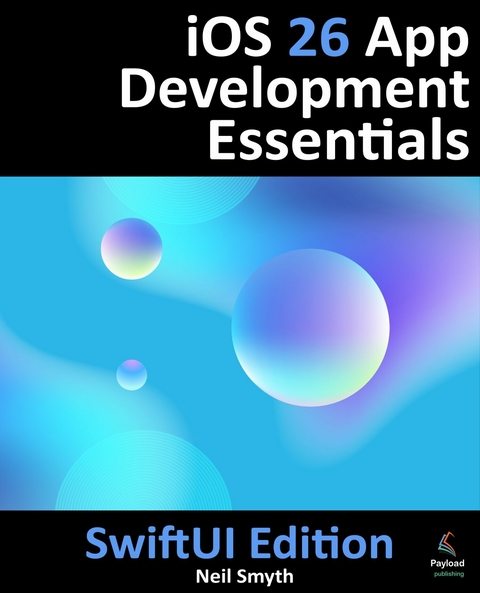
iOS 26 App Development Essentials - SwiftUI Edition (eBook)
598 Seiten
Payload Publishing (Verlag)
978-1-965764-26-8 (ISBN)

This book teaches the skills needed to build iOS applications using SwiftUI, Xcode, and the Swift programming language.
Beginning with the basics, this book outlines the steps to set up an iOS development environment and introduces using Swift Playgrounds for learning and experimenting with the Swift programming language.
The book also includes in-depth chapters that introduce the Swift programming language, covering data types, control flow, functions, object-oriented programming, property wrappers, structured concurrency, and error handling.
This guide begins with an introduction to key concepts of SwiftUI and project architecture, followed by a detailed tour of Xcode and AI-assisted development using Coding Intelligence. The book also covers how to create custom SwiftUI views, combine them to build user interface layouts, including stacks, frames, and forms.
Other topics covered include data handling using state properties and observable, state, and environment objects, as well as key user interface design concepts such as modifiers, lists, tabbed views, context menus, user interface navigation, and outline groups.
The book also includes chapters covering graphics and Liquid Glass effects, user interface animation, view transitions, and gesture handling, as well as WidgetKit, Live Activities, document-based apps, Core Data, SwiftData, and CloudKit.
Throughout the book, each concept is reinforced with hands-on tutorials and downloadable source code. Additionally, over 50 online quizzes are available to test your knowledge and understanding.
4. An Introduction to Xcode 26 Playgrounds
Before introducing the Swift programming language in the following chapters, it is first worth learning about a feature of Xcode known as Playgrounds. This is a feature of Xcode designed to make learning Swift and experimenting with the iOS SDK much easier. The concepts covered in this chapter can be put to use when experimenting with many of the introductory Swift code examples contained in the chapters that follow.
4.1 What is a Playground?
A playground is an interactive environment where Swift code can be entered and executed with the results appearing in real-time. This makes an ideal environment in which to learn the syntax of Swift and the visual aspects of iOS app development without the need to work continuously through the edit/compile/run/debug cycle that would ordinarily accompany a standard Xcode iOS project. With support for rich text comments, playgrounds are also a good way to document code for future reference or as a training tool.
4.2 Creating a New Playground
To create a new Playground, start Xcode and select the File -> New -> Playground… menu option. Choose the iOS option on the resulting panel and select the Blank template.
The Blank template is useful for trying out Swift coding. The Single View template, on the other hand, provides a view controller environment for trying out code that requires a user interface layout. The game and map templates provide preconfigured playgrounds that allow you to experiment with the iOS MapKit and SpriteKit frameworks respectively.
On the next screen, name the playground LearnSwift and choose a suitable file system location into which the playground should be saved before clicking on the Create button.
Once the playground has been created, the following screen will appear ready for Swift code to be entered:
Figure 4-1
The Playground window will display various panels depending on the current state of the playground and options you select. Figure 4-2 below illustrates the appearance of the window during a typical playground session:
Figure 4-2
The panel on the left-hand side of the window (marked A in Figure 4-2) is the Navigators panel. The toolbar along the top of this panel provides access to the file navigator, source code control, bookmarks, search, the issues navigator for locating problems in the playground code, and the reports navigator listing activities you have performed in the playground. To hide and show this panel, click on the button marked B. The center panel (C) is the playground editor where the lines of Swift code are entered. The adjacent panel (D) is referred to as the results panel where the results appear when the playground is executing appear. The visibility of this panel is controlled using button E.
The button marked F hides and shows the Inspectors panel (marked G) where a variety of properties relating to the playground may be configured. Button H displays the Debug Area (I) where diagnostic output relating to the playground will appear when code is executed. Finally, the buttons marked J start and stop playground execution.
By far the quickest way to gain familiarity with the playground environment is to work through some simple examples.
4.3 A Swift Playground Example
Perhaps the simplest of examples in any programming language (that at least does something tangible) is to write some code to output a single line of text. Swift is no exception to this rule so, within the playground window, begin adding another line of Swift code so that it reads as follows:
import UIKit
var greeting = "Hello, playground"
print("Welcome to Swift")
All that the additional line of code does is make a call to the built-in Swift print function which takes as a parameter a string of characters to be displayed on the console. Those familiar with other programming languages will note the absence of a semi-colon at the end of the line of code. In Swift, semi-colons are optional and generally only used as a separator when multiple statements occupy the same line of code.
Note that although some extra code has been entered, nothing yet appears in the results panel. This is because the code has yet to be executed. One option to run the code is to click on the Execute Playground button located in the bottom left-hand corner of the main panel as indicated by the arrow in Figure 4-3:
Figure 4-3
When clicked, this button will execute all the code in the current playground page from the first line of code to the last. Another option is to execute the code in stages using the run button located in the margin of the code editor, as shown in Figure 4-4:
Figure 4-4
This button executes the line numbers with the shaded blue background including the line on which the button is currently positioned. In the above figure, for example, the button will execute lines 1 through 3 and then stop.
The position of the run button can be moved by hovering the mouse pointer over the line numbers in the editor. In Figure 4-5, for example, the run button is now positioned on line 5 and will execute lines 4 and 5 when clicked. Note that lines 1 to 3 are no longer highlighted in blue indicating that these have already been executed and are not eligible to be run this time:
Figure 4-5
This technique provides an easy way to execute the code in stages making it easier to understand how the code functions and to identify problems in code execution.
To reset the playground so that execution can be performed from the start of the code, simply click on the stop button as indicated in Figure 4-6:
Figure 4-6
Using this incremental execution technique, execute lines 1 through 3 and note that output now appears in the results panel indicating that the variable has been initialized:
Figure 4-7
Next, execute the remaining lines up to and including line 5 at which point the “Welcome to Swift” output should appear both in the results panel and debug area:
Figure 4-8
To hide individual output values in the results, toggle the quick view “eye” button highlighted in Figure 4-9:
Figure 4-9
4.4 Value History
Playgrounds are particularly useful when working with Swift algorithms, especially when combined with the value history feature. Remaining within the playground editor, enter the following lines of code beneath the existing print statement:
var x = 10
for index in 1...20 {
let y = index * x
x -= 1
}
This expression repeats 20 times, performing arithmetic expressions on each iteration of the loop. Once the code has been entered into the editor, click on the run button to execute these new lines of code. The playground will execute the loop and display in the results panel the final value for each variable:
Figure 4-10
To view the history of changes to a value, click the button indicated in Figure 4-11 and select the Value History option:
Figure 4-11
The result panel will now display the history of changes to the y value during the loop execution:
Figure 4-12
4.5 Adding Rich Text Comments
Rich text comments allow the code within a playground to be documented in a way that is easy to format and read. A single line of text can be marked as being rich text by preceding it with a //: marker. For example:
//: This is a single line of documentation text
Blocks of text can be added by wrapping the text in /*: and */ comment markers:
/*:
This is a block of documentation text that is intended
to span multiple lines
*/
The rich text uses the Markup language and allows text to be formatted using a lightweight and easy-to-use syntax. A heading, for example, can be declared by prefixing the line with a ‘#’ character while text is displayed in italics when wrapped in ‘*’ characters. Bold text, on the other hand, involves wrapping the text in ‘**’ character sequences. It is also possible to configure bullet points by prefixing each line with a single ‘*’. Among the many other features of Markup is the ability to embed images and hyperlinks into the content of a rich text comment.
To see rich text comments in action, enter the following markup content into the playground editor immediately after the print(“Welcome to Swift”) line of code:
/*:
# Welcome to Playgrounds
This is your *first* playground which is intended to demonstrate:
* The use of **Quick Look**
* Placing results **in-line** with the code
*/
As the comment content is added it is said to be displayed in raw markup format. To display in rendered markup format, either select the Editor -> Show Rendered Markup menu option, or enable the Render Documentation option located under Playground Settings in the Inspector panel (marked G in Figure 4-2). If the Inspector panel is not currently...
| Erscheint lt. Verlag | 10.10.2025 |
|---|---|
| Sprache | englisch |
| Themenwelt | Mathematik / Informatik ► Informatik ► Programmiersprachen / -werkzeuge |
| Schlagworte | app development • iOS 26 • SWIFT • SwiftUI • xcode 26 |
| ISBN-10 | 1-965764-26-6 / 1965764266 |
| ISBN-13 | 978-1-965764-26-8 / 9781965764268 |
| Informationen gemäß Produktsicherheitsverordnung (GPSR) | |
| Haben Sie eine Frage zum Produkt? |
 EPUB (Ohne DRM)
Digital Rights Management: ohne DRM
Dieses eBook enthält kein DRM oder Kopierschutz. Eine Weitergabe an Dritte ist jedoch rechtlich nicht zulässig, weil Sie beim Kauf nur die Rechte an der persönlichen Nutzung erwerben.
Dateiformat: EPUB (Electronic Publication)
EPUB ist ein offener Standard für eBooks und eignet sich besonders zur Darstellung von Belletristik und Sachbüchern. Der Fließtext wird dynamisch an die Display- und Schriftgröße angepasst. Auch für mobile Lesegeräte ist EPUB daher gut geeignet.
Systemvoraussetzungen:
PC/Mac: Mit einem PC oder Mac können Sie dieses eBook lesen. Sie benötigen dafür die kostenlose Software Adobe Digital Editions.
eReader: Dieses eBook kann mit (fast) allen eBook-Readern gelesen werden. Mit dem amazon-Kindle ist es aber nicht kompatibel.
Smartphone/Tablet: Egal ob Apple oder Android, dieses eBook können Sie lesen. Sie benötigen dafür eine kostenlose App.
Geräteliste und zusätzliche Hinweise
Buying eBooks from abroad
For tax law reasons we can sell eBooks just within Germany and Switzerland. Regrettably we cannot fulfill eBook-orders from other countries.
aus dem Bereich


