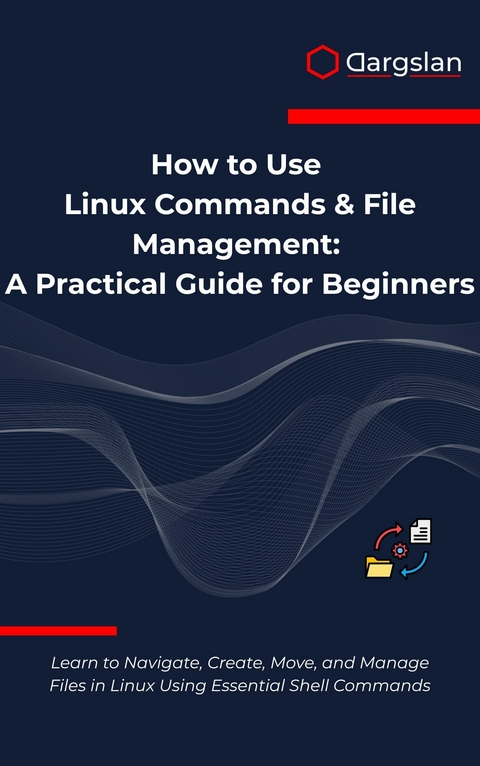
How to Use Linux Commands & File Management (eBook)
314 Seiten
Dargslan s.r.o. (Verlag)
978-0-00-103195-1 (ISBN)
Learn Essential Linux File Management & Command Line Skills - Complete Beginner's Guide to Navigation, File Operations & System Administration
Master Linux commands and file management with this comprehensive beginner's guide designed specifically for aspiring system administrators, developers, and Linux enthusiasts. This practical handbook teaches you everything you need to know about navigating, creating, moving, and managing files using essential Linux command line tools.
What You'll Learn:
Linux terminal basics and command-line interface mastery
Essential Linux file system navigation and directory structures
File creation, editing, copying, and deletion techniques
Directory management and organization best practices
Linux file permissions and ownership concepts
File compression, archiving, and backup strategies
Advanced search and file-finding techniques
Symbolic and hard linking operations
Real-world Linux system administration scenarios
Perfect For:
Complete Linux beginners seeking practical skills
IT professionals transitioning to Linux environments
Developers wanting command-line proficiency
Students preparing for Linux certifications
Anyone working with Linux servers or development environments
Key Features: ✓ Step-by-step tutorials with clear explanations ✓ Hands-on examples and practical exercises ✓ Linux-specific commands and best practices ✓ Progressive learning from basic to advanced concepts ✓ Real-world practice projects ✓ Comprehensive command reference sheets ✓ Troubleshooting guides for common issues ✓ Keyboard shortcuts and efficiency tips
Book Highlights: The guide covers fundamental Linux shell operations including pwd, ls, cd, mkdir, rm, cp, mv, chmod, chown, tar, gzip, find, locate, grep, and many more essential commands. Each chapter builds upon previous knowledge, ensuring solid foundation development.
Special emphasis on Linux file system hierarchy (/, /home, /usr, /var, /etc) helps readers understand system organization. File permissions section covers read, write, execute permissions for user, group, and others - critical for security and system administration.
Advanced topics include file compression with tar and gzip, powerful search capabilities using find and grep commands, and linking concepts for efficient file organization. Ten real-world practice projects reinforce learning through practical application.
Why Choose This Book: Unlike generic Unix guides, this book focuses exclusively on Linux environments, ensuring every command, example, and technique follows Linux conventions. The author's clear, jargon-free explanations make complex concepts accessible to beginners while providing depth needed for practical application.
Perfect companion for Linux distributions including Ubuntu, CentOS, Red Hat, Debian, and others. Whether you're managing personal Linux systems, working with cloud servers, or developing in Linux environments, these skills form the foundation of effective Linux usage.
Start your Linux journey today and gain the confidence to work efficiently in any Linux environment. Transform from command-line novice to proficient Linux user with practical skills that directly translate to real-world scenarios.
Transform your Linux skills and unlock the power of command-line file management with this essential beginner's guide.
Chapter 1: Getting Started with the Terminal
Introduction to the Linux Command Line Interface
The Linux terminal represents one of the most powerful and efficient ways to interact with your operating system. Unlike graphical user interfaces that rely on mouse clicks and visual elements, the command line interface (CLI) provides direct communication with the Linux kernel through text-based commands. This chapter will guide you through the fundamental concepts of terminal usage, helping you build a solid foundation for Linux system administration and file management.
When you first encounter the Linux terminal, you might feel overwhelmed by the stark black screen with a blinking cursor. However, this seemingly intimidating interface is actually your gateway to unprecedented control over your Linux system. The terminal allows you to perform complex operations with simple commands, automate repetitive tasks, and access system functions that may not be available through graphical interfaces.
The command line interface in Linux has remained largely unchanged for decades, which speaks to its effectiveness and reliability. This consistency means that skills you learn today will remain relevant throughout your Linux journey, regardless of which distribution you choose to use in the future.
Understanding Terminal Basics
What is a Terminal?
A terminal in Linux is a text-based interface that allows you to interact with your operating system by typing commands. When you open a terminal application, you're actually launching a terminal emulator that provides a window into the shell environment. The shell is the program that interprets your commands and executes them on behalf of the operating system.
The terminal serves as a bridge between you and the Linux kernel, translating your text-based instructions into system calls that the operating system can understand and execute. This direct communication pathway makes the terminal incredibly efficient for system administration tasks, file management operations, and software development activities.
Terminal Components and Elements
When you open a terminal window, you'll notice several key components that provide important information about your current session:
The prompt is perhaps the most important element you'll encounter. It typically appears as a string of text followed by a cursor, indicating that the system is ready to accept your input. A standard Linux prompt might look like this:
username@hostname:~$
Let's break down each component of this prompt:
Component
Description
Example
username
The currently logged-in user
john, root, admin
@ symbol
Separator between user and hostname
@
hostname
The name of the computer/server
mycomputer, server01
: symbol
Separator before current directory
:
~ symbol
Represents the home directory
/home/username
$ symbol
Indicates regular user privileges
$ for users, # for root
The cursor is the blinking line or block that indicates where your typed characters will appear. In most Linux terminals, this appears as a vertical line that blinks to draw your attention.
The working directory indicator shows your current location within the file system. The tilde symbol (~) represents your home directory, while other paths will show the full directory structure.
Different Types of Shells
Linux supports various shell programs, each with its own features and capabilities. Understanding the differences between shells will help you choose the most appropriate one for your needs.
Bash (Bourne Again Shell) is the default shell on most Linux distributions. It combines features from the original Bourne shell with enhancements from the C shell and Korn shell. Bash provides excellent scripting capabilities, command history, and tab completion features.
# To check your current shell
echo $SHELL
Zsh (Z Shell) offers advanced features like improved tab completion, spelling correction, and extensive customization options. Many developers prefer Zsh for its enhanced user experience and powerful scripting capabilities.
Fish (Friendly Interactive Shell) focuses on user-friendliness with features like syntax highlighting, auto-suggestions, and intuitive tab completion. Fish is designed to work well out of the box without extensive configuration.
Dash (Debian Almquist Shell) is a lightweight shell optimized for speed and POSIX compliance. It's often used as the system shell for executing scripts rather than interactive use.
Opening and Accessing the Terminal
Methods to Access the Terminal
Linux provides multiple ways to access the terminal, depending on your desktop environment and personal preferences. Understanding these different methods ensures you can always reach the command line when needed.
Keyboard Shortcuts offer the fastest way to open a terminal in most Linux desktop environments. The most common shortcut is Ctrl + Alt + T, which works across Ubuntu, Fedora, and many other distributions. Some desktop environments use different shortcuts:
Desktop Environment
Shortcut
Alternative
GNOME
Ctrl + Alt + T
Super + T
KDE Plasma
Ctrl + Alt + T
F4
XFCE
Ctrl + Alt + T
Super + T
Cinnamon
Ctrl + Alt + T
Menu + Terminal
Application Menu Access provides a visual way to launch the terminal. You can typically find the terminal application in the system tools, utilities, or accessories section of your application menu. Look for applications named "Terminal," "Console," "Command Prompt," or similar variations.
Right-Click Context Menu in many file managers allows you to open a terminal in the current directory. This feature is particularly useful when you need to perform command-line operations in a specific folder location.
Virtual Consoles and TTY Access
Linux systems provide multiple virtual consoles that allow you to access the command line even when the graphical interface is unavailable. These virtual terminals (TTYs) can be accessed using keyboard combinations:
# Switch to virtual console 1-6
Ctrl + Alt + F1 # TTY1
Ctrl + Alt + F2 # TTY2
Ctrl + Alt + F3 # TTY3
# ... and so on
To return to your graphical desktop environment, typically use:
Ctrl + Alt + F7 # or F1 on some systems
Virtual consoles are invaluable for system recovery, troubleshooting graphics issues, or performing maintenance tasks that require a text-only environment.
Basic Terminal Navigation
Understanding Your Current Location
Before you can effectively navigate the Linux file system, you need to understand where you are currently located. The pwd (print working directory) command displays your current location in the file system hierarchy.
pwd
This command outputs the full path to your current directory, such as /home/username or /var/log. Understanding your current location is crucial because many commands operate relative to your current working directory.
Listing Directory Contents
The ls command is fundamental for exploring the Linux file system. It displays the contents of directories and provides detailed information about files and folders.
Basic ls Usage:
# List files and directories in current location
ls
# List files in a specific directory
ls /home/username/Documents
# List files with detailed information
ls -l
# List all files including hidden ones
ls -a
# Combine options for detailed listing with hidden files
ls -la
Understanding ls Output:
When you use ls -l, the output provides detailed information about each file and directory:
-rw-r--r-- 1 username username 1024 Dec 15 10:30 document.txt
drwxr-xr-x 2 username username 4096 Dec 15 09:15 Documents
Column
Description
Example
Permissions
File/directory permissions
-rw-r--r--
Link count
Number of hard links
1
Owner
File owner username
username
Group
File group ownership
username
Size
File size...
| Erscheint lt. Verlag | 22.8.2025 |
|---|---|
| Sprache | englisch |
| Themenwelt | Mathematik / Informatik ► Informatik ► Betriebssysteme / Server |
| ISBN-10 | 0-00-103195-3 / 0001031953 |
| ISBN-13 | 978-0-00-103195-1 / 9780001031951 |
| Informationen gemäß Produktsicherheitsverordnung (GPSR) | |
| Haben Sie eine Frage zum Produkt? |
 EPUB (Adobe DRM)
Größe: 1,4 MB
Kopierschutz: Adobe-DRM
Adobe-DRM ist ein Kopierschutz, der das eBook vor Mißbrauch schützen soll. Dabei wird das eBook bereits beim Download auf Ihre persönliche Adobe-ID autorisiert. Lesen können Sie das eBook dann nur auf den Geräten, welche ebenfalls auf Ihre Adobe-ID registriert sind.
Details zum Adobe-DRM
Dateiformat: EPUB (Electronic Publication)
EPUB ist ein offener Standard für eBooks und eignet sich besonders zur Darstellung von Belletristik und Sachbüchern. Der Fließtext wird dynamisch an die Display- und Schriftgröße angepasst. Auch für mobile Lesegeräte ist EPUB daher gut geeignet.
Systemvoraussetzungen:
PC/Mac: Mit einem PC oder Mac können Sie dieses eBook lesen. Sie benötigen eine
eReader: Dieses eBook kann mit (fast) allen eBook-Readern gelesen werden. Mit dem amazon-Kindle ist es aber nicht kompatibel.
Smartphone/Tablet: Egal ob Apple oder Android, dieses eBook können Sie lesen. Sie benötigen eine
Geräteliste und zusätzliche Hinweise
Buying eBooks from abroad
For tax law reasons we can sell eBooks just within Germany and Switzerland. Regrettably we cannot fulfill eBook-orders from other countries.
aus dem Bereich