


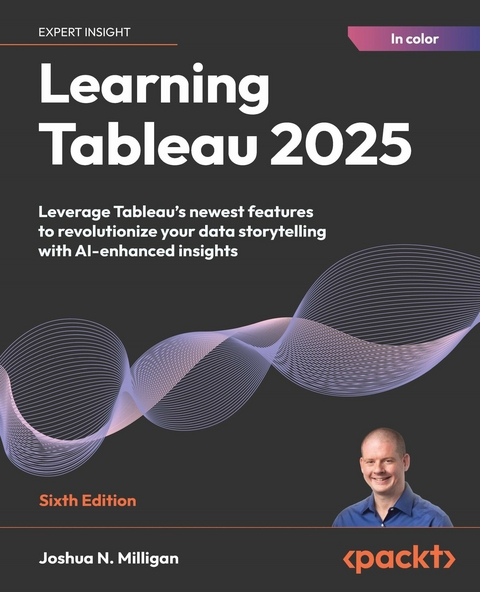
Learning Tableau 2025 (eBook)
590 Seiten
Packt Publishing (Verlag)
978-1-83588-679-3 (ISBN)
Tableau 2025 marks a new era in data visualization and analysis, bringing together advanced AI integrations and dynamic user experiences. This sixth edition, written by Tableau Visionary and Zen Master Joshua Miligan, is an end-to-end guide to mastering the latest innovations in Tableau that transform raw data into actionable insights.
This edition introduces groundbreaking features like Tableau AI (including Tableau Pulse and Tableau Agent), enhancing your analytical capabilities with AI-driven data exploration and automated insights. With detailed walkthroughs, you'll learn to build dynamic dashboards that respond to your data in real time and work with sophisticated AI functionalities that predict trends and model scenarios.
Whether you're a seasoned data professional or new to Tableau, this book provides the tools you need to leverage Tableau's full potential. From integrating diverse data sources using the enhanced data model to employing advanced geospatial functions for detailed mapping, every chapter is packed with expert knowledge and practical applications designed to put powerful analytics at your fingertips.
Explore the full potential of Tableau and learn how to draw valuable insights from data directly from a Tableau Visionary and Zen MasterKey FeaturesLearn Tableau's foundational principles while exploring new AI features like Tableau Pulse and AgentTransform complex datasets into interactive insights with Tableau PrepGain deeper insights using geospatial analysis and advanced methodsPurchase of the print or Kindle book includes a free PDF eBookBook DescriptionTableau 2025 marks a new era in data visualization and analysis, bringing together advanced AI integrations and dynamic user experiences. This sixth edition, written by Tableau Visionary and Zen Master Joshua Miligan, is an end-to-end guide to mastering the latest innovations in Tableau that transform raw data into actionable insights. This edition introduces groundbreaking features like Tableau AI (including Tableau Pulse and Tableau Agent), enhancing your analytical capabilities with AI-driven data exploration and automated insights. With detailed walkthroughs, you ll learn to build dynamic dashboards that respond to your data in real time and work with sophisticated AI functionalities that predict trends and model scenarios. Whether you're a seasoned data professional or new to Tableau, this book provides the tools you need to leverage Tableau s full potential. From integrating diverse data sources using the enhanced data model to employing advanced geospatial functions for detailed mapping, every chapter is packed with expert knowledge and practical applications designed to put powerful analytics at your fingertips.What you will learnImplement advanced AI features to streamline data analysisBuild and customize dynamic dashboards for interactive data storytellingLeverage new geospatial functions for comprehensive mappingEnhance data prep with Tableau Prep's new featuresIntegrate and analyze data from multiple sources effectivelyShare your data stories to build a culture of trust and actionWho this book is forThis Tableau book is for aspiring BI developers and data analysts, data scientists, researchers, and anyone else who wants to gain a deeper understanding of data using Tableau. This book takes you from the ground up, so you won't need any prior experience with Tableau before you dive in, but a full Tableau license (or 14-day demo license) is essential to be able to make use of all the exercises.]]>
1
Taking Off with Tableau
Tableau is an amazing platform for seeing, understanding, and making key decisions based on your data! With it, you can carry out incredible data discovery, analysis, and storytelling. You’ll accomplish these tasks and goals visually using an interface that is designed for the natural and seamless flow of thought and work.
You don’t need to write complex scripts or queries to leverage the power of Tableau. Instead, you interact with your data in a visual environment where everything that you drag and drop is translated into the necessary queries for you and then displayed visually. In the latest versions of Tableau, you can even leverage AI to guide your analysis and automate some tasks. You’ll be working in real time, so you will see results immediately, get answers as quickly as you can ask questions, and be able to iterate through potentially dozens of ways to visualize the data in order to find a key insight or tell a piece of the story.
This chapter introduces the foundational principles of Tableau. We’ll walk through a series of examples that will introduce you to the basics of connecting to data, exploring and analyzing data visually, and finally, putting it all together in a fully interactive dashboard. These concepts will be developed far more extensively in subsequent chapters. However, don’t skip this chapter, as it introduces key terminology and concepts, including the following:
- Connecting to data
- Foundations for building visualizations
- Visualizing data
- Using Show Me
- Putting everything together in a dashboard
Let’s begin by looking at how you can connect Tableau to your data.
Connecting to data
Tableau connects to data stored in a wide variety of files, databases, and repositories. This includes flat files such as text files, Excel documents, and spatial files; databases such as SQL Server and Oracle; and cloud-based data sources such as Snowflake and Microsoft Azure. With very few exceptions, the process of analysis and creating visualizations will be the same, no matter what data source you use.
We’ll examine data connections and related topics more extensively throughout the book. For example, we’ll cover the following:
- Connecting to a wide variety of different types of data sources in Chapter 2, Connecting to Data and Tableau
- Using joins, blends, and object model connections in Chapter 13, Understanding the Tableau Data Model, Joins, and Blends
- Understanding the data structures that work well and how to deal with messy data in Chapter 14, Structuring Messy Data to Work Well in Tableau
- Leveraging the power and flexibility of Tableau Prep to cleanse and shape data for deeper analysis in Chapter 15, Taming Data with Tableau Prep
In this chapter, we’ll connect to a text file derived from one of the sample datasets that ships with Tableau: Superstore.csv. Superstore is a fictional retail chain that sells various products to customers across the United States and the file contains a record for every line item of every order with details on the customer, location, item, sales amount, and revenue.
Please use the supplied Superstore.csv data file instead of the Tableau Superstore sample data, as there are differences that will change the results. Instructions for downloading all the samples can be found in the Preface.
The Chapter 1 workbooks, included with the code files bundle, already have connections to the file; however, for this example, we’ll walk through the steps of creating a connection in a new workbook:
- Open Tableau. You should see the home screen with a list of connection options on the left and, if applicable, thumbnail previews of recently edited workbooks in the center, along with sample workbooks at the bottom.
- Under Connect and To a File, click on Text File.
- In the Open dialog box, navigate to the
/Learning Tableau/Chapter 01directory and select theSuperstore.csvfile.
You will now see the data connection screen, which allows you to visually create connections to data sources. We’ll examine the features of this screen in detail in the Connecting to data section of Chapter 2, Connecting to Data and Tableau. For now, Tableau shows a list of fields and a preview of the file’s data for the connection:
Figure 1.1: The data connection screen allows you to build a connection to your data
For this connection, no other configuration is required, so simply click on the Sheet 1 tab at the bottom of the Tableau window to start visualizing the data! You should now see the main work area within Tableau, which looks like this:
Figure 1.2: Elements of Tableau’s primary interface, numbered, with descriptions to follow
We’ll refer to the elements of the interface throughout the book using specific terminology, so take a moment to familiarize yourself with the terms used for the various components numbered in the preceding screenshot:
- The menu contains various menu items for performing a wide range of functions.
- The toolbar allows common functions such as undo, redo, save, add a data source, and so on.
- The Data pane is active when the Data tab is selected and lists all tables and fields of the selected data source. The Analytics pane is active when the Analytics tab is selected and gives options for supplementing visualizations with visual analytics.
- Various shelves, such as Pages, Columns, Rows, and Filters, serve as areas to drag and drop fields from the Data pane. The Marks card contains additional shelves, such as Color, Size, Text, Detail, and Tooltip. Tableau will visualize data based on the fields you drop onto the shelves.
Data fields in the Data pane are available to add to a view. Fields that have been dropped onto a shelf are called in the view or active fields because they play an active role in the way Tableau draws the visualization.
You may sometimes hear fields referred to as pills because of their appearance in the user interface.
- The canvas or view is where Tableau will draw the data visualization. In addition to dropping fields on shelves, you may also drop fields directly onto the view. A title is located at the top of the canvas. By default, the title displays the name of the sheet. It can be edited or hidden.
- Show Me is a feature that allows you to quickly iterate through various types of visualizations based on data fields of interest. We’ll look at Show Me in the Using Show Me section.
- The tabs at the bottom of the window give you options for editing the data source, as well as navigating between and adding any number of sheets, dashboards, or stories. Often, any tab (whether it is a sheet, a dashboard, or a story) is referred to generically as a sheet or worksheet.
A Tableau workbook is a collection of data sources, sheets, dashboards, and stories. All of this is saved as a single Tableau workbook file (.twb or .twbx). A workbook is organized into a collection of tabs, which can be seen on the bottom toolbar in Tableau Desktop:
Figure 1.3: Tabs in a Tableau workbook
- A sheet is a single data visualization, such as a bar chart or a line graph. Since sheet is also a generic term for any tab, we’ll often refer to a sheet as a view because it is a single view of the data.
- A dashboard is a presentation of any number of related views and other elements (such as text or images) arranged together as a cohesive whole to communicate a message to an audience. Dashboards are often designed to be interactive.
- A story is a collection of dashboards or single views that have been arranged to communicate a narrative from the data. Stories may also be interactive.
Along the bottom of the screen, you’ll notice a few other items. As you work, a status bar at the bottom left will display important information and details about the view, selections, and the user. The controls on the bottom right allow you to navigate between sheets, dashboards, and stories, as well as viewing the tabs with Show Filmstrip or switching to a sheet sorter showing an interactive thumbnail of all sheets in the workbook.
Now that you have connected to the data in the text file, we’ll explore some...
| Erscheint lt. Verlag | 8.8.2025 |
|---|---|
| Sprache | englisch |
| Themenwelt | Mathematik / Informatik ► Informatik ► Datenbanken |
| ISBN-10 | 1-83588-679-5 / 1835886795 |
| ISBN-13 | 978-1-83588-679-3 / 9781835886793 |
| Informationen gemäß Produktsicherheitsverordnung (GPSR) | |
| Haben Sie eine Frage zum Produkt? |
 EPUB (Ohne DRM)
Digital Rights Management: ohne DRM
Dieses eBook enthält kein DRM oder Kopierschutz. Eine Weitergabe an Dritte ist jedoch rechtlich nicht zulässig, weil Sie beim Kauf nur die Rechte an der persönlichen Nutzung erwerben.
Dateiformat: EPUB (Electronic Publication)
EPUB ist ein offener Standard für eBooks und eignet sich besonders zur Darstellung von Belletristik und Sachbüchern. Der Fließtext wird dynamisch an die Display- und Schriftgröße angepasst. Auch für mobile Lesegeräte ist EPUB daher gut geeignet.
Systemvoraussetzungen:
PC/Mac: Mit einem PC oder Mac können Sie dieses eBook lesen. Sie benötigen dafür die kostenlose Software Adobe Digital Editions.
eReader: Dieses eBook kann mit (fast) allen eBook-Readern gelesen werden. Mit dem amazon-Kindle ist es aber nicht kompatibel.
Smartphone/Tablet: Egal ob Apple oder Android, dieses eBook können Sie lesen. Sie benötigen dafür eine kostenlose App.
Geräteliste und zusätzliche Hinweise
Buying eBooks from abroad
For tax law reasons we can sell eBooks just within Germany and Switzerland. Regrettably we cannot fulfill eBook-orders from other countries.
aus dem Bereich


