


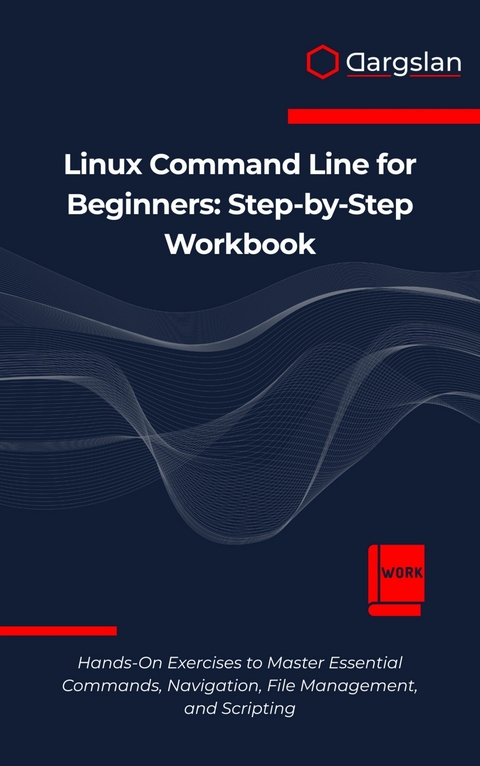
Linux Command Line for Beginners (eBook)
273 Seiten
Dargslan s.r.o. (Verlag)
978-0-00-081269-8 (ISBN)
Linux Command Line for Beginners: Step-by-Step Workbook
Master Essential Commands, Navigation, File Management, and Scripting
Unlock the true power of Linux with this hands-on, practical guide designed specifically for absolute beginners!
Are you intimidated by the Linux terminal? Do those cryptic commands and blinking cursors make you want to run back to the comfort of graphical interfaces? You're not alone-but you're also missing out on the incredible power, flexibility, and career opportunities that come with mastering the Linux command line.
'Linux Command Line for Beginners: Step-by-Step Workbook' transforms this learning curve into an enjoyable journey through carefully designed, hands-on exercises that build your confidence one command at a time. Unlike other technical manuals that overwhelm you with theory, this workbook focuses on practical application-you'll be typing commands and seeing results within minutes!
What Makes This Book Different:
✓ Progressive Learning Path: Start with basic terminal navigation and advance to writing your own automation scripts ✓ Practice-Based Approach: Every concept is immediately reinforced with hands-on exercises ✓ Real-World Applications: Learn how to manage files, monitor system resources, install software, and automate tasks ✓ Beginner-Friendly Language: Technical concepts explained in plain English-no prior Linux experience required ✓ Reference Materials: Includes the 50 most essential Linux commands, troubleshooting guides, and time-saving shortcuts
Inside You'll Discover:
How to confidently navigate the Linux filesystem using powerful terminal commands
Essential file management techniques for creating, moving, copying, and securing your data
Methods for viewing and editing text files directly from the command line
User and permission management to keep your system secure
Techniques for monitoring system performance and troubleshooting issues
Package management to easily install and update software
Step-by-step instructions for writing shell scripts to automate repetitive tasks
Scheduling automated jobs with cron to make your computer work for you
Whether you're preparing for a career in IT, cloud computing, web development, or cybersecurity-or simply want to understand the operating system that powers 96.3% of the world's top one million servers-this workbook provides the foundation you need.
Start your Linux command line journey today and join the millions of professionals who rely on these skills daily to manage systems, develop software, and secure networks worldwide!
Perfect for:
Complete beginners with no prior Linux experience
Students preparing for computer science or IT courses
Windows/macOS users curious about Linux
Self-taught developers wanting to expand their skillset
IT professionals needing to work with Linux servers
Anyone looking to enhance their technical literacy in today's digital world
Don't just use your computer-learn to command it. Your path to Linux mastery begins with the first page!
Chapter 1: Opening the Terminal
Introduction: Your Gateway to the Digital Underground
Picture this: you're sitting in front of your computer, staring at a desktop filled with colorful icons and windows. Everything seems familiar, comfortable even. You click on applications, drag files around, and navigate through folders using your mouse. But beneath this graphical surface lies a powerful, almost mystical realm—the command line interface, where seasoned developers, system administrators, and power users wield text commands like digital wizards casting spells.
Welcome to your first step into this fascinating world. The terminal, also known as the command line interface (CLI), is your portal to the heart of your Linux system. It's where the real magic happens, where you can accomplish tasks with lightning speed, automate complex operations, and gain unprecedented control over your computer.
In this chapter, we'll embark on a journey that will transform you from a point-and-click user into someone who can navigate the depths of your operating system using nothing but text commands. Don't worry if this sounds intimidating—every expert was once a beginner, and with patience and practice, you'll soon discover that the command line isn't just powerful; it's surprisingly elegant and efficient.
What is a Terminal?
Before we dive into opening terminals and typing commands, let's establish a clear understanding of what we're working with. The terminal is essentially a text-based interface that allows you to communicate directly with your operating system. Think of it as having a direct conversation with your computer, where instead of pointing and clicking, you're giving explicit instructions in a language your system understands.
The Historical Context
To truly appreciate the terminal, we need to take a brief journey back in time. In the early days of computing, before graphical user interfaces existed, the command line was the only way to interact with computers. Massive mainframe computers filled entire rooms, and users would sit at terminals—physical devices consisting of a keyboard and a monitor—to input commands and receive output.
These early terminals were often called "dumb terminals" because they had no processing power of their own. They were simply input and output devices connected to a central computer. The terminal emulator programs we use today are software recreations of those physical devices, maintaining the same fundamental concept while running on modern hardware.
Modern Terminal Emulators
Today's terminal emulators are sophisticated programs that simulate the behavior of those original terminals while adding modern conveniences. They provide a window into the command-line environment, complete with features like:
The Shell: Your Command Interpreter
When you open a terminal, you're not directly communicating with the operating system. Instead, you're interacting with a program called a shell. The shell acts as an interpreter, taking the commands you type, understanding what you want to accomplish, and then communicating with the operating system to execute those commands.
Linux systems typically come with several shell options, with Bash (Bourne Again Shell) being the most common default. Other popular shells include Zsh, Fish, and Dash, each with its own features and syntax variations. For this workbook, we'll focus primarily on Bash, as it's the most widely used and the skills you learn will be transferable to most Linux environments.
Finding and Opening Terminal Applications
Now that we understand what a terminal is and why it's important, let's get practical and learn how to actually open one. The method for accessing a terminal varies depending on your Linux distribution and desktop environment, but we'll cover the most common approaches.
Method 1: Using Keyboard Shortcuts
The fastest way to open a terminal is usually through keyboard shortcuts. Most Linux distributions support these universal shortcuts:
Primary Shortcut:
Alternative Shortcuts:
Let's try this right now. Position your fingers over the Ctrl, Alt, and T keys simultaneously and press them together. If you're using a standard Linux setup, a terminal window should appear on your screen.
Method 2: Application Menu Navigation
If keyboard shortcuts don't work or you prefer using the graphical interface, you can find the terminal through your application menu:
For GNOME Desktop Environment:
- Click on the "Activities" button in the top-left corner of your screen
- Type "terminal" in the search box that appears
- Click on the Terminal application icon when it appears
For KDE Plasma Desktop:
- Click on the application launcher (usually in the bottom-left corner)
- Navigate to "System" or "Utilities" category
- Look for "Konsole" or "Terminal" and click on it
For XFCE Desktop:
- Click on the application menu (whisker menu icon)
- Navigate to "System" category
- Click on "Terminal Emulator"
For Ubuntu Unity (older versions):
- Click on the Ubuntu logo (Unity launcher)
- Type "terminal" in the search field
- Click on the Terminal application
Method 3: Right-Click Context Menu
Many Linux desktop environments offer the convenience of opening a terminal directly from the file manager:
- Open your file manager (Nautilus, Dolphin, Thunar, etc.)
- Navigate to any folder
- Right-click in an empty area of the folder
- Look for an option like "Open in Terminal" or "Open Terminal Here"
- Click on this option
This method is particularly useful because it opens the terminal with the current working directory set to the folder you were browsing, saving you the step of navigating to that location manually.
Method 4: Using the Run Dialog
Most desktop environments include a "Run" dialog that allows you to launch applications by typing their names:
- Press Alt + F2 (this shortcut works on most desktop environments)
- Type "terminal" or the specific name of your terminal emulator
- Press Enter
Method 5: From the File Manager
Another intuitive way to access the terminal is through your file manager's menu system:
- Open your file manager
- Look for a "Tools" or "Edit" menu
- Search for options like "Open Terminal" or "Terminal"
- Click on the option to launch the terminal
Different Types of Terminal Emulators
Not all terminals are created equal. Different Linux distributions and desktop environments come with various terminal emulator applications, each with its own features and characteristics. Understanding these differences will help you choose the one that best fits your workflow and preferences.
GNOME Terminal
Description: The default terminal emulator for the GNOME desktop environment, GNOME Terminal is clean, functional, and well-integrated with the GNOME ecosystem.
Key Features:
Typical Usage: GNOME Terminal is excellent for general-purpose command-line work and is the go-to choice for users of Ubuntu, Fedora (with GNOME), and other GNOME-based distributions.
Konsole
Description: The default terminal emulator for the KDE Plasma desktop environment, Konsole is feature-rich and highly customizable.
Key Features:
Typical Usage: Konsole is perfect for power users who want advanced features and extensive...
| Erscheint lt. Verlag | 27.5.2025 |
|---|---|
| Sprache | englisch |
| Themenwelt | Mathematik / Informatik ► Informatik ► Betriebssysteme / Server |
| ISBN-10 | 0-00-081269-2 / 0000812692 |
| ISBN-13 | 978-0-00-081269-8 / 9780000812698 |
| Informationen gemäß Produktsicherheitsverordnung (GPSR) | |
| Haben Sie eine Frage zum Produkt? |
 EPUB (Adobe DRM)
Größe: 1,3 MB
Kopierschutz: Adobe-DRM
Adobe-DRM ist ein Kopierschutz, der das eBook vor Mißbrauch schützen soll. Dabei wird das eBook bereits beim Download auf Ihre persönliche Adobe-ID autorisiert. Lesen können Sie das eBook dann nur auf den Geräten, welche ebenfalls auf Ihre Adobe-ID registriert sind.
Details zum Adobe-DRM
Dateiformat: EPUB (Electronic Publication)
EPUB ist ein offener Standard für eBooks und eignet sich besonders zur Darstellung von Belletristik und Sachbüchern. Der Fließtext wird dynamisch an die Display- und Schriftgröße angepasst. Auch für mobile Lesegeräte ist EPUB daher gut geeignet.
Systemvoraussetzungen:
PC/Mac: Mit einem PC oder Mac können Sie dieses eBook lesen. Sie benötigen eine
eReader: Dieses eBook kann mit (fast) allen eBook-Readern gelesen werden. Mit dem amazon-Kindle ist es aber nicht kompatibel.
Smartphone/Tablet: Egal ob Apple oder Android, dieses eBook können Sie lesen. Sie benötigen eine
Geräteliste und zusätzliche Hinweise
Buying eBooks from abroad
For tax law reasons we can sell eBooks just within Germany and Switzerland. Regrettably we cannot fulfill eBook-orders from other countries.
aus dem Bereich


