


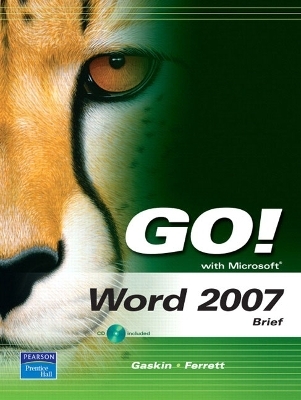
GO! with Microsoft Word 2007, Brief
Pearson
978-0-13-512996-8 (ISBN)
- Titel ist leider vergriffen;
keine Neuauflage - Artikel merken
Teach the course YOU want in LESS TIME! The primary goal of the GO! Series, aside from teaching computer applications, is ease of implementation, with an approach that is based on clearly-defined projects for students and a one of a kind supplements package.
Shelley Gaskin, Series Editor for the GO! Series, is a professor of business and computer technology at Pasadena City College in Pasadena, California. She holds a master's degree in business education from Northern Illinois University and a doctorate in adult and community education from Ball State University. Dr. Gaskin has 15 years of experience in the computer industry with several Fortune 500 companies and has developed and written training materials for custom systems applications in both the public and private sector. She is also the author of books on Microsoft Outlook and word processing.
The GO! System Visual
Walk-Through...................xvi
Word 2007
Chapter 1 Creating Documents with Microsoft Word 2007...................1
PROJECT 1A Application Letter 3
Objective 1 Create and Save a New Document 3
Activity 1.1 Starting Word and Identifying Parts
of the Word Window 4
Activity 1.2 Beginning a New Document and
Displaying Formatting Marks 5
Activity 1.3 Entering Text and Inserting
Blank Lines 6
Activity 1.4 Creating Folders for Document
Storage and Saving a Document 9
Objective 2 Edit Text 15
Activity 1.5 Editing Text with the Delete and
Backspace Keys 15
Activity 1.6 Inserting New Text 17
Objective 3 Select, Delete, and Format Text 18
Activity 1.7 Selecting and Deleting Text 18
Activity 1.8 Changing Font and Font Size 21
Activity 1.9 Adding Emphasis to Text 23
Objective 4 Print a Document 25
Activity 1.10 Accessing Headers
and Footers 25
Activity 1.11 Printing a Document 27
PROJECT 1B Company Overview 29
Objective 5 Navigate the Word Window 30
Activity 1.12 Opening and Closing an Existing
Document 30
Activity 1.13 Inserting Existing Text into a New
Document 30
Activity 1.14 Navigating a Document 33
Activity 1.15 Changing Document Views 35
Activity 1.16 Using the Zoom Slider 36
Activity 1.17 Splitting Windows and
Arranging Panes 38
Objective 6 Add a Graphic to a Document 40
Activity 1.18 Inserting Clip Art 40
Objective 7 Use the Spelling and Grammar Checker 43
Activity 1.19 Checking Individual Spelling
and Grammar Errors 43
Activity 1.20 Checking Spelling and Grammar
in an Entire Document 45
Objective 8 Preview and Print Documents, Close a Document, and Close Word 48
Activity 1.21 Previewing and Printing a Document 48
Activity 1.22 Closing a Document and
Closing Word 51
Objective 9 Use the Microsoft Help System 51
Activity 1.23 Getting Help 51
There’s More You Can Do! 54
Summary 55
Key Terms 55
Matching 56
Fill in the Blank 57
Skills Review 58
Mastering Word 64
Business Running Case 74
Rubric 75
Problem Solving 76
You and GO! 82
GO!with Help 82
Group Business Running Case 83
Chapter 2 Formatting and Organizing Text...............................85
PROJECT 2A Seminar 87
Objective 1 Change Document and Paragraph Layout 88
Activity 2.1 Setting Margins 88
Activity 2.2 Aligning Text 90
Activity 2.3 Changing Line Spacing 92
Activity 2.4 Adding Space After Paragraphs 94
Activity 2.5 Using the Format Painter 96
Objective 2 Change and Reorganize Text 98
Activity 2.6 Finding and Replacing Text 99
Activity 2.7 Cutting, Copying, and Pasting Text 101
Activity 2.8 Moving Text to a New Location 103
Activity 2.9 Undoing and Redoing Changes 105
Activity 2.10 Inserting a Nonbreaking
Spaces and Hyphens 106
Activity 2.11 Entering a Line Break 108
Objective 3 Create and Modify Lists 109
Activity 2.12 Creating a Bulleted List 109
Activity 2.13 Using AutoFormat To Create a
Numbered List 110
Activity 2.14 Formatting Lists 113
Activity 2.15 Customizing Bullets 115
PROJECT 2B Law Overview 118
Objective 4 Insert and Format Headers and
Footers 119
Activity 2.16 Inserting and Formatting
Page Numbers 119
Activity 2.17 Inserting the Current Date and Time 122
Objective 5 Insert Frequently Used Text 123
Activity 2.18 Recording AutoCorrect Entries 123
Activity 2.19 Inserting Symbols 126
Objective 6 Insert and Format References 128
Activity 2.20 Inserting Footnotes 128
Activity 2.21 Modifying a Footnote Style 130
Activity 2.22 Adding Citations 133
Activity 2.23 Creating a Reference Page 137
Activity 2.24 Managing Document Properties 138
There’s More You Can Do! 140
Summary 141
Key Terms 141
Matching 142
Fill in the Blank 143
Skills Review 144
Mastering Word 152
Business Running Case 164
Rubric 165
Problem Solving 166
You and GO! 171
GO!with Help 171
Group Business Running Case 172
Chapter 3 Using Graphics and Tables ...............173
PROJECT 3A Photography Flyer 175
Objective 1 Insert and Format Graphics 176
Activity 3.1 Formatting Text Using WordArt 176
Activity 3.2 Inserting Pictures from Files 178
Activity 3.3 Resizing a Graphic 179
Activity 3.4 Wrapping Text Around a Graphic 181
Activity 3.5 Moving a Graphic 183
Activity 3.6 Applying Picture Styles 184
Activity 3.7 Adding a Page Border 186
Objective 2 Set Tab Stops 187
Activity 3.8 Setting Tab Stops and Using
Click and Type 187
Activity 3.9 Formatting and Removing Tab Stops 191
Activity 3.10 Using Tab Stops To Enter Text 193
Activity 3.11 Moving Tab Stops 195
Objective 3 Insert and Modify Text
Boxes and Shapes 196
Activity 3.12 Inserting a Text Box 197
Activity 3.13 Moving, Resizing, and
Formatting a Text Box 198
Activity 3.14 Inserting a Predefined Shape 200
PROJECT 3B Price List 203
Objective 4 Create a Table 204
Activity 3.15 Creating and Entering Text into
a Table 204
Activity 3.16 Adding a Row to a Table 206
Activity 3.17 Changing the Width of
a Table Column 207
Activity 3.18 Adding a Column to a Table 208
Activity 3.19 Converting Text to Tables 210
Objective 5 Format a Table 212
Activity 3.20 Formatting Text in Cells
and Shading Cells 212
Activity 3.21 Changing the Table Border 215
Activity 3.22 Centering a Table 217
Activity 3.23 Merging Cells 218
Activity 3.24 Applying a Predefined Format
to a Table 219
There’s More You Can Do! 222
Summary 223
Key Terms 223
Matching 224
Fill in the Blank 225
Skills Review 226
Mastering Word 234
Business Running Case 248
Rubric 249
Problem Solving 250
You and GO! 256
GO!with Help 256
Chapter 4 Special Document Formats, Columns,and Mail Merge ....259
PROJECT 4A Garden Newsletter 261
Objective 1 Collect and Paste Text and Graphics 262
Activity 4.1 Using Collect and Paste To
Gather Images and Text 262
Activity 4.2 Pasting Information from the
Clipboard Task Pane 265
Objective 2 Create and Format Columns 266
Activity 4.3 Changing One Column Text to
Two Columns 266
Activity 4.4 Formatting Multiple Columns 267
Activity 4.5 Inserting a Column Break 268
Activity 4.6 Adding Graphics to Columns 270
Objective 3 Use Special Character and
Paragraph Formatting 271
Activity 4.7 Using Small Caps and Changing
Font Color 272
Activity 4.8 Adding a Border and Shading to a
Paragraph 273
Objective 4 Create Mailing Labels
Using Mail Merge 275
Activity 4.9 Opening the Mail Merge
Wizard Template 275
Activity 4.10 Completing the Mail
Merge Wizard 279
Activity 4.11 Previewing and Printing the
Mail Merge Document 283
PROJECT 4B Television Hosts 285
Objective 5 Insert Hyperlinks 286
Activity 4.12 Inserting Text Hyperlinks 286
Activity 4.13 Adding a Hyperlink to a Graphic 288
Activity 4.14 Testing and Modifying Hyperlinks 289
Objective 6 Insert a SmartArt Graphic 290
Activity 4.15 Inserting a SmartArt Graphic 291
Activity 4.16 Adding Text to a SmartArt Graphic 292
Objective 7 Preview and Save a
Document as a Web Page 294
Activity 4.17 Previewing a Document as a
Web Page 295
Activity 4.18 Saving a Document as a Web Page 296
There’s More You Can Do! 299
Summary 300
Key Terms 300
Matching 301
Fill in the Blank 302
Skills Review 303
Mastering Word 310
Business Running Case 322
Rubric 323
Problem Solving 324
You and GO! 329
GO!with Help 329
Group Business Running Case 330
Glossary........................................G-1
Index................................................I-1
| Erscheint lt. Verlag | 7.6.2007 |
|---|---|
| Sprache | englisch |
| Maße | 279 x 221 mm |
| Gewicht | 726 g |
| Themenwelt | Informatik ► Office Programme ► Word |
| ISBN-10 | 0-13-512996-6 / 0135129966 |
| ISBN-13 | 978-0-13-512996-8 / 9780135129968 |
| Zustand | Neuware |
| Informationen gemäß Produktsicherheitsverordnung (GPSR) | |
| Haben Sie eine Frage zum Produkt? |


