


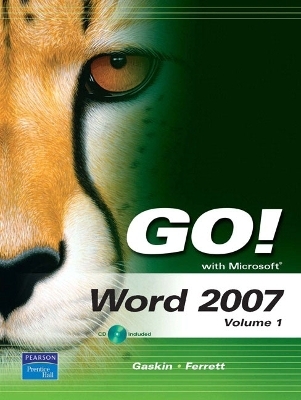
GO! with Microsoft Word 2007, Volume 1
Pearson
978-0-13-512952-4 (ISBN)
- Titel ist leider vergriffen;
keine Neuauflage - Artikel merken
Teach the course YOU want in LESS TIME! The primary goal of the GO! Series, aside from teaching computer applications, is ease of implementation, with an approach that is based on clearly-defined projects for students and a one of a kind supplements package.
Shelley Gaskin, Series Editor for the GO! Series, is a professor of business and computer technology at Pasadena City College in Pasadena, California. She holds a master's degree in business education from Northern Illinois University and a doctorate in adult and community education from Ball State University. Dr. Gaskin has 15 years of experience in the computer industry with several Fortune 500 companies and has developed and written training materials for custom systems applications in both the public and private sector. She is also the author of books on Microsoft Outlook and word processing.
Chapter 1: Creating Documents with Microsoft Word 2007 MUSIC SCHOOL RECORDS
PROJECT 1A Letter
Objective 1 Create and Save a New Document
Activity 1.1 Starting Word and Identifying Parts of the Word Window
Activity 1.2 Beginning a New Document and Displaying Formatting Marks
Activity 1.3 Entering Text and Inserting Blank Lines
Activity 1.4 Creating Folders for Document Storage and Saving a Document
Objective 2 Edit Text
Activity 1.5 Editing Text with the Delete and Backspace Keys
Activity 1.6 Inserting New Text
Objective 3 Select, Delete, and Format Text
Activity 1.7 Selecting and Deleting Text
Activity 1.8 Changing Font and Font Size and Using Live Preview
Activity 1.9 Adding Emphasis to Text
Objective 4 Print a Document
Activity 1.10 Accessing Headers and Footers
Activity 1.11 Printing a Document
PROJECT 1B Navigation and Tools
Objective 5 Navigate the Word Window
Activity 1.12 Opening and Closing an Existing Document
Activity 1.13 Inserting Existing Text into a New Document
Activity 1.14 Navigating a Document
Activity 1.15 Changing Document Views
Activity 1.16 Using the Zoom Slider
Activity 1.17 Splitting Windows and Arranging Panes
Objective 6 Add a Graphic to a Document
Activity 1. 18 Inserting Clip Art
Objective 7 Use the Spelling and Grammar Checker
Activity 1.19 Checking Individual Spelling and Grammar Errors
Activity 1.20 Checking Spelling and Grammar in an Entire Document
Objective 8 Preview and Print Documents, Close a Document, and Close Word
Activity 1.21 Previewing and Printing a Document
Activity 1.22 Closing a Document and Closing Word
Objective 9 Use the Microsoft Help System
Activity 1.23 Typing a Question for Help
There’s More You Can Do!
Convert a Document to a Different Format
CHAPTER 2: Formatting and Organizing Text GHS LAW PARTNERS
PROJECT 2A Document Formatting
Objective 1 Change Document and Paragraph Layout
Activity 2.1 Setting Margins
Activity 2.2 Aligning Text
Activity 2.3 Changing Line Spacing
Activity 2.4 Adding Space After Paragraphs
Activity 2.5 Using the Format Painter
Objective 2 Change and Reorganize Text
Activity 2.6 Finding and Replacing Text
Activity 2.7 Cutting, Copying, and Pasting Text
Activity 2.8 Moving Text to a New Location
Activity 2.9 Undoing and Redoing Changes
Activity 2.10 Inserting Non-Breaking Hyphens and Spaces
Activity 2.11 Entering a Line Break
Objective 3 Create and Modify Lists
Activity 2.12 Creating a Bulleted List
Activity 2.13 Using AutoFormat to Create a Numbered List
Activity 2.14 Formatting Lists
Activity 2.15 Customizing Bullets
PROJECT 2B Research Paper
Objective 4 Insert and Format Headers and Footers
Activity 2.16 Inserting and Formatting Page Numbers
Activity 2.17 Inserting the Current Date and Time
Objective 5 Insert Frequently Used Text
Activity 2.18 Recording AutoCorrect Entries
Activity 2.19 Inserting Symbols
Objective 6 Insert and Format References
Activity 2.20 Inserting Footnotes
Activity 2.21 Modifying a Footnote Style
Activity 2.22 Adding Citations
Activity 2.23 Creating a Reference Page
Activity 2.24 Managing Document Properties
There’s More You Can Do!
Adding a Custom Entry to the Quick Part Gallery
CHAPTER 3: Using Graphics and Tables MEMORIES OLD AND NEW
PROJECT 3A Flyer
Objective 1 Insert and Format Graphics
Activity 3.1 Formatting Text Using WordArt
Activity 3.2 Inserting Pictures from Files
Activity 3.3 Resizing an Image
Activity 3.4 Wrapping Text Around an Image
Activity 3.5 Moving an Image
Activity 3.6 Applying Picture Styles
Activity 3.7 Adding a Page Border
Objective 2 Insert and Modify Text Boxes and Shapes
Activity 3.8 Inserting a Text Box
Activity 3.9 Moving, Resizing, and Formatting a Text Box
Activity 3.10 Inserting a Predefined Shape
Objective 3 Set Tab Stops
Activity 3.11 Setting Tab Stops and Using Click and Type
Activity 3.12 Formatting and Removing Tab Stops
Activity 3.13 Using Tab Stops to Enter Text
Activity 3.14 Moving Tab Stops
PROJECT 3B Tables
Objective 4 Create a Table
Activity 3.15 Creating and Entering Text into a Table
Activity 3.16 Adding a Row to a Table
Activity 3.17 Changing the Width of a Table Column
Activity 3.18 Adding a Column to a Table
Activity 3.19 Creating a Table from Existing Text
Objective 5 Format a Table
Activity 3.20 Formatting Text in Cells and Shading Cells
Activity 3.21 Changing the Table Border
Activity 3.22 Centering a Table
Activity 3.23 Merging Cells
Activity 3.24 Applying a Predefined Format to a Table
There’s More You Can Do!
Create a Chart
CHAPTER 4: Using Special Document Formats, Columns, and Mail Merge GEORGIA GARDENS
PROJECT 4A Newsletter
Objective 1 Collect and Paste Text and Graphics
Activity 4.1 Using Collect and Paste to Gather Images and Text
Activity 4.2 Pasting Information from the Clipboard Task Pane
Objective 2 Create and Format Columns
Activity 4.3 Changing One Column Text to Two Columns
Activity 4.4 Formatting Multiple Columns
Activity 4.5 Inserting a Column Break
Activity 4.6 Adding Graphics to Columns
Objective 3 Use Special Character and Paragraph Formatting
Activity 4.7 Using Small Caps and Changing the Font Color
Activity 4.8 Adding a Border and Shading to a Paragraph
Objective 4 Create Mailing Labels Using Mail Merge
Activity 4.9 Opening the Mail Merge Wizard Template
Activity 4.10 Completing the Mail Merge Wizard
Activity 4.11 Previewing and Printing the Mail Merge Document
PROJECT 4B Web Page
Objective 5 Insert Hyperlinks
Activity 4.12 Inserting Text Hyperlinks
Activity 4.13 Adding a Hyperlink to a Graphic
Activity 4.14 Testing and Modifying Hyperlinks
Objective 6 Insert a SmartArt Graphic
Activity 4.15 Inserting a SmartArt Graphic
Activity 4.16 Adding Text to a SmartArt Graphic
Activity 4.17 Modifying a SmartArt Graphic
Objective 7 Preview and Save a Document as a Web Page
Activity 4.18 Previewing a Document as a Web Page
Activity 4.19 Saving a Document as a Web Page
There’s More You Can Do!
Working Collaboratively: Adding Comments and Tracking Changes
Chapter 5 Working with Templates, Styles, and Charts
Shreveport Motor Mall
PROJECT 5A Templates and Styles
Objective 1: Create a Document from an Existing Template
Activity 5.1 Locating and Opening a Word Template
Activity 5.2 Replacing Content Controls in a Template
Activity 5.3 Replacing Content Control Text with Text from Another Document
Objective 2: Apply and Modify Existing Styles and Create New Styles
Activity 5.4 Displaying Existing Styles
Activity 5.5 Formatting Text and Paragraphs Using Existing Styles
Activity 5.6 Creating a New Paragraph Style
Activity 5.7 Modifying Styles
Objective 3: Apply a Theme and Create a New Template from an Existing Document
Activity 5.8 Adding a Theme to a Document
Activity 5.9 Saving an Existing Document as a Template
PROJECT 5B Charts
Objective 4: Create a Chart
Activity 5.10 Inserting a Chart into a Document
Activity 5.11 Adding Data and Data Labels to the Worksheet
Activity 5.12 Changing the Data in a Chart
Activity 5.13 Adding New Data to the Chart
Objective 5: Format a Chart
Activity 5.14 Changing the Chart Type
Activity 5.15 Adding a Chart Title
Activity 5.16 Changing the Vertical Axis Scale
Activity 5.17 Repositioning the Chart Legend
Activity 5.18 Adding Data Labels and Axis Labels
Activity 5.19 Changing the Chart Style
Objective 6: Work with Sections
Activity 5.20 Adding Section Breaks
Activity 5.21 Applying Different Formats to Document Sections
There’s More You Can Do!
Creating a Template Using Content Controls
Chapter 6 Creating Form Letters and Working in Groups Saginaw Bay Medical Center
PROJECT 6A Mail Merge
Objective 1: Create a Form Letter
Activity 6.1 Setting Up a Form Letter
Activity 6.2 Selecting a Data Source
Activity 6.3 Editing, Filtering, and Sorting a Data Source
Activity 6.4 Inserting Merge Fields
Objective 2: Merge Letters with Records from the Data Source
Activity 6.5 Previewing Merged Data
Activity 6.6 Printing Form Letters
Activity 6.7 Merging Form Letters into a Single Word Document
PROJECT 6B Outlines and Collaborative Editing
Objective 3: Work with a Document Outline
Activity 6.8 Using Styles to Define Outline Levels
Activity 6.9 Expanding and Collapsing Outline Sections
Activity 6.10 Moving Blocks of Text Using the Outline
Activity 6.11 Apply a List Format to Outline Headings
Objective 4: Track Changes in a Document
Activity 6.12 Turning on Track Changes
Activity 6.13 Locating Changes in a Document
Activity 6.14 Accepting or Rejecting Tracked Changes
Objective 5: Use Comments in a Document
Activity 6.15 Adding a Comment to a Document
Activity 6.16 Editing and Deleting Document Comments
Objective 6: Compare and Combine Documents
Activity 6.17 Comparing Two Documents
There’s More You Can Do!
Protecting a Document and Adding a Watermark
| Erscheint lt. Verlag | 7.9.2007 |
|---|---|
| Sprache | englisch |
| Maße | 257 x 244 mm |
| Gewicht | 1052 g |
| Themenwelt | Informatik ► Office Programme ► Word |
| ISBN-10 | 0-13-512952-4 / 0135129524 |
| ISBN-13 | 978-0-13-512952-4 / 9780135129524 |
| Zustand | Neuware |
| Informationen gemäß Produktsicherheitsverordnung (GPSR) | |
| Haben Sie eine Frage zum Produkt? |


