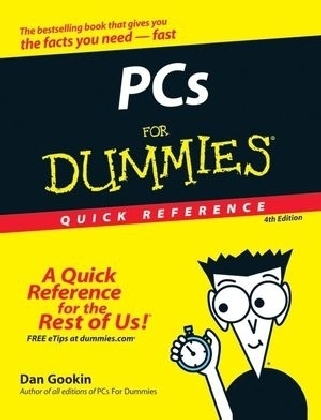
PCs For Dummies Quick Reference
For Dummies (Verlag)
9780470115268 (ISBN)
- Titel ist leider vergriffen;
keine Neuauflage - Artikel merken
All the PC essentials at your fingertips!
If you like your answers quick and your information up-to-date, look no further. This concise, superbly organized reference walks you through setting up a PC, the new interface and features of Windows Vista, using basic applications, organizing your stuff, getting on the Internet, networking (wired and wireless), burning CDs, upgrading your hardware, revving up your PC for high-speed game playing, and much more!
Dan Gookin has been writing about technology for over 600 years. He has contributed articles to numerous high-tech magazines and written more than 100 books about personal computing technology, many of them accurate. He combines his love of writing with his interest in technology to create books that are informative and entertaining, but not boring. Having sold more than 14 million copies translated into more than 30 languages, Dan can attest that his method of crafting computer tomes does seem to work. Perhaps Dan’s most famous title is the original DOS For Dummies, published in 1991. It became the world’s fastest-selling computer book, at one time moving more copies per week than the New York Times number-one best seller (although, because it’s a reference book, it could not be listed on the NYT best seller list). That book spawned the entire line of For Dummies books, which remains a publishing phenomenon to this day. Dan’s most recent titles include Word 2007 For Dummies, Laptops For Dummies, 2nd Edition; Programmer’s Guide to NCurses, and many more! He writes a blog and maintains the Wambooli Forums on his vast and helpful Web page www.wambooli.com. Dan holds a degree in communications and visual arts from the University of California, San Diego. He lives in the Pacific Northwest, where he enjoys spending time with his boys in the gentle woods of Idaho.
Part I: PC Overview 1
What You See: Basic Hardware 2
What You See: Console — the Front 4
What You See: Console — the Back 6
What You See: Console — the I/O Panel 7
I/O Symbol Table 9
The Basics: What Is a PC? 11
Hardware 12
Software 12
You 13
The Basics: Types and Models of PCs 13
The Basics: Inside the Console 14
The Basics: Adding Hardware 17
Internal expansion 17
External expansion 17
The Basics: Windows 18
The Basics: The Internet 19
The Basics: Your Stuff 20
Knowing about files 21
Working with files in Windows 21
Organizing files in Windows 22
Part II: Connecting Stuff 23
About Computer Cables 24
Audio 24
Digital Camera 25
Digital Media Player 26
Ieee 26
Joystick 27
Keyboard 27
Microphone 27
Modem 28
Monitor 28
Mouse 28
Network 29
Optical Audio 29
Power 29
Printer 30
S-Video 30
Scanner 31
Serial 31
Speakers 31
USB Port 31
Wireless Gizmos 32
Part III: Installing Hardware and Software 33
The Add Hardware Icon 34
Adding New Hardware 35
Adding an external dialup modem 36
Adding a non-USB joystick 36
Inserting an Expansion Card 36
Installing Memory 40
Removing Memory 43
Removing USB Storage Devices 44
Software Installation 44
Installing software from a CD or DVD 45
Installing software you downloaded from the Internet 45
Uninstalling Software 46
Part IV: The On–Off Thing 49
Changing the Power Button’s Function 50
Changing the Start Menu’s Power Button Function 51
Forcing the Computer Off 51
Hibernation 52
Logging On and Off 52
Logging in 53
Logging off 53
Locking the Computer 54
Quitting Windows 54
Restarting Windows 55
Sleep (Stand By) Mode 55
Putting your PC to sleep 56
Automatically going into sleep mode 56
Waking the computer 57
Switching Users 57
Turning the Computer System Off 58
Turning the Computer System On 59
The Uninterruptible Power Supply 59
Part V: Popular Places in Windows 61
Account Folder 62
All Programs Menu 64
Starting a program 65
Popular menus on the All Programs menu 65
The Startup submenu 66
Creating a desktop shortcut to a program 66
Putting a program on the Quick Launch bar 67
Pinning a program to the Start menu 67
Organizing the All Programs menu 68
Computer 68
Control Panel 69
Desktop 71
Network 72
Notification Area 73
Controlling the notification area 74
Controlling the visibility of the notification area icons 74
Recycle Bin 75
Start Menu 76
Changing the Start menu’s look 78
Configuring the Start button’s menu 78
Taskbar 79
Locking and unlocking the taskbar 80
Moving the taskbar 81
Resizing the taskbar 81
Setting taskbar options 82
Other toolbars 83
Quick Launch bar 83
Moving a toolbar 84
Removing a toolbar 84
Part VI: Disk Storage 85
About Disk Storage 86
Long-term and short-term storage 86
Disks and media 86
Saving and loading 87
AutoPlay 87
Bits and Bytes 88
CD-ROM and DVD Drives 89
Types of shiny discs 90
Playing a music CD or movie DVD 91
Drive Icons 91
Drive Letters 92
Disk drives A-B-C 92
Drive D and beyond 93
Drive Z 93
Changing drive letters 93
Ejecting a Removable Disk 94
Ejecting a floppy disk 94
Ejecting a CD or DVD 95
Ejecting other media 95
The Floppy Drive 95
Formatting floppies 96
Copying a file to Drive A 97
Floppy do’s and don’ts 97
Hard Disks and Drives 98
Inserting a Removable Disk 99
Inserting a floppy disk 99
Inserting a CD or DVD 100
Inserting media into a card reader 100
Putting a Drive’s Shortcut Icon on the Desktop 100
Types of Storage 101
Working with Removable USB Drives 102
Part VII: The Stuff You Create 103
About a File 104
Describing a file 104
Common file icons 105
Viewing file details in Windows Explorer 106
A file’s Properties dialog box 107
Creating Files 109
Finding Lost Files 109
Searching from the Start menu 109
Summoning the Search window 110
Finding a file when you know its name 111
Finding a file when you just created it recently 112
Finding a file when you know what type of file it is 112
Finding a file when you know that it contains a specific word 112
Managing Files 112
Copying files 112
Duplicating files 113
Moving files 113
Making file shortcuts 114
Deleting files 114
Permanently deleting files 115
Undeleting files 115
Recovering the previous version of a file 115
Naming and Renaming Files 117
The filename extension 117
Renaming a file 118
Filename wildcards 118
Opening Files 119
Pathnames 119
Saving Files 121
Saving for the first time 121
Saving after the first time 121
Closing a document 121
Selecting Icons 122
Selecting a single icon 122
Selecting all icons in a window 122
Selecting more than one icon 122
Lassoing a group of icons 123
Selecting all but a few icons 123
Grabbing a range of icons 123
Selecting two ranges of icons 123
Deselecting an icon from a group 123
Part VIII: Organizing Your Stuff 125
About Folders 126
About Windows Explorer 126
Around the Windows Explorer window 126
The Address bar 128
Managing your favorite folders 129
The tree structure 130
The toolbar 130
Compressed (Zip) Folders 131
Making an empty compressed folder 132
Adding files to a compressed folder 132
Making a compressed folder from one or more files 132
Extracting files 133
Directories 133
Folder Options 134
Choosing a folder template 134
Adding a picture to a folder’s icon 135
Changing a folder icon 136
Folders for Your Stuff 136
Managing Folders 137
Making a new folder 138
Renaming, copying, moving folders 138
The Root Folder 138
Subfolders 139
Part IX: Printing 141
Adding a Printer 142
Finding a home for the printer 142
Connecting the printer 142
Printer software setup 143
On and selected? 143
Setting up a USB printer 143
Forcing Windows to recognize the printer 144
Adding a network printer 145
Adding more than one printer to a single PC 146
The Default (Favorite) Printer 146
Envelopes 147
Configuring your document as an envelope 147
Printing on an envelope 148
Ink and Toner 150
Ink cartridges 150
Toner 150
Ink and toner tips 151
Paper 151
Buying paper 151
Adding paper to the printer 152
Paper tips 152
The Printer’s Control Panel 154
Print Preview 154
Printing 155
The Print command 155
Choosing a printer 156
Printing multiple copies 156
Printing a single page or range of pages 156
Printing the Screen 157
Printing a Test Page 157
Stopping the Printer 158
Turning the Printer On and Off 159
Types of Printers 159
Inkjet printers 160
Laser printers 160
Uninstalling a Printer 160
Part X: Networking 161
About Networking 162
Accessing a Shared Folder 162
Accessing a Wireless Network 163
Adding a Shared Folder to Your Disk System 164
Mapping a folder to a disk drive 164
Unmapping a folder 165
Checking the Network Connection 165
Checking the Network window 166
Checking the Network and Sharing Center window 166
Using the little networking guys 166
Connecting to a Network 166
The NIC 166
The network cable 167
Configuring the network 167
The Network and Sharing Center 167
The Network Connections Window 169
The Network Window 169
The PC’s IP Address 170
The PC’s MAC Address 171
The PC’s Network Name 172
The Public Folder 173
Sharing the Public folder on the network 173
Unsharing the Public folder 174
Repairing a Network Connection 174
Sharing a Folder 175
Making a folder on your PC available to the network 175
Unsharing a folder 176
Sharing a Printer 176
Using a Network Printer 177
Which Folders Are You Sharing? 177
Workgroups 177
Part XI: Creating Your Own CDs and DVDs 179
Checking to See Whether You Have a Recordable Drive 180
Creating a Musical CD 180
Destroying a Disc 182
Disc Formats 182
Disc Types 183
The CD-R, DVD-R, DVD+R 184
The CD-RW, DVD-RW, DVD+RW, DVD-RAM 184
Erasing an RW Disc 185
Writing to a Disc in Windows 185
Initializing a recordable or rewritable disc 185
Working with a Live File System disc 187
Working with a Mastered disc 187
Part XII: The Keyboard 189
Accessing Menus with the Keyboard 190
The Any Key 190
Controlling a Window with the Keyboard 191
Dead Keys 192
The Help Key 192
Keyboard Basics 192
Keyboard layout 192
Shift keys 193
Lock keys 194
Keyboard Shortcuts 195
Keyboard Types 197
Keys for Editing Text 198
Names for Funky Keys 199
Setting the Repeat Delay and Repeat Rate 199
Special Keys 200
Part XIII: The Mouse 201
Basic Mouse Activities 202
Changing the Double-Click Rate 203
Connecting a Mouse 203
Extra Mouse Buttons 204
Increasing the Mouse Pointer Visibility 204
Left-Handed Mouse 205
The Mouse Pad 206
Mouse Pointers 206
Making the pointer go faster or slower 206
Choosing a new pointer 207
Using an animated pointer 207
Loading a set of pointers 207
Saving your own set of pointers 208
Mouse Types 208
Air mouse 208
Mechanical, or ball, mouse 208
Optical mouse 208
Trackball mouse 208
Wireless mouse 209
Glossay: Tech Talk 211
Index 221
| Erscheint lt. Verlag | 24.4.2007 |
|---|---|
| Sprache | englisch |
| Maße | 175 x 216 mm |
| Gewicht | 295 g |
| Einbandart | Paperback |
| Themenwelt | Informatik ► Weitere Themen ► Hardware |
| ISBN-13 | 9780470115268 / 9780470115268 |
| Zustand | Neuware |
| Informationen gemäß Produktsicherheitsverordnung (GPSR) | |
| Haben Sie eine Frage zum Produkt? |
aus dem Bereich