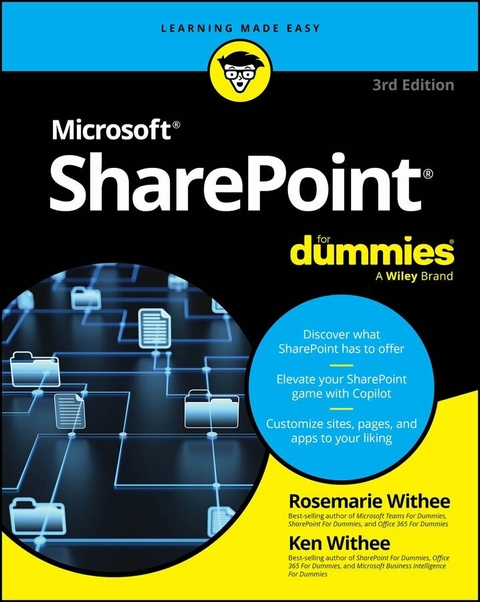
SharePoint For Dummies (eBook)
556 Seiten
For Dummies (Verlag)
978-1-394-29555-5 (ISBN)
Become a SharePoint power user with this quick-and-easy guide to its many features
SharePoint For Dummies is your trusted instruction manual as you learn to create sites, upload and manage documents, collaborate with coworkers, and streamline workflows. Updated to include new AI functionality with Copilot, this edition walks you through the steps you'll need to take to customize SharePoint and take advantage of all it has to offer. You'll also learn how to integrate SharePoint with the tools you already use, so it's easy and seamless to make the shift to online file sharing and version control. You can manage who has access to view and edit files, and you can track, automate, and summarize content-all with this powerful Microsoft platform, and SharePoint For Dummies as your guide.
- Learn what SharePoint does and discover features that can improve your processes
- Integrate Microsoft's AI Copilot to do more with Sharepoint
- Customize your SharePoint sites by applying styles and custom layouts
- Improve collaboration and boost efficiency with advanced SharePoint features
This easy-to-follow book is a must for anyone looking for quick answers to SharePoint questions-whether you have experience with SharePoint or are just getting started.
Rosemarie Withee is a technology professional and the coauthor of the most recent editions of Microsoft Teams For Dummies and Office 365 For Dummies.
Ken Withee is now part of the Microsoft Azure team. He is a former SharePoint consultant and a coauthor of previous editions of the SharePoint For Dummies series.
Become a SharePoint power user with this quick-and-easy guide to its many features SharePoint For Dummies is your trusted instruction manual as you learn to create sites, upload and manage documents, collaborate with coworkers, and streamline workflows. Updated to include new AI functionality with Copilot, this edition walks you through the steps you'll need to take to customize SharePoint and take advantage of all it has to offer. You'll also learn how to integrate SharePoint with the tools you already use, so it's easy and seamless to make the shift to online file sharing and version control. You can manage who has access to view and edit files, and you can track, automate, and summarize content all with this powerful Microsoft platform, and SharePoint For Dummies as your guide. Learn what SharePoint does and discover features that can improve your processes Integrate Microsoft's AI Copilot to do more with Sharepoint Customize your SharePoint sites by applying styles and custom layouts Improve collaboration and boost efficiency with advanced SharePoint features This easy-to-follow book is a must for anyone looking for quick answers to SharePoint questions whether you have experience with SharePoint or are just getting started.
Chapter 1
Getting to Know SharePoint
IN THIS CHAPTER
Gaining a general understanding of SharePoint
Exploring how things are put together
Getting familiar with the main concepts
Seeing how SharePoint works at a fundamental level
When we first heard about SharePoint, we just didn’t get it. What the heck was this thing called SharePoint? We knew it was a Microsoft product that was supposed to do lots of things, but we couldn’t figure out exactly what it was or how to get started working with it.
After years of working with SharePoint, we have finally figured a few things out. SharePoint is a web-based software platform that is capable of doing lots of things — more than you could ever imagine. And therein lies the problem. If you ask ten people what SharePoint does, you will likely get ten different answers. SharePoint has such depth that it’s hard to get your head around it.
In this chapter, we help you see the SharePoint big picture. You discover how SharePoint works and gain an understanding of exactly what the term SharePoint means. This chapter peels away the mystery and shows you SharePoint at a basic level. After all, you need to understand SharePoint at a basic level before you can dive into its advanced functionality.
Up and Running with SharePoint in Three Minutes Flat
It is human nature to learn things by exploring and it is no different with software. You could read a hundred books about SharePoint and still barely understand what exactly it is and what it does. Our thinking is that there is no better way to get to know SharePoint than to get up and running with it, clicking buttons to see what they do.
With SharePoint Online you can get up and running with a trial in minutes. SharePoint Online comes bundled with Microsoft 365. The easiest way to get started is to sign up for a free trial of Microsoft 365. Here’s how:
-
Open your favorite web browser and go to
www.office.com.The Office home page appears, as shown in Figure 1-1. Note that Microsoft is rebranding the Office web application as the Microsoft 365 Copilot app. The clients themselves are still part of the Office suite of products.
-
Click the Get Microsoft 365 button.
To get SharePoint, you will need a business plan subscription.
-
Click the For Business tab to see the available business plans.
The table that appears shows that the Microsoft 365 Business Basic plan includes the SharePoint service and is $6 per month as of this writing (see Figure 1-2).
-
Once you’ve chosen the plan you want, click the “Try free for one month” link.
A welcome screen appears that asks for your information.
-
Walk through the wizard, providing your information as needed to get up and running with Microsoft 365 and SharePoint Online.
Once you have filled out the information, your free trial will be created. This can take a few minutes. Once it is created, you will be given a link to go to your Microsoft 365 dashboard.
Note that you can use your own name as a business name and choose that your business size is one person. You will then choose a domain name, which is <your choice>.onmicrosoft.com. This is your Microsoft 365 domain. In our example, we chose sharepointfordummies.onmicrosoft.com for our domain. You can always add a custom domain later if you prefer.
FIGURE 1-1: The main office.com landing page.
FIGURE 1-2: Choosing a Microsoft 365 business plan.
When you first land on your Microsoft 365 dashboard, you will see a quick tutorial and then be presented with the Microsoft 365 main landing page. Because we are focused on SharePoint, here's how to crack it open and get started:
-
Click the Microsoft 365 app launcher icon in the top-left corner of the screen and select SharePoint in the drop-down menu that appears, as shown in Figure 1-3.
After you finish a short tutorial, a welcome screen for SharePoint appears with information on how to create your first site, create a post, or install the SharePoint Mobile App. Right now, we just want to create a SharePoint site.
-
Click the Create Site tab at the top of the page.
You can create a Team site or a Communication site. Chapter 6 explores the different types of sites. For now, the Standard Team site will suit our purpose.
FIGURE 1-3: Selecting SharePoint from the main Microsoft 365 landing page.
-
Choose Team site, choose the Standard team template, and select Use template.
The dialog box that appears provides a group email alias for the site and shows you the URL you will use to access the SharePoint Team site (see Figure 1-4).
-
Give the new site a name and description.
Once you enter the site name, it is validated to see if it is available.
-
Click Next to move forward and set Privacy settings and a language.
In the Privacy Settings field, you can choose to make the site private, so only members can access it, or public, so anyone in the organization can.
-
Click Create Site to start creating the new site.
While the site is being created, you are able to add any additional owners or members of the Team site. In our case, we are the only users of our new Microsoft 365 subscription right now, so we click Finish.
FIGURE 1-4: Creating a new SharePoint site.
Congratulations! Just like that, you are up and running with your very own SharePoint site (see Figure 1-5).
FIGURE 1-5: A new SharePoint Team site.
You can always get back to your Microsoft 365 dashboard and your SharePoint site by opening your web browser, going to www.office.com, and logging in with the user you created. Note that the new site can take up to 2 hours to appear in your frequent sites list. Alternatively, you can type in the full web address of your new SharePoint site. In our case, the web address is https://portalintegrators.sharepoint.com/sites/SharePointForDummies.
If you are using SharePoint Server, your IT team has likely installed SharePoint at your office location or on a server hosted in the cloud. Because the installation is at your local company premises (or in a private cloud) instead of in a Microsoft data center somewhere, the term for this version is aptly called on-premises. If your organization uses SharePoint on-premises, your IT team will likely have created your SharePoint site for you and sent you a link to access it. (You will find out more about the differences between SharePoint Online and SharePoint On-Premises in Chapter 2.)
Wrapping Your Head Around SharePoint
At a basic level, SharePoint is a web-based software platform, meaning that it is software designed for you to interact with it using a web browser. However, there are also mobile apps for SharePoint for mobile devices.
In early versions of SharePoint, you had to use Microsoft’s web browser (back then it was Internet Explorer) to work with SharePoint. Times have changed, though, and you can now use almost any web browser to work with SharePoint. Best yet, Microsoft supports the browsers and doesn’t care what operating system you are using. Prefer to use a Mac? No problem. Is Linux your thing? SharePoint is supported.
In the past, SharePoint was a considerable cost for an organization wanting to adopt it. In addition to buying all of the licenses for your organization, you would also need an IT team to install and manage it. For this reason, SharePoint used to be considered enterprise-class software, as only large organizations could afford it. This has all changed. In the first few minutes of reading this book, you have already gotten up and running with SharePoint. In the past, it would have taken months for a giant IT project to get SharePoint up and running. You just did it in minutes!
No, really, what is SharePoint?
Maybe you’re a whiz at Microsoft Word or a spreadsheet jockey with Excel. Going forward, you’re going to have to be just as good at SharePoint to get the most out of your desktop Office client applications. Microsoft continues to integrate functionality that used to be locked up in client applications or not available at all with SharePoint. For example, using SharePoint with Office, you can create your own mobile apps with Power Apps, create an online gallery of PowerPoint slides, display interactive spreadsheets on web pages, create rich forms with Microsoft Forms, integrate data from all over the Internet into dashboards using Power BI (one of the business intelligence services from Microsoft), and reuse information from your company’s databases in Word documents just to name a few.
Have you heard about the latest artificial intelligence (AI) scenarios with a tool called Copilot? Using Copilot with SharePoint you can supercharge your productivity. We introduce Copilot for SharePoint in Chapter 3 and show you...
| Erscheint lt. Verlag | 1.4.2025 |
|---|---|
| Sprache | englisch |
| Themenwelt | Informatik ► Office Programme ► Outlook |
| Schlagworte | business cloud • Collaboration Software • Microsoft Office • Microsoft office dummies • Microsoft SharePoint • Office 365 • SharePoint • sharepoint 2025 • sharepoint 365 • sharepoint administrator • sharepoint book • sharepoint design • sharepoint guide |
| ISBN-10 | 1-394-29555-3 / 1394295553 |
| ISBN-13 | 978-1-394-29555-5 / 9781394295555 |
| Informationen gemäß Produktsicherheitsverordnung (GPSR) | |
| Haben Sie eine Frage zum Produkt? |
 EPUB (Adobe DRM)
Kopierschutz: Adobe-DRM
Adobe-DRM ist ein Kopierschutz, der das eBook vor Mißbrauch schützen soll. Dabei wird das eBook bereits beim Download auf Ihre persönliche Adobe-ID autorisiert. Lesen können Sie das eBook dann nur auf den Geräten, welche ebenfalls auf Ihre Adobe-ID registriert sind.
Details zum Adobe-DRM
Dateiformat: EPUB (Electronic Publication)
EPUB ist ein offener Standard für eBooks und eignet sich besonders zur Darstellung von Belletristik und Sachbüchern. Der Fließtext wird dynamisch an die Display- und Schriftgröße angepasst. Auch für mobile Lesegeräte ist EPUB daher gut geeignet.
Systemvoraussetzungen:
PC/Mac: Mit einem PC oder Mac können Sie dieses eBook lesen. Sie benötigen eine
eReader: Dieses eBook kann mit (fast) allen eBook-Readern gelesen werden. Mit dem amazon-Kindle ist es aber nicht kompatibel.
Smartphone/Tablet: Egal ob Apple oder Android, dieses eBook können Sie lesen. Sie benötigen eine
Geräteliste und zusätzliche Hinweise
Buying eBooks from abroad
For tax law reasons we can sell eBooks just within Germany and Switzerland. Regrettably we cannot fulfill eBook-orders from other countries.
aus dem Bereich