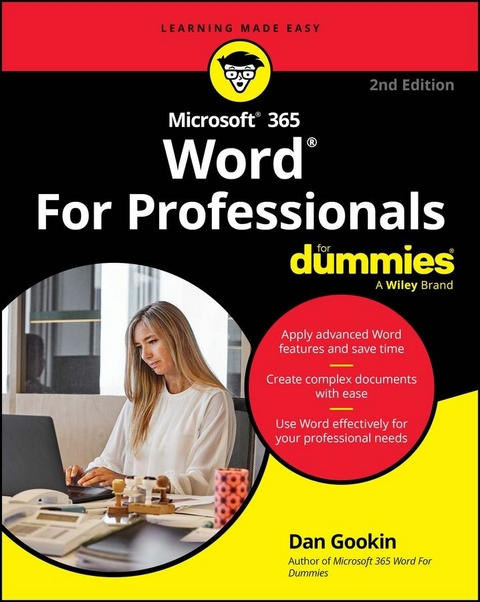
Microsoft 365 Word For Professionals For Dummies (eBook)
579 Seiten
For Dummies (Verlag)
978-1-394-32387-6 (ISBN)
A beyond-the-basics guide to leveling up your skills in Microsoft Word
Microsoft 365 Word For Professionals For Dummies is an easy-to-understand guide to the more advanced features available in the Microsoft 365 version of Word. You can enhance the quality of your documents and boost productivity in any field, with this in-depth resource. You'll delve into topics that you may not have encountered in school or on-the-job training, such as collaborating on a document and using Copilot to improve text. Complete your Word-related tasks more efficiently as you unlock lesser-known tools and learn to organize the application so you can quickly access the features you need. You're on your way to becoming a Word superhero, with this fun resource.
- Learn advanced formatting and template creation techniques
- Work more efficiently with graphics, tables, and other objects
- Get a handle on document sharing, reviewing, and collaboration
- Automate writing and editing tasks to speed up tedious jobs
For Word users seeking to take their knowledge to the next level, this in-depth guide covers the professional tasks and topics you most need to know.
Dan Gookin is the bestselling author of Word For Dummies. His previous books have been translated into 32 languages and have sold over 11 million copies. He's been writing for the For Dummies series for 34 years.
A beyond-the-basics guide to leveling up your skills in Microsoft Word Microsoft 365 Word For Professionals For Dummies is an easy-to-understand guide to the more advanced features available in the Microsoft 365 version of Word. You can enhance the quality of your documents and boost productivity in any field, with this in-depth resource. You'll delve into topics that you may not have encountered in school or on-the-job training, such as collaborating on a document and using Copilot to improve text. Complete your Word-related tasks more efficiently as you unlock lesser-known tools and learn to organize the application so you can quickly access the features you need. You're on your way to becoming a Word superhero, with this fun resource. Learn advanced formatting and template creation techniques Work more efficiently with graphics, tables, and other objects Get a handle on document sharing, reviewing, and collaboration Automate writing and editing tasks to speed up tedious jobs For Word users seeking to take their knowledge to the next level, this in-depth guide covers the professional tasks and topics you most need to know.
Chapter 1
Font Fun
IN THIS CHAPTER
Understanding fonts
Using typefaces appropriately
Setting text scale and spacing
Raising or lowering text
Applying fun text effects
Filling a font with color
Enhancing headings with shadows
I blame the Macintosh for computer users’ infatuation with fonts. The Font menu appeared in the early MacPaint and MacWrite programs. It listed a variety of what are more properly termed typefaces. But a font is really a combination of typeface, size, style, and other attributes. Regardless, the term font has stuck. In Word, plenty of options are available to manipulate and preset a font on the page.
A Knowledge of Fonts
Font selection may seem to be secondary to the contents of the document’s text. Even so, selecting a proper font is important for readability and presentation. Here are a few general items to understand about fonts before digging into the dirty details.
- Fonts are installed into Windows, not Word. In Windows 11, use the Settings app, Personalization screen, to find and manage fonts. In Windows 10, you use the Control Panel and choose the Appearance and Personalization category. Click the Fonts heading to view installed fonts.
- Many fonts are shown as available in Word but must be downloaded to be used. Downloading takes place automatically when you apply the font.
Describing text
Do you remember when you learned to write? Your teacher handed out ruled paper. You copied letters and words and used the rules (lines) as a guide. These rules come from the history of printed text, where everything has a name and a purpose, as shown in Figure 1-1.
FIGURE 1-1: Text essentials.
As you progress through school and into the workplace, only the baseline remains as a guide, though the other lines still exist in the world of fonts. They’re relevant in typesetting — and in Word. Here are descriptions of the text measurements illustrated in Figure 1-1:
- Baseline: Text is written on the baseline.
- Cap height: Capital letters extend from the baseline to the cap height.
- X-height: Most lowercase letters rise to the x-height, which is named after the lowercase letter x and not anything mysterious.
- Ascender: Taller lowercase letters extend to the ascender line, such as the t shown in Figure 1-1.
- Descender: Lowercase letters that dip below the baseline drop to the descender line.
The purpose of these lines is consistency. Though fonts have different character shapes and sizes, these rules help the reader absorb the text. When fonts disobey the rules, the text becomes more difficult to read.
-
In the typesetting community, uppercase letters are known as majuscule. Lowercase letters are miniscule.
- The reason uppercase and lowercase letters are given these names dates to the printing press. Majuscule letters were kept in the top or upper part of a case; miniscule letters were kept in the lower part.
Understanding text attributes
A font has many attributes to define the way the font looks and how it can be best put to use. Many of the font attributes are related to Word’s text formatting commands. Here’s the Big Picture:
Typeface: The font name is called the typeface. In Word, the font “Times New Roman” is really a typeface. Only when coupled with other attributes does it officially become a font.
Serif/sans serif: These are the two styles of typeface. A serif is a decoration added to each character, a small line or embellishment. Serifs make text easier to read, so serif typefaces are preferred for body text. Sans serif typefaces lack the decorations and are preferred for document titles and headings. Figure 1-2 illustrates serif and sans serif typefaces.
FIGURE 1-2: Typefaces of differing styles.
Proportional/monospaced: A proportionally spaced typeface uses different sized letters, so a little I and a big M are different widths. A monospaced typeface features letters all the same width, as you’d find on a typewriter. Figure 1-2 illustrates both proportional and monospace typefaces.
Size: Typeface size is measured in points, or units equal to of an inch. So, a typeface 72 points tall is 1 inch tall. The measurement is made from the typeface’s descender line to its cap height (refer to Figure 1-1).
Weight: The weight value is either part of the typeface itself or added as an effect, such as the bold text attribute. But for many fonts, the weight is selected with the typeface, as shown in Figure 1-3.
FIGURE 1-3: Typefaces of differing weights and slants.
Slant or slope: A typeface’s slope refers to how the text is angled. The most common slope is italic. Oblique text is similar to italic, but subtler. The slant can also tilt to the left, which is more of a text effect than anything you’ll commonly see associated with a typeface.
Width: Many typefaces feature condensed or narrow variations. These fonts include the same basic design, but the text looks thin or skinny.
Effects: Effects have little to do with the typeface. They are applied by Word to add emphasis or just to look cool. See the later section “Text Effects Strange and Wonderful.”
Text on a line can be manipulated to change the way it looks. For example, tracking can be adjusted to scrunch up characters on a line of text. Kerning can be applied to bring letters closer together. Later sections in this chapter describe the details.
-
A font is a collection of text attributes. What the computer industry calls a “font” is really a typeface.
- Text is also measured from side to side. The yardstick that’s used is the width of the big M. That measurement is called an em. In digital typefaces, the em square is a box used for designing typefaces.
- Font width varies depending on the font’s design, whether the font is heavily weighted, and whether the font is proportionally spaced or monospaced. See the next section for details on these terms.
- Proportionally spaced typefaces are easier to read than monospace.
-
Select a heavy typeface over applying the bold text format. Word may select the heavy typeface automatically when you set the bold attribute. The result is that the heavy typeface looks better than when Word attempts to make text look bold.
- Other typeface weights, not shown in Figure 1-3, include Book, Roman, and Heavy. Still other variations might be available, depending on how the font is designed and named.
- Just as you should choose a heavy typeface instead of applying the bold text format, if an italic or oblique typeface is available, use it instead of applying the italic text format. See the next section.
Choosing the best typeface
The general rule for text design is to use sans serif fonts for titles and headings and use serif fonts for document text. Like all rules, this one is broken frequently and deliberately. Even in Word, the default document theme uses sans serif Calibri as both the body text and headings typeface.
If you have trouble choosing fonts, take advantage of the Design tab’s document themes in Word. Follow these steps:
- Click the Design tab.
-
In the Document Formatting group, select a theme.
Each theme combines typeface elements with colors and other tidbits to help your document maintain its overall appearance.
As you point the mouse at various themes, the document’s text updates to reflect the theme’s attributes.
- Choosing a new document theme is optional. You can always create your own document styles to set heading and body typefaces.
COMPUTER FONT STANDARDS
Beyond typeface and other typographical nonsense, a few digital standards rule the world of computer fonts. These standards are TrueType and OpenType.
TrueType is a digital font standard created by Apple and Microsoft. It was designed to compete with Adobe’s PostScript fonts, which rendered better on the computer screen back in the early 1990s. OpenType is the successor to TrueType, which was developed in the late 1990s.
To determine which font is which, open the Font dialog box by pressing the Ctrl+D keyboard shortcut. Choose a font, and its type is confirmed below the Preview window.
Other fonts are stirred into the mix and flagged as non-TrueType in Word. These fonts may not look as good as TrueType/OpenType fonts. You may also find that some of Word’s advanced text-effect commands don’t apply to non-TrueType/OpenType fonts.
-
Avoid using decorative or ornamental typefaces as your document’s text. They look nifty but make reading difficult.
- A scripted typeface looks handwritten, and you might feel it adds a personal touch. For a short note, an invitation, or a thank-you card, that typeface works well. For a long document, however, a scripted typeface hinders...
| Erscheint lt. Verlag | 31.3.2025 |
|---|---|
| Sprache | englisch |
| Themenwelt | Informatik ► Office Programme ► Outlook |
| Informatik ► Office Programme ► Word | |
| Schlagworte | advanced Microsoft office • advanced Microsoft word • Microsoft Word • Microsoft word reference • Microsoft word tips • ms word automation • ms word formatting • Office 365 • Word 365 • word formatting • word publishing • word shortcuts |
| ISBN-10 | 1-394-32387-5 / 1394323875 |
| ISBN-13 | 978-1-394-32387-6 / 9781394323876 |
| Informationen gemäß Produktsicherheitsverordnung (GPSR) | |
| Haben Sie eine Frage zum Produkt? |
 EPUB (Adobe DRM)
Kopierschutz: Adobe-DRM
Adobe-DRM ist ein Kopierschutz, der das eBook vor Mißbrauch schützen soll. Dabei wird das eBook bereits beim Download auf Ihre persönliche Adobe-ID autorisiert. Lesen können Sie das eBook dann nur auf den Geräten, welche ebenfalls auf Ihre Adobe-ID registriert sind.
Details zum Adobe-DRM
Dateiformat: EPUB (Electronic Publication)
EPUB ist ein offener Standard für eBooks und eignet sich besonders zur Darstellung von Belletristik und Sachbüchern. Der Fließtext wird dynamisch an die Display- und Schriftgröße angepasst. Auch für mobile Lesegeräte ist EPUB daher gut geeignet.
Systemvoraussetzungen:
PC/Mac: Mit einem PC oder Mac können Sie dieses eBook lesen. Sie benötigen eine
eReader: Dieses eBook kann mit (fast) allen eBook-Readern gelesen werden. Mit dem amazon-Kindle ist es aber nicht kompatibel.
Smartphone/Tablet: Egal ob Apple oder Android, dieses eBook können Sie lesen. Sie benötigen eine
Geräteliste und zusätzliche Hinweise
Buying eBooks from abroad
For tax law reasons we can sell eBooks just within Germany and Switzerland. Regrettably we cannot fulfill eBook-orders from other countries.
aus dem Bereich