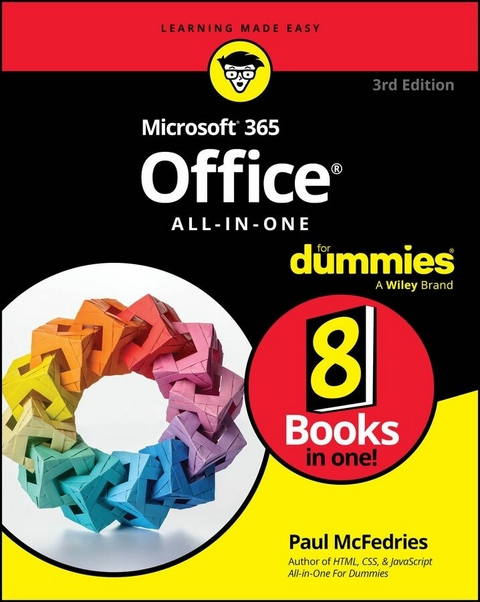
Microsoft 365 Office All-in-One For Dummies (eBook)
1273 Seiten
For Dummies (Verlag)
978-1-394-29506-7 (ISBN)
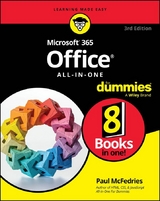
Supercharge your productivity at the office and at home
Looking to familiarize yourself with the world's most popular and effective productivity apps? Then look no further than the latest edition of Office 365 All-in-One For Dummies, packed with 9 mini-books covering each of the super-apps included in the famous productivity suite from Microsoft. In the books, you'll get a handle on Word, Excel, PowerPoint, Outlook, Teams, Access, and more.
This convenient and authoritative collection will walk you through how to create and edit text documents in Word, make new spreadsheets in Excel, and set up virtual meetings in Teams. You'll also learn how to:
- Use pro-level keyboard shortcuts and speed techniques to accelerate your productivity
- Use Microsoft's new AI-powered Copilot to get help and even write and edit your documents
- Leverage SharePoint and OneDrive to share documents and collaborate remotely with colleagues
Office 365 All-in-One For Dummies is the first and last resource you'll need to reach for when you've got a question about Microsoft's ubiquitous productivity tools. It's perfect for newbies looking to get started and power users looking for fresh tips on the latest features. Grab your copy today!
Paul McFedries is a long-time technical author with more than 100 books, including HTML, CSS, & JavaScript All-in-One For Dummies; Web Coding & Development All-in-One For Dummies; and Excel Data Analysis For Dummies.
Supercharge your productivity at the office and at home Looking to familiarize yourself with the world's most popular and effective productivity apps? Then look no further than the latest edition of Office 365 All-in-One For Dummies, packed with 9 mini-books covering each of the super-apps included in the famous productivity suite from Microsoft. In the books, you'll get a handle on Word, Excel, PowerPoint, Outlook, Teams, Access, and more. This convenient and authoritative collection will walk you through how to create and edit text documents in Word, make new spreadsheets in Excel, and set up virtual meetings in Teams. You'll also learn how to: Use pro-level keyboard shortcuts and speed techniques to accelerate your productivity Use Microsoft's new AI-powered Copilot to get help and even write and edit your documents Leverage SharePoint and OneDrive to share documents and collaborate remotely with colleagues Office 365 All-in-One For Dummies is the first and last resource you'll need to reach for when you've got a question about Microsoft's ubiquitous productivity tools. It's perfect for newbies looking to get started and power users looking for fresh tips on the latest features. Grab your copy today!
Chapter 1
Getting Your Bearings
IN THIS CHAPTER
Getting comfy with Office 365
Introducing the Office 365 applications
Exploring the Office 365 terrain
Opening, saving, and closing Office 365 files
When I arrive in a new town — especially one that's distant enough that jet lag could be an issue — I like to drop off my bags at the hotel and then spend a few hours walking around the neighborhood. This not only keeps me awake so that tomorrow's jet lag will be less of an issue, but it also gives me the lay of the land so it's easier for me to find my way around my temporary home.
If you think of Office 365 as a kind of digital city, then the same idea applies. No, you're unlikely to experience jet lag when you start using Office 365, but the place will be unfamiliar, so a quick tour is in order so that you know where the more important landmarks can be found and what you need them for.
Let this chapter serve as your initial ramble around the Office 365 neighborhood. I introduce you to Office 365 and its applications; give you a tour of the interface; and show you the basics of saving, opening, and closing files. There's nothing complicated here, but everything you learn will provide you with a good foundation for the rest of the book.
Saying “Hello” to Office 365
Office 365 is a subscription service from Microsoft that enables you to install a suite of applications. Wait, what? A suite? Yep. My dictionary defines a suite as “a connected series of rooms to be used together.” While you may be thinking of a hotel suite, you’re not too far off. Office 365 is a kind of software suite. You can, in fact, define Office 365 as “a connected series of Microsoft apps to be used together.” Now don’t get me wrong. The Office 365 apps are all awesome when used by themselves, but when they're connected, they make your work life easier, more efficient, and more productive.
Meeting the Office 365 applications
Okay, so what are these apps that I've been going on and on about? Table 1-1 provides a list of the major apps, with pointers to where you can find more info about them later in this book.
You need to be running Windows 10 or later on your computer to run Office 365 applications. The applications don’t run on computers running earlier versions of Windows. What if you have a Mac? Yep, sure, you can run Office 365, but you won't have access to certain applications, such as Access. The Mac versions of the Office 365 apps are a little different than their Windows counterparts, so I don't cover the Mac apps in this book.
If you’re new to Office 365, don’t be daunted by the prospect of having to learn so many different applications. The Office 365 programs have a ton of common elements, including many of the same toolbar elements and shortcut keys. These common features mean that once you learn them in one Office 365 program, you don't have to re-learn them in the next app you tackle.
“OFFICE 365” OR “MICROSOFT 365”?
March 2020 will go down in infamy as the month the Great Pandemic began in earnest and most of the world shut down to ride out the storm at home. That same month, Microsoft made the bizarre decision to “rebrand” their insanely popular and widely known suite of applications from the familiar “Office 365” to the head-scratching “Microsoft 365.” Maybe it's because the pandemic had everyone otherwise preoccupied, or maybe it's because the name “Microsoft 365” is inherently meaningless, but you'd be hard-pressed to find anyone outside of Microsoft who refers to the suite with that new moniker. That's why I use good, old Office 365 throughout this book. However, just remember that if you hear anyone speaking of “Microsoft 365,” they're just using a new name for Office 365.
TABLE 1-1 The Main Office 365 Applications
| App | What You Can Do with It | Where to Find More Info |
|---|
| Word 365 | Create, edit, and collaborate on word-processing documents. You can change the layout, add bulleted and numbered lists, work with headers and footers, format text, paragraphs, and pages, and more. |
| Excel 365 | Create, edit, and collaborate on spreadsheets. You can build formulas, sort and filter data, analyze data, and more. |
| PowerPoint 365 | Create, edit, and collaborate on presentations. You can change the theme, show your presentation, create slides that include text, images, shapes, and more. |
| Outlook 365 | Send and receive email messages. You can also share files as attachments, organize messages, control email conversations, and more. Outlook also lets you maintain a calendar of appointments and an address book of contacts. |
| Access 365 | Create, maintain, and organize databases of information. |
| Microsoft Teams | Set up and join online meetings. You can invite people to a meeting, share resources, record and live stream a meeting, and more. |
Getting to know the Office 365 cloud services
Besides the applications listed in Table 1-1, an Office 365 subscription entitles you to these goodies from the cloud:
- Storing and sharing files online with OneDrive. Besides storing your Office 365 files on your computer, you can also save them to OneDrive, Microsoft's online file storage service. Why would you do such a thing? Having your Office 365 files online means that you can access them using any device that has internet access, so your documents are available no matter where your travels take you. Most Office 365 subscriptions offer a generous 1TB (that's one terabyte, or a thousand gigabytes) of storage space on OneDrive. You can also invite others to work on files you store on OneDrive. (Book 8 explains how to store and share files with OneDrive.)
- The opportunity to use the web (online) versions of Word, Excel, Outlook, and PowerPoint. What if you're away from your computer and the device you're using doesn't have Office 365 installed? Think nothing of it! Your Office 365 subscription entitles you to use the web versions of Word, Excel, Outlook, and PowerPoint. These web versions are nearly identical to their desktop cousins, but they live online so you access them using your favorite web browser. Yep, you're right: That is cool.
WHAT'S ALL THIS ABOUT A CLOUD?
I mentioned the term cloud a couple of times now, so let me take a few minutes of your precious time to explain what I’m talking about. In many network diagrams (schematics that show the overall layout of a network's infrastructure), the designer is most interested in the devices that connect to the network, not in the network itself. After all, the details of what happens inside the network to shunt signals from source to destination are often extremely complex and convoluted, so all that minutiae would serve only to detract from the network diagram’s larger message of showing which devices can connect to the network, how they connect, and their network entry and exit points.
When the designers of a network diagram want to show the network but not any of its details, they almost always abstract the network by displaying it as a cloud symbol. (It is, if you will, the yadda-yadda-yadda of network diagrams.) At first, the cloud symbol represented the workings of a single network, but in recent years it has come to represent the internet (the network of networks).
So far, so good. Earlier in this millennium, some folks had the bright idea that, rather than store files on local computers, you could store them on a server connected to the internet, which meant that anyone with the proper credentials could access the files from anywhere in the world. Eventually, folks started storing programs on internet servers, too, and started telling anyone who’d listen that these files and applications resided “in the cloud” (meaning on a server — or, more typically, a large collection of servers that reside in a special building called a data center — accessible via the internet).
All the online Office 365 components (the web versions of Word, Excel, Outlook, and so on) are examples of such apps — in the rarefied world of cloud computing geeks, these apps are described as software as a service, or SaaS — and they all reside inside Microsoft's cloud service called, almost poetically, Microsoft Azure. These apps, as well as any data you store in OneDrive, live “in the cloud.” That’s also why you need an internet connection to use the Office 365 cloud services: They require that connection to access all that cloud stuff.
Finding out what software and Office 365 version you have
Follow these steps to...
| Erscheint lt. Verlag | 3.2.2025 |
|---|---|
| Sprache | englisch |
| Themenwelt | Informatik ► Office Programme ► Outlook |
| Schlagworte | beginning office 365 • comprehensive office 365 help • how do I use Microsoft copilot? • learning Microsoft word • Microsoft copilot tips • office 365 basics • Office 365 book • office 365 copilot • Office 365 For Beginners • office 365 help • office 365 tips |
| ISBN-10 | 1-394-29506-5 / 1394295065 |
| ISBN-13 | 978-1-394-29506-7 / 9781394295067 |
| Informationen gemäß Produktsicherheitsverordnung (GPSR) | |
| Haben Sie eine Frage zum Produkt? |
 EPUB (Adobe DRM)
Kopierschutz: Adobe-DRM
Adobe-DRM ist ein Kopierschutz, der das eBook vor Mißbrauch schützen soll. Dabei wird das eBook bereits beim Download auf Ihre persönliche Adobe-ID autorisiert. Lesen können Sie das eBook dann nur auf den Geräten, welche ebenfalls auf Ihre Adobe-ID registriert sind.
Details zum Adobe-DRM
Dateiformat: EPUB (Electronic Publication)
EPUB ist ein offener Standard für eBooks und eignet sich besonders zur Darstellung von Belletristik und Sachbüchern. Der Fließtext wird dynamisch an die Display- und Schriftgröße angepasst. Auch für mobile Lesegeräte ist EPUB daher gut geeignet.
Systemvoraussetzungen:
PC/Mac: Mit einem PC oder Mac können Sie dieses eBook lesen. Sie benötigen eine
eReader: Dieses eBook kann mit (fast) allen eBook-Readern gelesen werden. Mit dem amazon-Kindle ist es aber nicht kompatibel.
Smartphone/Tablet: Egal ob Apple oder Android, dieses eBook können Sie lesen. Sie benötigen eine
Geräteliste und zusätzliche Hinweise
Buying eBooks from abroad
For tax law reasons we can sell eBooks just within Germany and Switzerland. Regrettably we cannot fulfill eBook-orders from other countries.
aus dem Bereich