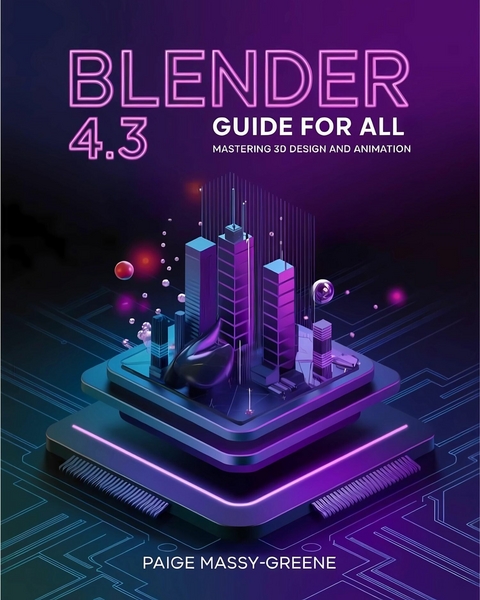
Blender 4.3 Guide for All (eBook)
113 Seiten
Publishdrive (Verlag)
9780000722270 (ISBN)
Master the full potential of Blender 4.3 with this comprehensive guide! Whether you're a beginner or an experienced artist, Blender 4.3 Guide for All provides step-by-step instructions to help you navigate Blender's powerful tools and features.
Key Features:
✔ Complete Blender 4.3 Coverage - Learn the latest features, tools, and workflow improvements.
✔ Beginner-Friendly & Advanced Tips - Perfect for newcomers and seasoned professionals.
✔ Step-by-Step Tutorials - Hands-on projects to help you master modeling, sculpting, animation, and more.
✔ Rendering & Compositing - Create stunning visuals with Cycles, Eevee, and advanced shaders.
✔ Video Editing & VFX - Edit footage, apply effects, and integrate 3D elements seamlessly.
✔ Industry-Standard Techniques - Learn essential skills used in game development, animation, and design.
✔ Expert Tips & Tricks - Time-saving shortcuts and hidden features to boost your productivity.
CHAPTER 2
Blender's Core Tools and Workflows
3D Viewport and Object Mode Basics
The 3D Viewport is the heart of Blender. It is where the majority of your work takes place and where your imagination comes to life. Whether you're sculpting, modeling, animating, or rendering, the 3D Viewport serves as the window into your 3D world. For beginners using Blender 4.3, understanding the 3D Viewport and its functionalities is an essential first step toward mastering this powerful software. This chapter will guide you through the basics of the 3D Viewport and Object Mode, ensuring you have a solid foundation to build upon.
Understanding the 3D Viewport
The 3D Viewport is where all 3D objects are displayed, manipulated, and previewed. It provides a real-time visualization of your scene and allows you to interact with objects using various tools and techniques.
Key Features of the 3D Viewport:
- Perspective and Orthographic Views:
The 3D Viewport supports both perspective and orthographic views. Perspective view simulates how objects appear in real life, with closer objects appearing larger. Orthographic view, on the other hand, displays objects without perspective distortion, which is useful for precise modeling tasks.
You can toggle between these views using the Numpad 5 key.
- Camera Navigation:
Navigating the 3D Viewport is crucial. You can rotate the view by holding the middle mouse button (MMB) and moving the mouse. To pan, hold the Shift key along with the MMB. To zoom in and out, use the scroll wheel or hold Ctrl and drag the MMB.
For users without a middle mouse button, Blender provides navigation tools in the top-right corner of the Viewport: a hand icon for panning, a magnifying glass for zooming, and a trackball for rotating the view.
- Axis Gizmo and Orientation:
The axis gizmo in the top-right corner of the 3D Viewport helps you understand the orientation of your scene. The X, Y, and Z axes are color-coded as red, green, and blue, respectively. Clicking on these axes snaps the view to that axis, ensuring precision.
- Shading Modes:
Blender offers several shading modes in the top-right corner of the Viewport:
Wireframe: Displays objects as wireframes, making it easier to see through them.
Solid: The default mode for working on models.
Material Preview: Shows how materials will appear without rendering.
Rendered: Provides a real-time render preview based on the selected render engine.
Navigating Object Mode
Object Mode is one of Blender's primary interaction modes, allowing you to work with entire objects rather than their individual components. It is the default mode when you open a new Blender project.
What is Object Mode?
Object Mode is used for creating, selecting, and transforming objects. It serves as the starting point for most tasks, whether you're modeling, animating, or preparing a scene for rendering. Unlike Edit Mode, which focuses on the internal structure of an object, Object Mode operates at a higher level, allowing you to manipulate objects as whole entities.
Key Functions in Object Mode:
- Selecting Objects:
Left-click to select an object. The selected object will be outlined in orange (default color).
To select multiple objects, hold down the Shift key and click additional objects.
To deselect everything, press Alt + A or click in an empty area.
- Adding New Objects:
Press Shift + A to bring up the Add menu. From here, you can add meshes (e.g., cube, sphere, cylinder), lights, cameras, and more.
New objects are added at the 3D cursor’s location. You can move the 3D cursor by left-clicking while in Cursor mode (available from the toolbar).
- Transforming Objects:
Move (G): Press G to grab and move an object. Move the mouse to position the object and left-click to confirm. To constrain movement to a specific axis, press X, Y, or Z after pressing G.
Rotate (R): Press R to rotate an object. Like moving, you can constrain rotation to a specific axis by pressing X, Y, or Z.
Scale (S): Press S to scale an object. You can scale uniformly or along a specific axis using the same axis constraints.
- Object Properties:
Each object has properties that can be adjusted in the Properties Editor. Key tabs include:
Object Tab: Adjust location, rotation, and scale.
Modifiers Tab: Apply non-destructive modifiers like Subdivision Surface or Mirror.
Material Tab: Assign materials to objects.
- Grouping and Parenting:
Grouping: You can group objects by selecting multiple objects and pressing Ctrl + G. This is useful for organizing complex scenes.
Parenting: Parenting allows one object to control another. Select the child object(s) first, then the parent, and press Ctrl + P. This is often used for animations.
Practical Tips for Beginners
- Practice Navigation:
Spend time familiarizing yourself with the navigation controls in the 3D Viewport. Smooth navigation will make working in Blender more intuitive.
- Use Shortcuts:
Blender is shortcut-heavy, which significantly speeds up workflows. Memorizing the basic shortcuts like G (Move), R (Rotate), and S (Scale) will improve efficiency.
- Experiment with Shading Modes:
Switch between different shading modes to understand how they affect your view. For instance, Material Preview is excellent for checking textures, while Wireframe is ideal for precise modeling.
- Leverage the Outliner:
The Outliner (located on the top-right by default) shows a hierarchical list of all objects in your scene. Use it to rename, select, or hide objects, keeping your project organized.
- Save Often:
Blender has an auto-save feature, but it’s good practice to manually save your work frequently by pressing Ctrl + S.
Conclusion
The 3D Viewport and Object Mode are essential components of Blender that form the foundation for all your creative projects. By mastering these basics, you can navigate your scenes with confidence, manipulate objects with precision, and begin exploring more advanced features. With practice and curiosity, the 3D Viewport will become your creative playground, opening the door to endless possibilities in 3D modeling, animation, and design.
Working with Transformations
Transformations are one of the core concepts in Blender, forming the backbone of almost every operation you’ll perform while working in 3D. Transformations refer to the actions you take to change the position, size, or orientation of an object in your 3D scene. These are categorized into three main types: translation (moving), rotation, and scaling. For beginners, understanding and mastering transformations is crucial because it enables you to arrange and manipulate objects effectively in your projects.
In Blender 4.3, transformations are not only intuitive but also highly flexible. This section will guide you through the basics of each transformation type, how to access and use these tools, and tips for getting the most out of them.
1. Translation: Moving Objects in 3D Space
Translation refers to moving an object from one location to another within your scene. It’s the most fundamental transformation and is often the first step when arranging objects.
How to Translate an Object
- Select the Object: Left-click on the object you want to move. A highlighted outline or selection indicator will appear around it.
- Activate the Move Tool:
Press G on your keyboard (short for “Grab”).
Alternatively, select the “Move” tool from the toolbar on the left side of the 3D viewport (an icon with four arrows pointing outward).
- Move the Object:
Once the move tool is active, you can drag the object freely in any direction.
To constrain movement to a specific axis (X, Y, or Z), press the corresponding key (X, Y, or Z) after pressing G.
For example, pressing G, then X will restrict movement along the X-axis.
- Confirm or Cancel:
Left-click or press Enter to confirm the move.
Press Esc to cancel and revert the object to its original position.
Using the Gizmo
The gizmo is a visual tool that appears when the move tool is activated. It consists of arrows representing the X, Y, and Z axes. You can click and drag these arrows to move the object along a specific axis. The gizmo is particularly useful for beginners who prefer visual interaction over keyboard shortcuts.
While moving items, the amount of change along the X, Y, and Z axis is displayed in the header of the 3D Viewport.
Snapping for Precision
Blender offers a snapping feature to help you move objects with precision. To enable snapping:
- Click the magnet icon in the top menu of the 3D viewport.
- Choose a snapping target (e.g., grid, vertex, or edge).
- With snapping enabled, objects will snap to the specified target as you move them.
2. Rotation: Changing an Object’s Orientation
Rotation allows you to adjust the angle or orientation of an object. This is essential for aligning objects or creating dynamic...
| Erscheint lt. Verlag | 31.1.2025 |
|---|---|
| Sprache | englisch |
| Themenwelt | Mathematik / Informatik ► Informatik ► Grafik / Design |
| ISBN-13 | 9780000722270 / 9780000722270 |
| Informationen gemäß Produktsicherheitsverordnung (GPSR) | |
| Haben Sie eine Frage zum Produkt? |
 EPUB (Adobe DRM)
Größe: 11,6 MB
Kopierschutz: Adobe-DRM
Adobe-DRM ist ein Kopierschutz, der das eBook vor Mißbrauch schützen soll. Dabei wird das eBook bereits beim Download auf Ihre persönliche Adobe-ID autorisiert. Lesen können Sie das eBook dann nur auf den Geräten, welche ebenfalls auf Ihre Adobe-ID registriert sind.
Details zum Adobe-DRM
Dateiformat: EPUB (Electronic Publication)
EPUB ist ein offener Standard für eBooks und eignet sich besonders zur Darstellung von Belletristik und Sachbüchern. Der Fließtext wird dynamisch an die Display- und Schriftgröße angepasst. Auch für mobile Lesegeräte ist EPUB daher gut geeignet.
Systemvoraussetzungen:
PC/Mac: Mit einem PC oder Mac können Sie dieses eBook lesen. Sie benötigen eine
eReader: Dieses eBook kann mit (fast) allen eBook-Readern gelesen werden. Mit dem amazon-Kindle ist es aber nicht kompatibel.
Smartphone/Tablet: Egal ob Apple oder Android, dieses eBook können Sie lesen. Sie benötigen eine
Geräteliste und zusätzliche Hinweise
Buying eBooks from abroad
For tax law reasons we can sell eBooks just within Germany and Switzerland. Regrettably we cannot fulfill eBook-orders from other countries.
aus dem Bereich