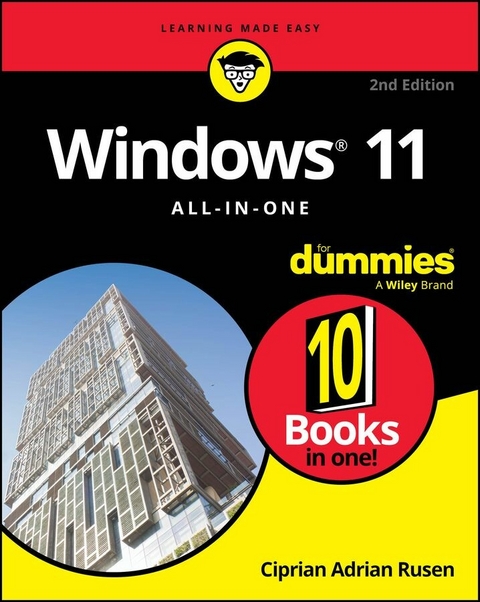
Windows 11 All-in-One For Dummies, 2nd Edition (eBook)
1235 Seiten
For Dummies (Verlag)
978-1-394-27689-9 (ISBN)
A deep dive into the Windows, for beginners and advanced users alike
Windows 11 All-in-One For Dummies, 2nd Edition is your most thorough source of information on the world's #1 computer operating system. This 800+ page reference guides you through the art of navigating the Windows interface, setting up personal accounts, and digging into the menus, settings, and features that you need to become a power user. With this jargon-free guidebook, you've got access to tips, tricks, and how-tos from a Windows insider, including how to take advantage of artificial intelligence tools built into Windows. Discover how to get your apps working across multiple devices, manage your data, enhance your copy of Windows with apps and add-ons, and keep everything secure and running smoothly. This Dummies guide is packed with what you need to know to take control of your Windows experience.
- Get started with Windows 11, customize your operating system, and learn your way around
- Find, install, and manage third-party apps, so you can work and play how you want to
- Share files and documents, backup your data online, and manage wi-fi connections
- Discover how Microsoft's artificial intelligence tool, Copilot, makes working with Windows even easier.
Windows 11 All-in-One For Dummies, 2nd Edition provides the deepest dive into Windows on the market. Customize and troubleshoot as needed, with 10 books in 1!
Ciprian Adrian Rusen is cofounder of Digital Citizen (digitalcitizen.life), a tech blog that posts daily how-to articles on consumer technologies. Ciprian is also co-author of Windows 10 All-in-One For Dummies, 4th Edition, and author of Windows 10 At Work For Dummies.
A deep dive into the Windows, for beginners and advanced users alike Windows 11 All-in-One For Dummies, 2nd Edition is your most thorough source of information on the world's #1 computer operating system. This 800+ page reference guides you through the art of navigating the Windows interface, setting up personal accounts, and digging into the menus, settings, and features that you need to become a power user. With this jargon-free guidebook, you've got access to tips, tricks, and how-tos from a Windows insider, including how to take advantage of artificial intelligence tools built into Windows. Discover how to get your apps working across multiple devices, manage your data, enhance your copy of Windows with apps and add-ons, and keep everything secure and running smoothly. This Dummies guide is packed with what you need to know to take control of your Windows experience. Get started with Windows 11, customize your operating system, and learn your way around Find, install, and manage third-party apps, so you can work and play how you want to Share files and documents, backup your data online, and manage wi-fi connections Discover how Microsoft's artificial intelligence tool, Copilot, makes working with Windows even easier. Windows 11 All-in-One For Dummies, 2nd Edition provides the deepest dive into Windows on the market. Customize and troubleshoot as needed, with 10 books in 1!
Chapter 1
Introducing Windows 11
IN THIS CHAPTER
Understanding what counts as hardware and what is software
Seeing Windows’s place in the grand scheme of things
Defining important technical terms
Buying a Windows 11 computer
Checking whether your old computer can run Windows 11
Learning about the most important Windows 11 annoyances
We all started as newbies who did not know much about technology. If you’ve never used an earlier version of Windows, you're in luck because you won’t have to force your brain to forget so much of what you’ve learned! Windows 11 is a mix of Windows 10 and macOS, tossed into a blender, speed turned up to full, and poured out on your screen.
Although Windows 10 was a major improvement over Windows 8 and 8.1, some people still had problems understanding and using features such as tiles, Microsoft Store apps, Cortana, or the Settings app. Windows 11 makes the experience a bit gentler for everyone. It also further optimizes the touchscreen approach so that it works well with a mouse, too. The user interface is more consistent — it doesn’t look like the old desktop — and the new touchscreen approach is designed a lot better than in older versions of Windows.
Some of you are reading this book because you chose to run Windows 11. Others are here because Windows 11 came preinstalled on a new computer or because your company forced you to upgrade to Windows 11. Whatever the reason, you've ended up with a solid operating system that should serve you well, as long as you understand and respect its limitations. However, you should know that other choices are available, and I present them in this chapter. Who knows, maybe you’re considering returning your new Windows 11 PC already.
Before I get technical, I want you to take a quick look at Windows 11. Then, I explain some important technical terminology and give an overview of what you need to keep in mind when buying your first Windows 11 PC, laptop, or tablet. And for those considering upgrading an old PC to Windows 11, I share how to check for compatibility. Lastly, I describe what you might not like about Windows 11. It’s better to know all that sooner rather than later. Right?
Taking Your First Look at Windows 11
First things first. Position yourself in front of your computer and press the power button to turn it on. This thing called Windows 11 will load and then be staring at you, as shown in Figure 1-1. Microsoft named this the lock screen, and it doesn’t say Windows, much less Windows 11. The lock screen displays a picture (Microsoft sets one for you automatically, but you can change it, as described in Book 2 Chapter 2), the current date and time, with a tiny icon or two to indicate whether your Wi-Fi or wired connection is working and how much battery you have left. At the bottom of the lock screen, you may also see widgets displaying things like weather forecasts, sports, or stock market data.
FIGURE 1-1: The Windows 11 lock screen.
You may be tempted to sit and admire the gorgeous picture, whatever it may be, but if you swipe up from the bottom, click or tap anywhere on the picture, or press any key on your keyboard, you see the sign-in screen, resembling the one in Figure 1-2.
FIGURE 1-2: The Windows 11 sign-in screen.
The sign-in screen doesn’t say Login, Welcome to Windows 11, or Howdy. If more than one person is set up to use your computer, you'll see more than one name listed in the bottom-left corner. In the bottom-right corner, additional icons show up for enabling accessibility tools (like the onscreen keyboard, narrator, magnifier, and voice access) and opening the power menu.
Hardware versus Software
At the most fundamental level, computers are about two things: hardware and software. Hardware is anything you can touch — a computer screen, a mouse, a hard drive, a keyboard, a USB flash drive, and so on. Software is everything else: your Microsoft Edge browser, the movies you stream on Netflix, the digital pictures of your last vacation, and programs such as Office or Teams. If you shoot a bunch of pictures, the pictures themselves are just bits — software. But they’re probably sitting on a memory card inside your smartphone or digital camera. That memory card is hardware. Get the difference?
Windows 11 is software. You can’t touch it in a physical sense, even if you interact with it using the keyboard and a mouse or a touchscreen. Your PC, on the other hand, is hardware. Kick the computer screen, and your toe hurts. Drop the big box on the floor, and it smashes into pieces. That’s hardware.
Chances are that one of the major PC manufacturers — such as Lenovo, HP, Dell, Acer, or ASUS — Microsoft, with its Surface line, or even Apple made your hardware. However, Microsoft, and Microsoft alone, makes Windows 11.
When you bought your computer, you paid for a license to use one copy of Windows on that PC. Its manufacturer paid Microsoft a royalty to sell Windows and the PC to you. (That royalty may have been close to zero dollars, but it’s a royalty nonetheless.) You may think that you got Windows from, say, Lenovo — indeed, you may have to contact Lenovo for technical support on Windows questions — but Windows came from Microsoft.
If you upgraded from Windows 10 to Windows 11, you might have received a free upgrade license — but it’s still a license, whether you paid for it or not. You can’t give it away to someone else.
Most software, including Windows 11, requires you to agree to an End User License Agreement (EULA). When you first set up your PC, Windows asks you to click or tap the Accept button to accept a licensing agreement that’s long enough to reach the top of the Empire State Building. If you’re curious about what agreement you accepted, take a look at the official EULA repository at www.microsoft.com/en-us/Useterms/Retail/Windows/11/UseTerms_Retail_Windows_11_English.htm.
Must You Run Windows?
Are you wondering if you must run Windows? The short answer is that you don’t have to run Windows on your PC.
The PC you have is a dumb box. (You needed me to tell you that, eh?) To get that box to do anything worthwhile, you need a computer program that takes control of the PC and makes it do things, such as show apps on the screen, respond to mouse clicks, and print resumes. An operating system controls the dumb box and makes it do worthwhile things in ways people can understand.
Without an operating system, the computer can sit in a corner and display profound messages on the screen, such as Operating System not found or BootDevice Not Found. You need an operating system if you want your computer to do more than that.
Windows is not the only operating system in town. The other big contenders in the PC-like operating system market are the following:
-
Chrome OS: Created by Google, Chrome OS is the operating system used on Chromebooks. Affordable Chromebooks have long dominated the best-seller lists at many computer retailers —for good reason. If you want to surf the web, work on email, compose simple documents, or do anything in a browser — which covers a lot of ground these days — a Chromebook and Chrome OS are all you need. Chromebooks can’t run Windows programs such as Office or Photoshop (although they can run web-based versions of them, such as Office Web Apps or Photoshop on the Web). Despite this limitation, they don’t get infected by traditional viruses and have few maintenance problems. You can’t say the same about Windows: That’s why you need a large book to keep it going. Yes, it would be best to have a reliable internet connection to get the most out of Chrome OS. However, some parts of Chrome OS and Google’s apps, including Gmail, can work even if you don’t have an active internet connection.
Chrome OS is built on Linux and looks and feels much like the Google Chrome web browser. There are a few minor differences, but generally, you feel like you’re working in the Chrome browser.
- ChromeOS Flex: This different flavor of Chrome OS is designed to run on older PCs that can’t run Windows 11. Google makes it easy to create a bootable USB drive with the ChromeOS Flex setup and get your PC up and running with this operating system in about 5 minutes. This operating system is also designed to work on devices without a Trusted Platform Module (TPM) chip, which is required for Windows 11 to encrypt your data and keep it safe from hackers. Another significant difference between Chrome OS and ChromeOS Flex is that the latter can’t run Android apps. Visit
https://chromeos.google/products/chromeos-flex/for more details about this operating system. - macOS: If you don’t know how to use Windows or own a Windows computer, consider buying a MacBook Air or a MacBook Pro. The latest models powered by Apple’s M3 chips deliver excellent performance and energy efficiency, as well as support for workloads related to artificial intelligence (AI). However, they can natively run only macOS, not Windows. If you want Windows on the latest MacBooks, you must purchase...
| Erscheint lt. Verlag | 11.2.2025 |
|---|---|
| Sprache | englisch |
| Themenwelt | Mathematik / Informatik ► Informatik ► Betriebssysteme / Server |
| Informatik ► Weitere Themen ► Hardware | |
| Schlagworte | all-in-one computer • Copilot • desktop computer • Microsoft Windows • PC Computer • WINDOWS • windows 12 • windows 12 book • windows 12 features • windows 12 guide • windows 12 manual • windows book • Windows operating system • windows OS • windows reference |
| ISBN-10 | 1-394-27689-3 / 1394276893 |
| ISBN-13 | 978-1-394-27689-9 / 9781394276899 |
| Informationen gemäß Produktsicherheitsverordnung (GPSR) | |
| Haben Sie eine Frage zum Produkt? |
 EPUB (Adobe DRM)
Kopierschutz: Adobe-DRM
Adobe-DRM ist ein Kopierschutz, der das eBook vor Mißbrauch schützen soll. Dabei wird das eBook bereits beim Download auf Ihre persönliche Adobe-ID autorisiert. Lesen können Sie das eBook dann nur auf den Geräten, welche ebenfalls auf Ihre Adobe-ID registriert sind.
Details zum Adobe-DRM
Dateiformat: EPUB (Electronic Publication)
EPUB ist ein offener Standard für eBooks und eignet sich besonders zur Darstellung von Belletristik und Sachbüchern. Der Fließtext wird dynamisch an die Display- und Schriftgröße angepasst. Auch für mobile Lesegeräte ist EPUB daher gut geeignet.
Systemvoraussetzungen:
PC/Mac: Mit einem PC oder Mac können Sie dieses eBook lesen. Sie benötigen eine
eReader: Dieses eBook kann mit (fast) allen eBook-Readern gelesen werden. Mit dem amazon-Kindle ist es aber nicht kompatibel.
Smartphone/Tablet: Egal ob Apple oder Android, dieses eBook können Sie lesen. Sie benötigen eine
Geräteliste und zusätzliche Hinweise
Buying eBooks from abroad
For tax law reasons we can sell eBooks just within Germany and Switzerland. Regrettably we cannot fulfill eBook-orders from other countries.
aus dem Bereich