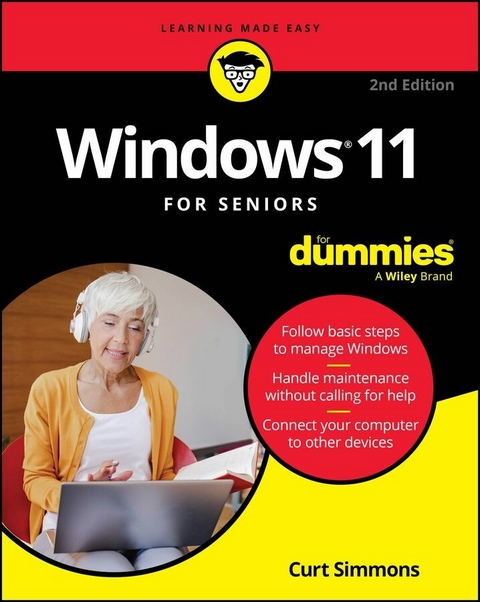
Windows 11 For Seniors For Dummies, 2nd Edition (eBook)
470 Seiten
For Dummies (Verlag)
978-1-394-27692-9 (ISBN)
The top-selling Windows book for the older and wiser crowd
Windows 11 For Seniors For Dummies, 2nd Edition delivers fluff-free information on making the latest version of Windows work for you. You'll get clear guidance on the basics, troubleshooting tips, and advice for staying safe while you use Windows to get online. Even if you've never used Windows before, this friendly guide will quickly teach you how to get started, without all the jargon and complicated steps. These simple steps and solutions give you the confidence boost you need to navigate the latest interface and even try out the artificial intelligence tools built into Windows. With larger print and clearer graphics, this For Seniors title saves you time and energy as you learn your way around your Windows computer.
- Get started with the latest version of Windows-without a lot of unnecessary jargon
- Communicate with friends, keep track of files, share photos and videos, and stream your favorite media
- Try out Copilot, the Windows AI tool that offers fast answers to any question
- Be your own tech guru with step-by-step troubleshooting and maintenance advice
These days, a new computer or a new Windows update shouldn't have to slow you down. Spend less time learning and more time doing, with this edition of Windows For Seniors For Dummies.
Curt Simmons is an experienced tech educator who has published on a wide variety of topics, including Microsoft Windows, photo editing apps, networking, and mobile devices. He is also creator of the 'Intro to Windows' course at ed2go.com and author of Drone Piloting For Dummies.
The top-selling Windows book for the older and wiser crowd Windows 11 For Seniors For Dummies, 2nd Edition delivers fluff-free information on making the latest version of Windows work for you. You'll get clear guidance on the basics, troubleshooting tips, and advice for staying safe while you use Windows to get online. Even if you've never used Windows before, this friendly guide will quickly teach you how to get started, without all the jargon and complicated steps. These simple steps and solutions give you the confidence boost you need to navigate the latest interface and even try out the artificial intelligence tools built into Windows. With larger print and clearer graphics, this For Seniors title saves you time and energy as you learn your way around your Windows computer. Get started with the latest version of Windows without a lot of unnecessary jargon Communicate with friends, keep track of files, share photos and videos, and stream your favorite media Try out Copilot, the Windows AI tool that offers fast answers to any question Be your own tech guru with step-by-step troubleshooting and maintenance advice These days, a new computer or a new Windows update shouldn't have to slow you down. Spend less time learning and more time doing, with this edition of Windows For Seniors For Dummies.
Chapter 1
Getting Acquainted with Windows 11
IN THIS CHAPTER
Controlling your computer with the mouse, keyboard, and touchscreen
Turning the computer on and off
Exploring the Start screen
Handling the Lock screen
Windows 11 is an operating system (the master program for any computer). You can use Windows 11 on a wide range of devices, from a smartphone to a big-screen TV/entertainment system: One size fits most. You can not only use the same programs with a range of hardware but also access the documents you create (such as photos and email — files and data, to nerds) from any Windows-based computer, giving you extraordinary freedom of choice and mobility.
Although countless companies create programs you may use, Microsoft attempts to make similar functions consistent across different programs. For example, opening a document or emailing a photo to a friend involves the same steps regardless of the programs you use. You don't have to learn a different way of doing common tasks in each program. This consistency will serve you well when using Windows 11 and other new programs.
In this chapter, you start your computer and work with the Start screen, the dashboard for Windows 11. You explore options for using the Start screen with your hardware (the computer and related devices). Then you exit Windows 11 and go right back in for more.
The easiest way to get Windows 11 is preinstalled on a new computer. If your current computer runs an older version of Windows (such as Windows 10), you can upgrade to Windows 11 for free, although older machines may lack newer functions, such as a touchscreen, and may have some hardware compatibility problems with Windows 11 as well. Visit microsoft.com for details about upgrading from an older operating system.
Tell Your Computer What to Do
How do you get Windows 11 to do what you want it to do? You can command a computer in many ways, depending on your equipment (hardware). For example, a desktop computer has different options from a handheld phone. You may have any or all of these choices:
- Mouse
- Touchscreen
- Keyboard
Another device for controlling Windows is a touchpad, which is commonly found on a laptop keyboard. You move your finger on the touchpad to move the pointer on the screen.
A desktop computer keyboard and mouse may be wired (they plug into the computer) or they may be wireless (no wires needed!). Don’t like the keyboard or mouse that came with your desktop computer? You can purchase many different styles and connect a new one to your Windows 11 PC. Shop wherever computers and related equipment are sold.
If you have a computer with more than one of these devices, you might use one device exclusively or, more likely, vary your choice according to the task. Use whichever technique is easiest for you, but don't be afraid to experiment. In the next few sections, you discover the ins and outs of using all these methods of controlling Windows 11. Then you’re ready to turn on your computer and use these methods.
In the steps throughout this book, choose or select refers to using a mouse, the touchscreen, or a physical keyboard. Drag refers to using a mouse or a finger.
Move the Mouse
A mouse is a soap-bar–sized device that you move across a desk with your hand. Move the mouse and note how the arrow called a mouse pointer moves across the computer screen. (Similar to a mouse, a trackball is a ball in a socket that you can rotate to move the mouse pointer.) A mouse has two or more buttons; some also have a scroll wheel between the buttons.
The following terms describe methods for using a mouse with Windows 11. In each, move the mouse first to position the pointer over a specified item before proceeding:
- Click: Move the onscreen arrow-shaped mouse pointer over a specified item and press and release the left mouse button: That's a click (sometimes called a left-click to distinguish it from a right-click).
- Right-click: Press and release the right mouse button to display available functions. Note that the word click by itself means use the left mouse button.
- Drag: Press and hold down the left mouse button, and then move the mouse pointer across the screen. When you want to move an object, you drag it. Release the mouse button to release the object.
Watch for the word click to indicate using a mouse button and scroll to indicate using the mouse wheel.
Touch the Screen
A touchscreen, as the name says, enables you to touch the screen to tell your computer what to do. You typically use one finger or two, although touchscreens may allow you to use all ten digits. In some cases, you can also use a special pen called a stylus instead of your finger. Tablet computers and some smartphones have touchscreens. Touchscreens are less common on desktop or laptop computers, but that situation is changing. Not sure what type of screen you have? When you have Windows 11 running, lightly slide your index finger up or down on the screen to see what happens.
The following terms refer to ways you interact with a touchscreen:
- Tap: Briefly touch the screen. You select an object, such as a button, by tapping it.
- Drag: Touch and hold your finger on the screen, then move your finger across the screen. You move an object, such as an onscreen playing card, by dragging it.
- Swipe: Touch and move your finger more quickly than with drag. You can swipe your finger across the screen from any of the four sides of the screen to display options and commands. You swipe pages to move forward or back. You may see the word flick instead of swipe. Some people insist that a flick is faster or shorter than a swipe, but you don’t need to get caught up in that debate.
- Pinch and unpinch: Touch a finger and thumb or two fingers on the screen. Move your fingers closer to each other to pinch and away from each other to unpinch. Generally, a pinch reduces the size of something on the screen or shows more content on the screen. An unpinch (an ugly word) zooms in, increasing the size of something onscreen to show more detail.
Watch for the words tap, swipe, or pinch to indicate using your finger. Touch actions are often called gestures.
See the upcoming section “View the Touch Keyboard” if your computer doesn’t have a physical keyboard, as is often the case with a touchscreen.
Use a Keyboard
A typewriter-like keyboard is a traditional device for controlling a computer and is especially useful when you must enter a lot of text. Special key combinations, called shortcut keys, are often the quickest way to do anything (though they require some memorization).
The following keys are particularly noteworthy. No offense intended to fans of keys not noted here. Although you won’t use all these keys immediately, you’ll find it helpful to locate each one on your keyboard.
Press indicates that you use the keyboard (physical or virtual) for the specified key or sequence of keys (just as click indicates a mouse action and tap indicates touching the screen). Combinations of keys are not pressed simultaneously. Instead, press and hold the first key in the specified sequence, press the second key, and then release both. (I explain exceptions to this method as necessary.)
- ⌘ : Called the Windows key, this key is usually located on either side of the spacebar, which is the largest key. ⌘ works by itself, as you’ll soon see, as well as in combination with many other keys. Throughout the book, I specify these combinations where you might use them. There will be a quiz later. (Kidding! No quizzes.)
- Tab: Press the Tab key to select an item on a window, dialog box, or even web page. Press Tab repeatedly to skip items you don’t intend to select.
The keyboard can be used to select objects but is less direct than using touch or a mouse.
- Arrow keys: Press the arrow keys to move the cursor or selection of an object in the direction the keys point (left, right, up, or down). In some contexts, Tab and the right arrow do the same thing. Sorry to be vague, but context matters at times.
- Enter: In most cases, the Enter key on the keyboard chooses a selection, much as clicking or tapping does. However, you may need to use the Tab key or an arrow key to select an item before pressing the Enter key.
- Ctrl, Alt, and Shift keys: These keys are used with other keys for commands. For example, press Ctrl+C to copy selected text or an object. (That is, while pressing and holding down the Ctrl key, press the C key — no need to press Shift for an uppercase C. Then release both keys.) The Shift key is used with another key for uppercase.
- Backspace: As you enter text, each press of Backspace erases the character to the left of the cursor.
- Delete: As you enter text, each press of the Delete key erases the character to the right of the cursor. On some keyboards, this key is labeled Del.
- Function keys: All...
| Erscheint lt. Verlag | 18.12.2024 |
|---|---|
| Sprache | englisch |
| Themenwelt | Mathematik / Informatik ► Informatik ► Betriebssysteme / Server |
| Informatik ► Weitere Themen ► Hardware | |
| Schlagworte | computer basics Microsoft • computer basics windows • desktop computer • how laptop • Laptop computer • Microsoft Windows • window computer • windows basics • windows book • Windows computer • windows guide • windows help • windows laptop • windows OS |
| ISBN-10 | 1-394-27692-3 / 1394276923 |
| ISBN-13 | 978-1-394-27692-9 / 9781394276929 |
| Informationen gemäß Produktsicherheitsverordnung (GPSR) | |
| Haben Sie eine Frage zum Produkt? |
 EPUB (Adobe DRM)
Kopierschutz: Adobe-DRM
Adobe-DRM ist ein Kopierschutz, der das eBook vor Mißbrauch schützen soll. Dabei wird das eBook bereits beim Download auf Ihre persönliche Adobe-ID autorisiert. Lesen können Sie das eBook dann nur auf den Geräten, welche ebenfalls auf Ihre Adobe-ID registriert sind.
Details zum Adobe-DRM
Dateiformat: EPUB (Electronic Publication)
EPUB ist ein offener Standard für eBooks und eignet sich besonders zur Darstellung von Belletristik und Sachbüchern. Der Fließtext wird dynamisch an die Display- und Schriftgröße angepasst. Auch für mobile Lesegeräte ist EPUB daher gut geeignet.
Systemvoraussetzungen:
PC/Mac: Mit einem PC oder Mac können Sie dieses eBook lesen. Sie benötigen eine
eReader: Dieses eBook kann mit (fast) allen eBook-Readern gelesen werden. Mit dem amazon-Kindle ist es aber nicht kompatibel.
Smartphone/Tablet: Egal ob Apple oder Android, dieses eBook können Sie lesen. Sie benötigen eine
Geräteliste und zusätzliche Hinweise
Buying eBooks from abroad
For tax law reasons we can sell eBooks just within Germany and Switzerland. Regrettably we cannot fulfill eBook-orders from other countries.
aus dem Bereich