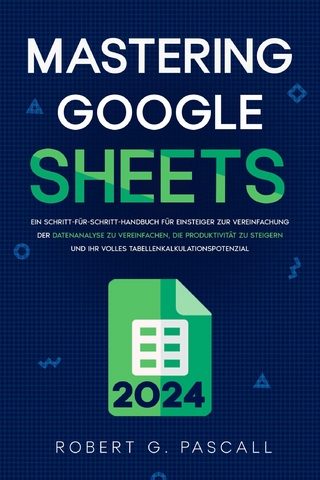
Mastering Google Sheets (eBook)
138 Seiten
Robert G. Pascall (Verlag)
978-0-00-066536-2 (ISBN)
NOW! Simplify Data Analysis, Boost Productivity, and Unlock Your Full Spreadsheet Potential!
Are you drowning in a sea of numbers, struggling to make sense of your data?
Do you find yourself spending hours manually performing calculations and formatting?
In this step-by-step handbook, you'll embark on a transformative journey to simplify data analysis, boost productivity, and unlock your full potential in spreadsheet management.
Bid farewell to the frustrations of complex formulas and time-consuming tasks, and embrace a new era of efficiency and proficiency.
Inside this book, you will learn:
✅ How to navigate and customize the Google Sheets interface to suit your needs
✅ Essential formulas and functions to perform calculations with ease
✅ Proven ways to organize and format your data for clear visualization and analysis
✅ How to utilize data validation and conditional formatting to enhance data accuracy and presentation
✅ Time-saving techniques for data manipulation and transformation
✅ Powerful data analysis tools like pivot tables and charts
✅ How to collaborate and share spreadsheets effectively with team members
✅ How to Automate repetitive tasks with macros and scripting
✅ Troubleshooting tips and tricks to overcome common challenges
✅ And much more!
Don't let doubts hold you back! 'Mastering Google Sheets' is tailored for beginners, offering clear explanations, hands-on examples, and step-by-step instructions to facilitate your learning journey.
Rest assured, you'll gain the skills to conquer Google Sheets and unlock your full spreadsheet potential.
Say goodbye to the complexities of data analysis and the inefficiencies of manual spreadsheet management! Experience the power of streamlined data analysis and increased productivity with 'Mastering Google Sheets'.
Scroll Back up and get your copy today to unleash the true potential of Google Sheets to excel in your data-driven tasks!
CHAPTER 2
WORKING WITH BASIC FUNCTIONS AND FORMULAS
Understanding Functions and Formulas
In the realm of spreadsheets, functions, and formulas are strong tools that allow you to do calculations, alter data, and automate processes. These capabilities allow spreadsheets to be used for a wide variety of purposes. We will go into the fundamentals of functions and formulae in Google Sheets in this section, and you will be able to unleash the full power of your spreadsheet and reduce the processes involved in conducting data analysis if you have a solid understanding of how to use them efficiently.
Functions in Spreadsheets
Calculations and operations of a given kind can be carried out by functions, which are established formulas. They are made to make complicated computations easier to understand and to save you time. Dive in with me as we explore the realm of functions:
Structure And Syntactic Organization
The syntax and organization of functions are rather specific. The name of the function comes first, then it is followed by the parenthesis (). You should put any arguments or parameters that are required inside the parenthesis.
The following are some examples of common functions:
SUM is an operation that calculates the total value of a group of cells. Example: =SUM(A1:A10)
Calculates the average value across a set of cells using the AVERAGE function. Example: =AVERAGE(B1:B5)
COUNT is a function that counts the number of cells inside a range that contain numerical values. Example: =COUNT(C1:C20)
Returns the value that is highest in a range of cells when you use the MAX function. Example: =MAX(D1:D15)
The MIN function returns the cell in a range of cells with the lowest value. Example: =MIN(E1:E8)
Functions That Are "Nestled" Within Others
You can execute more sophisticated calculations by nesting functions within each other like a bird's nest. For instance, if you want to calculate the average of a range but leave out some values, you can make use of the SUM function that is contained within the AVERAGE function.
Formulas in Spreadsheets
You are able to make calculations and change data based on your particular needs, thanks to the formulas that are included in spreadsheets. The following is information that is vital to your understanding of how to use formulas:
Formula Basics:
In order to denote that the following input is a formula and not just a standard text entry, formulas usually start with the equal sign (=).
In your formulations, you are free to make use of mathematical operators such as plus (addition), minus (subtraction), times (multiplication), and divide by (division). The order in which operations are performed can be controlled by using parentheses.
Cell References
In order to make reference to particular cells or ranges of cells, formulas make use of something called "cell references." The letter that corresponds to the column that is being referenced, followed by the row number, is what makes up a cell reference. For instance, "A1" refers to the cell that is located in column A and row 1 of the table.
In order to take advantage of absolute cell references, the $ symbol must be used before the letter of the column and/or the number of the row. This guarantees that the reference to the cell will remain the same even after the formula has been copied to other cells. Here are some examples of commonly used formulas:
The four fundamental arithmetic operations—addition, subtraction, multiplication, and division—can all be accomplished with the help of formulas. For instance, the expression =A1+B1 computes the total of the values contained in cells A1 and B1.
Calculations with Percentages You can compute percentages by applying the appropriate formulas. For instance, the calculation =A1 * 0.1 determines 10% of the value contained in cell A1.
Conditional formulae if you want to execute calculations based on certain conditions, you can use formulae containing conditional statements to accomplish this. For instance, the formula =IF(A1>10, "Yes", "No") checks to see if the value in cell A1 is bigger than 10, and it returns "Yes" if the condition is met, but it returns "No" if the condition is not met.
Utilizing the Pre-Configured Functions and Formulas
Google Sheets has a broad selection of built-in functions and formulas that may be customized to meet a variety of requirements for data analysis. The following are some of the more prominent ones:
VLOOKUP is an Excel function that looks for a value in the first column of a table and then returns another value from the same row that comes from a different column.
The CONCATENATE operator joins together numerous text strings into a single string.
IF is a conditional evaluation operator that can return a variety of different values depending on the circumstances.
DATE, Returns either the current date or the date that was supplied.
Calculates the length of a text string using the LEN function.
Handling Errors and Debugging
Formulas and functions are prone to erroneous execution from time to time. This is the proper way to deal with them.
Frequently Made Mistakes:
The #DIV/0! error message appears whenever an attempt is made to divide a number by zero.
The #VALUE! error message appears whenever a value that is being utilized in a formula is of the incorrect data type.
The #REF! error message appears whenever a reference to a cell is either incorrect or points to a range that has since been removed.
Debugging Tools:
You may find and correct problems in your calculations with the help of the error-checking tools that Google Sheets provides. You will be able to identify the cause of the error with the assistance of these tools, which will also offer solutions to the problem.
Using Arithmetic Operators and Mathematical Functions
Arithmetic Operators
Arithmetic operators are symbols that indicate specific mathematical operations. They are used within formulas to perform calculations. Here are the common arithmetic operators in Google Sheets:
Addition (+): Adds two or more values together. For example, =A1 + B1 + C1 adds the values in cells A1, B1, and C1.
Subtraction (-): subtracts one value from another. For example, =A1 - B1 subtracts the value in cell B1 from the value in cell A1.
Multiplication (*): Multiplies two or more values together. For example, =A1 * B1 multiplies the values in cells A1 and B1.
Division (/): divides one value from another. For example, =A1 / B1 divides the value in cell A1 by the value in cell B1.
Exponentiation (): raises a value to the power of another value. For example, =A1 B1 raises the value in cell A1 to the power of the value in cell B1.
Modulo (%): Returns the remainder of a division operation. For example, =A1 % B1 returns the remainder when the value in cell A1 is divided by the value in cell B1.
Mathematical Functions:
Mathematical Functions Google Sheets provides a wide range of built-in mathematical functions that can be used in formulas to perform complex calculations. Let's explore some commonly used mathematical functions:
SUM: Calculates the sum of a range of values. For example, =SUM(A1:A10) calculates the sum of the values in cells A1 to A10.
AVERAGE: Calculates the average of a range of values. For example, =AVERAGE(B1:B5) calculates the average of the values in cells B1 to B5.
MAX: Returns the maximum value in a range of values. For example, =MAX(C1:C10) returns the largest value in cells C1 to C10.
MIN: Returns the minimum value in a range of values. For example, =MIN(D1:D8) returns the smallest value in cells D1 to D8.
SQRT: Calculates the square root of a value. For example, =SQRT(E1) calculates the square root of the value in cell E1.
LOG: Calculates the logarithm of a value. For example, =LOG(F1) calculates the natural logarithm of the value in cell F1.
Order of Operations
Order of Operations When using arithmetic operators and mathematical functions in formulas, it's important to understand the order of operations to ensure accurate calculations. The order of operations is as follows:
Parentheses: Operations within parentheses are performed first.
Exponentiation: Exponentiation is performed next.
Multiplication and Division: Multiplication and division operations are performed from left to right.
Addition and Subtraction: Addition and subtraction operations are performed from left to right.
Using Mathematical Functions with Cell References
Using Mathematical Functions with Cell References One of the powerful features of spreadsheets is the ability to use mathematical functions with cell references. This allows you to perform calculations dynamically based on the values in specific cells....
| Erscheint lt. Verlag | 5.11.2024 |
|---|---|
| Sprache | englisch |
| Themenwelt | Mathematik / Informatik ► Informatik ► Office Programme |
| ISBN-10 | 0-00-066536-3 / 0000665363 |
| ISBN-13 | 978-0-00-066536-2 / 9780000665362 |
| Informationen gemäß Produktsicherheitsverordnung (GPSR) | |
| Haben Sie eine Frage zum Produkt? |
 EPUB (Adobe DRM)
Größe: 2,8 MB
Kopierschutz: Adobe-DRM
Adobe-DRM ist ein Kopierschutz, der das eBook vor Mißbrauch schützen soll. Dabei wird das eBook bereits beim Download auf Ihre persönliche Adobe-ID autorisiert. Lesen können Sie das eBook dann nur auf den Geräten, welche ebenfalls auf Ihre Adobe-ID registriert sind.
Details zum Adobe-DRM
Dateiformat: EPUB (Electronic Publication)
EPUB ist ein offener Standard für eBooks und eignet sich besonders zur Darstellung von Belletristik und Sachbüchern. Der Fließtext wird dynamisch an die Display- und Schriftgröße angepasst. Auch für mobile Lesegeräte ist EPUB daher gut geeignet.
Systemvoraussetzungen:
PC/Mac: Mit einem PC oder Mac können Sie dieses eBook lesen. Sie benötigen eine
eReader: Dieses eBook kann mit (fast) allen eBook-Readern gelesen werden. Mit dem amazon-Kindle ist es aber nicht kompatibel.
Smartphone/Tablet: Egal ob Apple oder Android, dieses eBook können Sie lesen. Sie benötigen eine
Geräteliste und zusätzliche Hinweise
Buying eBooks from abroad
For tax law reasons we can sell eBooks just within Germany and Switzerland. Regrettably we cannot fulfill eBook-orders from other countries.
aus dem Bereich