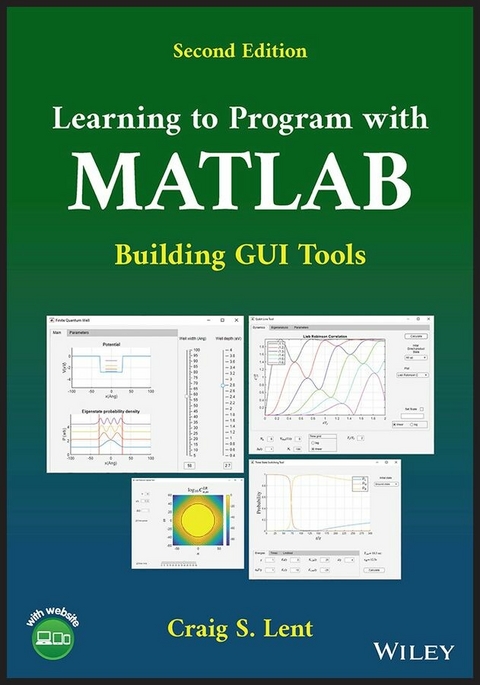
Learning to Program with MATLAB (eBook)
John Wiley & Sons (Verlag)
978-1-119-90049-8 (ISBN)
Introductory text integrating science, mathematics, and engineering to give a basic understanding of the fundamentals of computer programming with MATLAB
Learning to Program with MATLAB: Building GUI Tools, Second Edition serves as a compact introduction to computer programming using the MATLAB language, covering elements of both program and graphical user interface (GUI) design to enable readers to create computer programs just like the ones they are accustomed to interacting with. Rather than being encyclopedic in scope, the goal of the text is to describe what users will find most useful and point to other features. Descriptions and examples of some of the most useful functions are included throughout, particularly with regards to engineering and science applications. The work also includes updated videos and problem solutions on an instructor companion website.
The first edition of Learning to Program with MATLAB employed the MATLAB graphical user interface design environment (GUIDE) to develop the GUI tools. The second edition is based on the new and improved App Designer program, which has supplanted GUIDE. This edition includes:
- Core concepts of computer programming using MATLAB, such as arrays, loops, functions, and basic data structures
- How to write your own MATLAB functions, covering topics such as local workspaces, multiple outputs, function files, and other functional forms
- The new string class and table class, some new features of function arguments, and re-written sections for building GUI tools with App Designer
- Syntax for graphics and App Designer features, plus examples demonstrating the new way to handle string information
Starting with the basics and building up to an emphasis on GUI tools, Learning to Program with MATLAB is a comprehensive introduction to programming in a robust and multipurpose language, making it an ideal classroom resource for both students and instructors in related programs of study.
Craig S. Lent is The Frank M. Freimann Professor of Electrical Engineering at the University of Notre Dame, Indiana, USA. Professor Lent received his bachelor's degree in Physics from the University of California at Berkeley, USA, and his doctorate in Physics from the University of Minnesota, Minneapolis, USA. Professor Lent has been a member of the Notre Dame faculty since 1986. His research is in the area of quantum devices, quantum information theory, and molecular-scale devices.
Learning to Program with MATLAB Introductory text integrating science, mathematics, and engineering to give a basic understanding of the fundamentals of computer programming with MATLAB Learning to Program with MATLAB: Building GUI Tools, Second Edition serves as a compact introduction to computer programming using the MATLAB language, covering elements of both program and graphical user interface (GUI) design to enable readers to create computer programs just like the ones they are accustomed to interacting with. Rather than being encyclopedic in scope, the goal of the text is to describe what users will find most useful and point to other features. Descriptions and examples of some of the most useful functions are included throughout, particularly with regards to engineering and science applications. The work also includes updated videos and problem solutions on an instructor companion website. The first edition of Learning to Program with MATLAB employed the MATLAB graphical user interface design environment (GUIDE) to develop the GUI tools. The second edition is based on the new and improved App Designer program, which has supplanted GUIDE. This edition includes: Core concepts of computer programming using MATLAB, such as arrays, loops, functions, and basic data structures How to write your own MATLAB functions, covering topics such as local workspaces, multiple outputs, function files, and other functional forms The new string class and table class, some new features of function arguments, and re-written sections for building GUI tools with App Designer Syntax for graphics and App Designer features, plus examples demonstrating the new way to handle string information Starting with the basics and building up to an emphasis on GUI tools, Learning to Program with MATLAB is a comprehensive introduction to programming in a robust and multipurpose language, making it an ideal classroom resource for both students and instructors in related programs of study.
Craig S. Lent is The Frank M. Freimann Professor of Electrical Engineering at the University of Notre Dame, Indiana, USA. Professor Lent received his bachelor's degree in Physics from the University of California at Berkeley, USA, and his doctorate in Physics from the University of Minnesota, Minneapolis, USA. Professor Lent has been a member of the Notre Dame faculty since 1986. His research is in the area of quantum devices, quantum information theory, and molecular-scale devices.
CHAPTER 1
Getting Started
This chapter will introduce the basics of using MATLAB, first as a powerful calculator, and then as a platform for writing simple programs that automate what a calculator would do in many steps. The emphasis here will be on performing basic mathematical operations on numbers.
The MATLAB integrated development environment (IDE) is the program that runs when you launch MATLAB. You will use it to operate MATLAB interactively and to develop and run MATLAB programs.
The concept of a MATLAB variable is important to grasp. It is not identical with the familiar mathematical notion of a variable, although the two are related. MATLAB variables should be thought of as labeled boxes that hold a number or other types of information.
MATLAB has many built‐in functions for evaluating common mathematical functions. More complicated MATLAB functions, including those of your own making, will be explored further in Chapter 7.
After completing this chapter you should be able to
- use the MATLAB IDE to operate MATLAB interactively from within the command window;
- create and name MATLAB variables and assign them numerical values;
- invoke several built‐in MATLAB mathematical functions (such as the sine, cosine, and exponential functions);
- get more information on MATLAB statements and functions using the help and doc commands;
- write a simple program that set the values of variables, calculates some quantities, and then displays the results in the command window;
- run through a program line‐by‐line using the MATLAB debugger in the Editor window.
1.1 Running the MATLAB IDE
MATLAB is normally operated from within the MATLAB IDE. You can launch MATLAB in the Windows environment by double‐clicking on the shortcut on your desktop or by selecting it from the Start|Programs menu (Figure 1.1).
FIGURE 1.1 The MATLAB integrated development environment (IDE) with the default layout.
The IDE is organized into a header menu bar and several different windows. Which windows are displayed can be determined by checking or unchecking items in under the Desktop menu in the top menu bar. Some important windows for working with MATLAB are the following:
- Command window. This is the main interactive interface to MATLAB. To issue a MATLAB command (also called a MATLAB statement), type the command at the
>>prompt and press Enter. - Workspace browser. Each variable defined in the current workspace is represented here. The name, class (type), value, and other properties of the variable can be shown. Choose which properties to show using the View—Choose Columns menu from the header menu bar. A recommended set to display is: Name, Value, and Class. Double‐clicking on a variable brings up the Variable Editor window. The icon representing numbers is meant to symbolize an array, i.e., a vector or a matrix. MATLAB's basic data type is the array—a number is treated as a array.
- Current Folder browser. In Windows parlance, the current folder is the same as the current directory. Without further instruction, MATLAB will save files in the current folder and look for files in the current directory. The browser displays files and other directories (folders) that reside in the current directory. Icons at the top of the browser allow the user to move up a directory (folder) level or to create a new folder. Double‐clicking on a displayed folder makes it the current folder.
- Editor window. The MATLAB editor is where programs are written. It doubles as part of the debugger interface, which is covered in detail later. The editor “knows” the MATLAB language and color codes language elements. There are many other convenient features to aid code‐writing.
- Figures window. Graphics is one of the main tools for visualizing numerical quantities. The results of executing graphics‐related commands, such as those for plotting lines and surfaces, are displayed in the Figures window.
- Variable Editor. The value or values held in a particular variable are displayed in a spreadsheet‐like tool. This is particularly useful for arrays (matrices and vectors).
FIGURE 1.2 Recommended layout of the MATLAB IDE windows.
Manipulating windows
As usual in Windows, the currently active window is indicated by the darkening of its blue frame. Each window can be undocked using the small arrow button near the upper right‐hand corner of the window. Undocked windows can be arranged on the screen using the usual Windows mouse manipulations. An undocked window can be docked again using the small arrow button (this time the arrow points downward) in the upper right‐hand corner of the window.
Windows can be manipulated within the IDE by clicking and dragging the top frame of the window. Outlines of the drop position of the window appear and disappear as the mouse is moved around. This takes some practice.
More than one IDE window can share the same screen pane. Choose between active windows in a single pane by using the tabs at the top, side, or bottom of the pane.
A (strongly) recommended setup for the desktop includes three panel areas. In the upper left quadrant of the IDE, position the Workspace browser, Current Folder browser, and (optionally) the Figures window. One of these three is visible at any time, with the others being accessible by clicking the labeled tab. In the lower left, have the Command window open. The right portion is then devoted to the Editor window, where most of your programming work will take place. It really helps the development process to adopt this setup or something very like it (Figure 1.2).
1.2 MATLAB variables
A MATLAB variable is simply a place in the computer's memory that can hold information. Each variable has a specific address in the computer's memory. The address is not manipulated directly by a MATLAB program. Rather, each variable is associated with a name which is used to refer to its contents. Each variable has a name, such as x, initialVelocity, or studentName. It also has a class (or type) that specifies what kind of information is stored in the variable, and, of course, each variable usually has a value, which is the information actually stored in the variable. The value may be a structured set of information, such as a matrix or a string of characters.
Numbers are stored by default in a variable class called double. The term originates in the FORTRAN variable type known as “double precision.” Numbers in the double class take 64 bits in the computer's memory and contain about 15 digits of precision. Alphanumeric strings, such as names, are stored in variables of the string class. Boolean variables, which can take the value true or false, are stored in variables of the logical class. Logical true and false are represented by a 1 and a 0. Other variable classes will be discussed later (Figure 1.3).
FIGURE 1.3 A schematic representation of MATLAB variables a, vinit, and fName. Each has a name, class (type), and a current value.
Variable assignment statements
The equals sign is the MATLAB assignment statement. The command a=5 stores the value 5 in the variable named a. If the variable a has not already been created, this command will create it, then store the value. The class of the variable (its type) is determined by the value that is to be stored. Assignment statements can be typed into the Command Window at the command prompt, a double greater‐than symbol, “>>.”
In these examples, everything after the percent sign is a comment, information useful to the reader but ignored by MATLAB.
The assignment statement will cause MATLAB to echo the assignment to the Command Window unless it is terminated by a semicolon.
The right‐hand side of the assignment statement can be an expression, i.e., a combination of numbers, arithmetic operators, and functions.
The general form of the assignment statement is
The expression is first evaluated, and then the value is stored in the variable named on the left‐hand side of the equals sign. If variables appear in the expression on the right‐hand side of the equals sign, the expression is evaluated by replacing the variable names in the expression with the values of the variables at the time the statement is executed. Note that this does not establish an ongoing relationship between those variables.
The equals sign is used to store a result in a particular variable. The only thing permitted to the left of the equals sign is the variable name for which the assignment is to be made. Although the statement a=4 looks like a mathematical equality, it is in fact not a mathematical equation. None of the following expressions is valid:
By contrast this, which makes no sense as mathematics, is quite...
| Erscheint lt. Verlag | 27.7.2022 |
|---|---|
| Sprache | englisch |
| Themenwelt | Mathematik / Informatik ► Informatik |
| Technik ► Elektrotechnik / Energietechnik | |
| Schlagworte | app designer • Computer Engineering • computer programming • Computer Science • Computertechnik • data structures • Electrical & Electronics Engineering • Elektrotechnik u. Elektronik • function arguments • gui tools • Informatik • learn matlab • local workspaces • MATLAB • MATLAB Functions • matlab textbook • Program Design • Programmierung • Programmierung u. Software-Entwicklung • programming • Programming & Software Development • Programming Textbook • Statistical Software / MATLAB • Statistics • Statistik • Statistiksoftware • Statistiksoftware / MATLAB • string information |
| ISBN-10 | 1-119-90049-2 / 1119900492 |
| ISBN-13 | 978-1-119-90049-8 / 9781119900498 |
| Informationen gemäß Produktsicherheitsverordnung (GPSR) | |
| Haben Sie eine Frage zum Produkt? |
 EPUB (Adobe DRM)
Kopierschutz: Adobe-DRM
Adobe-DRM ist ein Kopierschutz, der das eBook vor Mißbrauch schützen soll. Dabei wird das eBook bereits beim Download auf Ihre persönliche Adobe-ID autorisiert. Lesen können Sie das eBook dann nur auf den Geräten, welche ebenfalls auf Ihre Adobe-ID registriert sind.
Details zum Adobe-DRM
Dateiformat: EPUB (Electronic Publication)
EPUB ist ein offener Standard für eBooks und eignet sich besonders zur Darstellung von Belletristik und Sachbüchern. Der Fließtext wird dynamisch an die Display- und Schriftgröße angepasst. Auch für mobile Lesegeräte ist EPUB daher gut geeignet.
Systemvoraussetzungen:
PC/Mac: Mit einem PC oder Mac können Sie dieses eBook lesen. Sie benötigen eine
eReader: Dieses eBook kann mit (fast) allen eBook-Readern gelesen werden. Mit dem amazon-Kindle ist es aber nicht kompatibel.
Smartphone/Tablet: Egal ob Apple oder Android, dieses eBook können Sie lesen. Sie benötigen eine
Geräteliste und zusätzliche Hinweise
Buying eBooks from abroad
For tax law reasons we can sell eBooks just within Germany and Switzerland. Regrettably we cannot fulfill eBook-orders from other countries.
aus dem Bereich