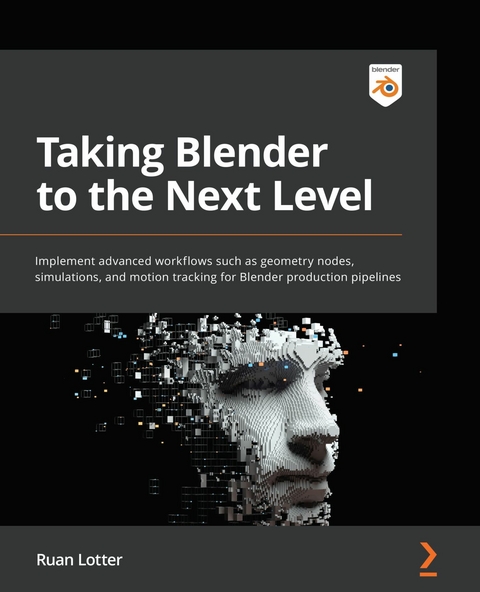
Taking Blender to the Next Level (eBook)
520 Seiten
Packt Publishing (Verlag)
978-1-80324-382-5 (ISBN)
If you're ready to start exploring the more advanced workflows and processes in Blender to create intricate 3D models, then Taking Blender to the Next Level is for you.
This book focuses on a few different VFX-related workflows such as geometry nodes, organic modeling, 3D camera tracking, photogrammetry, sculpting, compositing, and physics simulations. You'll learn how to use geometry nodes to create dynamic motion graphic scenes as well as perform 3D scanning of real-world objects using photogrammetry. You'll also find out how to model, rig, and animate your own 3D characters from scratch. Next, you'll progress to using simulations to break objects apart and then use cloth and hair simulations to add realism to your 3D creations. Finally, you'll go over the final render settings and export your 3D animation masterpiece as a video.
By the end of this Blender book, you'll be able to model your own 3D characters, objects, and landscapes; rig, animate, and texture your characters; 3D track live-action footage; and composite your 3D characters into live-action scenes.
A comprehensive guide with key images printed in color to learning motion graphics, character modeling and rigging, creating dynamic hair and clothes, 3D scanning using photogrammetry, and moreKey FeaturesLearn how to use geometry nodes to create motion graphics and dynamic scenesUnderstand organic 3D modeling and how to create and animate your own 3D charactersUse physics simulations to create clothing and hair for characters that interact with forces like windBook DescriptionIf you're ready to start exploring the more advanced workflows and processes in Blender to create intricate 3D models, then Taking Blender to the Next Level is for you. This book focuses on a few different VFX-related workflows such as geometry nodes, organic modeling, 3D camera tracking, photogrammetry, sculpting, compositing, and physics simulations. You ll learn how to use geometry nodes to create dynamic motion graphic scenes as well as perform 3D scanning of real-world objects using photogrammetry. You ll also find out how to model, rig, and animate your own 3D characters from scratch. Next, you ll progress to using simulations to break objects apart and then use cloth and hair simulations to add realism to your 3D creations. Finally, you ll go over the final render settings and export your 3D animation masterpiece as a video. By the end of this Blender book, you ll be able to model your own 3D characters, objects, and landscapes; rig, animate, and texture your characters; 3D track live-action footage; and composite your 3D characters into live-action scenes.What you will learnUse geometry nodes to quickly create complex 3D scenes and motion graphics rendersCreate realistic textures using physically based rendering materials3D scan real-life objects using a normal camera and clean up the model using BlenderUnderstand how to model, rig, and animate your own 3D charactersUse rigid body simulations to create dynamic scenesUnderstand how to perform 3D tracking within BlenderBecome well-versed with compositing 3D renders into live-action footageWho this book is forThis Blender 3D book is for 3D modelers, texture artists, character and technical animators, matchmove artists, compositors, and anyone interested in learning advanced concepts in Blender. Motion graphics artists will also benefit from this book. A solid understanding of 3D concepts and the Blender UI is needed to grasp the concepts present in this book.]]>
Chapter 1: Using Geometry Nodes to Create Dynamic Scenes
Geometry Nodes is one of the latest additions to the ever-evolving world of Blender and is one extremely powerful tool. It allows you to create and change an object's geometry in more complex ways than regular modifiers, and it allows you to create complex scenes quickly and in non-destructive ways, meaning you can always go back and tweak some of the parameters, making it extremely dynamic and versatile. Welcome to the exciting world of Geometry Nodes!
One thing to note is that Geometry Nodes is still being developed extensively by the developers of Blender, which means that new nodes will be added, and more workflow options will be available to you, making it one of the most exciting new features to come to the Blender toolset.
In this chapter, you will learn how to use some of the most popular nodes, and you will get a feel of what you can do using Geometry Nodes. You will learn how to distribute objects on points, using Math nodes to calculate attributes such as the distance between objects, as well as how to modify certain attributes such as scale, position, and rotation. Additionally, you will learn how to randomize certain attributes, which is important when creating dynamic motion graphics scenes.
This chapter will give you a good, but basic, understanding of Geometry Nodes, and later in this book, we will make use of other methods that will build on this chapter.
In this chapter, we're going to cover the following main topics:
- Introduction to Geometry Nodes in Blender
- Creating and manipulating geometry using nodes
- Using textures to control attributes
- Animating with Math nodes
Technical Requirements
All the projects in this book have been created and built on Blender 2.93.x. The projects should work perfectly fine with Blender 3.x versions too. There may obviously be slight changes going forward as they develop Blender 3, but most of the changes they usually do are minor and should not break any workflows. However, the Geometry nodes chapters will work strictly on versions 2.93.x, since these nodes are updated with every version change. Version 2.93 has Long Term Support (LTS) till 2023 and you can download it from here. https://www.blender.org/download/lts/2-93/
All the projects of this book have been uploaded on Github here: https://github.com/PacktPublishing/Taking-Blender-to-the-Next-Level
Introduction to Geometry Nodes in Blender
In this section, we will be looking at the Geometry Nodes workspace and how to apply the Geometry Nodes modifier to our base mesh. Additionally, we will take a quick look at the different nodes that are currently available in Blender. You will learn how to distribute an instance object across points on another object. Additionally, we will make use of some of the most used nodes such as the Point Instance node and the Subdivide node. You will also learn what attributes are and how you can use them to change the way your instance objects are displayed. Finally, we will use nodes to randomize different attributes of our instance objects such as the position, rotation, and scale.
The Geometry Nodes workspace
Geometry Nodes functions as a basic modifier, but it also has its own workspace and editor. If you look at the top of the Blender interface, you should see a tab called Geometry Nodes. Additionally, you can change any window in Blender to the Geometry Nodes workspace by clicking on the drop-down menu in the upper-left corner of the window and selecting Geometry Node Editor from the list of available workspaces. This means you always have control over how you work:
Figure 1.1 – The Geometry Node Editor
If you look at the workspace, you will see the 3D Viewport window in the upper-right corner, the Spreadsheet window in the upper-left corner, and the Geometry Nodes window at the bottom. Currently, there is a total of 63 nodes in Blender version 2.93.2, but this number will quickly grow in later versions of Blender:
Figure 1.2 – The Geometry Nodes workspace
One area that Blender has been lacking in for a while now is in the creation of MoGraph dynamically; Geometry Nodes changes that completely by turning Blender into a powerful MoGraph-making machine! The reason why Geometry Nodes is perfect for MoGraph is that you can quickly manipulate many objects at once and because of its non-destructive nature. Additionally, you can introduce textures to drive movement or even use other modifiers in conjunction with Geometry Nodes.
Another great use for Geometry Nodes is for scattering objects quickly and easily. In previous versions of Blender, we had to make use of a particle or hair system to scatter objects across geometry, and that only gave us a certain amount of control. However, with Geometry Nodes, we have complete control to customize our node tree exactly the way we want.
You can even expose some of the parameters and values directly in the Modifier panel, making it very easy to customize your Geometry Nodes creations or giving you the ability to build custom node setups to share with others.
Geometry Nodes
As mentioned earlier, there are currently 63 available nodes to use (including the Frame and Reroute nodes), as shown in the following screenshot. This number will likely increase with later versions:
Figure 1.3 – All of the Geometry Nodes currently available in Blender 2.93.2
If you have used the Compositing or Shading workspaces before, then you should be familiar with using nodes. However, don't fear if this is your first time using nodes. It can be very daunting at first, but we will look at the process step by step, and in no time, you will be able to create amazing and dynamic scenes using Geometry Nodes. In the next section, we will create our first, very basic node setup, and see it in action!
Creating and manipulating geometry using nodes
In this section, we will be creating our very first basic scene using Geometry Nodes. You will learn how to add the Geometry Nodes modifier to your base mesh and how to instance an object onto each vertex of your base mesh. We will look at some of the nodes that you can use to manipulate these instances such as Position, Scale, and Rotation. Additionally, you will learn how to randomize certain attributes, and we will also take a look at the different types of attributes and how they are used.
Let's begin by creating a new Blender project.
Creating the base mesh
Let's begin by creating our base mesh. For this example, we will be creating a plane object and applying the Geometry Nodes modifier to it. Then, we will use this plane object to distribute instances of another object across it:
- Click on File and select New | General.
- Delete everything in your scene by pressing A and then pressing X. Click on Delete to confirm. You now should have a blank new scene. Now feel free to save your project!
- Create a plane by pressing Shift + A and selecting Mesh | Plane.
Now, let's scale our plane.
- Select the plane, press S, then 10, and then Enter. This will scale your plane to a size of 10 m x 10 m. It's always good practice to select Apply your scale whenever you modify the scale of an object in Blender, especially if you will be adding any modifiers to that mesh.
- To do this, select the plane, press Ctrl + A, and then select Scale from the drop-down menu. This will apply the scale factor and reset the object's scale to 1:
Figure 1.4 – Applying the scale to your plane
- You can view the scale factor by selecting your plane and pressing the N shortcut to open the side menu. In the Item tab, underneath Transform, you will see the Scale factor, which should currently be X: 1.000/Y: 1.000/Z: 1.000:
Figure 1.5 – The scale of the plane set to 1/1/1
Creating a new Geometry Nodes modifier
Now, let's open the Geometry Nodes workspace by clicking on the tab at the top of the Geometry Nodes interface. You will now see the Geometry Nodes workspace split into three main views: the 3D Viewport window (in the upper-right corner), the Spreadsheet window (in the upper-left corner), and the Geometry Node Editor window at the bottom. Perform the following steps:
- To create our first Geometry Nodes system, let's click on our plane to select it.
- Click on the NEW button at the top of the Geometry Node Editor:
Figure 1.6 – The Geometry Node Editor
Congratulations! You have created...
| Erscheint lt. Verlag | 30.5.2022 |
|---|---|
| Sprache | englisch |
| Themenwelt | Mathematik / Informatik ► Informatik ► Grafik / Design |
| ISBN-10 | 1-80324-382-1 / 1803243821 |
| ISBN-13 | 978-1-80324-382-5 / 9781803243825 |
| Informationen gemäß Produktsicherheitsverordnung (GPSR) | |
| Haben Sie eine Frage zum Produkt? |
 EPUB (Ohne DRM)
Digital Rights Management: ohne DRM
Dieses eBook enthält kein DRM oder Kopierschutz. Eine Weitergabe an Dritte ist jedoch rechtlich nicht zulässig, weil Sie beim Kauf nur die Rechte an der persönlichen Nutzung erwerben.
Dateiformat: EPUB (Electronic Publication)
EPUB ist ein offener Standard für eBooks und eignet sich besonders zur Darstellung von Belletristik und Sachbüchern. Der Fließtext wird dynamisch an die Display- und Schriftgröße angepasst. Auch für mobile Lesegeräte ist EPUB daher gut geeignet.
Systemvoraussetzungen:
PC/Mac: Mit einem PC oder Mac können Sie dieses eBook lesen. Sie benötigen dafür die kostenlose Software Adobe Digital Editions.
eReader: Dieses eBook kann mit (fast) allen eBook-Readern gelesen werden. Mit dem amazon-Kindle ist es aber nicht kompatibel.
Smartphone/Tablet: Egal ob Apple oder Android, dieses eBook können Sie lesen. Sie benötigen dafür eine kostenlose App.
Geräteliste und zusätzliche Hinweise
Buying eBooks from abroad
For tax law reasons we can sell eBooks just within Germany and Switzerland. Regrettably we cannot fulfill eBook-orders from other countries.
aus dem Bereich