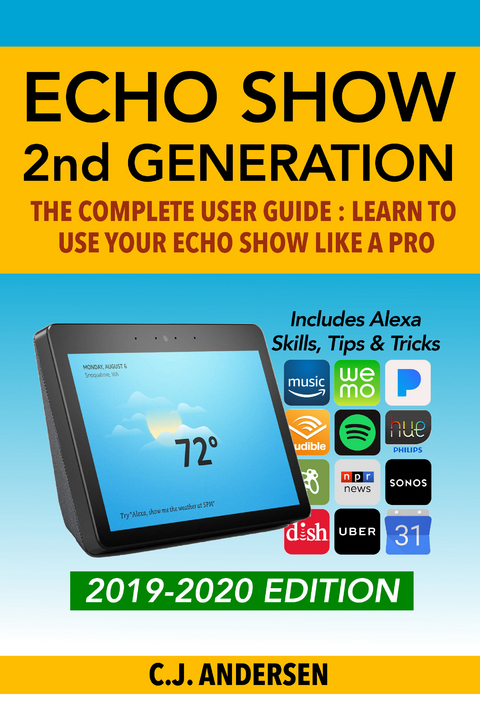
Amazon Echo Show - The Complete User Guide (eBook)
127 Seiten
CJ Andersen (Verlag)
978-0-00-013063-1 (ISBN)
Updated 2019/2020 Edition
The Amazon Echo Show is the jewel in the Echo crown! And this is the complete, up to date Echo Show user guide from Tech Ace CJ Andersen that will show you how to use this new device like a pro.
4
Watch This and More! — Video
For any voice command you read in this chapter be sure to use your wake word (“Alexa”, “Amazon”, etc.) first.
Before we discuss all the Video option on your Echo Show, please note that during the writing of this book, there was a major update to the Alexa App the result of which is that the Video section is no longer visible on the App when viewed via a tablet or mobile phone. This situation may well change with the next update.
At the time of writing I could still access the Video section via the App on my PC and Mac, go to the Menu and select Music, Video & Books and Video services are the first section on the page.
In a minute we will look more closely at the Video services currently available. But before we do that, it’s important to understand that there are two types of Video services that you can use with your Echo Show.
The first is what I call direct access, meaning that if you have an account with these services you can watch their content directly on your Echo Show. This is the case for Amazon Video and Prime Video, IMDB movie trailers, Hulu and NBC.
The second is best termed as indirect access; this is where you use your Alexa voice commands via the Echo Show (or any other connected Alexa-enabled device) to control the content streamed to your home television set from streaming or cable services such as Fire TV or Dish TV.
So, let’s take the direct access services first.
Watch Amazon Video and Prime Video on your Echo Show
Amazon have two different ways in which you can access their vast library of digital content of TV shows and movies.
• Amazon Video/ Rent or Buy: In the first instance you can search in the section labeled Movies, Music and Games on Amazon.com, where you will find titles that can either be rented or bought outright; you’ll also see titles that — as well as being available rent or buy — can also be accessed for “free” with a Prime Membership in the Prime Video. When you buy or rent content from Amazon it will appear in your Video Library.
• Prime Video: On the Amazon.com menu click on Prime Video to browse the thousands of movies and TV shows that are available at no additional cost with a Prime membership. Note that there are some movies and TV shows that are exclusive to Prime Video (known as Prime Originals); that is, you will need a Prime Membership to access them. Currently Amazon are offering the first month of membership for free, and then there are three membership options:
- a simple Prime Video option for $8.99 per month.
- an all-inclusive Prime Monthly option at $12.99 per month which includes free delivery, unlimited music streaming via Prime Music, plus unlimited Kindle books and photo storage.
- a Prime Annual membership option for $119 a year for the all-inclusive deal.
• Prime Channels/ Subscription: Amazon has also organized a number of link-ups with third-party TV channels — such as HBO, Showtime, PBS Kids — so that you can stream their content direct to your screen via your Prime membership. To be completely clear, you will first need to have a full Prime monthly membership, and then each Prime Channel has a further monthly fee (Showtime is currently being offered for $8.99 a month, whilst HBO is more expensive at $14.99 a month). To find out more about which Channels are available, go to Amazon.com > Prime Video > Prime Video Channels.
Join Amazon Prime by selecting Try Prime near the top left of any Amazon page. Media available on the above options can be watched on any device with a screen including your personal computer, Amazon Fire devices, Echo Show and Echo Spot, iOS and Android devices, TVs and more.
Once you’ve got something to watch, there are many ways you can access it.
• Search your library: Say “Show me my video library” or “Show me my Watch List,” and it will appear on the Show screen where you can browse by swiping left and tapping what you want to watch.
• Search by title: Say “Show me [specific movie or show title], and it will play
• Show by actor or genre: Say, “Show me Harrison Ford movies,” or “Show me animated movies,” and search results you can browse will appear on the Echo Show screen.
Alexa will reply, “Here’s what I found,” to all these requests as the results appear.
Once the content is being shown, you can control it two ways:
• Tap the Echo Show screen to view and use the limited player that includes pause/play and symbols for going back or forward 10 seconds.
• Use voice with common commands including: “Play/ pause/ resume”, “Rewind/ fast forward”, “Go back/ skip ahead and number of seconds, minutes or hours”, “Next video/ next episode”.
Tapping the screen will produce a back arrow that can be used to go back to the last content played or to the search results.
Watch Movie Trailers on Echo Show
You can watch any move trailer from IMDB on Echo Show by simply asking. Say, “Show me the movie trailer for [movie title].”
As before you can control the trailer playback either manually or using voice control.
I really like using my Echo Show to watch movie trailers, they are exactly the kind of short video content that work really well on the small Echo Show screen. I’m not convinced there’s much value in being able to play the rest of my Amazon Video Library on the Show. I’ve watched a couple of half hour TV shows, but I won’t watch anything longer as I’d prefer to view most TV series and movies on a bigger screen like my TV.
Watch Hulu and NBC on Echo Show
These two options are fresh out the bag, just announced in time for the launch of the new 2nd Generation Echo Show. To enjoy these services on your Echo Show you first need to have a subscription with either Hulu or, in the case of NBC, a cable subscription and an NBC profile.
Then in the Alexa App you select Music, Books & Video > Hulu or NBC and then follow the prompts to link the service to Alexa. After that, simply ask Alexa to “Play _______ on Hulu” or “Show _______ on NBC”.
These new options are particularly useful if you already have a Hulu or NBC (cable) subscription. Both services offer interesting content, TV series and shows, with Hulu having the slight edge of also offering live sports events and essentially offering you a link up with several different TV channels including NBC, ABC, HGTV, the Disney channel and more.
If you don’t already have a subscription to these services, you can find out more about the various plans on www.hulu.com or for access to NBC, contact your local cable provider (note that you need to also create an NBC profile via the www.nbc.com website.)
CJ’s Tips: Hulu indicated that their streaming service would be available on both the 2nd and the 1st generation of Echo Show, but at the time of writing, I wasn’t able to connect with the original Echo Show.
Now let’s look at the indirect access services; that is to say TV services where you use your voice via Alexa/ Echo Show to control what you’re watching on your television set.
Fire TV
The original Fire TV dongle from Amazon is a comprehensive media streaming device. It can be installed and used entirely independently, with or without its own Alexa-enabled remote control. Or, it can also be paired with and controlled by other Alexa-enabled devices, such as the Amazon Echo.
The same is true for the Toshiba Fire TV edition television set — a smart TV that has Fire TV streaming already integrated and which can be voice-controlled when you pair it to the Alexa-enable remote or to one of your other Alexa-enable devices.
Furthermore, there is now also the Fire TV Cube which already has Alexa preinstalled, ready to operate with voice control alone.
What you can watch with Fire TV: Most streaming and live TV services can be viewed with Fire TV including: Netflix, Hulu, HBO Now, Crackle, Amazon, ESPN, Showtime, Sling, DirectTV Now, NBA, MLB. TV, CNN, Comedy Central, HGTV and AMC.
What else you can do with Fire TV and Alexa: Enjoy music services played through your equipment such as Amazon Music, and iHeartRadio, order pizza or an Uber, browse Yelp and play games from developers like EA and Disney. Search “Fire TV” on Amazon to see everything the service offers.
Connecting Alexa and Fire TV: Amazon provides complete instructions for setting up Fire TV equipment and a PDF Users Guide to make the most of Fire TV. To control Fire TV with Alexa:
• Go to Music, Video & Books in the Alexa App, and select Fire TV
• Select Link Your Alexa Device
• Select the device you want to link
• Follow the onscreen prompts to complete linking of Alexa to the Fire TV Player
Once setup is complete, put Alexa to work with requests like:
• “Watch House of Cards”
• “Next episode”
• “Rewind 10 minutes”
• “Jump to 30...
| Erscheint lt. Verlag | 3.11.2018 |
|---|---|
| Sprache | englisch |
| Themenwelt | Mathematik / Informatik ► Informatik |
| ISBN-10 | 0-00-013063-X / 000013063X |
| ISBN-13 | 978-0-00-013063-1 / 9780000130631 |
| Informationen gemäß Produktsicherheitsverordnung (GPSR) | |
| Haben Sie eine Frage zum Produkt? |
 EPUB (Adobe DRM)
Größe: 836 KB
Kopierschutz: Adobe-DRM
Adobe-DRM ist ein Kopierschutz, der das eBook vor Mißbrauch schützen soll. Dabei wird das eBook bereits beim Download auf Ihre persönliche Adobe-ID autorisiert. Lesen können Sie das eBook dann nur auf den Geräten, welche ebenfalls auf Ihre Adobe-ID registriert sind.
Details zum Adobe-DRM
Dateiformat: EPUB (Electronic Publication)
EPUB ist ein offener Standard für eBooks und eignet sich besonders zur Darstellung von Belletristik und Sachbüchern. Der Fließtext wird dynamisch an die Display- und Schriftgröße angepasst. Auch für mobile Lesegeräte ist EPUB daher gut geeignet.
Systemvoraussetzungen:
PC/Mac: Mit einem PC oder Mac können Sie dieses eBook lesen. Sie benötigen eine
eReader: Dieses eBook kann mit (fast) allen eBook-Readern gelesen werden. Mit dem amazon-Kindle ist es aber nicht kompatibel.
Smartphone/Tablet: Egal ob Apple oder Android, dieses eBook können Sie lesen. Sie benötigen eine
Geräteliste und zusätzliche Hinweise
Buying eBooks from abroad
For tax law reasons we can sell eBooks just within Germany and Switzerland. Regrettably we cannot fulfill eBook-orders from other countries.
aus dem Bereich