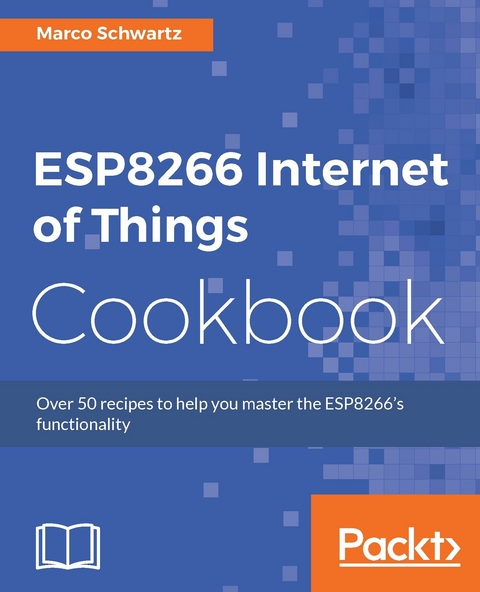
ESP8266 Internet of Things Cookbook (eBook)
268 Seiten
Packt Publishing (Verlag)
978-1-78728-355-8 (ISBN)
The ESP8266 Wi-Fi Module is a self contained System on Chip (SOC) with an integrated TCP/IP protocol stack and can give any microcontroller access to your Wi-Fi network. It is capable of either hosting an application or offloading all Wi-Fi networking functions from another application processor.
This book contains practical recipes that will help you master all ESP8266 functionalities. You will start by configuring and customizing the chip in line with your requirements. Then you will focus on core topics such as on-board processing, sensors, GPIOs, programming, networking, integration with external components, and so on. We will also teach you how to leverage Arduino using the ESP8266 and you'll learn about its libraries, file system, OTA updates, and so on. The book also provide recipes on web servers, testing, connecting with the cloud, and troubleshooting techniques. Programming aspects include MicroPython and how to leverage it to get started with the ESP8266. Towards the end, we will use these concepts and create an interesting project (IOT).
By the end of the book, readers will be proficient enough to use the ESP8266 board efficiently.
Exploring the low cost WiFi moduleAbout This BookLeverage the ESP8266's on-board processing and storage capabilityGet hand- on experience of working on the ESP8266 Arduino Core and its various librariesA practical and enticing recipe-based book that will teach you how to make your environment smart using the ESP8266Who This Book Is ForThis book is targeted at IOT enthusiasts who are well versed with electronics concepts and have a very basic familiarity with the ESP8266. Some experience with programming will be an advantage.What You Will LearnMeasure data from a digital temperature and humidity sensor using the ESP8266Explore advanced ESP8266 functionalitiesControl devices from anywhere in the world using MicroPythonTroubleshoot issues with cloud data monitoringTweet data from the Arduino boardBuild a cloud-connected power-switch with the ESP8266Create an ESP8266 robot controlled from the cloudIn DetailThe ESP8266 Wi-Fi Module is a self contained System on Chip (SOC) with an integrated TCP/IP protocol stack and can give any microcontroller access to your Wi-Fi network. It is capable of either hosting an application or offloading all Wi-Fi networking functions from another application processor.This book contains practical recipes that will help you master all ESP8266 functionalities. You will start by configuring and customizing the chip in line with your requirements. Then you will focus on core topics such as on-board processing, sensors, GPIOs, programming, networking, integration with external components, and so on. We will also teach you how to leverage Arduino using the ESP8266 and you'll learn about its libraries, file system, OTA updates, and so on. The book also provide recipes on web servers, testing, connecting with the cloud, and troubleshooting techniques. Programming aspects include MicroPython and how to leverage it to get started with the ESP8266. Towards the end, we will use these concepts and create an interesting project (IOT).By the end of the book, readers will be proficient enough to use the ESP8266 board efficiently.Style and approachThis recipe-based book will teach you to build projects using the ESP8266.
Creating automated alerts based on the measured data
In this recipe, we will be looking at how to create alerts based on the data you logged online. Alerts are available for locked dweets. They send notifications to you when the posted data exceeds a certain limit. This is an important feature for real-time monitoring. To demonstrate this, we will create an alert to inform us when the temperature exceeds 25 degrees Celsius.
Getting ready
You will need an ESP8266 board, a USB cable, and several other hardware components:
- DHT11 (https://www.sparkfun.com/products/10167)
- Soil moisture sensor (https://www.sparkfun.com/products/13322)
- 220 Ω resistor
- 100 Ω resistor
- 10 kΩ resistor
- Breadboard
- Jumper wires
Set up the hardware as we did in the, Connecting sensors to your ESP8266 board recipe:
We will still use same thing name, garden-monitor-11447, when posting data online. However, you may need to use another thing name just in case the one suggested earlier is locked. If that is the case, remember to use your new thing name in all the URLs.
Since alerts work with locked things, it is advisable to get yourself a lock and key before proceeding to the next section. Visit https://dweet.io/locks to do that.
How to do it…
- To create an alert, make an
httprequest using a URL with this format:https://dweet.io/alert/{recipients}/when/{thing}/{condition}?key={key}In the preceding URL:
{recipients}: This refers to e-mail addresses you wantdweet.ioto send notifications to. If there are several e-mail addresses, separate them using commas.{thing}: This is the valid name for your thing.{condition}: This is a JavaScript expression that you use to evaluate data stored indweet.io. For example:if(dweet.temp <= 32) return "frozen"; else if(dweet.temp >= 212) return "boiling";
The expression is limited to 2,000 characters and should not contain JavaScript reserved words, loops, or other complex things:
{key}: This is the valid key for your locked dweet
- To create an
alertwhen the temperature exceeds25degrees Celsius, we will use this URL:https://dweet.io/alert/my-email@domain.com/when/garden-monitor-11447/if(dweet.temperature > 25) return "Too hot";?key={key}.- You can remove alerts using this URL format:
https://dweet.io/remove/alert/for/{thing}?key={key} - Instead of using your ESP8266 board to lock your thing and create an
alert, you can use a web browser. Using the web browser is the fastest way to do it, since all you need to do is call the URL for locking dweets and the URL for setting alerts on your Internet browser. Moreover, you will only need to lock your thing and create an alert once, so there is no need for your ESP8266 board to repeat the process every time it turns on. - Therefore, use your web browser to call this URL to lock your thing:
https://dweet.io/lock/garden-monitor-11447?lock={your_lock}&key={your_key}.
- You can remove alerts using this URL format:
- Replace
{your_lock}with the lock ID you were sent via e-mail and replace{your_key}with the master key that was provided in the e-mail.- Once the thing has been locked successfully, create an alert to send you notifications when the temperature exceeds
25degrees Celsius. Do that by calling this URL in your web browser:https://dweet.io/alert/my-email@domain.com/when/garden-monitor-11447/if(dweet.temperature > 25) return "Too hot";?key={key}.
- Once the thing has been locked successfully, create an alert to send you notifications when the temperature exceeds
- Remember to replace
{key}with your master key. - After using your web browser to lock your thing and create an alert, upload the data logging sketch to your ESP8266. This will log sensor data on
dweet.ioand inform you when the temperature goes above 25 degrees Celsius:// Libraries #include <ESP8266WiFi.h> #include "DHT.h" // create wifi client object // Wi-Fi network SSID and password const char* ssid = "your-ssid"; const char* password = "your-password"; // Host const char* host = "dweet.io"; // dweet.io lock and key String key = "your-key"; #define DHTPIN 2 // what digital pin DHT11 is connected to #define DHTTYPE DHT11 // DHT 11 sensor DHT dht(DHTPIN, DHTTYPE); int moistureReading = 0; // holds value soil moisture sensor reading void setup() { Serial.begin(115200); // initialize serial interface dht.begin(); // initialize DHT11 sensor delay(10); // We start by connecting to a WiFi network Serial.println(); Serial.println(); Serial.print("Connecting to "); Serial.println(ssid); WiFi.begin(ssid, password); while (WiFi.status() != WL_CONNECTED) { delay(500); Serial.print("."); } Serial.println(""); Serial.println("WiFi connected"); Serial.println("IP address: "); Serial.println(WiFi.localIP()); } void loop() { delay(5000); Serial.print("connecting to "); Serial.println(host); WiFiClient client; const int httpPort = 80; // Use WiFiClient class to create TCP connections if (!client.connect(host, httpPort)) { Serial.println("connection failed"); return; } // Read sensor inputs // get humidity reading float h = dht.readHumidity(); // get temperature reading in Celsius float t = dht.readTemperature(); // Check if any reads failed and exit early (to try again). while (isnan(h) || isnan(t)) { Serial.println("Failed to read from DHT sensor!"); delay(2000); // delay before next measurements //get the measurements once more h = dht.readHumidity(); t = dht.readTemperature(); } //get soil moisture reading moistureReading = analogRead(A0); // We now create a URI for the request String url = "/dweet/for/garden-monitor-11447?key="; url += key; url += "&humidity="; url += String(h); url += "&temperature="; url += String(t); url += "&moisture="; url += String(moistureReading); // Send request Serial.print("Requesting URL: "); Serial.println(url); client.print(String("GET ") + url + " HTTP/1.1/r/n" + "Host: " + host + "/r/n" + "Connection: close/r/n/r/n"); unsigned long timeout = millis(); while (client.available() == 0) { if (millis() - timeout > 5000) { Serial.println(">>> Client Timeout !"); client.stop(); return; } } // Read all the lines from the answer while(client.available()){ String line = client.readStringUntil('/r'); Serial.print(line); } // Close connecting Serial.println(); Serial.println("closing connection"); }- This sketch is the same as the one for logging data to an unlocked thing on
dweet.io. The only difference is that this time the key is included in the URL, so you will have to provide the master key in this section of the code:// dweet.io lock and key String key = "your-key"; - The key is then appended to the URL in this section of the code: // We now create a URI for the request String url = "/dweet/for/garden-monitor-11447?key="; url += key;
- This sketch is the same as the one for logging data to an unlocked thing on
- Copy the sketch to your Arduino IDE and change the
ssidin the code fromyour-ssidto the name of your Wi-Fi network, and change thepasswordfromyour-passwordto the password of your Wi-Fi network. Also, change thekeyfromyour-keyto the key that was provided to you via e-mail. Use the master key, not the read- only key. - Upload the sketch to your ESP8266 board and open the serial monitor so that you can view the incoming data.
How it works…
The program connects to the Wi-Fi network using the provided password and ssid. It then proceeds to connect to the provided cloud/host server using the client.connect() function. Once the ESP8266 connects successfully, data from the sensors is then read and a URL is generated that includes the updated sensor data and the master key for the lock. The URL is then sent to the host server using the client.print() function.
Once the data has been successfully sent, the sketch waits for a reply from the server. It does this with the client.available() function, which checks whether there is incoming data from the server. If there is data available, the sketch reads it and displays it on the serial monitor. The ESP8266 posts sensor data to dweet.io every five seconds.
dweet.io monitors the temperature value and sends alerts to your e-mail address, when the temperature exceeds 25 degrees Celsius. The e-mail will look like this:
There's more…
Try and change the current alert to be triggered when the temperature exceeds another value. You can even add alerts for the other parameters, humidity and soil moisture.
See also
Now that you can successfully monitor data from one ESP8266 board, you can take it a notch higher and start monitoring more than one ESP8266 module at the same time. The next recipe will show you how to do...
| Erscheint lt. Verlag | 27.4.2017 |
|---|---|
| Sprache | englisch |
| Themenwelt | Informatik ► Weitere Themen ► Hardware |
| ISBN-10 | 1-78728-355-0 / 1787283550 |
| ISBN-13 | 978-1-78728-355-8 / 9781787283558 |
| Informationen gemäß Produktsicherheitsverordnung (GPSR) | |
| Haben Sie eine Frage zum Produkt? |
 EPUB (Ohne DRM)
Digital Rights Management: ohne DRM
Dieses eBook enthält kein DRM oder Kopierschutz. Eine Weitergabe an Dritte ist jedoch rechtlich nicht zulässig, weil Sie beim Kauf nur die Rechte an der persönlichen Nutzung erwerben.
Dateiformat: EPUB (Electronic Publication)
EPUB ist ein offener Standard für eBooks und eignet sich besonders zur Darstellung von Belletristik und Sachbüchern. Der Fließtext wird dynamisch an die Display- und Schriftgröße angepasst. Auch für mobile Lesegeräte ist EPUB daher gut geeignet.
Systemvoraussetzungen:
PC/Mac: Mit einem PC oder Mac können Sie dieses eBook lesen. Sie benötigen dafür die kostenlose Software Adobe Digital Editions.
eReader: Dieses eBook kann mit (fast) allen eBook-Readern gelesen werden. Mit dem amazon-Kindle ist es aber nicht kompatibel.
Smartphone/Tablet: Egal ob Apple oder Android, dieses eBook können Sie lesen. Sie benötigen dafür eine kostenlose App.
Geräteliste und zusätzliche Hinweise
Buying eBooks from abroad
For tax law reasons we can sell eBooks just within Germany and Switzerland. Regrettably we cannot fulfill eBook-orders from other countries.
aus dem Bereich