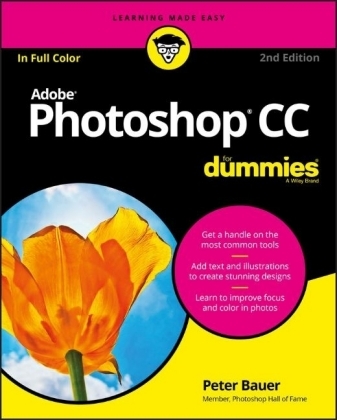
Adobe Photoshop CC For Dummies
For Dummies (Verlag)
978-1-119-41811-5 (ISBN)
- Titel erscheint in neuer Auflage
- Artikel merken

In Photoshop CC For Dummies, 2nd Edition you'll find clear explanations of the menus, panels, tools, options, and shortcuts you'll use the most. Plus, you'll discover invaluable tips for fixing common photo flaws, improving color quality, adjusting brightness, removing unwanted background elements, and more. Whether you want to improve how your family photos look or need to add a new skillset to your resume, this friendly guide gives you all the steps to navigating the software and getting top-notch results.
Get a handle on the most common tools
Improve focus and color in photos
Add text and illustrations to create stunning graphics
Find insider tips and tricks the pros use
The sky's the limit for stunning photos and innovative images when you have Photoshop CC For Dummies, 2nd Edition in your design toolbox!
Peter Bauer is highly respected Photoshop instructor and author. He has been honored with membership in the Photoshop Hall of Fame and was named a Pioneer of Photoshop by the National Association of Photoshop Professionals (now KelbyOne.com). He has written more than a dozen books on Photoshop, digital photography, and computer graphics.
Introduction 1
About This Book 1
Conventions Used in This Book 2
Icons Used in This Book 3
How to Use This Book 3
Part 1: Getting Started with Photoshop CC 5
Chapter 1: Welcome to Photoshop! 7
Exploring Adobe Photoshop 7
What Photoshop is designed to do 8
Other things you can do with Photoshop 9
Viewing Photoshop’s Parts and Processes 10
Reviewing basic computer operations 10
Launching Photoshop 10
Working with images 11
Saving your files 11
Keyboard shortcuts 12
Photoshop’s incredible selective Undo 12
Installing Photoshop: Need to know 14
Chapter 2: Knowing Just Enough about Digital Images 17
What Exactly is a Digital Image? 18
The True Nature of Pixels 18
How Many Pixels Can Dance on the Head of a Pin? 21
Resolution revelations 21
Resolving image resolution 22
Changing the size of your artwork with the
Image Size command 23
Picking an image resolution 28
File Formats: Which Do You Need? 30
Formats for digital photos 31
Formats for web graphics 33
Formats for commercial printing 34
Formats for PowerPoint and Word 35
Chapter 3: Taking the Chef’s Tour of Your Photoshop Kitchen 37
Food for Thought: How Things Work 38
Ordering from the menus 38
Your platter full of panels 39
The tools of your trade 42
Get Cookin’ with Customization 43
Clearing the table: Custom workspaces 44
Sugar and spice, shortcuts are nice 46
Spoons can’t chop: Creating tool presets 47
Season to Taste: The Photoshop Settings 48
Standing orders: Setting the Preferences 49
Preferences ➪ History Log 50
Preferences ➪ Tools 50
Preferences ➪ Interface and Preferences ➪ Workspace 50
Preferences ➪ File Handling 51
Preferences ➪ Performance 52
Preferences ➪ Scratch Disks 53
Preferences ➪ Cursors 53
Preferences ➪ Transparency & Gamut 54
Preferences ➪ Units & Rulers 54
Preferences ➪ Guides, Grid & Slices 54
Preferences ➪ Plug-Ins 55
Preferences ➪ Technology Previews 55
Ensuring consistency: Color Settings 55
When Good Programs Go Bad: Fixing Photoshop 57
Chapter 4: Getting Images into and out of Photoshop 59
Bringing Images into Photoshop 59
Downloading from your digital camera 60
Scanning prints 62
Determining scan resolution 63
Preventing moiré patterns 65
Keeping Your Images Organized 66
Creating a folder structure 66
Using Adobe Bridge 67
Renaming image files easily 70
Printing Your Images 71
Cropping to a specific aspect ratio 71
Remembering resolution 73
Controlling color using File ➪ Print 74
Considering color management solutions 75
Printing alternatives 76
Sharing Your Images 77
Creating PDFs and websites 78
Emailing your images 78
Chapter 5: What’s New in Photoshop CC? 79
Improvements and New Features 79
The new features you’re most likely to love 79
Additional new features 83
New to Camera Raw 85
More Sensei Coming Soon to Photoshop 87
What is Sensei? 87
The coolest capabilities 87
Part 2: Easy Enhancements for Digital Images 89
Chapter 6: Making Tonality and Color Look Natural 91
Adjusting Tonality to Make Your Images Pop 92
Histograms Simplified 92
Using Photoshop’s Auto Corrections 94
Levels and Curves and You 95
Level-headed you! 96
Tonal corrections with the eyedroppers 99
Adjusting your curves without dieting 100
Grabbing Even More Control 102
Using Shadow/Highlight 103
Changing exposure after the fact 106
Using Photoshop’s toning tools 106
What is Color in Photoshop? 107
Which color mode should you choose? 109
Does a color model make a difference? 111
Why should you worry about color depth? 112
Making Color Adjustments in Photoshop 114
Choosing color adjustment commands 116
Brightness/Contrast, Levels, Curves, Exposure 116
Vibrance 117
Hue/Saturation 117
Color Balance 118
Black & White 119
Photo Filter 120
Channel Mixer 120
Color Lookup 120
Invert 120
Posterize 121
Threshold 121
Gradient Map 122
Selective Color 123
Shadow/Highlight 123
HDR Toning 124
Desaturate 124
Match Color 124
Replace Color 126
Equalize 127
Manual corrections in individual channels 127
The People Factor: Flesh Tone Formulas 129
Chapter 7: The Adobe Camera Raw Plug-In 131
Understanding the Raw Facts 131
What’s the big deal about Raw? 133
Working in Raw 133
Working in the Camera Raw Plug-In 135
Tools and preview options 135
Before and After 136
Trash 136
Zoom, Hand, and White Balance 137
Color Sampler 137
Targeted Adjustment 137
Crop and Straighten 137
Transform 139
Spot Removal 139
Red Eye Reduction 140
Adjustment Brush 140
Graduated Filter 140
Camera Raw Preferences 141
The histogram 143
The preview area 143
Workflow Options and presets 144
The Basic panel 146
The Tone Curve panel 147
The Detail panel 149
HSL, grayscale, and split toning 150
Compensating with Lens Corrections 152
Adding special effects 153
Camera profiles, presets,
and snapshots 154
The Camera Raw buttons 155
Chapter 8: Fine-Tuning Your Fixes 157
What is a Selection? 158
Feathering and Anti-aliasing 160
Making Your Selections with Tools 162
Marquee selection tools 162
Lasso selection tools 166
The Quick Selection tool 167
The Magic Wand tool 167
Select and Mask 168
Your Selection Commands 170
The primary selection commands 170
The Color Range command 171
The Focus Area command 173
Selection modification commands 173
Transforming the shape of selections 174
Edit in Quick Mask mode 176
The mask-related selection commands 176
Masks: Not Just for Halloween Anymore 177
Saving and loading selections 177
Editing an alpha channel 178
Adding masks to layers and Smart Objects 179
Masking with vector paths 180
Adjustment Layers: Controlling Changes 180
Adding an adjustment layer 181
Limiting your adjustments 182
Chapter 9: Common Problems and Their Cures 185
Making People Prettier 186
Getting the red out digitally 186
The digital fountain of youth 187
Dieting digitally 189
De-glaring glasses 190
Whitening teeth 191
Reducing Noise in Your Images 191
Decreasing digital noise 191
Eliminating luminance noise 192
Fooling Around with Mother Nature 193
Removing the unwanted from photos 193
Eliminating the lean: Fixing perspective 197
Rotating images precisely 198
Part 3: Creating “Art” in Photoshop 201
Chapter 10: Combining Images 203
Compositing Images: 1 + 1 = 1 203
Understanding layers 204
Why you should use Smart Objects 206
Using the basic blending modes 207
Opacity, transparency, and layer masks 210
Creating clipping groups 211
Making composited elements look natural 212
Making Complex Selections 213
Vanishing Point 216
Creating Panoramas with Photomerge 219
Chapter 11: Precision Edges with Vector Paths 221
Pixels, Paths, and You 222
Easy Vectors: Using Shapes 223
Your basic shape tools 223
The Custom Shape tool 225
More custom shapes — free! 226
Changing the appearance of the shape layer 228
Simulating a multicolor shape layer 229
Using Your Pen Tool to Create Paths 231
Understanding paths 231
Clicking and dragging your way down the path of knowledge 232
A closer look at the Paths panel 235
Pick a path, any path 235
The Paths panel buttons 237
Customizing Any Path 239
Adding, deleting, and moving anchor points 239
Combining paths 241
Tweaking type for a custom font 242
Chapter 12: Dressing Up Images with Layer Styles 245
What are Layer Styles? 245
Using the Styles Panel 247
Creating Custom Layer Styles 249
Exploring the Layer Style menu 249
Exploring the Layer Style dialog box 251
Layer effects basics 252
Bevel and Emboss 253
Stroke 254
Inner Shadow 255
Inner Glow 255
Satin 256
Color Overlay 256
Gradient Overlay 257
Pattern Overlay 258
Outer Glow 258
Drop Shadow 260
Opacity, fill, and advanced blending 260
Saving Your Layer Styles 263
Adding styles to the Styles panel 264
Preserving your layer styles 264
Chapter 13: Giving Your Images a Text Message 267
Making a Word Worth a Thousand Pixels 268
A type tool for every season, or reason 270
What are all those options? 272
Taking control of your text with panels 275
The panel menus — even more options 279
Working with Styles 281
Putting a picture in your text 282
Creating Paragraphs with Type Containers 284
Selecting alignment or justification 286
Ready, BREAK! Hyphenating your text 287
Shaping Up Your Language with Warp Text and Type on a Path 287
Applying the predefined warps 288
Customizing the course with paths 289
Chapter 14: Painting in Photoshop 293
Discovering Photoshop’s Painting Tools 294
Painting with the Brush tool 296
Adding color with the Pencil tool 298
Removing color with the Eraser tool 299
Working with Panels and Selecting Colors 300
An overview of options 300
Creating and saving custom brush tips 303
Picking a color 303
Fine Art Painting with Specialty Brush Tips and the Mixer Brush 306
Exploring erodible brush tips 307
Introducing airbrush and watercolor tips 307
Mixing things up with the Mixer Brush 308
Filling, Stroking, Dumping, and Blending Colors 310
Deleting and dumping to add color 310
Using gradients 311
Chapter 15: Filters: The Fun Side of Photoshop 313
Smart Filters: Your Creative Insurance Policy 314
The Filters You Really Need 315
Sharpening to focus the eye 316
Unsharp Mask 316
Smart Sharpen 318
Shake Reduction 319
Blurring images and selections 320
The other Blur filters 323
Correcting for the vagaries of lenses 324
Cleaning up with Reduce Noise 328
Getting Creative and Artistic 329
Photo to painting with the Oil Paint filter 329
Working with the Filter Gallery 330
Push, Pull, and Twist with Liquify 332
Do I Need Those Other Filters? 335
Adding drama with Lighting Effects 335
Maximum and Minimum 336
Bending and bubbling 336
Creating clouds 337
Part 4: Power Photoshop 339
Chapter 16: Streamlining Your Work in Photoshop 341
Ready, Set, Action! 342
Recording your own Actions 343
Working with the Batch command 348
Find It Fast with Search 349
Creating Contact Sheets and Presentations 350
Creating a PDF presentation 350
Collecting thumbnails in a contact sheet 352
Scanning Multiple Photos in One Pass 354
Sticking to the Script 355
Chapter 17: Working with Video and Animation 357
Importing and Enhancing Video Clips 357
Getting video into Photoshop 358
Adjusting the length of video and audio clips 360
Adding adjustment layers and painting on video layers 361
Transitioning, titling, and adding special effects 362
Transforming video layers 364
Rendering and exporting video 365
Creating Animations in Photoshop 366
Building frame-based animations 366
Creating frame content 367
Tweening to create intermediary frames 368
Specifying frame rate 369
Optimizing and saving your animation 370
Part 5: The Part of Tens 371
Chapter 18: Ten Specialized Features of Photoshop CC 373
Using Smart Object Stack Modes 374
The Mean Stack Mode 376
Working with 3D Artwork 376
Creating 3D objects 377
Importing 3D objects 377
Rendering and saving 3D scenes 377
Measuring, Counting, and Analyzing Pixels 378
Measuring length, area, and more 378
Calculating with Vanishing Point 379
Counting crows or maybe avian flu 380
Chapter 19: Ten Reasons to Love Your Wacom Tablet 381
More Natural Movement 381
Health and Safety 382
Artistic Control 382
Extended Comfort 383
Gestures, Programmable ExpressKeys, Touch Rings, and Touch Strips 383
The Optimal Tablet 383
The Pen’s Switch 384
Setting Preferences 384
The Accessories 385
Cintiq for the Photoshop Pro 385
Chapter 20: Ten Things to Know about HDR 387
Understanding HDR 388
Capturing for Merge to HDR Pro 389
Preparing Raw “Exposures” in Camera Raw 390
Working with Merge to HDR Pro 391
Saving 32-Bit HDR Images 394
HDR Toning 394
Painting and the Color Picker in 32-Bit 395
Filters and Adjustments in 32-Bit 396
Selections and Editing in 32-Bit 396
Printing HDR Images 396
Appendix: Photoshop CC’s Blending Modes 399
Index 403
| Erscheinungsdatum | 30.01.2018 |
|---|---|
| Sprache | englisch |
| Maße | 183 x 229 mm |
| Gewicht | 748 g |
| Themenwelt | Informatik ► Grafik / Design ► Digitale Bildverarbeitung |
| Informatik ► Grafik / Design ► Photoshop | |
| Informatik ► Office Programme ► Outlook | |
| ISBN-10 | 1-119-41811-9 / 1119418119 |
| ISBN-13 | 978-1-119-41811-5 / 9781119418115 |
| Zustand | Neuware |
| Informationen gemäß Produktsicherheitsverordnung (GPSR) | |
| Haben Sie eine Frage zum Produkt? |
aus dem Bereich