Biomedical Image Analysis Recipes in MATLAB (eBook)
John Wiley & Sons (Verlag)
978-1-118-65744-7 (ISBN)
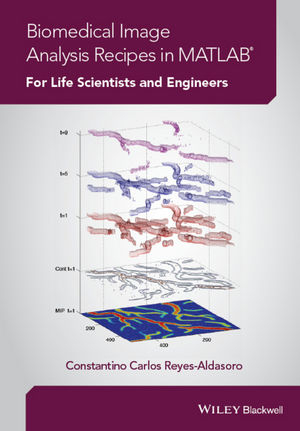
As its title suggests, this innovative book has been written for life scientists needing to analyse their data sets, and programmers, wanting a better understanding of the types of experimental images life scientists investigate on a regular basis. Each chapter presents one self-contained biomedical experiment to be analysed. Part I of the book presents its two basic ingredients: essential concepts of image analysis and Matlab. In Part II, algorithms and techniques are shown as series of "e;recipes"e; or solved examples that show how specific techniques are applied to a biomedical experiments like Western Blots, Histology, Scratch Wound Assays and Fluoresence. Each recipe begins with simple techniques that gradually advance in complexity. Part III presents some advanced techniques for the generation of publication quality figures. The book does not assume any computational or mathematical expertise. A practical, clearly-written introduction to biomedical image analysis that provides the tools for life scientists and engineers to use when solving problems in their own laboratories. Presents the basic concepts of MATLAB software and uses it throughout to show how it can execute flexible and powerful image analysis programs tailored to the specific needs of the problem. Within the context of four biomedical cases, it shows algorithms and techniques as series of "e;recipes"e;, or solved examples that show how a particular technique is applied in a specific experiment. Companion website containing example datasets, MATLAB files and figures from the book.
Constantino Carlos Reyes-Aldasoro (BSEE UNAM, Mexico, MSc Imperial College London, UK, PhD Warwick, UK) is an interdisciplinary scientist with skills that span from microscopy to image analysis of biomedical data sets to advanced computer programming. His teaching experience is also wide ranging from Engineering, Physics and Computing to Medicine and Radiology. His research concentrates on Biomedical Image Analysis of Cancer, Microcirculation and Inflammation. He has published numerous journal/conference papers in both Biological and Engineering fields, which have been cited in more than 500 publications. He is a senior member of the Institute of Electrical and Electronics Engineers and executive committee member of the British Association for Cancer Research.
Preface vii
Acknowledgements ix
About the Companion Website xi
1 The Basic Ingredients 1
1.1 The Matlab Environment 1
1.2 Introduction to Matlab 3
1.3 Operations with Matrices 7
1.4 Combining Matrices 10
1.5 Addressing a Matrix 13
1.6 Mathematical Functions and Graphical Display 17
1.7 Random Numbers 23
1.8 Statistics in Matlab 26
1.9 Displaying Two-Dimensional Matrices 29
1.10 Scripts Functions and Shortcuts 37
1.11 Using Help 43
2 Introduction to Images 45
2.1 An Image as a Matrix 45
2.2 Reading Images 46
2.3 Displaying Images 49
2.4 Colormap 54
2.5 Thresholding and Manipulating Values of Images 59
2.6 Converting Images into Doubles 68
2.7 Save Your Code and Data 69
3 Introduction to Colour 71
3.1 Mixing and Displaying Colours 71
4 Western Blots 79
4.1 Recipe 1: Many Ways to Display a Western Blot 80
4.2 Recipe 2: Investigating the Numbers That Make a Western Blot 93
4.3 Recipe 3: Image Histograms 97
4.4 Recipe 4: Transforming an Image of a Western Blot 104
4.5 Recipe 5: Quantification of the Data 111
4.6 Recipe 6: Investigating Position of Bands 121
5 Scratch Wound Assays 135
5.1 Analysis of Scratch Wound Assays 135
5.2 Recipe 1: Low Pass Filtering ScratchWound Assays in the Spatial Domain 139
5.3 Recipe 2: High Pass Filtering ScratchWound Assays in the Spatial Domain 143
5.4 Recipe 3: Combining Filters and Morphological Operations 154
5.5 Recipe 4: Sensitivy to Thresholds and Hysteresis Thresholding 161
5.6 Recipe 5: Morphological Operators 167
5.7 Recipe 6: Measuring Distances Between Cellular Boundaries 178
5.8 Recipe 7: Introduction to Fourier Analysis 187
5.9 Recipe 8: Filtering Scratch Wound Assays in the Fourier Domain 201
References 213
6 Bright Field Microscopy 215
6.1 Recipe 1: Changing the Brightness and Contrast of an Image 215
6.2 Recipe 2: Shading Correction: Estimation of Shading Component as a
Plane 224
6.3 Recipe 3: Estimation of Shading Component with Filters Morphological
Operators and Envelopes 235
6.4 Recipe 4: Mosaicking and Stitching 247
6.5 Recipe 5: Pixel Intensity and Histograms in Immunohistochemistry 261
6.6 Recipe 6: Hue-Saturation-Value 271
6.7 Recipe 7: Multidimensional Histograms 278
Reference 289
7 Fluorescence Microscopy 291
7.1 Recipe 1: Separating and Combining Colour Channels 294
7.2 Recipe 2: Investigating the Scaling of Values 298
7.3 Recipe 3: Automatic Threshold Selection 301
7.4 Recipe 4: Measuring Absolute and Relative Areas 304
7.5 Recipe 5: Counting Nuclei 305
7.6 Recipe 6: Quantification of Region Properties Beyond the Area 308
7.7 Recipe 7: Dividing an Image into Regions 310
7.8 Recipe 8: Batch Processing and Montages 316
7.9 Recipe 9: A Myriad of Measurements 327
References 341
8 Creating Publication-Quality Figures from Matlab 343
8.1 Recipe 1: Modifying the Characteristics of the Figures 344
8.2 Recipe 2: Numerous Plots in One Figure 352
8.3 Recipe 3: Three-Dimensional Ribbons with Different Annotations 362
8.4 Recipe 4: Three-Dimensional Graphics 378
8.5 Recipe 5: Projections 388
8.6 Recipe 6: Four-Dimensional Data Set Explored 391
Index 401
CHAPTER 1
The Basic Ingredients
1.1 The Matlab Environment
The word “Matlab” is an acronym for MATrix LABoratory. Matlab is a powerful technical computing environment and a high-level computer programming language, which provides core mathematics and advanced graphical tools for data analysis, visualisation, as well as algorithm and application development. Matlab is intuitive and easy to use, but it requires the use of command-line interface. That is, contrary to other image-analysis software products, which have interfaces and buttons, in Matlab the user needs to type commands to perform tasks. This may seem daunting for experienced users of graphical/text user interfaces. However, with a little practice the command-line becomes easy to use. Furthermore, graphical user interfaces can be created within Matlab. Many common functions, algorithms, matrix manipulation routines and plotting options are available in the main Matlab program or on one of the many toolboxes that accompany Matlab.
There are several ways to start Matlab: through the “Matlab Icon” on the Desktop, which appears on the Desktop of your computer after installation of Matlab, on Macs it should be under “Applications>Matlab” and on Windows in “Start>Programs”. The following figure shows the location of the icons in a Mac Operating System.
When you start Matlab, one or more windows will appear once the programme has been launched. These may include the ‘Desktop’, ‘Help Window’, and ‘m-file Editor’, as shown in the following figure. You can later configure which windows to launch with Matlab.
The main window is the ‘Desktop’, which is subdivided into several sections. The ‘Command Window’ is where the instructions or commands are written to perform a given task. The user will type the instructions in the ‘Command Window’. For example, we can add two numbers, 2 and 5, and store the result in the variable ‘a’ by typing the following in the ‘Command Window’:
a = 2 + 5 a = 7 To execute commands, the user must press the “enter” or “return” key after typing each command. It is possible to have one or more commands in a single line, which is sometimes called a line of instructions. After being executed, each line is stored in the ‘Command History’ window, together with the date when the command was written. This can be very useful for repeating commands that were typed in the past or for finding the commands that generated a certain result. The Command Window is the first place where commands are used, but if a complex task is needed, it may be better to store the commands in a file called an ‘m-file’, which can be saved, edited and debugged.
The ‘m-files’ are files of Matlab code that can be used as ‘scripts’ or ‘functions’. Scripts are files in which a series of commands are written. When the file is ‘run’, all the commands will be executed in the sequence in which they have been written. Functions are different; when a script is executed, any variable that exists already in Matlab may be used. Functions have no knowledge of anything that exists outside the function. In order for a function to know a certain value (stored in a variable), this variable has to be “passed” to the function as input values or ‘arguments’. In the same way, any variables that are created inside a script remain in the ‘workspace’ after the script is executed. With functions the opposite is true; all intermediate variables created inside a function are deleted once the function finishes its execution unless we specifically ‘pass’ out the variable as an output argument.
To edit the scripts or functions, Matlab provides an ‘m-file editor’, which is a special text editor that understands Matlab; it highlights the code in different colours so that it is easier to read, it highlights possible errors in the code and suggests improvements and it is very powerful to debug large functions. It even allows the creation of documents. This entire book has been written in the Matlab Editor.
When the commands assign values to variables, a list of variables is displayed on the ‘workspace’. Some characteristics of the variables such as their dimensions, value, class (‘double’, ‘single’, ‘char’, ‘cell’, etc.) are shown. To visualise the details of the variable or to modify some of the contents, a double-click on the variable will display it on the ‘Array Editor’. The ‘Help Window’ provides detailed information about Matlab, functions, editors and toolboxes. New windows can be used, for example when graphics are displayed as will be shown in the next section.
1.2 Introduction to Matlab
In MATLAB everything is a matrix. A matrix should be understood in the mathematical sense as defined by the Oxford English Dictionary: “A rectangular array of symbols or mathematical expressions arranged in rows and columns, treated as a single entity, and now usually written within round brackets” and not as any of the other definitions such as “the uterus of a mammal” or “the amorphous or fibrillar material that surrounds cells”. Table 1 in the preface shows some terms with extremely different meanings within the context of the Life Sciences and that of Mathematics and Engineering. Therefore, a single number can be understood as a matrix of dimensions 1 × 1, i.e. one row and one column. A pair of numbers can be understood as a matrix of dimensions 2 × 1 or 1 × 2. This notion of “matrix orientation” (horizontal or vertical) is a very important concept and will be very relevant once operations are performed. Four numbers can be the elements of matrices with dimensions 4 × 1, 1 × 4 or 2 × 2. It is not possible to leave “empty” spaces inside a matrix. For example it would not be possible to place three of the four elements in the first row and the remaining element in the second row. That matrix would automatically become a 2 × 3 matrix, that is two rows, three columns. The “empty” spaces in the second row would be filled with zeros.
The values of a matrix, that is, the matrix itself, can be assigned to a “variable”, which will store the values. The variable can be understood as the name by which the matrix will be known. The basic objective of saving matrices as variables is that they can later be used in conjunction with other variables. For example, to store the value of 5 in a matrix with the name ‘a’, the following code is typed in the Command Window after the prompt (>>):
a = 5 a = 5 After pressing enter, the value is stored, the workspace will show an entry for ‘a’ and Matlab will “echo” the answer to the command entered in the Command Window. In this case, the echo just repeats what was typed before, but it can be used to find the solution of an equation with more data. For instance:
b = 45 + 123 + a b = 173 Notice that we used the matrix ‘a’ as one of the values to be added and stored in the variable ‘b’. In this way, Matlab can be used as a simple calculator. If we are not interested in saving the result, there is no need to assign it to a variable. Matlab will store it in a temporary variable called ‘ans’ (short of answer).
The order of precedence in which the operations are carried out is the following: exponentiation, multiplication/division and then addition and subtraction. This order can be modified by using round brackets. The order is sometimes referred to with the acronyms “BODMAS” or “BIDMAS”, which stand for “Brackets, Order of, Division, Multiplication, Addition, Subtraction” and “Brackets, Indices (powers and roots), Division, Multiplication, Addition, Subtraction”. Therefore, the following instruction line:
1 + 2 * 3 ^ 4 ans = 163 is equivalent to:
1 + (2 * (3 ^...| Erscheint lt. Verlag | 22.4.2015 |
|---|---|
| Sprache | englisch |
| Themenwelt | Mathematik / Informatik ► Mathematik ► Computerprogramme / Computeralgebra |
| Medizin / Pharmazie ► Gesundheitsfachberufe | |
| Medizin / Pharmazie ► Medizinische Fachgebiete | |
| Naturwissenschaften ► Biologie | |
| Technik ► Umwelttechnik / Biotechnologie | |
| Schlagworte | Better • Bildgebende Verfahren i. d. Biomedizin • Bild- u. Videoverarbeitung • Bioinformatics & Computational Biology • Bioinformatik u. Computersimulationen in der Biowissenschaften • biomedical • biomedical engineering • Biomedical Imaging • Biomedizintechnik • Biowissenschaften • Book • Concepts • Data • Electrical & Electronics Engineering • Elektrotechnik u. Elektronik • Essential • Experiment • Experimental • Image • Image and Video Processing • images • ingredients • innovative book • investigate • Life • Life Sciences • life scientists • MATLAB • One • presents • regular basis • scientists • selfcontained • title suggests • Types |
| ISBN-10 | 1-118-65744-6 / 1118657446 |
| ISBN-13 | 978-1-118-65744-7 / 9781118657447 |
| Informationen gemäß Produktsicherheitsverordnung (GPSR) | |
| Haben Sie eine Frage zum Produkt? |
 EPUB (Adobe DRM)
Kopierschutz: Adobe-DRM
Adobe-DRM ist ein Kopierschutz, der das eBook vor Mißbrauch schützen soll. Dabei wird das eBook bereits beim Download auf Ihre persönliche Adobe-ID autorisiert. Lesen können Sie das eBook dann nur auf den Geräten, welche ebenfalls auf Ihre Adobe-ID registriert sind.
Details zum Adobe-DRM
Dateiformat: EPUB (Electronic Publication)
EPUB ist ein offener Standard für eBooks und eignet sich besonders zur Darstellung von Belletristik und Sachbüchern. Der Fließtext wird dynamisch an die Display- und Schriftgröße angepasst. Auch für mobile Lesegeräte ist EPUB daher gut geeignet.
Systemvoraussetzungen:
PC/Mac: Mit einem PC oder Mac können Sie dieses eBook lesen. Sie benötigen eine
eReader: Dieses eBook kann mit (fast) allen eBook-Readern gelesen werden. Mit dem amazon-Kindle ist es aber nicht kompatibel.
Smartphone/Tablet: Egal ob Apple oder Android, dieses eBook können Sie lesen. Sie benötigen eine
Geräteliste und zusätzliche Hinweise
Buying eBooks from abroad
For tax law reasons we can sell eBooks just within Germany and Switzerland. Regrettably we cannot fulfill eBook-orders from other countries.
aus dem Bereich