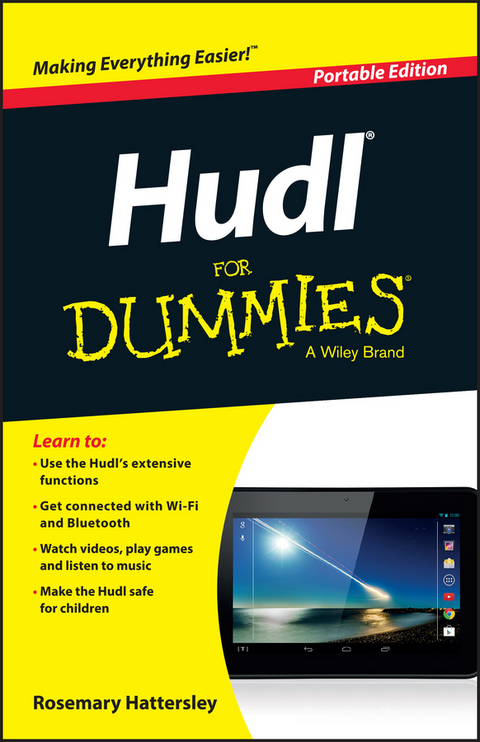
Hudl For Dummies (eBook)
John Wiley & Sons (Verlag)
9781118901052 (ISBN)
Hudl For Dummies is the indispensible guide to Tesco's highly successful Android tablet, With hands-on instruction tailored to the entry-level user, this book provides expert guidance in clear, concise language to help you get the most out of this great new device, Seasoned technology author Rosie Hattersley walks you through each step, from opening the box to setting up e-mail, accessing Blinkbox, shopping online and more, Even if you're a newcomer to tablet technology, this book will have you up and running in a flash!
By utilizing groundbreaking technology, it's no wonder analysts expect the Hudl to become the UK's leading tablet, While the device itself is intuitive, the Hudl's infinite possibilities can be a bit of a mystery to new users, Hudl For Dummies is the definitive guide to the device, helping you access the full capabilities of your new tablet,
- Gain a complete understanding of how to get up and running with the Tesco Hudl
- Download and launch apps with your new tablet to make it a workhorse or an entertainment system
- Discover how to access the Internet, e-mail, films, music and books
- Shop online with your new device and find out how to buy Hudl accessories
An entire chapter on troubleshooting allows you to bypass the repair shop for minor issues, and gives you the confidence to adjust settings and preferences without the worry of messing something up, Whether you're transitioning to the Hudl from another tablet, or are new to tablets entirely, Hudl For Dummies will take you from a new user to full-fledged Hudl devotee,
Rosemary Hattersley is a UK-based tech journalist who has written for Computeractive, PC Advisor, CNET and Macworld, among others, She is the co-author of iPad For the Older and Wiser, 3rd Edition,
The essential beginner's guide to the UK's most popular new tablet Hudl For Dummies is the indispensible guide to Tesco's highly successful Android tablet. With hands-on instruction tailored to the entry-level user, this book provides expert guidance in clear, concise language to help you get the most out of this great new device. Seasoned technology author Rosie Hattersley walks you through each step, from opening the box to setting up e-mail, accessing Blinkbox, shopping online and more. Even if you're a newcomer to tablet technology, this book will have you up and running in a flash! By utilizing groundbreaking technology, it's no wonder analysts expect the Hudl to become the UK's leading tablet. While the device itself is intuitive, the Hudl's infinite possibilities can be a bit of a mystery to new users. Hudl For Dummies is the definitive guide to the device, helping you access the full capabilities of your new tablet. Gain a complete understanding of how to get up and running with the Tesco Hudl Download and launch apps with your new tablet to make it a workhorse or an entertainment system Discover how to access the Internet, e-mail, films, music and books Shop online with your new device and find out how to buy Hudl accessories An entire chapter on troubleshooting allows you to bypass the repair shop for minor issues, and gives you the confidence to adjust settings and preferences without the worry of messing something up. Whether you're transitioning to the Hudl from another tablet, or are new to tablets entirely, Hudl For Dummies will take you from a new user to full-fledged Hudl devotee.
Rosemary Hattersley is a UK-based tech journalist who has written for Computeractive, PC Advisor, CNET and Macworld, among others. She is the co-author of iPad For the Older and Wiser, 3rd Edition.
Introduction 1
Chapter 1: Finding Your Way Around the Hudl 5
Chapter 2: Setting Up Your Hudl 17
Chapter 3: Exploring the Hudl 31
Chapter 4: Connecting the Hudl 53
Chapter 5: Staying in Touch 71
Chapter 6: Taking Photographs 91
Chapter 7: Watching TV and Films 111
Chapter 8: Listening to Music 123
Chapter 9: Discovering Books and Magazines 137
Chapter 10: Games and Entertainment 153
Chapter 11: Using Your Hudl to Get Organised 167
Chapter 12: Shopping on Your Hudl 183
Chapter 13: Ten Troubleshooting Tips 193
Chapter 14: Ten Ways to Customise Your Hudl 203
Index 213
Chapter 1
Finding Your Way Around the Hudl
In This Chapter
Exploring what’s in the Hudl box
Examining the controls
Charging and turning on the Hudl for the first time
You’re ready to dive in and start using your Hudl, but how to begin? In this chapter you take a look at its designs and controls so you know what to tap or press when.
Checking Out the Specs
The Hudl is a tablet computer that runs the Android mobile operating system. It has a high-resolution 7in touchscreen. Rather than using a keyboard to type what you want to do, you do most things on the Hudl by tapping its screen. Don’t worry — the Hudl’s screen is pretty resilient and made from scratch-resistant glass, so you won’t damage it by tapping it. Because it doesn’t have a separate keyboard, the Hudl is very light and small. It weighs just 320g and measures 194x128x11mm.
Hardware
The Hudl is powered by a quad-core processor and 1GB of RAM. You get 16GB of storage space, which is ample for storing photos, music, videos and books, but you can easily add more storage or copy items to your computer when you don’t need them on the Hudl.
Although the Hudl doesn’t have a keyboard in the traditional sense, it has an onscreen keyboard that pops up whenever it thinks you need to type something. You’ll soon get the hang of using this keyboard, as it’s pretty similar to any other keyboard, really, as you see in Chapter 3.
Software
The Android software includes tools known as apps that let you do many things that you might think you’d need a computer for. Accessing the Internet, sending email messages, watching videos, listening to music, having video chats with your nan — you can do all this on your Hudl without needing anything extra. The Hudl is so small and light that you can take it everywhere with you. And because the Hudl is Wi-Fi–enabled and knows where you are at all times, it can tell you things that are relevant to you and your current location.
Your Hudl can do lots of other clever things, too. For some of these things, you’ll need to install an app. You discover more about apps in Chapter 3.
Whenever I recommend installing an app, I let you know whether it costs anything and explain how to use it.
Unboxing Your Hudl
Your Hudl comes in a neat cardboard box with a cable and charger in separate cardboard compartments. The box also contains several bits of paper, which you may be tempted to simply ignore or perhaps throw away.
Those leaflets aren’t there to fill otherwise empty space, however. The ‘123’ leaflet (see Figure 1-1), for example, contains useful setup information. It lists the precautions you should take before sharing your Hudl with a child, and describes how to create a passcode to stop anyone else from using your device. It’s important to apply a screen lock if you’re going to share your Hudl with your children. I look at child-safety issues in detail in Chapter 3.
Figure 1-1: The leaflets inside the Hudl’s box contain important setup information.
The white-and-blue brochure is a discount booklet that includes a voucher for a year’s free broadband Internet access. You’ll need Internet access to make full use of your Hudl, so this voucher could come in very useful. The booklet also includes discounts on shopping and entertainment, so it’s well worth keeping hold of. You’ll be able to take advantage of all these discounts as soon as you’ve set up your Hudl with a user account and, if you want to, added your Tesco Clubcard details (see Chapter 2).
Getting to Know the Hudl’s Controls
When you first take your Hudl out the box, you’ll notice a sheet of transparent plastic on the screen pointing out the locations of some of the most important elements. You won’t be able to consult this overlay when you start using the Hudl, however, as it’ll get in the way of the touchscreen. The visual guide in Figure 1-2 should help.
Figure 1-2: Get to know the buttons and ports on your Hudl before you begin.
Most of the time, you’ll probably use your Hudl in landscape view, as shown in Figure 1-2. Landscape view refers to the Hudl being orientated so that it’s suitable for watching a film or TV programme, rather than scrolling up and down the pages of a book. Because the Hudl has a sensor inside, it knows which way is up, and the display rotates accordingly, so it doesn’t really matter which way round you hold it.
Nonetheless, the Hudl does have a definite top and a bottom. You can tell which is the top when you’re holding the Hudl in landscape view, because there’s a small dot in the middle of the black bezel along one long edge. This dot is actually the lens of the Hudl’s front camera, which also serves as a webcam for video calls.
If you hold the Hudl in both hands and bring it towards you, you’ll see your face reflected in the screen. The dot for the camera should correspond with your forehead.
The next things to notice are the two skinny buttons on the Hudl’s right edge (see Figure 1-3). These buttons are the only hardware buttons the Hudl has. Everything else is controlled via its touchscreen, as you see in Chapter 3. The top button is the power button. Gently press and hold it for a moment to turn the device on and off — a deliberate feature that stops you accidentally switching the Hudl on or off while it’s in your bag. If the Hudl is in standby mode, press the power button to make the screen switch on.
Figure 1-3: The only controls on the Hudl’s case are the power and volume buttons.
The button below the power button is much longer; it’s actually a rocker that adjusts the volume. Press the top portion of this button to make the volume louder, and press the bottom portion of this button to make it quieter. If you hold either part of this button down, the volume continues to increase or decrease, whereas pressing it once changes the volume by a fraction.
If you’ve got headphones plugged in and try to make the volume go all the way up to its maximum, a message appears onscreen, asking whether you really want it to be so loud. It’s a thoughtful touch to be asked whether you want to do something that might harm your hearing.
Storing things on your Hudl
Below the volume button on the right edge of the Hudl is a sizable recess, which is the micro-SD card slot. Your Hudl has 16GB (gigabytes) of storage already, but you can use a micro-SD card like the one shown in Figure 1-4 to add even more. The device can accept micro-SD cards that hold up to 32GB of storage, so you can store a total 48GB of ‘stuff’ on your Hudl — enough to store thousands of photos or dozens of Hollywood movies.
Figure 1-4: You can insert a micro-SD card like this one into the slot on the right edge of the Hudl.
You’ll probably want to use the micro-SD card slot if you’ve taken a set of photos on your digital camera or smartphone and want to transfer those photos to your Hudl quickly so you can view them on its beautiful screen.
Connecting and charging your Hudl
Moving to the bottom edge of the Hudl, you’ll find another slot midway along its length. This slot is the charging point for the Hudl. The cable that comes with your Hudl has a USB connector at one end and a smaller micro-USB connector at the other end (see Figure 1-5). Plug the USB-connector end into the port of the mains adapter when you want to charge your Hudl, and slot the micro-USB end of the cable into the port at the bottom of the Hudl, keeping the ridged side of the silver connector uppermost.
Figure 1-5: Make sure that you have the ridged side of the micro-USB connector uppermost when plugging it into the Hudl.
You can also use the micro-USB port on your Hudl to connect the Hudl to a laptop or computer or to a digital camera or external speakers. When connected to a laptop or computer using the micro-USB connection, your Hudl will charge, but it won’t draw as much power as when charging from the mains and will therefore charge very slowly.
Because your Hudl probably wasn’t fully charged when you took it out of the box, I suggest you set it to charge now while you find out more about what your new device can do.
Your Hudl should last for about nine hours before its battery needs to be recharged. The battery lasts longer if the Hudl isn’t being used intensively or if it spends time sitting in standby mode (see the nearby sidebar ‘Putting your Hudl on hold’). Recharging the Hudl from scratch takes around 2.5 hours.
The Hudl’s battery depletes faster if it’s constantly using the Internet to show videos and play music. The Wi-Fi connection uses battery power to transfer information from the Internet to the Hudl, and playing music and video makes the Hudl’s processor work hard. If you want to watch a high-definition film, it can be better to download it to your Hudl, rather than stream it over a Wi-Fi connection. I explain how to do this in Chapter...
| Erscheint lt. Verlag | 20.3.2014 |
|---|---|
| Sprache | englisch |
| Themenwelt | Informatik ► Weitere Themen ► Hardware |
| Informatik ► Weitere Themen ► Smartphones / Tablets | |
| Schlagworte | Allg. Hardware • Android Tablet • best-selling tablets UK • Blinkbox access • Blinkbox device • Blinkbox mobile • Blinkbox tablet • Computer Hardware (general) • Computer-Ratgeber • End-User Computing • guide to Hudl • Hudl accessories • Hudl apps • Hudl capabilities • Hudl email • Hudl features • Hudl For Dummies • Hudl help • Hudl manual • Hudl preferences • Hudl settings • Hudl setup • Hudl tech • Hudl troubleshooting • Hudl tutorial • Hudl user guide • popular tablets • popular UK tablets • Rosie Hattersley • setting up Hudl • Tablet • Tesco Blinkbox • Tesco electronics • Tesco Hudl • Tesco iPad • Tesco mobile • Tesco tablet • UK Android device • UK tablet |
| ISBN-13 | 9781118901052 / 9781118901052 |
| Informationen gemäß Produktsicherheitsverordnung (GPSR) | |
| Haben Sie eine Frage zum Produkt? |
 EPUB (Adobe DRM)
Kopierschutz: Adobe-DRM
Adobe-DRM ist ein Kopierschutz, der das eBook vor Mißbrauch schützen soll. Dabei wird das eBook bereits beim Download auf Ihre persönliche Adobe-ID autorisiert. Lesen können Sie das eBook dann nur auf den Geräten, welche ebenfalls auf Ihre Adobe-ID registriert sind.
Details zum Adobe-DRM
Dateiformat: EPUB (Electronic Publication)
EPUB ist ein offener Standard für eBooks und eignet sich besonders zur Darstellung von Belletristik und Sachbüchern. Der Fließtext wird dynamisch an die Display- und Schriftgröße angepasst. Auch für mobile Lesegeräte ist EPUB daher gut geeignet.
Systemvoraussetzungen:
PC/Mac: Mit einem PC oder Mac können Sie dieses eBook lesen. Sie benötigen eine
eReader: Dieses eBook kann mit (fast) allen eBook-Readern gelesen werden. Mit dem amazon-Kindle ist es aber nicht kompatibel.
Smartphone/Tablet: Egal ob Apple oder Android, dieses eBook können Sie lesen. Sie benötigen eine
Geräteliste und zusätzliche Hinweise
Buying eBooks from abroad
For tax law reasons we can sell eBooks just within Germany and Switzerland. Regrettably we cannot fulfill eBook-orders from other countries.
aus dem Bereich