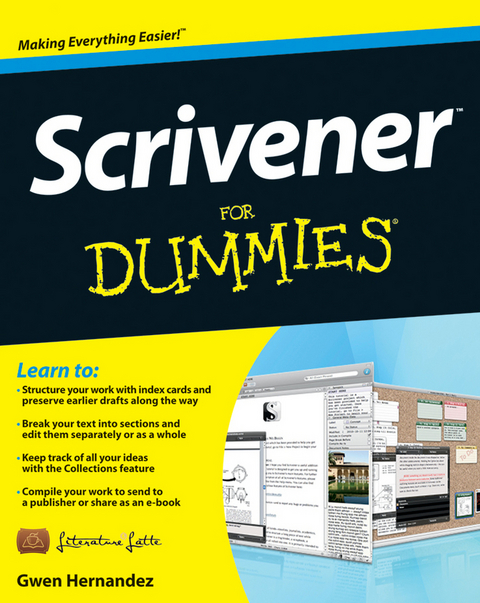
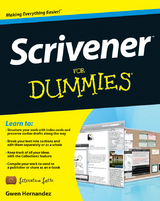
No matter what you want to write, Scrivener makes it easier,
Whether you're a planner, a seat-of-the-pants writer, or something in between, Scrivener provides tools for every stage of the writing process, Scrivener For Dummies walks you step-by-step through this popular writing software's best features, This friendly For Dummies guide starts with the basics, but even experienced scriveners will benefit from the helpful tips for getting more from their favourite writing software,
- Walks you through customizing project templates for your project needs
- Offers useful advice on compiling your project for print and e-book formats
- Helps you set up project and document targets and minimize distractions to keep you on track and on deadline
- Explains how to storyboard with the corkboard, create collections, and understand their value
- Shows you how to use automated backups to protect your hard work along the way
From idea inception to manuscript submission, Scrivener for Dummies makes it easier than ever to plan, write, organize, and revise your masterpiece in Scrivener,
Gwen Hernandez conducts online training courses in Scrivener, An aspiring romance author, she has worked as a programmer, a business school instructor, and a manufacturing engineer,
No matter what you want to write, Scrivener makes it easier. Whether you re a planner, a seat-of-the-pants writer, or something in between, Scrivener provides tools for every stage of the writing process. Scrivener For Dummies walks you step-by-step through this popular writing software s best features. This friendly For Dummies guide starts with the basics, but even experienced scriveners will benefit from the helpful tips for getting more from their favourite writing software. Walks you through customizing project templates for your project needs Offers useful advice on compiling your project for print and e-book formats Helps you set up project and document targets and minimize distractions to keep you on track and on deadline Explains how to storyboard with the corkboard, create collections, and understand their value Shows you how to use automated backups to protect your hard work along the way From idea inception to manuscript submission, Scrivener for Dummies makes it easier than ever to plan, write, organize, and revise your masterpiece in Scrivener.
Gwen Hernandez conducts online training courses in Scrivener. An aspiring romance author, she has worked as a programmer, a business school instructor, and a manufacturing engineer.
Introduction 1
Part I: Getting to Know Scrivener 7
Chapter 1: Getting Started in Scrivener 9
Chapter 2: Organizing Your Work with the Binder 21
Part II: Meeting the Inspector 43
Chapter 3: Working with the Synopsis 45
Chapter 4: Tracking Scene Elements with Metadata 51
Chapter 5: Working with Document Support Panes 67
Part III: Starting to Write 93
Chapter 6: Introducing the Editor: Where the Magic Happens 95
Chapter 7: Getting Rid of Distractions with Composition Mode 119
Chapter 8: Planning Your Project with the Corkboard 129
Chapter 9: Getting a High-Level View of Your Project with the Outliner 145
Chapter 10: Marking Up Your Text with Inline Annotations and Comments 159
Chapter 11: Citing Your Sources with Footnotes 171
Part IV: Getting Your Manuscript Out There 183
Chapter 12: Setting Up the Compile Options 185
Chapter 13: Exporting Your Project with Compile 227
Part V: Customizing Your Scrivener Experience 245
Chapter 14: Setting Word Count Goals and Checking Progress 247
Chapter 15: Saving Time with Custom Layouts and Project Templates 261
Chapter 16: Creating Useful Forms with Document Templates 277
Part VI: Getting the Most Out of Scrivener 285
Chapter 17: Searching High and Low 287
Chapter 18: Creating Collections for Quick Access to Related Files 305
Chapter 19: Saving Versions of Your Files with Snapshots 319
Chapter 20: Tracking Your Revisions 333
Chapter 21: Protecting Your Work with Automatic and Manual Backups 341
Part VII: The Part of Tens 349
Chapter 22: Ten Awesome Features That Didn't Fit Anywhere Else 351
Chapter 23: Ten Ways to Get More Help 359
Index 363
Introduction
If writing tools were teachers, your word processor would be the one who admonishes you to color within the lines and always use green for grass. Scrivener would be the cool teacher who encourages you to draw your own picture and praises your purple sun.
Don’t get me wrong: Word processors have their place. But although they provide the tools to make your manuscript look pretty, they force you to write in a linear fashion that just doesn’t match the way many writers work.
Scrivener, on the other hand, is so flexible, it could teach yoga. The program bends over backwards to accommodate your writing needs. Want to write the ending first? Go for it! Want to look only at scenes from one character or storyline? No problem.
Scrivener’s flexibility makes it powerful — but sometimes a bit overwhelming, which is where this book comes in. In these pages, you can figure out many of Scrivener’s jaw-dropping moves so that, before long, you too can bend like a pretzel in pursuit of writerly nirvana.
Conventions Used in This Book
This book is not a philosophical work on the theory and value of writing software. In my house, that kind of book would be a doorstop.
No, this book is a hands-on, get-to-work teacher on the page. So, to try out any of the actions described, you have to get your hands on the keyboard and mouse (or trackpad).
With that in mind, you need to have a few skills:
Clicking: You need to know how to click, double-click, and right-click with your mouse or trackpad. Right-clicking opens up a whole new world of contextual menus that apply to whatever you’re working on. Also called a secondary click, you can Control-click on the Mac if your mouse isn’t set up to right-click.
Drag and drop: You’ll be dragging things around a lot in this book — but I promise nothing heavy. Dragging is accomplished by clicking an object and holding the mouse button down while moving the pointer on the screen. You drop by letting go of the mouse button.
Don’t know how to drag with a trackpad? While hovering the pointer over the selected items, click the trackpad and hold it down while using another finger to drag the items where you want them to go. (I usually click with my thumb and drag with my index finger, but use whatever feels comfortable to you.)
To make reading easier, you’ll see some of the following conventions used throughout the book:
A keyboard shortcut is represented like this: ?+V. This text means that you press and hold the ? key and type the letter V, then release both keys.
Some keyboard shortcuts are combinations of more than two keys, such as Shift+?+S. For this one, press and hold Shift and ?, and then type the letter S. Then release all three keys.
Menu commands are written like Project⇒New Text, which tells you to click Project to open the Project menu and choose New Text from that menu.
Web addresses appear like www.literatureandlatte.com.
When I want to show you a message or text that appears in the editing portion of Scrivener, it looks like this: Bob didn’t know what to do next. Should he buy a gun or a beer?
When I’m directing you to type specific text, it appears in bold. For example, I might tell you to type Bob didn’t know what to do next.
Windows users, have no fear. Although Scrivener was originally created for the Mac — and at this time, the Mac version is still the most advanced — much of this book still applies to the Windows version, too.
For more on the key differences between Scrivener for Mac and Scrivener for Windows, check out Chapter 1.
What You’re Not to Read
Unless you really, really want to, you don’t have to read this book from cover to cover. Each section and chapter is designed as a freestanding module so that you can dip in anywhere and get right to work.
Foolish Assumptions
We all know what assumptions do, but in order to write this book, I had to make a few anyway. For starters, I assumed that you have some fundamental skills with your computer, such as turning it on, starting a program, using a mouse, and accessing and saving files.
In addition, I assumed you’ve at least used a word processor before — whether Microsoft Word, Corel WordPerfect, Apple Pages, or something else — so you have some familiarity with selecting text, basic formatting (such as font, font size, justification, and spacing), and keyboard use.
Not only that, but because this book is about a piece of writing software, I figured you write something. I know, dangerous, right? Really, I don’t care if it’s a 1,000-page futuristic mystery about flying snakes or weekly letters to your grandmother. It’s all writing. Academic papers, news articles, recipes, and diaries count, too.
Finally, I reasoned that you actually want to find out Scrivener’s secrets. Whether you’ve been playing with it for years without digging into what it can really do, or you just heard from a friend that Scrivener was the best thing to happen to writers since the ballpoint pen and you want to know what all of the fuss is about, there’s a reason you picked up this book.
When I use the word Scrivener, I’m referring to Scrivener 2 for Mac — and specifically for Mac OS X Lion — but much of the information I provide applies to the Windows version, as well. And if it doesn’t now, it will eventually. Those fabulous guys over at Literature & Latte are working like an army of ants to get the Windows version all caught up.
How This Book Is Organized
This book is organized into seven major parts that have two or more chapters each. The chapters are split up into even smaller sections. If you’re a complete Scrivener newbie, don’t worry, each section is written as a stand-alone piece that takes you step-by-step through the topic.
No need to read in order. You can jump right to the section about project templates without wading through corkboards and outlines, if you so desire. So, pick a topic, flip — literally or virtually — to the appropriate page, and try something new.
Part I: Getting to Know Scrivener
This part introduces Scrivener and its unique parts. You can find out how to create a new project, find your way around, and work with documents inside your project. Newbies: Start here!
Part II: Meeting the Inspector
This part walks you through the Scrivener Inspector pane’s many features, from the Synopsis, to metadata, to all those buttons at the bottom. You can get the scoop on notes, references, keywords, and snapshots.
Part III: Starting to Write
The chapters in this part deal with getting the words down on virtual paper. They cover the Editor, working in Split Screen mode, Composition (Full Screen) mode, the Corkboard, the Outliner, annotations, and footnotes.
Part IV: Getting Your Manuscript Out There
This part talks about exporting your work from Scrivener. Whether you just need to get a few chapters into Word or the whole book into EPUB format, this part’s for you.
Part V: Customizing Your Scrivener Experience
This part digs into some of the fun and cool features that really make Scrivener shine, such as tracking your progress, custom layouts, creating project templates, and document templates.
Part VI: Getting the Most Out of Scrivener
The chapters in this part introduce you to functions that can make your writing life easier: searching, creating collections, working with revisions, and backing up your work.
Part VII: The Part of Tens
This traditional final part of any For Dummies book contains chapters that introduce you to cool features that didn’t fit anywhere else and gives you ideas on how to find more Scrivener help.
Icons Used in This Book
Tips alert you to helpful information or timesaving shortcuts.
The Remember icon calls your attention to important ideas to keep in mind while performing a task.
This icon points out extra tidbits for your inner computer geek. Helpful, but not strictly necessary to know, you can skip these if they make your eyes cross.
I use the Warning icon sparingly, but when you see it, take notice. It calls your attention to potential pitfalls.
Where to Go From Here
Dig in! Unless you’re new to Scrivener — and even then — you don’t have to start at page one. I won’t be offended if you don’t read every word I wrote. Well, not too offended.
Go on. Peruse the Table of Contents or the handy index at the back of the book, and find a topic that interests you.
In need of a distraction-free desktop? Chapter 7 can help you find your Zen. Been dying to unravel the mystery of project templates? Investigate Chapter 15. Stumped by exporting and compiling? Part IV can enlighten you.
If, for some reason, you want to know more about me — or contact me — visit my website at www.gwenhernandez.com. I’d love to know what your favorite Scrivener feature is or how the program helped your writing process.
I hope you enjoy this book. If it helps you use Scrivener to support your unique approach to writing, then I’ve done my...
| Erscheint lt. Verlag | 30.7.2012 |
|---|---|
| Sprache | englisch |
| Themenwelt | Informatik ► Office Programme ► Outlook |
| Schlagworte | Computer-Ratgeber • End-User Computing • Scrivener, what is Scrivener, how to use Scrivener, guide to Scrivener, beginner guide on Scrivener, Scrivener for dummies, what does Scrivener do, help with writing documents, help with writing long documents, help with writing a first draft, help with composing documents, how to write a first draft • Textverarbeitung • Textverarbeitung (auÃer Microsoft) • Textverarbeitung (außer Microsoft) • Word Processors (Non-Microsoft) |
| ISBN-13 | 9781118312469 / 9781118312469 |
| Informationen gemäß Produktsicherheitsverordnung (GPSR) | |
| Haben Sie eine Frage zum Produkt? |
 EPUB (Adobe DRM)
Kopierschutz: Adobe-DRM
Adobe-DRM ist ein Kopierschutz, der das eBook vor Mißbrauch schützen soll. Dabei wird das eBook bereits beim Download auf Ihre persönliche Adobe-ID autorisiert. Lesen können Sie das eBook dann nur auf den Geräten, welche ebenfalls auf Ihre Adobe-ID registriert sind.
Details zum Adobe-DRM
Dateiformat: EPUB (Electronic Publication)
EPUB ist ein offener Standard für eBooks und eignet sich besonders zur Darstellung von Belletristik und Sachbüchern. Der Fließtext wird dynamisch an die Display- und Schriftgröße angepasst. Auch für mobile Lesegeräte ist EPUB daher gut geeignet.
Systemvoraussetzungen:
PC/Mac: Mit einem PC oder Mac können Sie dieses eBook lesen. Sie benötigen eine
eReader: Dieses eBook kann mit (fast) allen eBook-Readern gelesen werden. Mit dem amazon-Kindle ist es aber nicht kompatibel.
Smartphone/Tablet: Egal ob Apple oder Android, dieses eBook können Sie lesen. Sie benötigen eine
Geräteliste und zusätzliche Hinweise
Buying eBooks from abroad
For tax law reasons we can sell eBooks just within Germany and Switzerland. Regrettably we cannot fulfill eBook-orders from other countries.
aus dem Bereich