


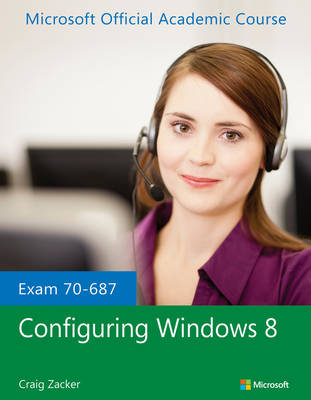
Exam 70-687 Configuring Windows 8
John Wiley & Sons Inc (Verlag)
978-1-118-51108-4 (ISBN)
- Titel erscheint in neuer Auflage
- Artikel merken
Install and Upgrade to Windows 8
Configure Hardware and Applications
Configure Network Connectivity
Configure Access to Resources
Configure Remote Access and Mobility
Monitor and Maintain Windows Clients
Configure Backup and Recovery Options
The MOAC IT Professional series is the Official from Microsoft, turn-key Workforce training program that leads to professional certification and was authored for college instructors and college students. MOAC gets instructors ready to teach and students ready for work by delivering essential resources in 5 key areas: Instructor readiness, student software, student assessment, instruction resources, and learning validation. With the Microsoft Official Academic course program, you are getting instructional support from Microsoft; materials that are accurate and make course delivery easy. Request your sample materials today.
The Microsoft Official Academic Course series is a complete program for instructors and institutions to prepare and deliver great courses on Microsoft software technologies. With MOAC, we recognize that, because of the rapid pace of change in the technology and curriculum developed by Microsoft, there is an ongoing set of needs beyond classroom instruction tools for an instructor to be ready to teach the course. MOAC endeavors to provide solutions for all these needs in a systematic manner in order to ensure a successful and rewarding course experience for both instructor and student—technical and curriculum training for instructor readiness with new software releases, the software itself for student use at home for building hands-on skills, assessment and validation of skill development, and a great set of tools for delivering instruction in the classroom and lab. All are important to the smooth delivery of an interesting course on Microsoft software, and all are provided with the Microsoft Official Academic Course program.
Lesson 1: Evaluating Hardware Readiness and Capability 1
Introducing Windows 8 2
Using the Start Screen 2
Using the Windows Desktop 7
Accessing Configuration Settings 8
Introducing Windows 8 Editions 10
Understanding Windows 8 System Requirements 12
Selecting Installation Options 13
Will the Hardware Support the New Operating System? 13
Will the New Operating System Support the Existing Applications? 14
Which Windows 8 Edition Should I Install? 14
Which Processor Platform Should I Use? 15
Should I Perform an Upgrade or a Clean Installation? 15
Do I Have to Install Multiple Languages? 16
Running Windows 8 Upgrade Assistant 17
Identifying Upgrade Paths 20
Upgrading Windows 8 Editions 20
Upgrading from Windows 7 21
Upgrading from Earlier Windows Versions 22
Skill Summary 22
Knowledge Assessment 23
Business Case Scenarios 26
Lesson 2: Installing Windows 8 27
Understanding the Windows 8 Boot Environment 28
Introducing Windows PE 29
What’s New in Windows PE 30
Understanding Windows PE Limitations 30
Using Windows PE 31
Understanding the Windows 8 Startup Process 32
Performing a Clean Installation 33
Installing Third-Party Device Drivers 40
Working with Installation Partitions 41
Installing to a VHD 42
Upgrading to Windows 8 43
Preparing to Upgrade 43
Upgrading from Windows 7 to Windows 8 45
Upgrading Windows 8 Editions 46
Migrating from Windows XP or Windows Vista 47
Installing Windows To Go 48
Skill Summary 52
Knowledge Assessment 52
Business Case Scenarios 55
Lesson 3: Migrating and Configuring User Data 56
Configuring User Profiles 57
Using Roaming Profiles 58
Using Mandatory User Profiles 59
Managing Profile Compatibility 59
Migrating User Profiles 60
Using Windows Easy Transfer 61
Using the User State Migration Tool 73
Configuring Folder Redirection 73
Skill Summary 76
Knowledge Assessment 76
Business Case Scenario 79
Lesson 4: Working with Disks and Devices 80
Working with Devices and Drivers 80
Understanding Device Drivers 81
Working with Devices 88
Using Device Manager 90
Skill Summary 97
Knowledge Assessment 98
Business Case Scenario 100
Lesson 5: Installing and Configuring Desktop Applications 101
Configuring Program Defaults 102
Setting Default Programs 102
Modifying File Associations 104
Modifying Autoplay Settings 106
Setting Program Access Defaults 106
Using Windows Installer 107
Configuring Application Compatibility 108
Troubleshooting Program Compatibility 109
Setting Compatibility Modes 110
Configuring Application Compatibility Policies 111
Virtualizing Applications Using App-V 113
Skill Summary 116
Knowledge Assessment 116
Business Case Scenario 119
Lesson 6: Installing and Configuring Windows Store Applications 120
Installing and Configuring Windows Store Apps 121
Installing, Reinstalling, and Updating Windows Store Apps 121
Restricting Access to the Windows Store Content 128
Adding Internal Content (Side Loading) 131
Disabling the Windows Store 132
Skill Summary 135
Knowledge Assessment 136
Business Case Scenarios 139
Lesson 7: Controlling Access to Local Hardware and Applications 140
Configuring Hardware Restrictions 140
Controlling Device Installation 141
Controlling Removable Storage Access 142
Configuring Application Restrictions 144
Using Software Restriction Policies 144
Using AppLocker 147
Skill Summary 151
Knowledge Assessment 152
Business Case Scenario 153
Lesson 8: Configuring Internet Explorer 154
Administering Internet Explorer 155
Configuring Internet Explorer 156
Introducing WebSockets 172
Securing Internet Explorer 172
Understanding Protected Mode 172
Configuring Security Zones 176
Configuring the SmartScreen Filter 179
Using InPrivate Mode 180
Browsing with Certificates 182
Skill Summary 185
Knowledge Assessment 185
Business Case Scenarios 189
Lesson 9: Configuring Client Hyper-V 190
Installing Client Hyper-V and Configuring Virtual Machine 191
Installing Client Hyper-V 191
Exploring Hyper-V Manager 195
Creating a Virtual Machine Using Hyper-V Manager 196
Configuring Virtual Machine Settings 197
Managing Snapshots 200
Working with Virtual Switches 203
Creating Virtual Hard Disks 206
Understanding Virtual Hard Disk Formats 206
Managing and Configuring Virtual Hard Disks 208
Skill Summary 209
Knowledge Assessment 210
Business Case Scenarios 212
Lesson 10: Configuring IP Settings 213
Networking Basics 214
The Physical Layer 215
The Data-Link Layer 215
The Network Layer 216
The Transport Layer 224
The Upper Layers 227
Connecting to a Network 228
Installing Network Support 229
Using the Network and Sharing Center 231
Managing Network Connections 235
Using TCP/IP Tools 241
Using Ipconfig.exe 242
Using Ping.exe 243
Using Tracert.exe 244
Using Nslookup.exe 245
Using Netstat.exe 246
Skill Summary 248
Knowledge Assessment 249
Business Case Scenarios 252
Lesson 11: Configuring Network Settings 253
Configuring Network Settings 254
Connecting to Wireless Networks 254
Managing Preferred Wireless Networks 258
Prioritizing Networks in Windows 8 258
Removing Wireless Networks/Profiles 260
Configuring Network Adapters 261
Configuring Location-Aware Printing 265
Skill Summary 267
Knowledge Assessment 268
Business Case Scenarios 272
Lesson 12: Configuring and Maintaining Network Security 273
Defending Against Malware 274
Using Windows 8 Action Center 275
Using Windows Firewall 277
Introducing Windows Defender 289
Using the Malicious Software Removal Tool 292
Understanding Wireless Security 293
Evaluating Wireless Networking Hardware 293
Using Wired Equivalent Privacy 294
Selecting an Authentication Method 295
Using Wi-Fi Protected Access 295
Skill Summary 296
Knowledge Assessment 297
Business Case Scenarios 300
Lesson 13: Configuring Remote Management 301
Using Remote Access Technologies 301
Using Microsoft Management Console 302
Using Remote Assistance 303
Using Remote Desktop 307
Using Windows Remote Management 311
Skill Summary 315
Knowledge Assessment 315
Business Case Scenario 319
Lesson 14: Configuring Shared Resources 320
Sharing Files and Folders 321
Understanding Folder Sharing in Windows 8 321
Sharing with Homegroups 322
Using Libraries 323
Creating a Homegroup 326
Joining a Homegroup 329
Working with Homegroups 331
Sharing the Public Folder 332
Sharing a Folder 333
Managing Share Permissions 335
Combining Share and NTFS Permissions 337
Using SkyDrive 337
Configuring Near Field Communication (NFC) 340
Working with Printers 341
Understanding the Windows Print Architecture 341
Sharing a Printer 348
Configuring Printer Security 350
Accessing a Shared Printer 352
Managing Documents 353
Managing Printers 355
Skill Summary 358
Knowledge Assessment 358
Business Case Scenarios 362
Lesson 15: Configuring File and Folder Access 363
Managing Permissions 364
Understanding the Windows Permission Architecture 364
Managing NTFS Permissions 370
Using the Encrypting File System 380
Encrypting a Folder with EFS 381
Determining Whether a File or Folder is Encrypted 382
Configuring Disk Quotas 383
Configuring Object Access Auditing 384
Skill Summary 390
Knowledge Assessment 390
Business Case Scenarios 394
Lesson 16: Configuring Local Security Settings 395
Configuring Security for Windows 8 395
Configuring Local Security Policies 396
Understanding User Account Control (UAC) 399
Configuring User Account Control 401
Configuring SmartScreen Filters 406
Configuring Secure Boot 409
Skill Summary 411
Knowledge Assessment 412
Business Case Scenarios 415
Lesson 17: Configuring Authentication and Authorization 416
Working with Users and Groups 417
Understanding Local and Domain Users 418
Understanding Local and Domain Groups 422
Creating and Managing Local Users and Groups 425
Using the User Accounts Control Settings 426
Using the Local Users and Groups Snap-in 435
Working with Domain Users and Groups 441
Authenticating and Authorizing Users 441
Working with Passwords 442
Using PIN and Picture Passwords 450
Using Smart Cards 452
Managing Certificates 453
Using Biometrics 455
Elevating Privileges 455
Troubleshooting Authentication Issues 456
Authorizing Users 456
Skill Summary 458
Knowledge Assessment 458
Business Case Scenarios 462
Lesson 18: Configuring Remote Connections 463
Using BranchCache 464
Understanding Network Infrastructure Requirements 464
Understanding BranchCache Communications 465
Understanding Content Information Versions 466
Configuring BranchCache Settings 467
Using Remote Network Connections 470
Understanding Virtual Private Networking 471
Authenticating Remote Users 473
Creating a VPN Connection 474
Creating a Broadband Connection 478
Using Remote Desktop 480
Using DirectAccess 481
Skill Summary 486
Knowledge Assessment 486
Business Case Scenario 488
Lesson 19: Configuring Mobility Options 489
Using Windows Mobility Controls 489
Opening Windows Mobility Center 490
Configuring Mobile Display Options 491
Configuring Presentation Settings 497
Configuring Power Options 498
Synchronizing Data 504
Using Wi-Fi Direct 512
Configuring Windows To Go 512
Skill Summary 513
Knowledge Assessment 513
Business Case Scenarios 516
Lesson 20: Configuring Security for Mobile Devices 517
Securing Your Mobile Devices 518
Configuring BitLocker 518
Understanding BitLocker Requirements 519
Enabling BitLocker on Operating System Drives 520
Configuring BitLocker To Go 525
Using Data Recovery Agents 528
Configuring Remote Wipe 531
Using Windows Intune to Perform Remote Wipes 533
Managing Location Settings 533
Using Windows Location Provider (PLP) 533
Using Personally Identifiable Information (PII) 535
Skill Summary 537
Knowledge Assessment 537
Business Case Scenarios 540
Lesson 21: Configuring and Managing Updates 541
Configuring Update Settings 542
Checking for Updates 542
Changing Update Settings 544
Hiding and Restoring Updates 546
Configuring Windows Update Policies 547
Configuring Local Computer Policies and Microsoft Domain Group Policies to Manage Updates 548
Managing Update History 555
Viewing Update History 555
Rolling Back Updates 556
Updating Windows Store Applications 557
Skill Summary 559
Knowledge Assessment 559
Business Case Scenarios 562
Lesson 22: Managing Local Storage 563
Working with Disks 564
Understanding Partition Styles 564
Understanding Disk Types 566
Understanding Volume Types 567
Understanding File Systems 568
Using the Disk Management Snap-in 568
Using Storage Spaces 582
Using Diskpart.exe 587
Using Disk Tools 587
Skill Summary 591
Knowledge Assessment 591
Business Case Scenarios 595
Lesson 23: Monitoring System Performance 596
Monitoring and Diagnosing Performance 597
Using Event Viewer 598
The Comprehensive List of Performance Tools 608
Using the Performance Monitor Console 609
Using Reliability Monitor 617
Managing Performance 619
Working with Processes 619
Using Task Manager 620
Using Resource Monitor 625
Viewing Advanced System Details in System Information 628
Viewing System Configuration Details 628
Adjusting Performance Settings 629
Configuring Index Settings 630
Modifying Power Settings 632
Troubleshooting Windows 8 632
Using the Windows Memory Diagnostic Tool 633
Using the Windows Network Diagnostic Tool 633
Viewing Problem Reports 634
Skill Summary 635
Knowledge Assessment 636
Business Case Scenarios 639
Lesson 24: Configuring Backup 641
Configuring Data Protection 641
Using Windows 7 File Recovery 642
Creating a Windows 8 Recovery Drive 655
Skill Summary 657
Knowledge Assessment 658
Business Case Scenario 660
Lesson 25: Configuring System Recovery Options 661
Performing System Recovery of Windows 8 662
Understanding the Windows 8 Startup Process 662
Troubleshooting Startup Failures 663
Configuring System Restore Points 665
Using the Last Known Good Configuration 667
Performing a Complete Restore 669
Performing Driver Rollbacks 674
Exploring PC Refresh and PC Reset 675
Skill Summary 677
Knowledge Assessment 678
Business Case Scenarios 682
Lesson 26: Configuring File Recovery Options 683
Overview of Windows 8 File Recovery Options 683
Configure File History 684
Restoring Files and Folders 688
Configuring File Restore Points 690
Skill Summary 692
Knowledge Assessment 693
Business Case Scenarios 694
Appendix A 695
Index 696
| Verlagsort | New York |
|---|---|
| Sprache | englisch |
| Maße | 214 x 274 mm |
| Gewicht | 1338 g |
| Themenwelt | Informatik ► Betriebssysteme / Server ► Windows |
| Informatik ► Weitere Themen ► Hardware | |
| ISBN-10 | 1-118-51108-5 / 1118511085 |
| ISBN-13 | 978-1-118-51108-4 / 9781118511084 |
| Zustand | Neuware |
| Informationen gemäß Produktsicherheitsverordnung (GPSR) | |
| Haben Sie eine Frage zum Produkt? |
aus dem Bereich


