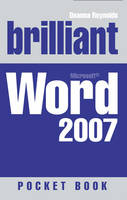
Brilliant Word 2007 Pocketbook
Prentice Hall (Verlag)
978-0-13-205970-1 (ISBN)
- Titel ist leider vergriffen;
keine Neuauflage - Artikel merken
This succinct yet comprehensive guide will help you create documents more efficiently using the new results-oriented interface. Short, easy-to-follow tutorials help the reader to instantly grasp the essential functions of Word, including using styles and templates to create great looking documents. You can also learn to use Groove and SharePoint team services to share Web-based documents and information. Keenly priced and with an attractive two-colour text design and in a handy pocket or bag-sized format, these books will be an indispensable guide for anyone who wants to improve or master their abilities without buying a bulky or expensive manual. The Windows Vista and Office 2007 Pocket books have entirely new, and substantially more content than the previous editions, which makes then even better value at just GBP8.99. With their bold new jacket designs they will stand out on any shelf.
Joli Balew is a professional writer, technology trainer, network consultant, and a Microsoft Windows Expert Zone Columnist. Some of her previous jobs include technical writing, education content consulting, PC technician, network administrator, high school algebra teacher, and MCSE instructor. She earned her MCSE, MCT and A+ certifications in less than 14 months. She is the author of Windows XP Professional: The Ultimate User's Guide and over 20 other technical books.
Introduction Chapter 1: Familiarising Yourself with Word Opening Word Using the Word Ribbon Default Ribbon Tabs Changing Your View Using the Document Display Zooming in on Your Document Using the Document Map Comparing Documents Side by Side Saving Documents and Closing Word Summary Chapter 2: Customising Word Customising Word's Appearance Customise How Word Looks Customise How Word Acts Customising the Quick Access Toolbar Advanced Customisation Summary Chapter 3: Getting Started with Word Documents Starting and Opening Word Documents Starting a New Document Opening an Existing Document Adding Text to Your Documents Saving and Closing Documents Summary Chapter 4: Editing Your Documents Adding and Replacing Text Navigating Your Document Navigating Using the Mouse Navigating Using the Keyboard Selecting Text Selecting Text Using the Mouse Selecting Text Using the Keyboard Selecting Text Using the Keyboard and the Mouse Together Deleting Text Copying, Cutting, and Pasting Text Using the Clipboard Moving Text Between Documents Summary Chapter 5: Adding Visual Appeal to Your Documents Working with Fonts Selecting Fonts Setting the Default Font Working with Quick Styles Selecting a Quick Style Creating and Saving Styles Working with Text Alignment Summary Chapter 6: Adding Borders and Colour Adding and Changing Borders Changing Font Colours Changing Background Colours Adding Cover Pages Adding Watermarks Summary Chapter 7: Using Proofreading Tools Spell Check and AutoCorrect Working with the Custom Dictionary Customising the AutoCorrect List Proofing as You Type Using Grammar Check Using Find and Replace Word Counts, Page Counts and Character Counts Using the Thesaurus Using Microsoft's Research Services Summary Chapter 8: Creating Your Page Layout Changing Page Orientation Setting Margins and Tabs Margins Tabs Working with Indents Adding Page Breaks Changing Document Spacing Summary Chapter 9: Using AutoFormatting p; Understanding AutoFormatting Applying AutoFormatting Changing AutoFormatting Options Customising Theme Colours Customising Theme Fonts Customising Themes Summary Chapter 10: Using AutoText and Special Characters Understanding AutoText Creating AutoText Entries Inserting AutoText Entries Changing AutoText Entries Deleting AutoText Entries Using Symbols Using Special Characters Inserting Equations Summary Chapter 11: Using Tables and Columns Understanding Tables Working with Table Contextual Tabs Creating Tables Creating a Quick Table Creating a Table Using Drag and Drop Inserting a Microsoft Excel Table Working with Data in Tables Modifying Table Layout Formatting Tables and Cells Adding a Formula to a Table Understanding Columns Creating Columns Changing and Editing Columns Summary Chapter 12: Working with Numbered, Bulleted and Multilevel Lists Understanding Lists Creating Lists Changing Lists Using Multilevel Lists Summary Chapter 13: Adding Graphics to Your Document Inserting ClipArt and Pictures Inserting ClipArt Inserting Pictures Adding a Caption Using SmartArt About SmartArt Types Adding Text to a SmartArt Graphic Formatting a SmartArt Graphic Adding Charts Using WordArt Changing the Appearance of Graphics Design Format Layout Summary Chapter 14: Using Building Blocks and Quick Parts Understanding Building Blocks and Quick Parts Creating Quick Parts Adding Quick Parts to Your Document Changing Quick Parts Sharing Quick Parts with Others Summary Chapter 15: Adding Headers, Footers and Other References Using Headers and Footers Odd and Even Headers and Footers Adding Page Numbers Adding Endnotes and Footnotes Inserting Citations Summary Chapter 16: Using Links in Your Documents Adding Hyperlinks Linking to Bookmarks Cross-referencing Your Document Summary Chapter 17: Creating Mass Mailings Understanding Mail Merge Preparing Variable Data Preparing the Main Document Inserting Merge Fields Merging Documents For Print For Email Creating Envelopes and Mailing Labels Summary Chapter 18: Working Effectively with Long Documents Adding Document Sections Creating and Modifying a Table of Contents Creating and Modifying an Index Creating and Modifying a Table of Authorities Creating and Modifying a Table of Figures Summary Chapter 19: Printing Your Documents Sending Your Documents to the Printer Changing Your Print Settings Previewing Your Print Job Packaging Your Document for Outside Printing Summary Chapter 20: Creating Documents for the Web Creating a Web Document Modifying a Web Document Summary
| Erscheint lt. Verlag | 2.8.2007 |
|---|---|
| Verlagsort | Upper Saddle River |
| Sprache | englisch |
| Maße | 141 x 216 mm |
| Gewicht | 400 g |
| Themenwelt | Informatik ► Office Programme ► Word |
| ISBN-10 | 0-13-205970-3 / 0132059703 |
| ISBN-13 | 978-0-13-205970-1 / 9780132059701 |
| Zustand | Neuware |
| Informationen gemäß Produktsicherheitsverordnung (GPSR) | |
| Haben Sie eine Frage zum Produkt? |
aus dem Bereich