


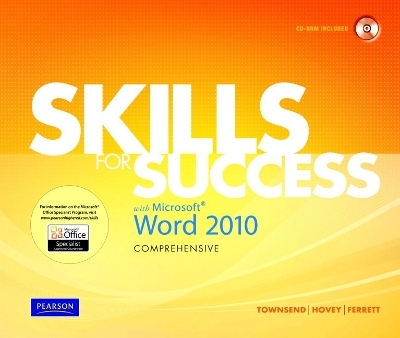
Skills for Success with Microsoft Word 2010, Comprehensive
Pearson
978-0-13-508830-2 (ISBN)
- Titel ist leider vergriffen;
keine Neuauflage - Artikel merken
Microsoft Office 2010 is here! And this new release is aimed at making users more productive and efficient than ever.
Master the SKILLS of Word 2010 with Kris Townsend's Skills for Success with Word 2010 Comprehensive.
Highly visual with bulleted, step-by-step instruction to give you the skills you need to succeed with all the features and components of Word 2010.
Kris Townsend is an Information Systems instructor at Spokane Falls Community College in Spokane, Washington. Kris earned a bachelor's degree in both Education and Business, and a master's degre in Education. He has also worked as a public school teacher and as a systems analyst. Kris enjoys working with wood, snowboarding, and camping. He commutes to work by bike and enjoys long rides in the Palouse country south of Spokane. Christine Jahn Hovey is a Professor of Business & Technologies at Lincoln Land Community College in Springfield, Illinois. Christie has a bachelor's degree in Education from Illinois State University, a master's degree in Education/Human Resource Development from the University of Illinois at Urbana-Champaign, and is A.B.D. in Community College Leadership, at the University of Illinois at Urbana-Champaign. She has taught high school and was a corporate training consultant for Fortune 500 companies, as well as for state government and numerous small businesses. Robert L. Ferrett recently retired as the Director of the Center for Instructional Computing at Eastern Michigan University, where he provided computer training and support to faculty. He has authored or co-authored more than 70 books on Access, PowerPoint, Excel, Publisher, WordPerfect, Windows, and Word. He has been designing, developing, and delivering computer workshops for more than two decades.
Start! Common Features of Office 2010
1 Start Word and Navigate the Word Window
2 Start Excel and PowerPoint and Work with Multiple Windows
3 Save Files in New Folders
4 Print and Save Documents
5 Open Student Data Files and Save Copies Using Save As
6 Type and Edit Text
7 Cut, Copy, and Paste Text
8 Format Text and Paragraphs
9 Use the Ribbon
10 Use Shortcut Menus and Dialog Boxes
More Skills
11 Capture Screens with the Snipping Tool
12 Use Microsoft Office Help
13 Organize Files
14 Save Documents to Windows Live SkyDriveChapter 1: Create Documents with Word 2010
1 Create New Documents and Enter Text
2 Edit Text and Use Keyboard Shortcuts
3 Select Text
4 Insert Text from Other Documents
5 Change Fonts, Font Sizes, and Font Styles
6 Insert and Work with Graphics
7 Check Spelling and Grammar
8 Use the Thesaurus and Set Proofing Options
9 Create Document Footers
10 Work with the Print Page and Save Documents in Other Formats
More Skills
11 Split and Arrange Windows
12 Insert Symbols
13 Use Collect and Paste to Create Documents
14 Insert Screenshots into Documents
Chapter 2: Format and Organize Text
1 Set Document Margins
2 Align Text and Set Indents
3 Modify Line and Paragraph Spacing
4 Format Text Using Format Painter
5 Find and Replace Text
6 Create Bulleted and Numbered Lists
7 Insert and Format Headers and Footers
8 Insert and Modify Footnotes
9 Add Citations
10 Create Bibliographies
More Skills
11 Record AutoCorrect Entries
12 Use AutoFormat to Create Numbered Lists
13 Format and Customize Lists
14 Manage Document Properties
Chapter 3: Word with Graphics, Tabs, and Tables
1 Insert Pictures from Files
2 Resize and Move Pictures
3 Format Pictures Using Styles and Artistic Effects
4 Set Tab Stops
5 Enter Text with Tab Stops
6 Apply Table Styles
7 Create Tables
8 Add Rows and Columns to Tables
9 Format Text in Table Cells
10 Format Tables
More Skills
11 Insert Text Boxes
12 Format with Text Effects
13 Create Tables from Existing Lists
14 Insert Drop Caps
Chapter 4: Apply Special Text, Paragraph, and Document Formats
1 Create Multiple-Column Text
2 Insert a Column Break
3 Apply and Format Text Effects
4 Use and Create Quick Styles
5 Add Borders and Shading to Paragraphs and Pages
6 Insert and Format Clip Art Graphics
7 Insert SmartArt Graphics
8 Format SmartArt Graphics
9 Create Labels Using Mail Merge
10 Preview and Print Mail Merge Documents
More Skills
11 Create a Resume from a Template More
12 Create Outlines More
13 Prepare Documents for Distribution More
14 Preview and Save Documents as Web Pages
Chapter 5: Apply Advanced Formatting and Layout Settings
1 Insert Symbols
2 Use OpenType Features
3 Insert Continuous Section Breaks and Apply Custom Margins
4 Create Horizontal Lines, Use Paste Options, and Highlight Text
5 Modify Tab Settings Using the Ruler
6 Remove Backgrounds from Pictures and Modify Text-Wrap Points
7 Create Quick Parts
8 Modify and Insert Quick Parts
9 Insert Formulas into Tables
10 Update Table Formulas
More Skills
11 Draw Tables and Convert Tables to Text
12 Convert Pictures to SmartArt
13 Copy Contents from Web Pages Using Paste Options
14 Use Master and Subdocuments
Chapter 6: Create a Document with Visual Elements
1 Work with Template Files
2 Insert Built-in Text Boxes
3 Link Text Boxes
4 Change Text Direction
5 Link to Excel Worksheet Data
6 Insert Charts
7 Modify Charts
8 Insert and Modify Shapes
9 Crop Pictures to Shapes
10 Use the Selection and Visibility Pane
More Skills
11 Work with Page Number Building Blocks
12 Insert Equations
13 Insert Quick Tables
14 Create Watermark Building Blocks
Chapter 7: Prepare a Document with References
1 Mark Items for Indexes
2 Create Cross-references
3 Insert and Modify Indexes
4 Prepare a Table of Figures
5 Update a Table of Figures
6 Insert Page Numbers for Odd and Even Pages
7 Create Table of Contents
8 Insert Bookmarks
9 Insert Cover Pages
10 Use the Navigation Pane and the Select Browse Object Toolbar
More Skills
11 Navigate Footnotes and Convert Footnotes to Endnotes
12 Add Citations in the APA Style
13 Manage Versions
14 Create Table of Authorities
Chapter 8: Collaborate and Share with Others
1 Track Changes and Insert Comments
2 Check Document Statistics and Compatibility
3 Modify and Delete Comments
4 Change Tracking Options
5 Restrict Editing Options
6 Review Documents
7 Print Markups
8 Combine Documents
9 Accept or Reject Tracked Changes
10 Mark Documents as Final
More Skills
11 Print Envelopes Using Mail Merge
12 Find Additional Themes Online
13 Create Blog Posts s
14 Change Grammar and Style Options
Chapter 9: Work with Styles
1 Create and Apply Character Styles
2 Create and Apply List Styles
3 Change Style Pane Options
4 Create and Apply Table Styles
5 Apply Link Styles
6 Set Styles to Update Automatically
7 Work with Paragraph Spacing Styles
8 Add Hyperlinks to Pictures
9 Change Hyperlink Styles and Save Documents as HTML Files
10 Use the Organizer to Copy Styles
More Skills
11 Insert Hyphens
12 Create Styles Based on Existing Styles
13 Assign Styles Using the Outline View
14 Create New Color Themes
Chapter 10: Create Forms and Macros
1 Display the Developer Tab and Insert Text Controls
2 Insert Date Picker Controls
3 Insert Drop-Down Lists and Check Boxes
4 Insert Legacy Tools
5 Protect and Distribute Forms
6 Test Online Forms and Remove Protection
7 Record Macros and Set Macro Security
8 Run and Step into Macros
9 Customize Ribbons
10 Change Buttons on the Quick Access Toolbar
More Skills
11 Create Multi-level Lists
12 Edit Macros in Visual Basic for Applications
13 Add XML and Save Forms as XML Documents
14 Insert Signature Lines
| Erscheint lt. Verlag | 8.10.2010 |
|---|---|
| Sprache | englisch |
| Maße | 260 x 215 mm |
| Gewicht | 748 g |
| Themenwelt | Informatik ► Office Programme ► Word |
| ISBN-10 | 0-13-508830-5 / 0135088305 |
| ISBN-13 | 978-0-13-508830-2 / 9780135088302 |
| Zustand | Neuware |
| Informationen gemäß Produktsicherheitsverordnung (GPSR) | |
| Haben Sie eine Frage zum Produkt? |


